Link Test Cycles to Test Plan
Link Test Cycles
You can link existing test cycles with test plans.
Perform the following steps to link test cycles:
Go to the test plan detail page.
Click the Test Cycles tab and click Link Test Cycles.
The Link Test Cycles screen opens.
Filter Test Cycles
Filter Limit
A maximum of ten filters, including system and custom fields, can be selected at a time.
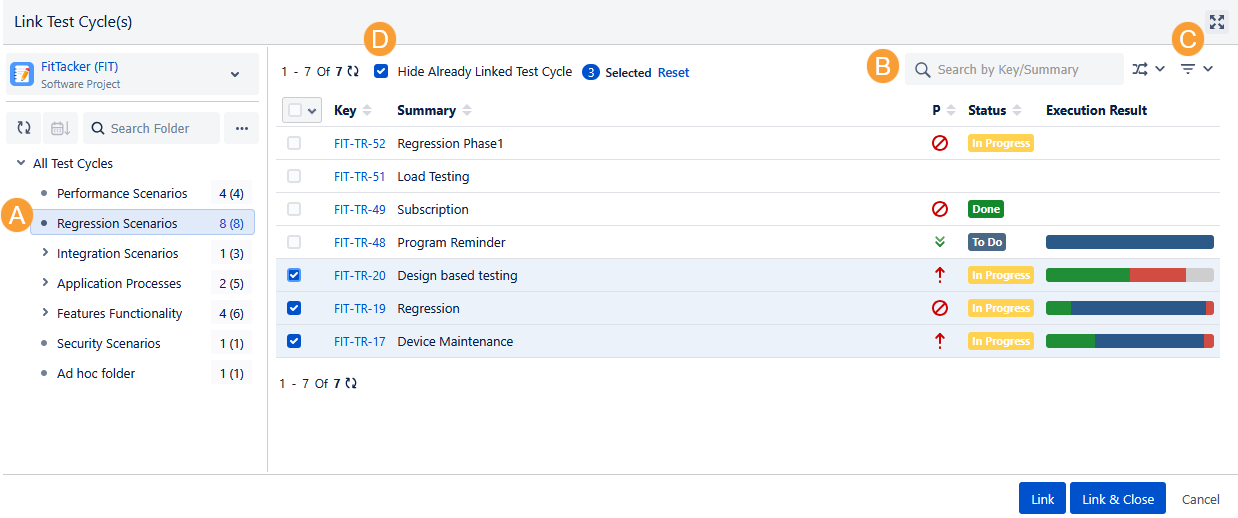
A. You can browse Test Cycles as per the test cycle folder on the tree. It will help you narrow down the test cycle search.
B. You can also apply filters to the list and search individual test cycles by "Key" or “Summary” through the search box.
C. You can also apply additional advanced filters like Priority, Status, Fix Versions, etc. to narrow down the search criteria. Fix Versions and Sprint also display cross-project values to filter out test cycle records of multiple projects.
D. Hide Already Linked Test Cycle: Select the Hide Already Linked Test Cycle to avoid the display of those test cycles on the screen that are already linked to the test plan. It prevents the linking of the same test cycles with the test plan again.
Link: You can link the selected test cycles with the test plan. Select the test cycles to be linked with the test plan and click the Link button. Once test cycles are linked, the Link Test Cycles screen still remains open to let you link further test cycles.
Link & Close: You can link the selected test cycles with the test plan and close the dialog. Select the test cycles to be linked with the test plan and click the Link & Close button.
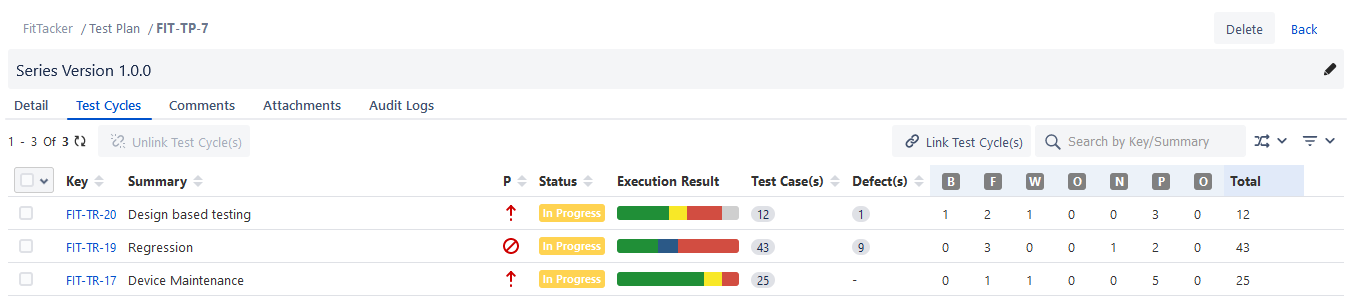
You can see the test cycle(s) are linked to the test plan.
Hover over the Execution Result to view the Execution Result Summary.
Execution Summary (Tabular)
To view execution summary of the linked test cycles, open the Columns drop-down and select the Execution Summary (Tabular) option.
The Execution Summary gives users a quick idea of execution results of the test cycles on the screen.
The screen displays execution status columns with unique execution count.
If the test cycle is linked from a single project, then the execution status (system as well as custom) of current project are considered.
If the test cycle is linked from multiple projects, then the execution status (system as well as custom) of current project and other projects (only those statuses which have values) are considered.
View Test Cycle Custom Fields
You can review the test cycles linked to a test plan with the ability to view any system fields and custom fields of the test cycles. It helps users effectively map the test cycle allocation for a release. It is also useful in filtering test cycles on the preferred custom field values.
You can opt to view the system and custom fields of the test cycle on the Test Cycles tab in the Test Plan detail page by using the Hide/Show Columns option. The value of custom fields will only be displayed if the linked test cycle is from the same project of the test plan. The custom field values appears blank if the test cycle is from a cross-project.
The selected column details are displayed on the Test Cycles tab.
You can apply filters on the system as well as custom fields of the test cases on the Test Cases tab in the Test Cycle detail page by using the Filter option.
Configure Test Cycle Custom fields for Test Plan Module
Project Admins can manage the Test Cycle Custom Columns for the Test Plan module.
Perform the following steps to configure test cycle custom fields:
Select the Test Cycle Detail > Test Cases Tab on the Select Screen drop-down list.
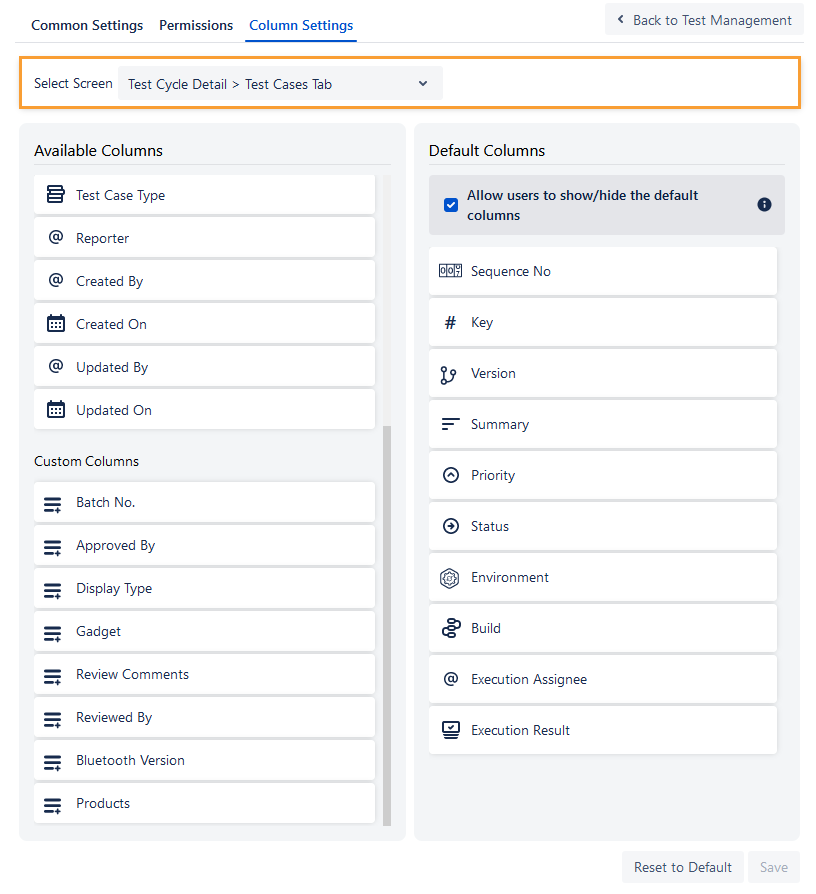
Drag the column from the Available Columns list to the Default Columns list and drop it to the location where you want to place it on the screen.
On the Default Columns panel, you can also arrange the column orders you want to display on the selected Screen.
Click Save to save the changes.
To remove the Custom column from the Default Columns list, drag that Custom column from the Default Columns panel and drop it to the Available Column panel.
Update Test Cycle Status Inline
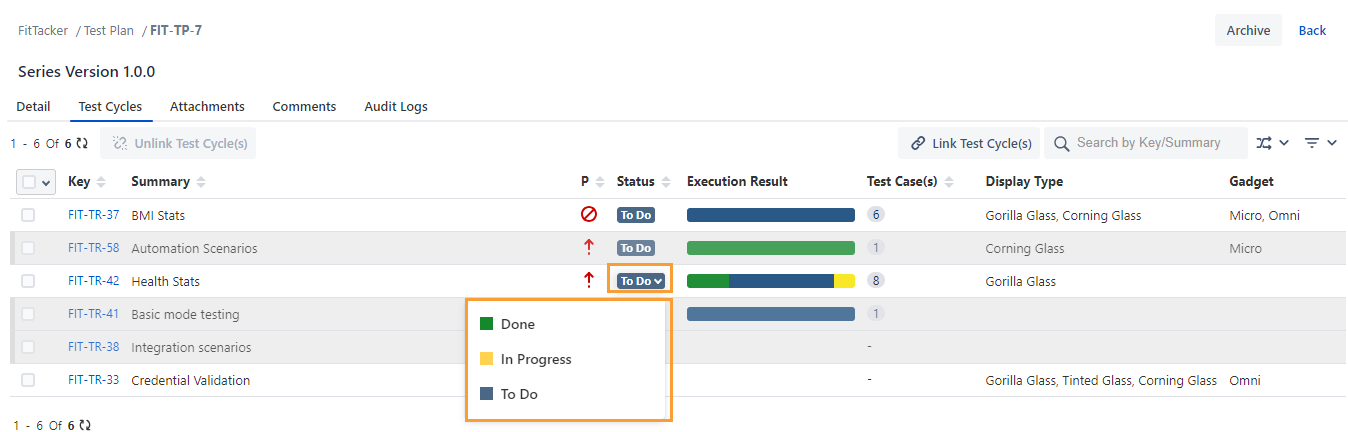
The Status column shows the current state of the test cycle in the workflow with Statuses like To Do, In Progress, Done, etc. You can configure the status list values from Configuration > Statuses. You can update the test cycle status inline by clicking in the cell under the Status column.
Note
Permissions required: You should have the Test Plan Edit and Archive permissions to update the status of test plans inline.
Unlink Test Cycles
You can unlink a single test cycle or multiple test cycles at a time.
Note
Once you unlink the test cycles from a test plan, the test cycle linkages with the test plan are removed permanently.
A. Unlink a Single Test Cycle: Hover the mouse over the linked test cycle record. The unlink icon becomes visible. Click the unlink icon.
B. Unlink Test Cycles in Bulk: Select the test cycles that you want to unlink and then click the Unlink Test Cycles button.
The warning message appears on the screen. Click Unlink to proceed.