Generate and Download Reports using Open API
QMetry Test Management for Jira allows its users to generate report data and download it in an Excel file using the Open API.
Functionality Flow
Create a filter with the required parameters in the Test Report module.
Copy the filterId from the report UI.
Pass the filterId in the API request to generate the report.
The API response returns task details along with a progressUrl.
Send a request to the progressUrl to retrieve the link to download the Excel report.
Note
A maximum of 10,000 records can be exported in a single API request.
Permission required: You must have permission for the Test Report module.
Headers:
Authentication: Provide API Key here. Generate your API Key for authentication from QMetry > Configuration > Open API. Refer to this article for the detailed steps.
Option | Value |
|---|---|
URL | https://{ Jira base URL }/rest/qtm4j/qapi/latest/gadgets/{filterId}/export-report |
Method Type | POST |
Request Body* | {
"startAt":1,
"includeTestSteps":true
} |
*Request Body Parameters
Parameters | Description | Default Value |
|---|---|---|
startAt | For the paginated data, mention the row number from where the report data should be exported. A maximum of 10000 records can be exported in a single request of API. If there are more that 10000 records in the report, you can use the startAt parameter accordingly to cover all the records in the export. For example, there are 15000 records in the report. You can export the records in two API requests. First Request → “startAt”: 1 Second Request → “startAt”: 10001 | 0 |
includeTestSteps | Mention “true” if you want to include test steps data in the exported report. | false |
Perform the following steps:
Step 1. Obtain the “filterId” from the Test Report module.
For example, the REST API URL is https://qtm4j-qa-mysql-server-4x.qmetry.com/rest/qtm4j/qapi/latest/gadgets/ {filterId} /export-report
If the filterId is 809. Then the URL will be https://qtm4j-qa-mysql-server-4x.qmetry.com/rest/qtm4j/qapi/latest/gadgets/809/export-report
Note
If the filter criteria are modified later, the filterId remains the same and does not change.
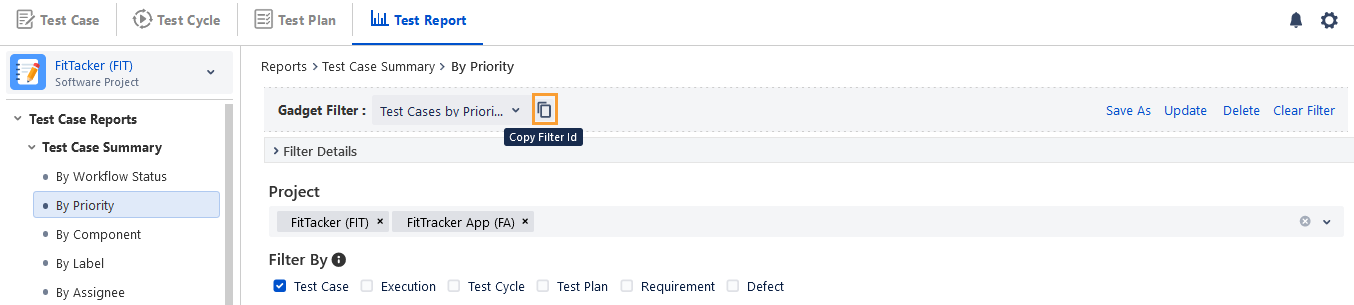
How to obtain the “filterId” from UI
Perform the following seps to obtain the filterId:
Go to the Test Report module.
Access the saved filter of the report.
Click the Copy icon adjacent to the Filter drop-down.
Step 2. Send the API request using the URL with the POST method.
You receives the progressUrl in response to the request.
Step 3. Send the API request with the progressUrl using the GET method to get the link for the Excel file.
Authentication: Provide API Key for the “apiKey” parameter. Generate your API Key for authentication from QMetry > Configuration > Open API. Refer to this article for the detailed steps.
Step 4. Copy the URL that you received in response in the browser.
The report data gets exported into an Excel file. The file contains all the fields of the report as per the configuration of the saved filter.
View the Status
You can view the status of the export process.
Click the Background Processes icon at the top.
You can view the status of the process on the Notifications panel.