QTM4J Server/DC 4x to QTM4J Cloud 4x Migration
Migration Pre-requisites
The following are migration pre-requisites:
Customers require to complete Jira migration from their Server/Data Center instance to Cloud instance prior to performing QTM4J Migration.
The customer must migrate all Jira projects to the cloud so that migration does not fail, as QTM4J allows linking of cross-project entities.
The destination/target cloud Jira instance should not contain any QTM4J data.
Migration Process
Migration should be carried out as per the steps below on the cloud staging instance first. Once it is successfully verified, the same should be performed on the Production.
Step 1: Export Server 4.x Data to Secured QMetry Cloud
Download and install Postman for consume the REST Endpoint to export the data of QMetry.
Import the provided collection file in Postman.
Once the collection is imported, you will find a POST API - ‘Export QMetry Data’.
Modify the placeholders, and click Send to export the QMetry data as shown in the screenshot below.
You get a successful response code 204 for successful API execution.
To check the status of the export process, you can use the ‘Get Export Progress’ request by updating the same details as shown in the screenshot above.
Preparing the following zip files under the JIRA Home directory will take some time. (Generally, the path is: /var/atlassian/application-data/jira)
data.zippriority_icons.zipattachments-x.zip(x is the sequence number of the zip file. There can be multiple files.)et_attachments-x.zip(x is the sequence number of the zip file. There can be multiple files.)
You may need to fetch the export progress status multiple times. Once you see the “Completed” status in the Get export progress API, collect and securely share the created files with the QMetry team over a secured link (provided by the support team) to import that data into the Cloud staging and production instances.
Step 2: Import Data to QTM4J 4.x Cloud
Once Step 1 of exporting data to QTM4J Cloud is complete, execute the following steps mentioned on the Jira cloud instance and then inform the QMetry team.
Migration to Staging Environment
Uninstall QTM4J cloud add-on if already installed.
Before performing further steps, contact the QTM4J Support team to get the private listing URL for installing the QTM4J Cloud Staging instance.
Once you get the URL, install the QTM4J Cloud Staging add-on by following the steps.
Go to Apps, select Manage your apps, and click Upload app.
Enter the given URL and click Upload.
Note
If the Upload app option is not visible, enable development mode from the Settings option on the Manage apps page.
Go to Settings, select Enable development mode , and click Apply.
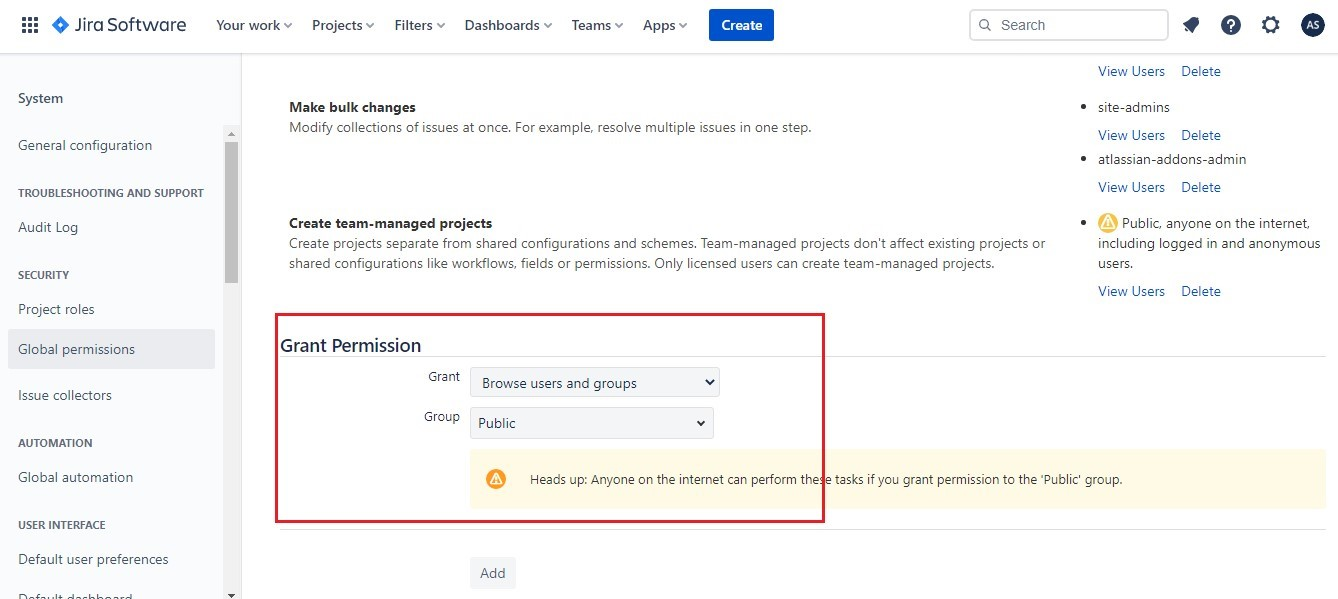
Update the Global permission for Browse User Permission (you can revoke the permission once the migration is complete).
Go to Jira Settings, System > Global permission (from the left pane).
In the Grant Permission section, provide values for Grant and Group.
Grant: Select “Browse users and groups” from the drop-down.
Group: Set as “Public”.
Then click Add.
Migration to Production Environment
Pre-requisites:
There should be enough attachment storage space available on your cloud instance to migrate all these attachments.
To check available storage space in the cloud, navigate to Apps, select Manage your apps, and select Attachment storage of QTM4J app.
If there is not enough space, then reach out to your QMetry Account Manager.
Perform the following steps to migrate data to the production environment:
Install QTM4J Cloud production add-on directly from the Atlassian marketplace.
Update the Global permission for Browse User Permission (you can revoke the permission once the migration is complete).
Go to Jira Settings, select System, and select Global permission (from the left pane).
In the Grant Permission section, provide values for Grant and Group.
Grant: Select “Browse users and groups” from the drop-down list.
Group: Set as “Public”.
Then click Add.
Once the steps mentioned above are complete, inform QMetry Support of the ticket.
The next phase of the migration process (Importing data to the Cloud Staging/Production Jira Instance) will be handled by the QMetry Team. Once data is migrated to the cloud instance, the QMetry team will inform you to verify end-to-end data on the Staging/Production instance.