Plan Test Case for Execution
Link Test Cases to a Test Cycle from Test Case Section
After creating the test cases, assign the test cases to test cycles (or test runs) of the same projects or different projects for execution. If you want to link test cases with test cycles from other projects, select and link test cycles from a single project at a time.
The system generates test reports based on the execution status and results.
Directly Link Test Cases with Test Cycles
Link selected test cases of a particular folder or root folder with the existing test cycles.
Perform the following steps to link test cases with test cycles:
Select test cases you want to link to the existing test cycles.
If the Display Test Cases of Sub Folder(s) option is selected, the screen displays test cases of the parent folder and its sub-folders. Make sure you select only required test cases.
Select All: You can select all test cases at once. There are two options:
Select all records on the current page: Clicking the checkbox in the column header selects all the records on the current page only. Alternatively, click the drop-down list and select Current Page.
Select all records across all pages: To select all test cases across all pages, click the drop-down list and select Across All Pages.
Note
A maximum of 1000 test cases can be selected at a time.
Click the Link With list and then select Link with Test Cycle.
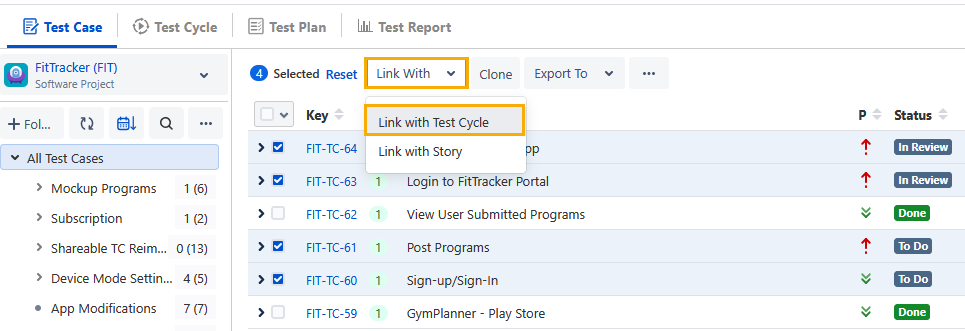
Link Test Case Folder with a Test Cycle
You can link all the test cases of a particular folder or root folder with the existing test cycles at a time.
When you are in the parent folder and the Display Test Cases of Sub Folder(s) option is selected, all test cases from that folder, including any sub-folders, are linked to the selected test cycle.
When you are in the parent folder and the Display Test Cases of Sub Folder(s) option is not selected, only the test cases directly in the parent folder are linked to the selected test cycle.
Right-click the folder and select Link with Test Cycle.
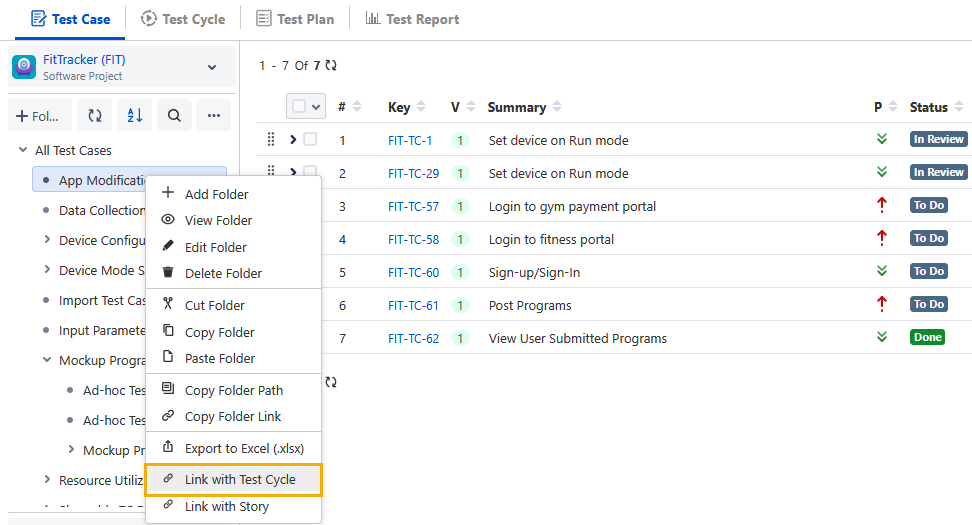
Once you select the test cases using either of the methods explained above, perform the following steps to link test cases with test cycles:
On the Link with Test Cycle screen, select the test cycles you want to link with the selected test cases. Search for test cycles by their key or summary.
Click the Link or Link & Close button.
Link: This option allows you to link selected test cases with multiple test cycles one by one. Clicking the Link button keeps the Link with Test Cycle screen open so you can link test cases with other test cycles.
Link & Close: Clicking the Link & Close button closes the Link with Test Cycle screen once you link the test cases to the test cycles.
The system skips test cases that are already linked.
The message appears with the clickable Issue Key to navigate to the issue detail page.
You can view the linked test cycle in the Executions tab of the test case.
The Executions tab displays the following details:
Test Cycle (Issue Key - Summary)
Environment
Build
Execution Result (Latest Execution)
Execution Assignee
Executed By
Executed On
Defects (with counts and links)
Attachments
The Attachment preview option is available for JPG, PNG, PDF, and JSON file formats.
To copy the link address of the attachment, hover over the attachment and click the Copy Link Address icon.
View Defects
The test cycles linked with the test case are displayed with Execution Results and relevant details. If defects are linked while execution, the defect count is displayed under the Defects column.
Perform the following steps to view the defect details:
Click the defect count to view the logged defects for the test case.
It navigates you to the Linked Defects screen.
Click View in Issue Navigator on the Linked Defects screen to view the linked defects in Jira.
The Jira page displays the linked defects.
Execute Test Cases from Test Case > Executions Tab
You can execute test cases that are linked to test cycles from the Test Case > Executions tab. It allows you to execute test cases right from the test case page instead of going to the test execution screen to execute the test cases.
Note
If the Report Bug setting is enabled under Configuration for execution results, you must either link an existing bug or create a new one to associate with the test case.
You cannot update the Execution Result of a test cycle if any mandatory system or custom fields are left blank on the execution screen. An error message prompts you to complete all required fields.
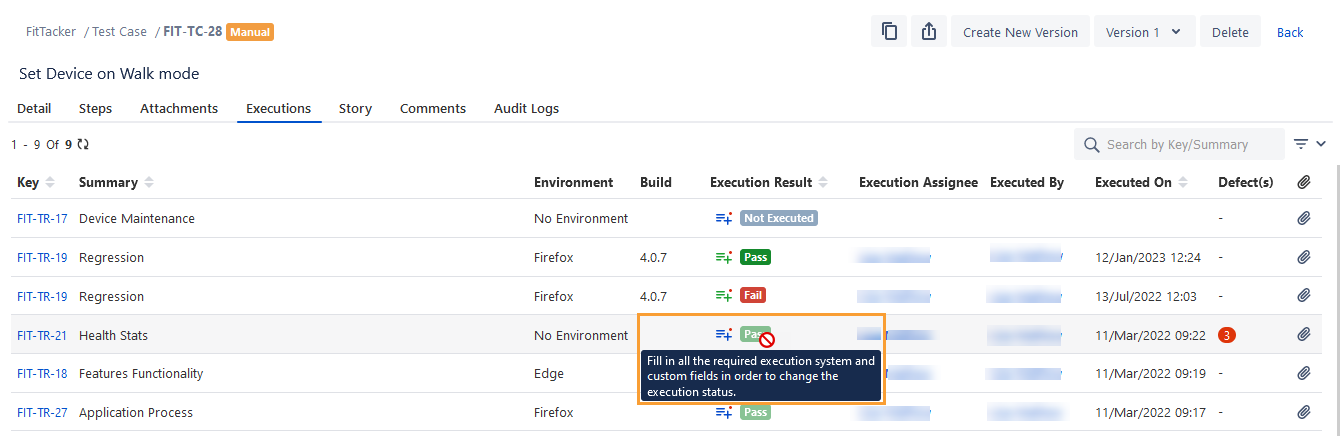
You can add values to the Test Execution system and custom fields from the story detail page.
Perform the following steps to fill the execution fields:
Click the Execution Fields icon. The icon appears Blue when the mandatory execution fields are left blank.
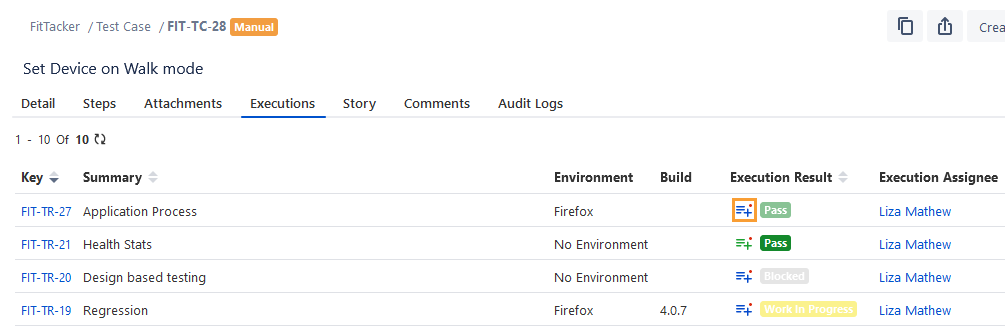
The Set Execution Fields dialog appears.
The Test Execution Custom Fields are displayed as per the current project of the test cycle in which the test case is linked.
Enter the values in the system or custom fields.
3. Click Close to save the changes.
In the Executions tab, the Execution Fields icon changes to Green color once the mandatory fields are filled.