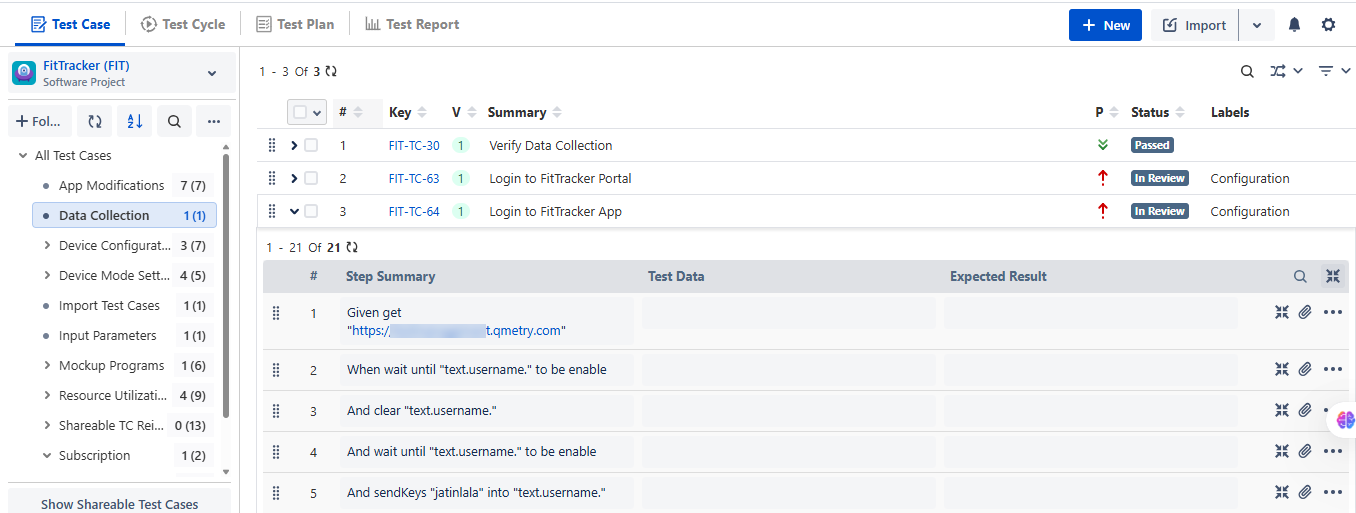
Import and Create Test Cases Using BDD Feature File
Introduction
QMetry Test Management for Jira supports importing test cases via a BDD feature file. This approach effectively ensures software behaves as expected while fostering clear communication and collaboration among all team members. By using Gherkin syntax in feature files, teams can write tests that are simple to understand, easy to maintain, and execute, resulting in a seamless and efficient testing process.
Benefits of Using BDD Feature Files to Import Test Cases
Improved Collaboration: Writing tests in plain language fosters better collaboration between business analysts, developers, and testers. Everyone can understand the tests, regardless of their technical expertise.
Clear Specifications: Feature files provide clear and concise documentation of the expected system behavior. These can serve as living documentation that evolves alongside the software.
Automation: Once the feature files are defined, they can be used for automated regression testing, ensuring the system continues to behave as expected over time.
Reduced Miscommunication: Because the tests are written in natural language, misunderstandings and miscommunications between stakeholders are minimized.
Test Reusability: Steps defined in feature files can be reused across multiple scenarios, leading to cleaner and more maintainable tests.
Note
Pre-requisite: To display the BDD section on the Story work page in Jira, the BDD Panel option should be enabled in the Space Settings. Refer to BDD in QMetry Test Management for Jira (QTM4J) for more details on configuring BDD and enabling the BDD panel.
Required Permissions: The following table shows permissions needed to perform the corresponding operations.
Operation | Required Permissions |
|---|---|
Import Test Case |
|
Update Test Case |
|
Link Test Case |
|
Link Requirement |
|
Add Labels |
|
Parameter |
|
Business Rules
The files with the following attributes are supported:
Format: .feature files
File Size: Files with a total size of up to 10 MB, with each file having a maximum size of 1 MB
Limit of Number of Files: Individual files up to a maximum 10 files
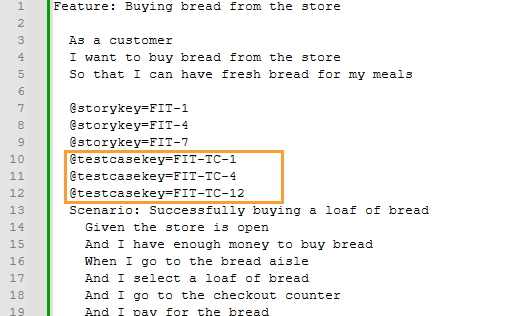
Test Cases can be reused using the Test Case Key. The latest version of the test case that matches the Test Case Key will be updated.
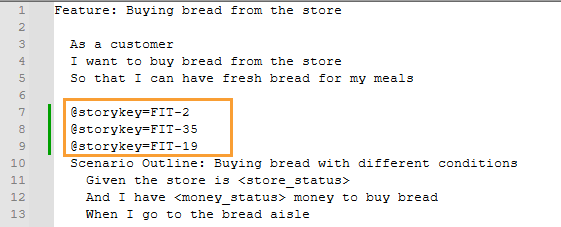
Requirements can be linked to test cases using the Story Key. The test case version will be linked to the mentioned Story Key.
When the feature file is imported from the Test Case list view, the Examples in the feature file will become the @Parameters in steps, and variables will become Parameters.
Note
The feature has been tested exclusively within the Cucumber framework.
To know more about the guidelines followed for parsing the file, refer to https://cucumber.io/docs/gherkin/reference/.
Mapping of Feature File with QTM4J Fields for Import
The following table displays the mapping of the feature file with QTM4J fields.
Scenario | QTM4J Test Case Mapping | Example/Note |
Scenario Name | Test Case Summary | NA |
Feature Name | Description | NA |
Steps | Test Steps | Includes Keyword and Step |
Data Table in Steps | Steps Summary |
|
Docstrings in Steps | Steps Summary |
|
Tags | Labels | The tags at the Feature File level and at the Scenario/Outline level will be added as labels. |
@testcasekey | Test Case Key | When importing the feature file, test cases can be reused by adding an annotation to the file.
|
@storykey | Jira Requirements | When importing the feature file, existing Jira stories can be reused by adding an annotation to the file.
|
Background Steps (Scenario Level) | Steps | These Background steps will be added as initial steps of the test case created from the scenario. |
Background Step (Feature File Level) | Steps (i.e., initial steps of all test cases) | These Background steps will be added as initial steps of all the test cases created from the scenarios under the Feature. |
Rule | Description | The first line of the Rule will be appended to the Description of the test case along with the Feature name separated by a semicolon ( ;). |
Examples (Scenario Outline) | Parameters | Examples will become the @Parameters in Steps. Variables will be Parameters in Test Data. If duplicate parameter values exist in the .feature file, they will be created as a single value under Configuration > Parameters and will be reused under Test Case > Steps tab > Parameters section. |
Sample Files
Sr. No. | File Content | Download Sample File |
|---|---|---|
1 | Feature File with multiple scenarios | |
2 | Feature File with Scenario Outline | |
3 | Feature file with Scenario and Scenario Outlines | |
4 | Feature file with Rule, Rule Example Cases | |
5 | Feature file with Rule, Scenario Cases & Background | |
6 | Example for Table Data and Doc String |
Best Practices
The following are some of the best practices for writing BDD feature files to import test cases, which help you ensure clarity, maintainability, and reusability of your BDD test cases.
Use Scenario Outline for data-driven tests with multiple input sets using Examples.
Keep scenarios focused on one behavior per test case. Ensure the scenario is independent to improve test reliability.
Group related scenarios together and use Background for shared steps.
Tag scenarios (for example, @smoke, @regression) to label and categorize tests.
Refactor regularly to keep feature files clean and maintainable.
Feature Availability
You can access the feature from the following modules and pages:
Import Feature File in Test Case Module
BDD section in Create New Test Cases from Jira Story
Create a New Test Case Using Scenario in Test Case Module
Update an Existing Test Case Using Scenario in Test Case Module
Import Feature File
Import Feature File in Test Case Module
Testers can import test cases from the BDD feature files, where each Scenario or Scenario Outline or Example in the feature file represents an independent test case.
Perform the following steps to import a feature file:
Go to the Test Case module.
Click the Import drop-down menu and select the Feature File option.
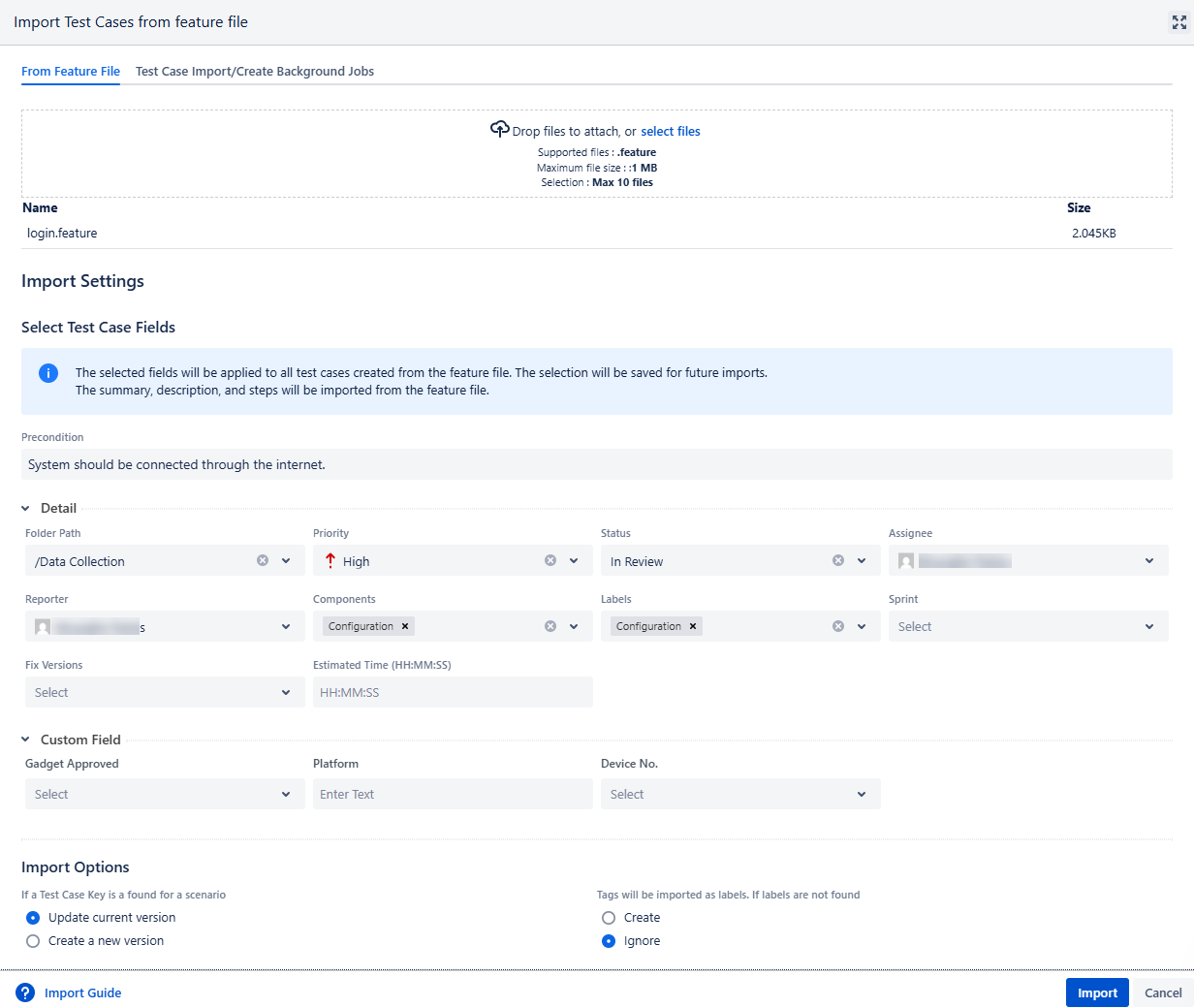
The Import Test Cases from the Feature File screen appears.
Click the From Feature File tab.
To upload the .feature file, either select the file by clicking on the link or drop the file to the designated area.
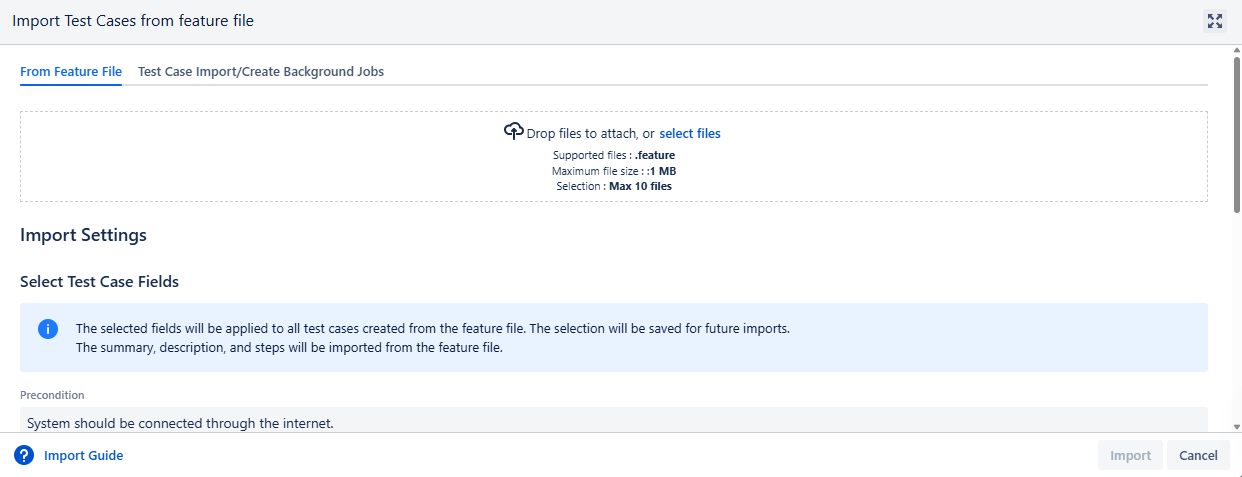
One record is added once the .feature file gets attached.
All the system and custom fields are displayed on the screen.
In the Import Settings, define the test case fields and set preference for the import options for the Test Case Key and Labels.
The Summary, Description, and Steps values are imported from the feature file.
Select values for any remaining system fields and custom fields displayed on the screen.
Note
The selected fields apply to all test cases created from the feature file. Your selection is saved for future imports.
Select the required option for the following Import Options:
If a Test Case Key is found for a scenario: If the Test Case Key mentioned in the result file matches the Test Case Key in QTM4J, you can select either of the following options:
Update the current version: The existing version of the test case is updated with the result file details
Create a new version: A new version of the test case is created with the result file details.
Tags are imported as labels. If labels do not exist, then click Create or Ignore.
Create: If the Tags mentioned in the result file do not exist in QTM4J, they are imported as labels in the Configuration section and applied to the test case Labels field.
Ignore: If the Tags mentioned in the result file do not exist in QTM4J, they are not imported into QTM4J and just ignored.
Click Import.
View Import Progress
Perform the following steps to view the import progress:
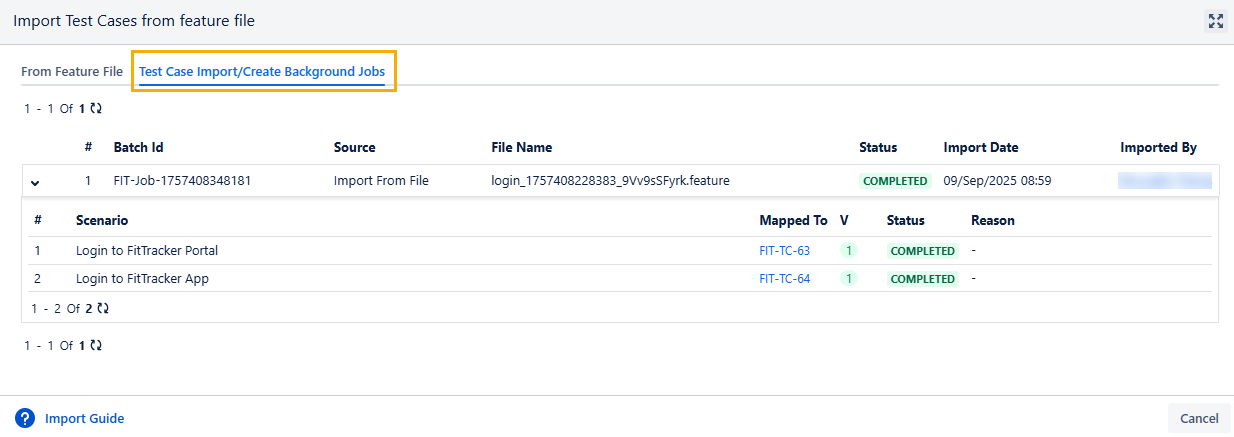
Click the Test Case Import/Create Background Jobs tab.
You can see the record is added for the recent feature file import.
The details include Batch Id, Source, File Name, Status, Import Date, and Imported By. Expand the record to view the details of Scenarios imported during the operation, Test Case Keys to which the scenarios were mapped, version, and Status.
Verify Created Test Cases
The system imports scenarios from the feature file as test cases into the selected folder. If you don't select a folder, it imports them into the root folder.