Creating and Managing Parameters
Parameters are created and managed in Configuration, and then applied in the Steps tab of the Test Case section to define data sets.
Note
Before creating and managing parameters, refer to the introduction page Parameters.
Creating a Parameter
You must have the Configuration Modify access to the project can create and add parameters to the test case. You can also create parameters and their values from the Test Case module. Refer to Add Parameters for more information.
Perform the following steps to create parameters:
Click the QMetry menu and select Configuration.
Under Project Configuration, select Parameters.
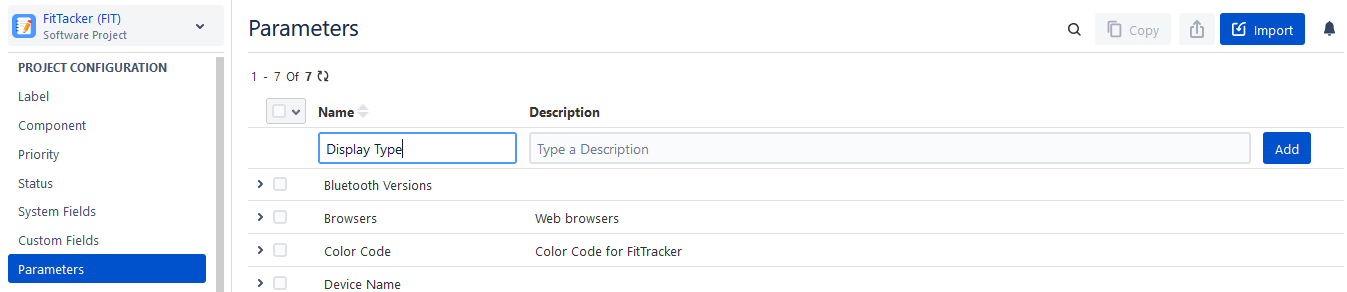
Enter the following details:
Parameter Name: Enter the Name of the Parameter. It should be unique across projects.
Description: Enter the text that explains the purpose of the parameter being created. Then click on Add.
Parameter Value: Enter values for the parameter.
A row is added to the parameter. You can keep adding values as per your requirement.
You can use the parameters in the test case once you create the parameters with values.
Editing a Parameter
Users with Configuration “Modify” access to the project can edit a custom parameter that has already been created.
Perform the following steps to edit a parameter:
Click the parameter name to edit, and a text box appears to enter the new parameter name.
Enter the updated name and click the tick mark symbol.
You can edit Description and Parameter values the same way.
Copy Parameters to Other QMetry Projects
Users can copy Parameters from one project to other projects. The functionality allows users to use similar items in different QMetry projects without having to add these items individually.
Users can save their time as they do not have to create redundant/duplicate items for different QMetry projects.
Perform the following steps to copy parameters to other projects:
Select the items that you want to copy to other QMetry Projects and click Copy.
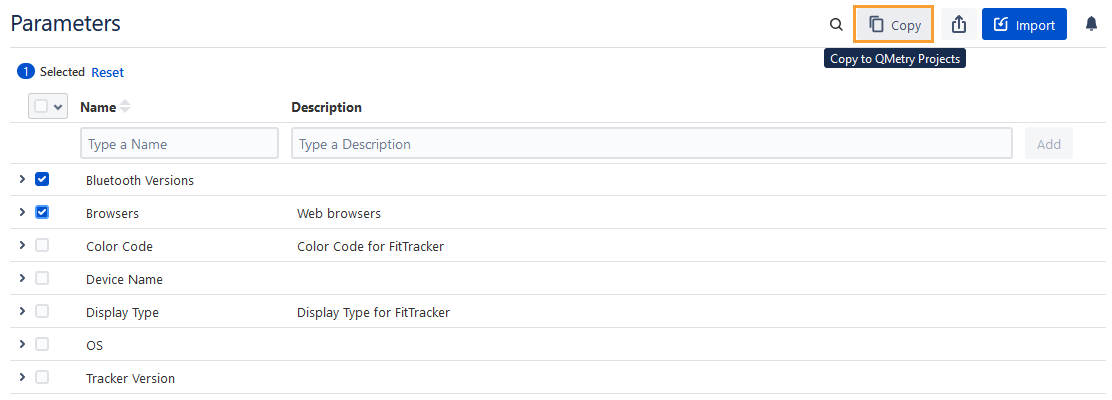
Select the project where you want to copy the selected items. You can select multiple QMetry projects (a maximum of five projects) at a time to copy the item.
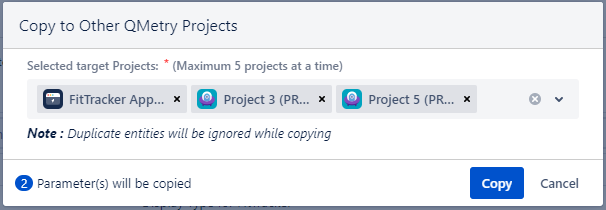
Duplicate entities are ignored during copying.
Deleting a Parameter
You must have the Configuration Modify permission to the project can delete a custom parameter that is not in use.
Perform the following steps to delete a parameter:
Click the QMetry menu and select Configuration.
Under Project Configuration, select Parameters. The Parameter list is displayed on the screen.
Hover over the Parameter that you want to delete and click on the Delete icon of the Parameter. Also, the parameter value can be deleted the same way.
Note
If a parameter is used in any test case, an error message is displayed.
Searching for a Parameter
To avoid the duplication of the parameter, the QA manager can use the search option for the parameter to search for the specific parameter if it exists.
Perform the following steps to search for the parameter:
Click the QMetry menu and select Configuration.
Click the parameter and type the keyword in the text box.
Useful References
To understand how to use these parameters and parameter values, refer to Using Parameters And Parameter Values .
To understand how to execute these parameters and parameter values, refer to Execution of Parameters and Parameter Values.