Create Test Plans
Note
You should have the Test Plan Create permission for the project can create a test plan in the QMetry Test Management for Jira app.
Test Plan List View
You can show or hide all field columns except Sequence No, Key, and Summary in the test plan module grid. Columns selected on the list will appear on the test plan screen. Columns that are not selected will remain hidden on the screen. To return to the default view of the Test Plan list view, click the Columns drop-down list and select Reset to Default.
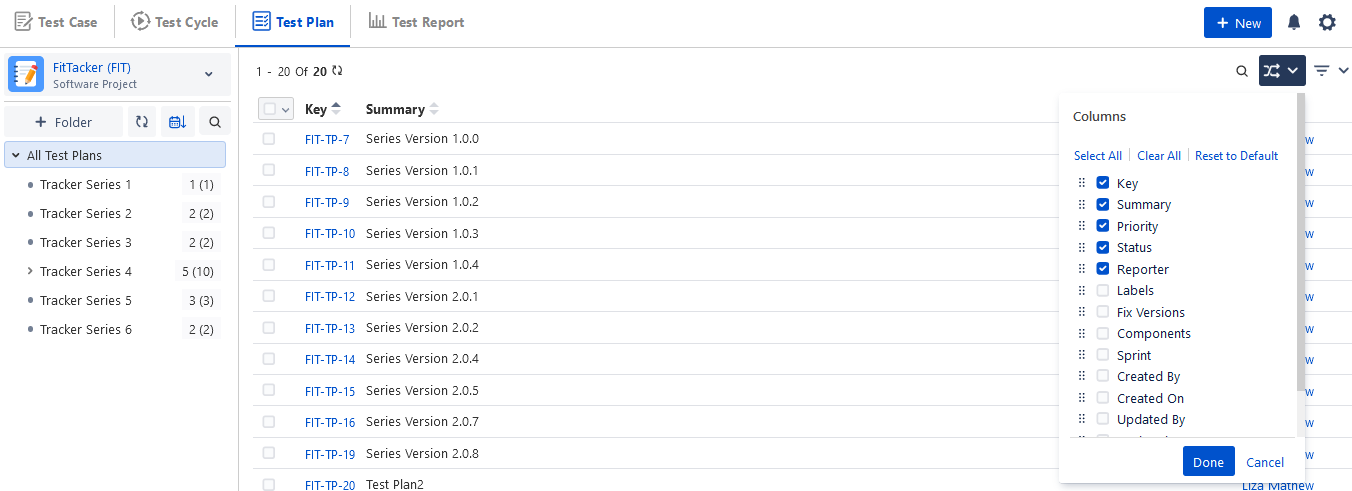
Steps to Create a Test Plan
You can create a new Test Plan and directly associate it with the folder.
Perform the following steps to create a test plan:
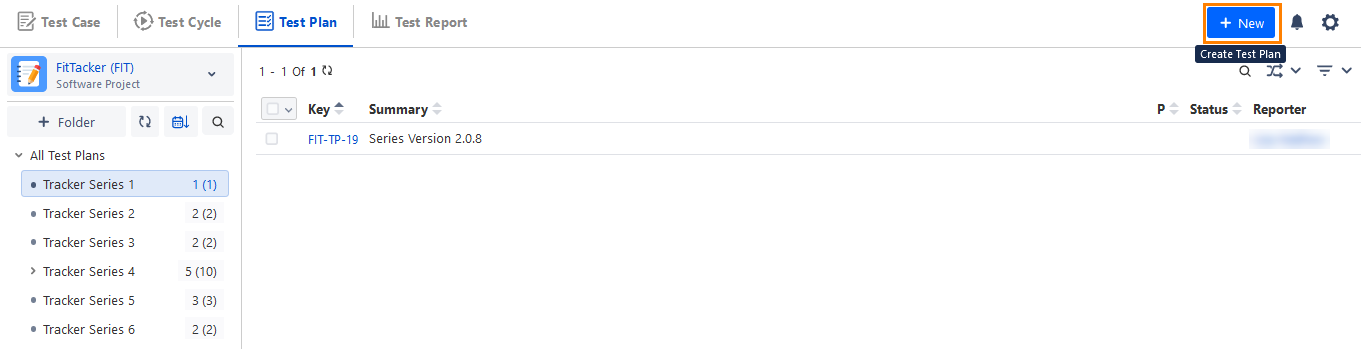
Select a folder in the tree and click the New button at the right. The new Test Plan will be associated with the folder you selected in the tree.
There are three tabs: Details, Test Cycle, and Attachments. Once you create the test plan, you can see the Comments and Audit Logs tabs. You can rearrange these tabs using the drag and drop operation.
Enter Test Plan Details.
Summary
Description: The field has a Wiki markup editor. You can use different options that are available to apply to the text.
System Fields: These are system-defined fields. Enter/select values for the fields. The list values are entered in the Configuration.
Folder Path: The folder path of the test plan where it is located.
Labels: It is helpful to group test plans into categories. You can configure the Labels list values from Configuration >Labels.
Fix Versions: It shows the version of the software in which the issue is fixed. The field values come from Jira.
Sprint: The field is useful for Agile methodology where planned tasks have to be completed by the team and made ready for review. It shows the Sprint in which the test plan is included.
Components: It references Project Components that you have created in Configuration > Components like UI, Configuration, and so on.
Status: It shows the workflow of the test cycle with Statuses like To Do, In Progress, Done, etc. You can configure the status list values from Configuration > Statuses. On the test plan list view, you can update the test plan status inline by clicking in the cell under the Status column.
Priority: It shows how important the test plan is with priority assigned as - blocker, critical, high, low, and so on. You can configure the priority list values from Configuration > Priority.
Reporter: It shows the user who has created the test plan. The user's list displays users who have access to the project.
Custom Fields: You can add additional fields other than system fields. Custom Fields are added from Configuration > Custom Fields.
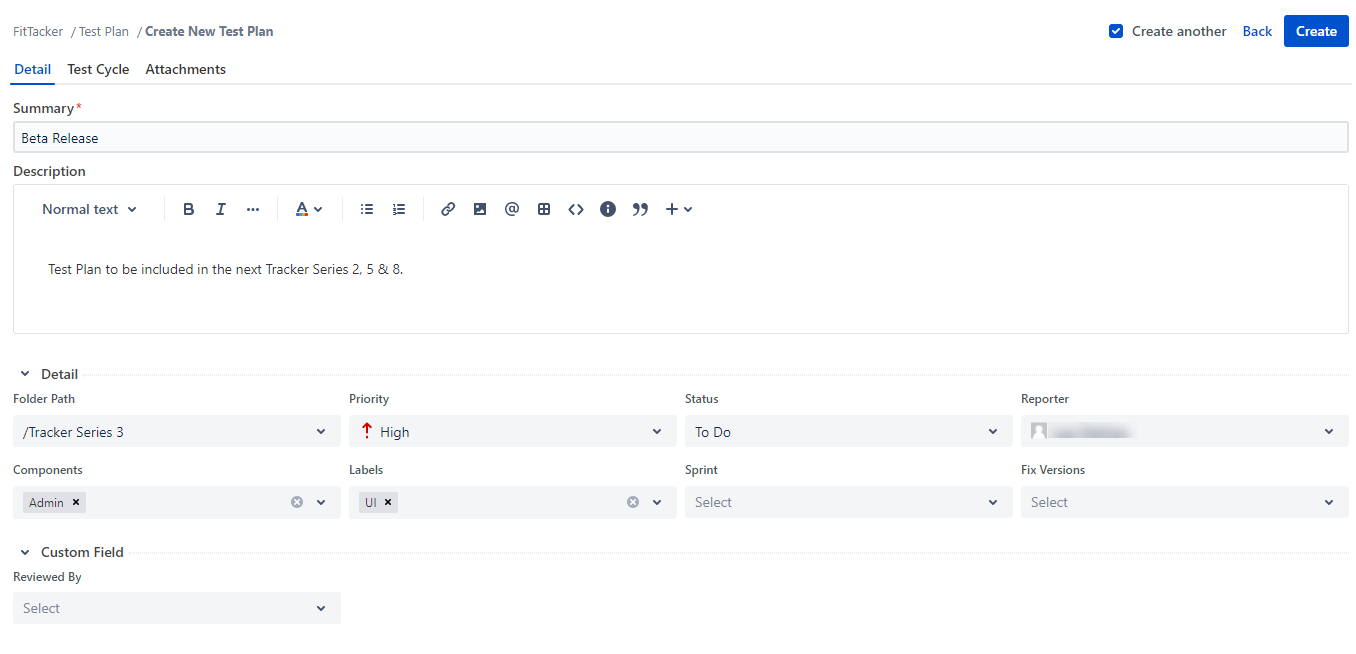
Create another
Create another checkbox allows users to keep creating one Test Plan after another without having to click on the "Create" button again and again. It is helpful when you have to create a series of Test Plans.
While creating another entity, values of some fields populate as these field values get preserved.
Field values that will be preserved | Field values that will not be preserved |
|---|---|
|
|