Execute Test Cases
To start a new execution, add test cases to the test cycle and then perform the following steps.
Pre-condition: At least one test case should be linked to the test cycle for execution.
Test Case Execution
A test cycle can be executed from any of the following places:
A. Execute Test Case from Test Cycle grid view
B. Execute Test Case from Test Cycle detail page. On clicking Execute, the execution screen appears.
C. Change execution status from the Executions tab on the test case detail page.
You can assign or change the execution status of the test case linked to test cycles from the Executions tab of the test case detail page. It allows testers to change the execution result directly from the Test Case module without navigating to the test execution screen. It is helpful when testers do not have to go into test step detail and assign results to test cases.
Note
The status of the Execution Result is disabled if all the mandatory execution system and custom fields are not filled. The blank mandatory fields do not allow you to assign execution results to test cases. This restriction does not apply to the Execution Results where the Skip Validation is enabled.
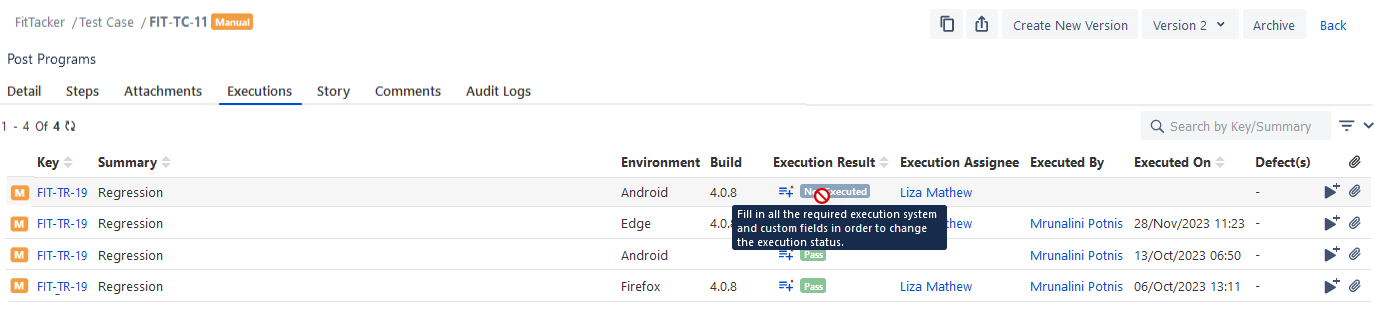
You can also edit the Test Execution custom fields from this screen.
Click the custom fields icon.
The Execution custom field pop-up opens. You can add and edit the custom field values and save the changes.
Test Execution Custom Fields are displayed as per the current project of the test cycle in which the test case is linked.
The custom fields icon changes to green once the mandatory custom fields are filled.
Test Execution Screen
Execution Screen Views
The execution screen has two types of views: List View and Grid View.
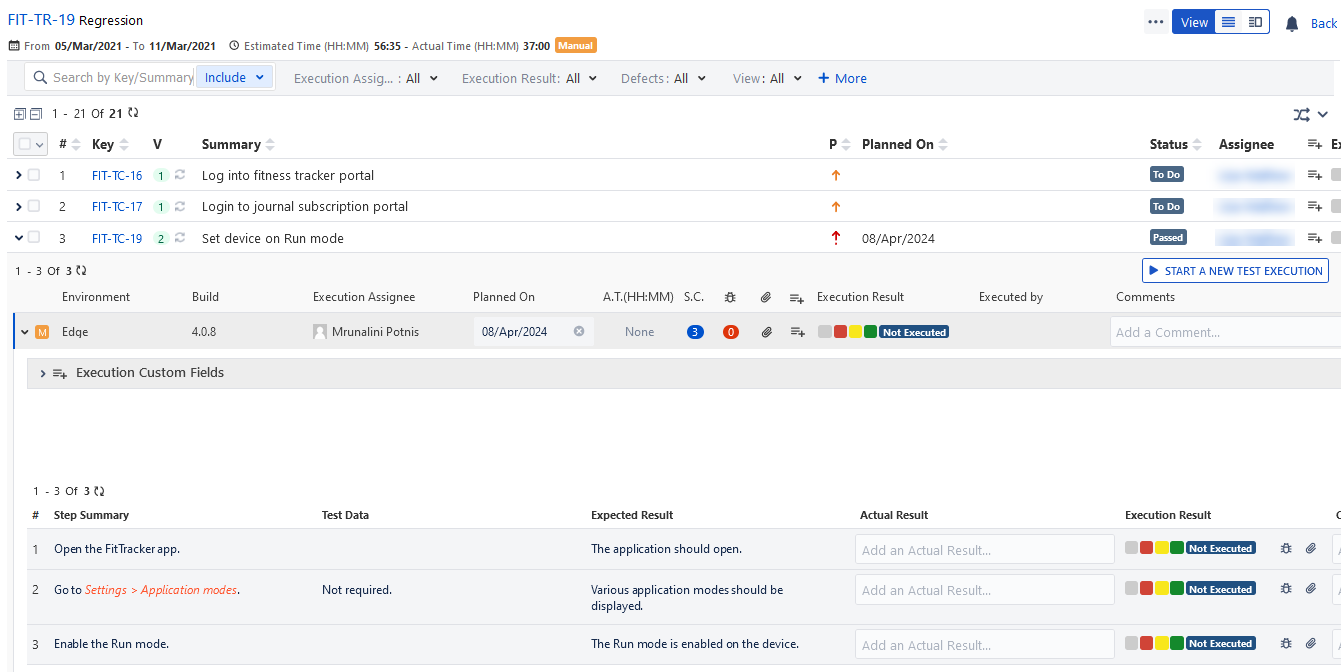
List View
In List View, all the test cases under the test cycle are displayed on the same screen. You can expand individual test cases to see the test step details.
Bugs: You can click the count and see the details on a separate screen.
Attachments: You can click the icon and see the details on a separate screen.
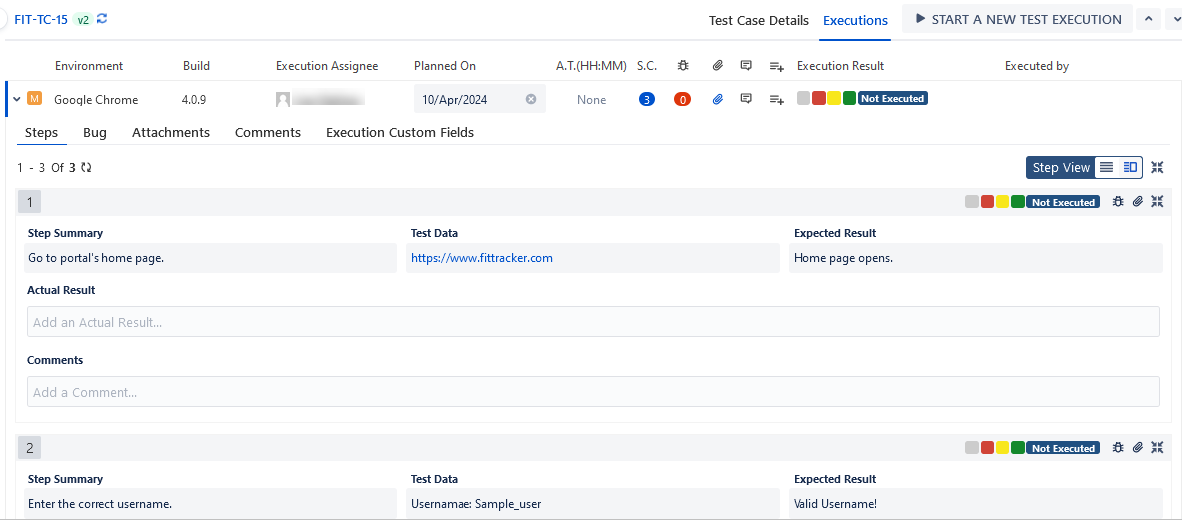
Grid View
In the Detail View, all test cases linked with the test cycle are listed in the pane on the left. You can then click a test case to see its details in the pane on the right.
Custom fields added for test case module are also displayed in the Custom Fields section on the execution screen.
Note
QMetry Test Management for Jira uses Jira’s native editor, and some characters, like backslashes, used in the wiki markup body, become unusable by default. This is a technical limitation from Jira's end. As a workaround, you can use the Code option from the rich text editor to mention any text containing backslashes.