Add Attachments on Grid View Execution Screen
QMetry Test Management for Jira provides Attachment functionality to add more references to the particular test case/step. For example, a test case failed. Testers can attach a screenshot related to the failure.
The Attachment screen at the test case level displays attachments added on the test case detail screen (Test Case & Test Step Attachment) as well as attachments added on the test execution screen (Test Case & Test Step Attachment). The Attachments screen at the test step level displays attachments added on the test case detail screen (Test Step Attachment) as well as attachments added on the test execution screen (Test Step Attachment).
Note
Administrators can configure the maximum file size for attachments and in-line images. By default, the system allows a file size of up to 50 MB. Refer to Storage Configuration for more information.
Add Attachments to Test Case
Attachments can be added from the test case detail (test case & test step) as well as the test execution screen (test case execution & test step execution). The Attachment screen at the test case level displays attachments added on the test case detail screen as well as attachments added on the test execution screen. If an attachment added from test case detail (test case & test step) is deleted, it also gets removed on the execution screen without any manual sync.
You can upload multiple files at a time as attachments.
Navigate to the Test Execution screen.
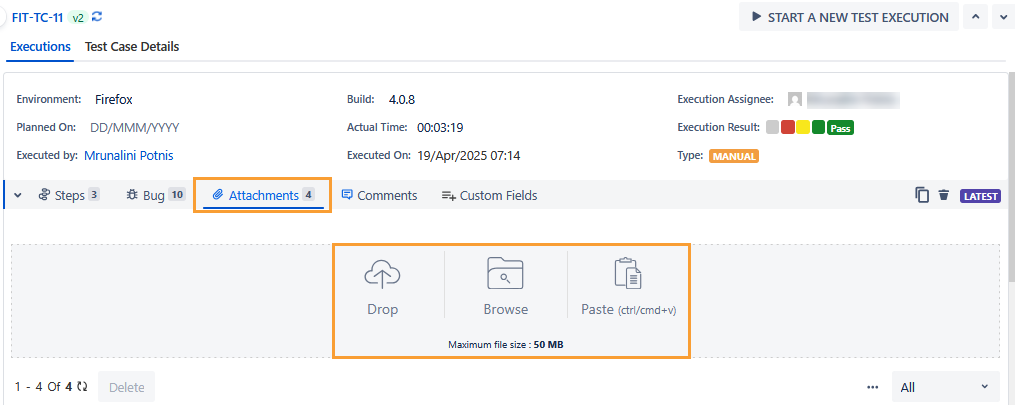
Click the Attachment icon to expand the Attachments tab.
The Attachments screen appears. The screen displays attachments added on the test case detail screen and test execution screen.
Attach the file through either of the following ways:
Browse the file to attach
Drag and drop the file to attach
Copy and paste the file to attach
Once you upload the attachments, the details of the attached file(s) are displayed in the grid. The screen displays attachments added on the test case detail screen and the test execution screen.
To preview the attachment without downloading, click the attached file or image. You can download the attachment from the preview window by clicking the Download icon.
Note
The Preview option is available for jpg, png, PDF, and JSON, file formats.
To download the attachment directly, hover over the attachment and click the Download icon.
To copy the link address of the attachment, hover over the attachment and click n the Copy Link Address icon.
You can filter the attachments in accordance with their place of association - From the test case detail screen (Test Case & Test Step Attachment) and from the Execution Screen (Test Case & Test Step Execution Attachment).
On the Execution screen, the Attachment icon changes color when a file is attached to a test case.
Add Attachments to Test Step
The Attachments screen at the test step level displays attachments added on the test case detail screen (Test Step Attachment) as well as attachments added on the test execution screen (Test Step Attachment).
Navigate to the Test Execution screen.
Expand the Step Details.
Click the Attachment icon at the right for the particular test step.
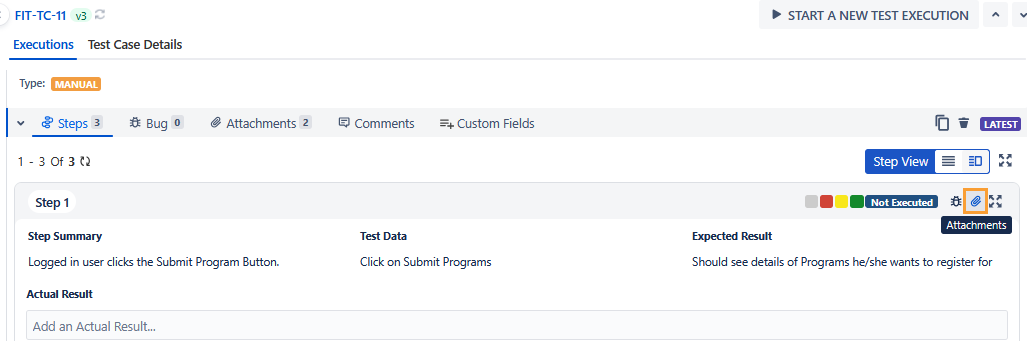
The Attachments screen appears. The screen displays attachments added on the test case detail screen (Test Step Attachment) as well as attachments added on the test execution screen. (Test Step Attachment).
Attach the file through either of the ways:
browse the file to attach
drag and drop the file to attach
copy and paste the file to attach
Once you upload the attachments, the details of the attached file(s) are displayed in the grid. The screen displays attachments added on the test case detail screen and the test execution screen.
To preview the attachment without downloading, click the attached file or image. You can download the attachment from the preview window by clicking the Download icon.
Note
The Preview option is available for jpg, png, PDF, and JSON, file formats.
To download the attachment, hover over the attachment and click the Download icon.
To copy the link address of the attachment, hover over the attachment and click the Copy Link Address icon.
You can filter the attachments in accordance with its place of association - Test Step Attachment (from test case details) and Test Step Execution Attachment (from test execution screen).
On the Execution screen, the Attachment icon changes color when a file is attached to a test step.
Delete Attachments
Attachments are added from the test case detail screen and execution screen. You can delete attachments in accordance with their Attachment Level. If an attachment added from the test case detail screen (test case attachment & test step attachment) is deleted, it also gets removed on the execution screen without any manual sync.
Attachment Level | Attachment can be deleted from |
|---|---|
Test Case | Test Case Detail Screen |
Test Step | Test Case Detail Screen |
Test Case Execution | Execution Screen - test case level |
Test Step Execution at sequence number # | Execution Screen - test step level |
Delete a Single Attachment
To delete a single attachment, click the Delete icon for individual attachments.
Delete Bulk Attachments
To delete multiple attachments at a time,
Select the attachments you want to delete.
Click the Delete button.
Switch to Strip View
You can view the attachments either in Strip View or List View.
To view the attachment in Strip View, click the More icon and select the Switch to Strip View option.
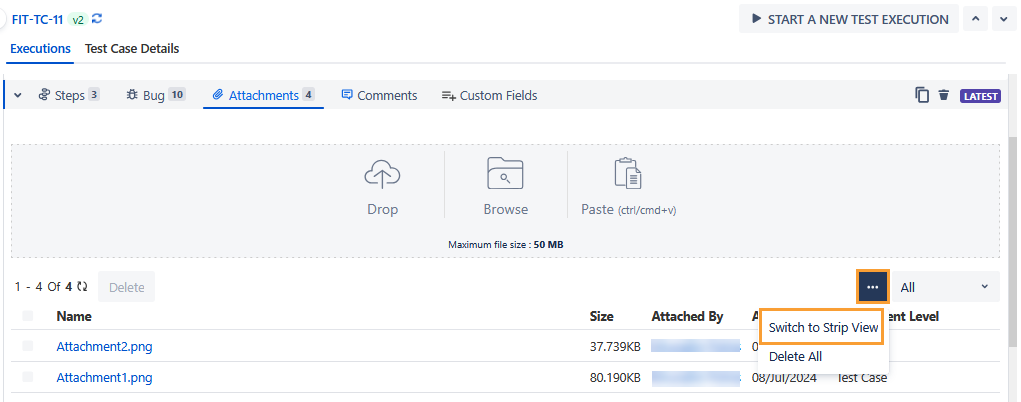
The attachments are displayed in Strip View.
To go back to the List View, click the More icon and select the Switch to List View option.