Environment
Generally, the test executions are conducted against an environment/platform. Users can create a repository of environments under the Configurations section. While executing test cycles, the Environment list is populated from the Environment repository.
QMetry has an inbuilt System Default environment as 'No Environment'. By default, 'No Environment' is selected as the environment on Test Cycles.
Note
Required Permissions:
Jira Permissions: Browse Project permissions are required.
QMetry Permissions: If enabled, then the following permissions are required.
Configuration View
Configuration Modify
Add an Environment
You must have the Configuration Modify permission for the project to add environments.
Go to the QMetry menu and select Configuration.
Under Test Execution, select Environment.
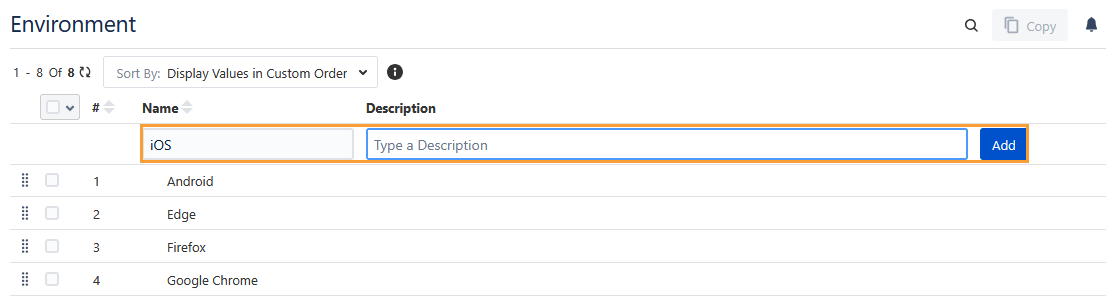
Enter the new environment name and its relevant description.
Click Add.
Add Environment Values Inline
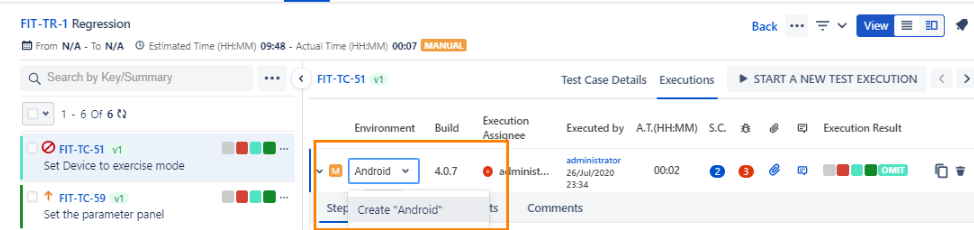
The Environment field values can be added inline in the test asset detail page.
In the Environment field, type the field value.
An option to create the value is prompted. Click it or press the ENTER key.
How to use an Environment?
Perform the following steps to use a custom-created environment while executing the test cycles:
Go to the QMetry menu , select Test Management, and select the Test Cycle tab.
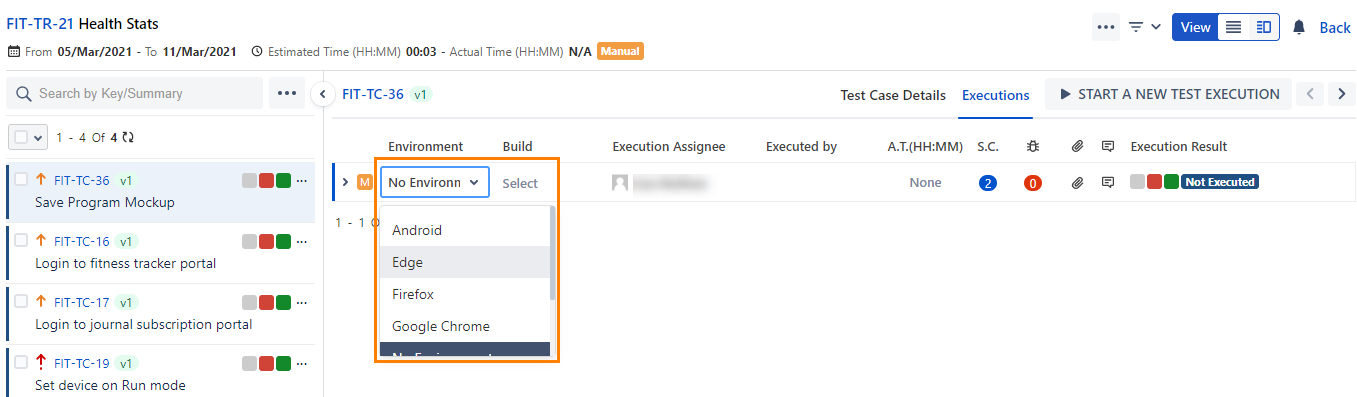
Navigate to the execution screen.
Click the drop-down list for the environment field and select the environment.
Edit an Environment
You can edit values (Name, Description) of System and Custom Environments. Environments already used in assets will also get updated accordingly. You must have the Configuration Modify permission for the project to edit the Environments.
Note
The ability to edit System default Environments is available for v4.1.8 and later.
Perform the following steps to edit an environment:
Click the environment name to edit. A text box to enter the new environment name appears.
Type the new name and click the tick mark symbol.
You can even edit the Description field in a similar manner.
The confirmation message appears.
Click Confirm to proceed.
Note
Modifying the Environment name will reset the existing filters applied to the value.
Sort List Values
Sort By: Select any one of the following options. The selected sorting option will sort the list values consistently across all screens.
Permission required: You must have the Configuration Modify permission to change the Sort By preference of list values.
Display Values Alphabatically: This option arranges the list values alphabetically.
Display Values in Custom Order: This option allows you to change the list value sequence using either of the following methods:
Change the Sequence Number - Change the list value sequence by editing the number in the Sequence No. column.
Drag and Drop the List Values - Hover over the icon, then drag and drop the list value to the required location.
The confirmation message appears when you switch between the sorting options. Click Proceed to change the sorting.
The Configuration Logs display audit logs for changes in the Sequence Number and Sort By settings.
Copy Environments to Other QMetry Projects
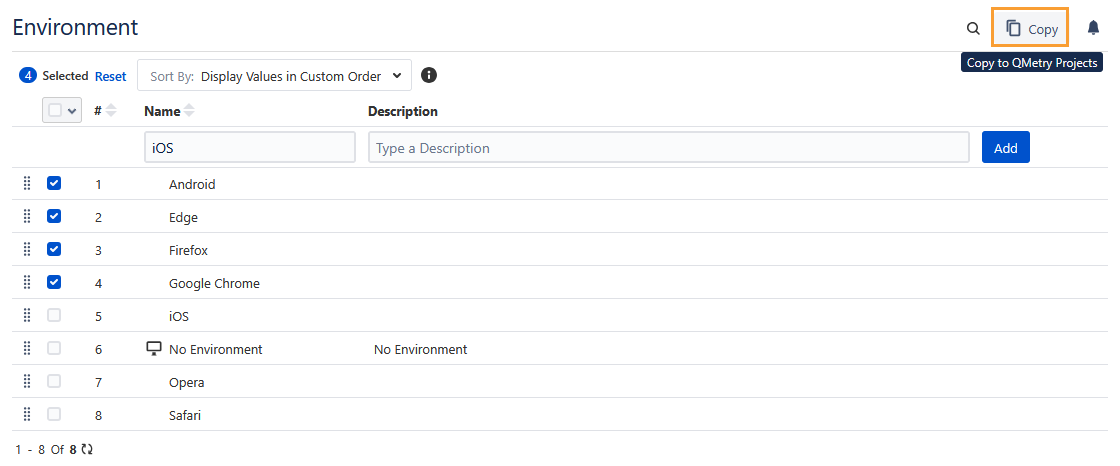
You can copy Environments from one project to other project, which saves time in creating duplicate items for different projects. The functionality allows users to use similar items in different QMetry projects without having to add these items individually.
Select the items that you want to copy to other QMetry Projects and click Copy.
Delete an Environment
The user should have 'Configuration modify' access to the project to delete an environment that is no longer in use.
Perform the following steps to delete Environment:
Go to the QMetry menu and select Configuration.
Under Project Configuration, select Environment. The Environment list is displayed on the screen.
Click the Delete icon of the Environment that you want to delete.
When you try to delete an environment linked to any test execution, you will get a warning message.
Search an Environment
The Searching feature helps you locate the required environment easily, even if it is a long list of environments on the screen. You can also search the environment before creating a new one to avoid duplication.
Perform the following steps to search for an environment:
Go to the QMetry menu, click the Configuration menu, and select the project.
Click Environment under Project Configuration.
Click the search icon to see the text box. Type the keyword in the text box and press the ENTER key.