Exploratory Testing
QMetry Test Management for Jira - Exploratory Testing is a Chrome Extension is designed to empower users to carry out testing while they explore websites, to ensure that testers’ time is invested in investigating the site instead of writing every single test activity, and to cultivate the culture of flawless communication in the organization.
Benefits
QMetry Exploratory Testing helps users identify problems with the website/application under test. The Chrome Extension verifies the website through a browser to confirm that it is functioning properly.
The functionality traces actions performed during Exploratory UI testing in browser and convert it into modular code that can be used for automated regression Tests.
Each event and navigation are recorded, which provides ready-to-use Automated Documentation.
The tool allows its users to log defects just with a mouse click. It enables users to add visuals while logging defects, which makes it easy for the development team to catch the scenario where the application fails.
All the features intend to generate precise and clear communication, which lessens the chances of confusion and enhances the productivity of resources.
Install QMetry Test Management for Jira - Exploratory Testing Chrome Extension and get started recording the events you perform on applications/websites. View results of these recorded sessions on QMetry Test Management for Jira - Exploratory Testing instance.
Note
Permissions required:
Jira Permissions: Browse Project permissions are required.
If QMetry permissions are enabled, the following permissions are required:
Test Case View, Create, Edit, Versioning, and Manage Folder permissions
Exploratory Testing "View" and "Modify" permissions
Steps to start Exploratory Testing using QMetry Test Management for Jira - Exploratory Testing:
Step 1. Install QMetry Test Management for Jira - Exploratory Testing Chrome extension.
Step 2. Username and API Token for QMetry Test Management for Jira.
Step 3. Start exploratory testing and recording sessions through QMetry Test Management for Jira - Exploratory Testing.
Install Chrome Extension
Perform the following steps to install the QMetry Test Management for Jira - Exploratory Testing Chrome extension:
If you are using the Exploratory Testing module for the very first time, go to QMetry menu and select Exploratory Testing.
Click the Download Chrome Extension button.
You can see the extension icon once it is added to your Chrome browser.

Log in to Extension
Perform the following steps to log into the QMetry Test Management for Jira - Exploratory Testing extension:
Navigate to the Chrome browser.
Click the QMetry Test Management for Jira - Exploratory Testing icon.
If you are using QMetry Test Management for Jira - Exploratory Testing Chrome Extension for the first time, then provide the following details:
Jira Add-on Type: Select the type Cloud or Server/Data Center as applicable.
Jira Base URL: This is the base URL of your QMetry Test Management for Jira instance.
Authentication Type: Select the Authentication Type and provide the required details to log into the add-on.
For Basic Authentication, enter your username and password.
For Personal Authentication Token (PAT), enter the Personal Access Token. (Refer to Login Using Personal Access Token to know about how to generate API tokens).
Note
Use Personal Access Tokens (PAT) for authentication for Jira version 10.2 and later, because Basic Authentication is no longer supported.
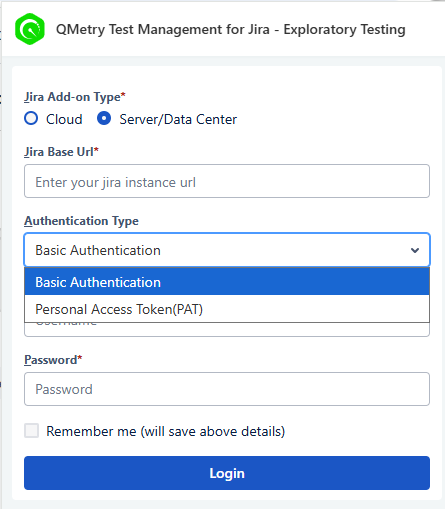
Click Login.
Exploratory Testing (Record)
Users can record test sessions using QMetry Test Management for Jira - Exploratory Testing Chrome Extension. These sessions will be recorded and stored in QMetry Test Management for Jira instance that you mentioned while logging into the Chrome Extension.
Record while you explore
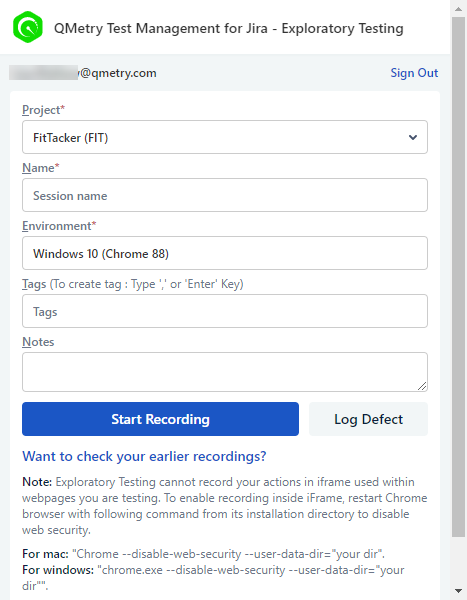
Once you log into QMetry Test Management for Jira - Exploratory Testing, the next window opens asking for details on the test session.
Project: Select the Jira Project in which the session is to be created.
Name: Enter the session name by which the test session will be identified.
Environment: Mention the Platform against which the test is to be executed. By default, it will show the OS and browser that is currently being used.
Tags: You can tag the session to categorize it. You can create multiple tags for a session.
Notes: Enter required notes or comments here in the text box.
Click the Start Recording button to initiate the recording of your actions on the website or application.
Note
It is recommended that you open the site you want to explore before you start recording.
The icon beside the address bar indicates that the recording is now in progress.

You can add Bugs/Defects, Audio and Annotations to your current recording.
Save Recording: Once you are done recording the session click the Save Recording button to upload the session to QMetry Test Management for Jira.
Audio Recording
You can add a voice-over to the recording by clicking the Mike icon.
The icon starts displaying beside the address bar.
When you want to stop audio recording, click the icon on the address bar.
Note
You can record the audio for a maximum duration of 1.30 minutes.
It displays the stopwatch. Click the Stop button to stop the audio recording.
To cancel the audio recording, click the Discard button.
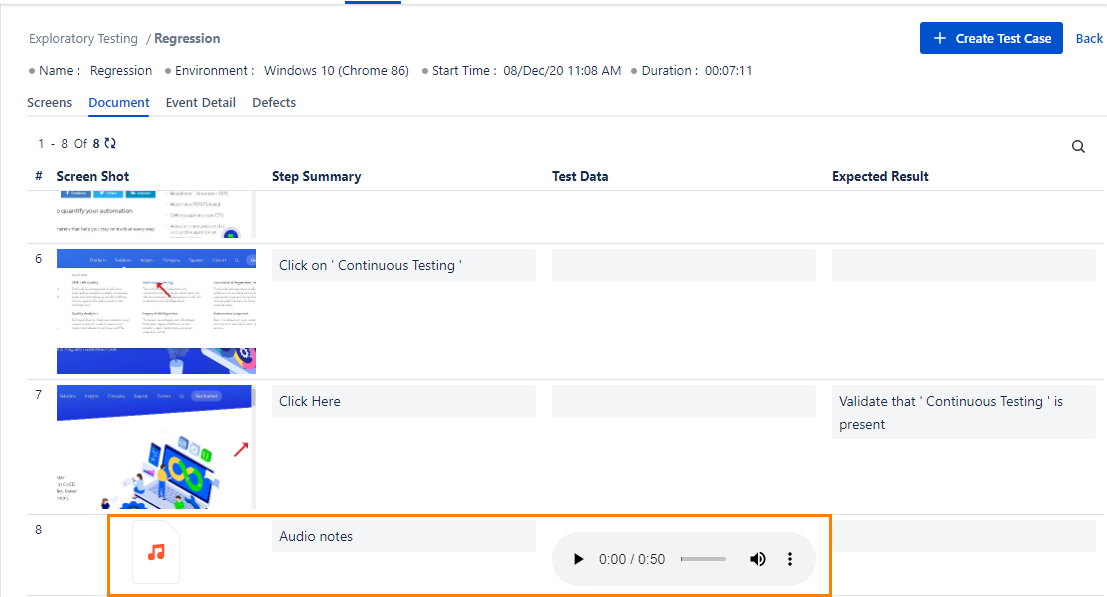
Perform the following steps to play the audio recording:
Navigate to the test session to which the audio recording was attached.
Select the Document tab.
You can see the Audio Recordings on the screen.
Play the recorded audio.
Assertions
You can use Assertion to get confirmation on the existence of particular components on the website, for example, a particular button, text, and so on.
During the ongoing recording session, if you find some important components on the website that you can not avoid, then click the Start Assertion button.
Once you are done clicking on that element or selecting the text for assertion and then click the Stop Assertion button to stop its functionality.
When you view the recorded sessions, the Assertions are displayed as Expected Result.
On the QMetry Test Management for Jira - Exploratory Testing Extension -
Text Notes: Annotations can be added while recording the test session. Enter annotation and click the Add Text Notes button.
Pause: Click the Pause icon to pause the session recording for the time being. You can resume the recording at your convenience.
Play: Click the Play icon to resume the test recording from where it was paused.
Log Defects
You can log a defect to the session while recording the test session. The defect gets logged into Jira.
Note
When you log a defect, the session pauses for a while. If you wish to resume it, close the Log Defect screen after logging the bug.
To log a defect, click the Bug icon.
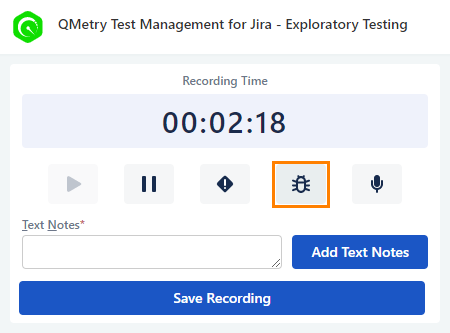
The screenshot of the current page opens in a separate tab. The page also has options like any other image editor.
Annotating Screenshot: You can annotate the screenshot you captured using the features available on the editor. It allows you to describe any bug/defect/improvement more precisely, which ultimately makes it more comprehensive. Refer to Formatting Screenshots for more details.
Fill all required values to log a bug. Enter the following values to log a defect:
Project: Select the project for which the issue is to be logged.
Issue Type: Select the issue type from Epic, Story, Task, Bug, Sub-defect, Sub-task, etc. The Issue Types populate according to the Issue Types enabled under QMetry Project Settings.
Parent Issue: This field is visible on the selection of “Sub-Defect” or “Sub-Task” in the Issue Type field. Select the parent issue from the drop-down list, as the sub-tasks and sub-defects are always associated with a parent issue type/key and can not be created independently, like other issue types. The sub-tasks are linked to the selected story and displayed in the Subtasks section on that story details page in Jira.
Summary: Enter the Summary that represents a brief about the issue.
Description: Describe the issue in detail in this text area.
Priority: Select the priority of the issue from the drop-down list.
Assignee: Select the assignee who will work on the issue from the drop-down list.
Versions: Select the Affected Version applicable to the Defect.
Components: Select the Component applicable to the Defect.
Labels: Select the Labels applicable to the defect. You can select multiple options for the field.
You can also use Jira custom fields when logging bugs through Exploratory Testing.
Note
The “job checkbox” and “Group Picker” types of custom fields are not supported in Exploratory Testing.
You can see the count of defects logged for the session/test once the session is completed.
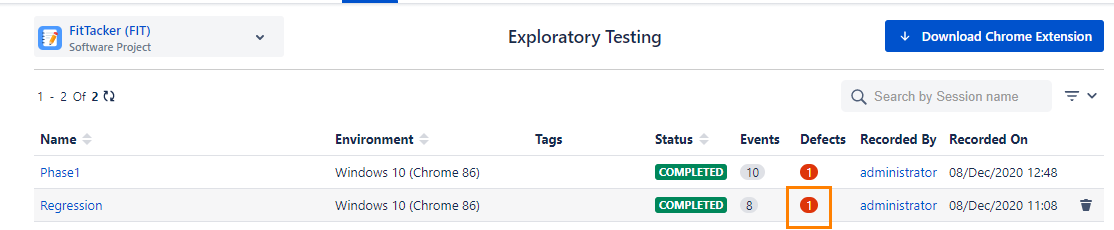
Clicking on the defect count in the grid will show the defect in the Defect tab.
To view the issue details in Jira, click the Key. It opens the Jira details page in a separate tab.
In the Jira issue page, the Environment details are displayed for the bug that was added through exploratory testing.
Log Defects without Sessions
You may come across certain defects that you can not associate with a session instantly. QMetry Test Management for Jira - Exploratory Testing allows you to log defects even without recording a session.
Defects that are logged without a session are added as bugs in QMetry Test Management for Jira.
Perform the following steps to log defects without sessions:
Navigate to the QMetry Test Management for Jira - Exploratory Testing Chrome Extension.
Click the Log Defect button on the QMetry Test Management for Jira - Exploratory Testing extension main screen.
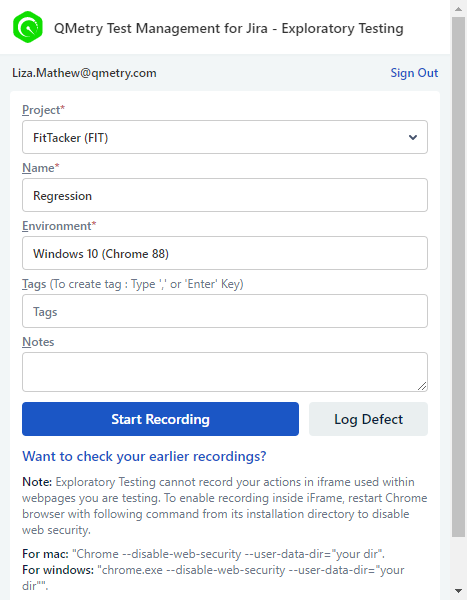
It captures a screenshot of the currently open website screen.
Enter defect details the same as you do when logging a defect during the session.
Click the Log Defect button.
A defect is added directly to the selected project in Jira.