Installation
Introduction
You can get an evaluation license for the QMetry Test Management for Jira app. You can install the app through either of the following options:
Atlassian Marketplace
Jira
This guide is applicable for Jira Data Center. Perform the following steps for installing the QMetry Test Management for Jira app.
Note
QMetry Test Management for Jira app is compatible with Java version v8.
Method 1: Through Atlassian Marketplace
Log in to https://marketplace.atlassian.com/plugins/com.infostretch.QmetryTestManager/server/overview Atlassian Marketplace.
The Overview page for QMetry Test Management for Jira appears.
There are three options: (1) Cloud, (2) Server, and (3) Data Center on the drop-down list. Select Data Center to install the QMetry Test Management for Jira app.
Perform the following steps:
Click the Try it free button. This option will download the latest version of the app.
A dialog box appears with sections for Cloud and Data Center.
Click the Start free trial button.
To download/try a specific version of QMetry Test Management for Jira app, click the Versions tab and click the see all versions link. Select the desired version to download/try/buy.
Note
If your Jira version is 7.x or below 8.x, then you need to download the QMetry app with the prefix. For example, 4.0.0_jira7.
The next screen appears to generate a new license.
Mention the email address to which the license is to be issued.
Accept the terms by selecting the checkbox to agree.
Click the Generate License button.
The Getting started with your new add-on screen appears with the license key generated on it.
The license key is generated for the client. You can copy it to the clipboard. Click the Download button to download the JAR file to your local system.
How to upload the JAR file?
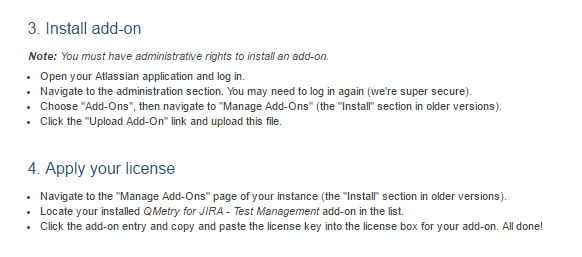
Apart from the license key and JAR download button, the Getting started with your new add-on screen displays steps to Install Add-on and Apply Your license. Follow the same steps to upload the JAR file and provide the license key to the app.
Method 2: Through Jira Admin
You can get an evaluation license for this app.
Pre-condition: Users must have admin rights for the Jira instance.
Perform the following steps:
Log in to your Jira instance.
Click the Administration icon on the application header and click Manage apps.
There are two options on the left panel:
A. Find new apps
B. Manage apps
Click the Find new apps option.
The list of apps is displayed on the screen.
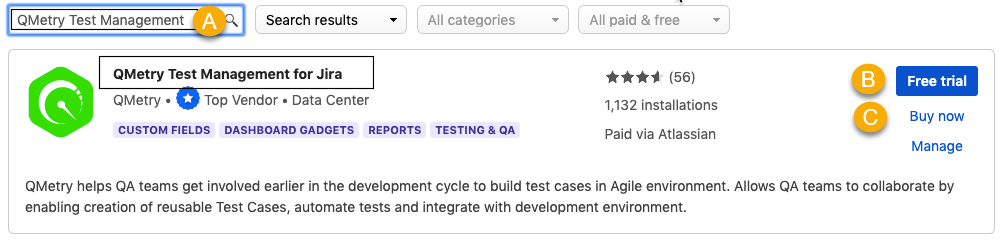
Search for “QMetry Test Management” through the search box and locate the app.
Click the Free Trial button for it.
If you want to buy the app, click Buy Now button.
The Accept terms and agreements dialogue box appears. Accept the end user license agreement by clicking on the Accept button.
The progress bar starts showing the progress of the installation process and closes itself once the installation is finished.
Enable QMetry Features for Jira Project
Note
The following settings are mandatory to start working on QMetry Test Management for Jira.
Perform the following steps to enable QMetry features for Jira project:
Click the Projects list on the main menu and select the Project to which you want to apply the QMetry settings.
Click the Project Settings at the bottom left on the navigation bar.
On the Project settings page, click on the QTM4J Settings at the bottom left on the navigation bar.
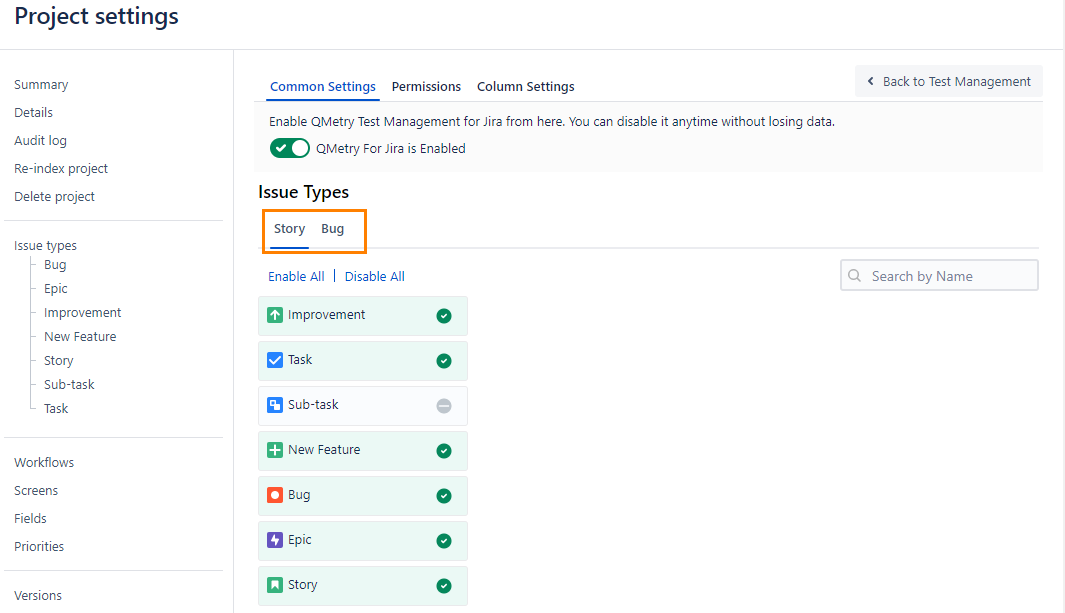
On the screen at right, enable QMetry For Jira on the Common Settings tab to start managing test cases.

Once you enable the QMetry for Jira option, you will be able to view QMetry for Jira features in the project.
Enable Issue Types for Story and Bug
The section becomes visible as soon as you enable the QMetry for Jira option. You can enable or disable Story and Bug Issue Types for particular issue types in Jira. Selected issue types will be considered as Story or Bug.
For example, Story and Epic are enabled as Story Issue Type. Then issues with "Story" and "Epic" types in Jira can be linked as Story in QMetry for Jira. In the same way, you can enable issue types for Bug.
This configuration at the Issue Type level applies to a particular project in Jira.
Note
Only Administrators - Jira Admin, Project Admin can access the settings page and configure QMetry for Jira features at the Issue Type level.
Perform the following steps to enable issue types for Story and Bug:
Click the Projects list on the main menu and select the Project to which you want to apply the QMetry settings.
Click the Project Settings at the bottom left on the navigation bar.
On the Project settings page, click the QTM4J Settings at the bottom left of the navigation bar.
On the screen at right, enable QMetry for Jira on the Common Settings tab to start managing test cases.
The section becomes visible as soon as you enable the QMetry for Jira option. You can enable or disable Story and Bug Issue Types for particular issue types in Jira.
This configuration at the Issue Type level applies to a particular project in Jira.
Once enabled, the QMetry for Jira features will be available to use in the corresponding issue types in Jira. The Test Case/Acceptance Criteria panel is displayed below the Description section.
Kindly ensure that you are using the browsers and databases supported by QMetry Test Management for Jira app.