Shareable Test Cases
Some common steps could exist across multiple test cases in a project. QMetry Test Management for Jira allows testers to create shareable test cases with common test steps and reuse these shareable test cases in other test cases as steps. A shareable test case can be used in test cases in the same project and across projects to avoid creating repeated test steps.
It saves testers' efforts and time as the common test steps are added into a single test case. This test case is then used as shared steps into multiple test cases instead of entering the repeated test steps. Thus, testers can focus more on other high priority testing activities.
Note
To use a shareable test case, it should be linked to a normal independent test case as its steps.
Operations like copy/move, bulk edit, execution, and so on could not be carried out on the individual shareable test cases.
A shareable test case can be executed only when it is linked with an independent normal test case as its steps.
Any updates to the same version of the shareable test case are auto-synced in the associated test cases.
When a new version of a shareable test case is created, it should be synced with the linked test case manually.
Once linked to an independent test case, the shareable test case appears in read-only mode.
While importing test cases, the shared test case steps will be imported as normal steps of the independent test case that is using it. The steps will not be imported as shared steps of the normal test case.
A shareable test case can be used with parameters, but the parameter values will be referred from its independent test case in which it is used.
Create a Shareable Test Case
You can create a shareable test case by following either of the methods:
(A) By using the Shareable Test Case button on the test case tree.
(B) While linking shareable test steps in an existing independent test case (in case shareable test cases do not exist in the project).
(C) By using the existing steps of an independent test case.
(A) Create a shareable test case using the Shareable Test Cases button on the test case tree.
The option on the tree panel allows you to create individual shareable test cases, which will then be used as steps in other test cases.
Perform the following steps to create a shareable test case:
On the Test Case List View, click the more icon and select Show Shareable Test Cases.
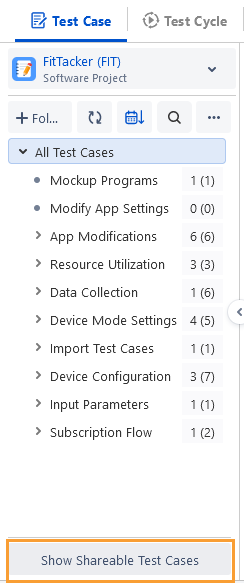
The screen displays shareable test cases.
Click the New Shareable Test Case button.
The Create Shareable Test Case screen appears.
Enter Summary and Step Details for the test case.
Click Create to save the shareable test case.
The shareable test case is added to the screen and displayed under the Shareable Test Cases section.

(B) Create a shareable test case while linking shareable test steps in an existing independent test case.
If shareable test cases do not exist for the project, then you get a link to create a new shareable test case on the Link Shareable Test Case screen.
Perform the following steps to create a shareable test case:
Navigate to an independent test case.
Select to the Steps tab.
Click the more icon for the step where you want to insert shareable test steps.
Select Link Shareable Test Case(s).
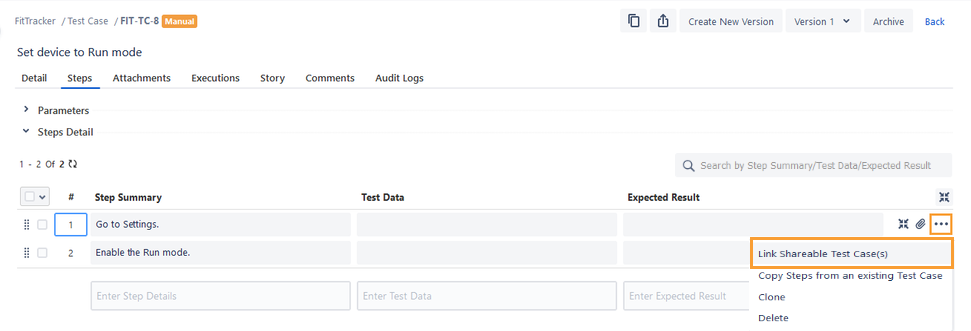
The Link Shareable Test Case(s) screen appears.
Click the Create New Shareable Test Case option. This option only appears if the project's shareable test cases have not yet been created.
Enter Summary and Step Details for the test case.
Click Create to save the shareable test case.
(C) Create a shareable test case by using existing steps of an independent test case.
Perform the following steps to create a shareable test case:
Navigate to an independent test case.
Select the Steps tab.
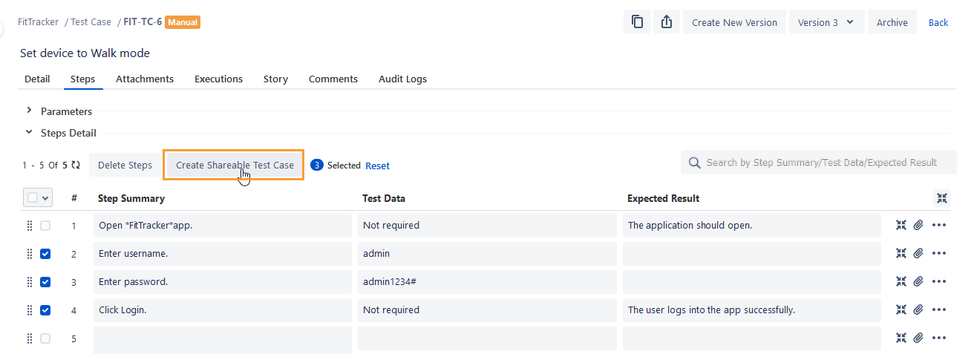
Select the steps that you want to include in the shareable test case.
Click Create Shareable Test Case.
Filter Test Cases with Shareable Steps
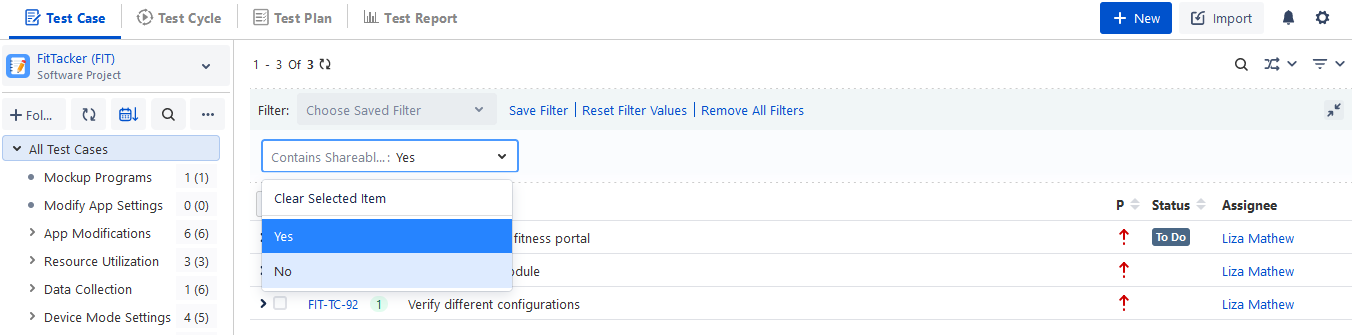
You can easily identify the test cases that are using shareable test cases as their steps by applying a filter on the test case list view.
Perform the following steps to filter test cases:
Click the Filter menu and select the Contains Shareable Test Case option.
The filter is added to the screen.
Select “Yes” to view the test cases with shareable test cases.
Create a New Version of Shareable Test Case
QMetry allows you to create different versions of a shareable test case and link them with independent test cases.
Note
A new version of a shareable test case does not automatically sync with the independent test cases that use it.
When a new version of the linked shareable test case is created, then you have to sync this existing version of shareable test case with the latest available version by clicking on the Sync icon.
Perform the following steps to create a new version of a shareable test case:
Navigate to the shareable test case detail page.
Click the Create New Version button at the top right.
The Create New Version screen appears.
You can change the Summary of the test case.
Click the Create button to create a new version.
A new version of the shareable test case is created.
Sync a New Version of Shareable Step in Test Case
If a new version of the linked shareable test case is available, then follow the steps to use the latest shared step version in the test case.
Navigate to the independent test case that is using the shared step.
Select the Steps tab.
Navigate to the shared step and click the Sync icon for the step.
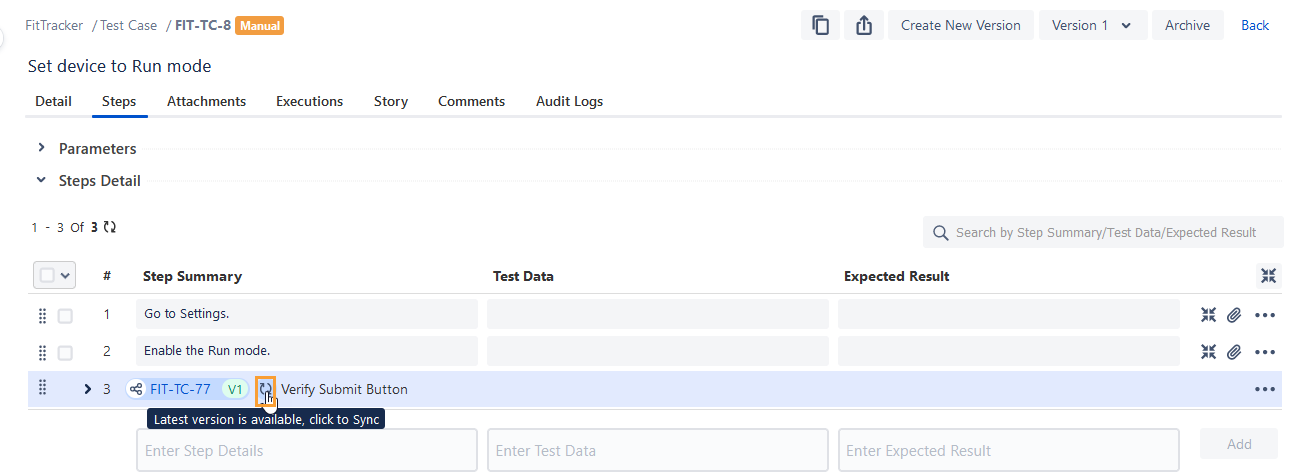
The shared step version is updated.
Search Shareable Test Cases
You can use the search feature to locate the required shareable test case(s) in the current project. The search will check for the mentioned text in the Key and Summary fields of the test case by default. You can also opt to cover the Test Step and Comments. Shareable test cases can be searched for additional fields of Test Steps and Comments only, as they do not contain Description and Precondition.

Import Test Cases with Shareable Steps
You can perform new imports or reimports of test cases using shareable test steps.
A shareable test case can not be imported independently like a normal test case.
If an independent test case containing a shareable test case is re-imported by mapping the shareable test case keys, it will create a new version of the test case. The shareable test case linkage is retained. The test cases are imported with shareable steps. The version number of the test case is increased by one.
Perform the following steps to import test cases with shareable steps:
Import the Excel file of test cases that have shareable test cases linked as steps within them.
Select Import with the New Version.
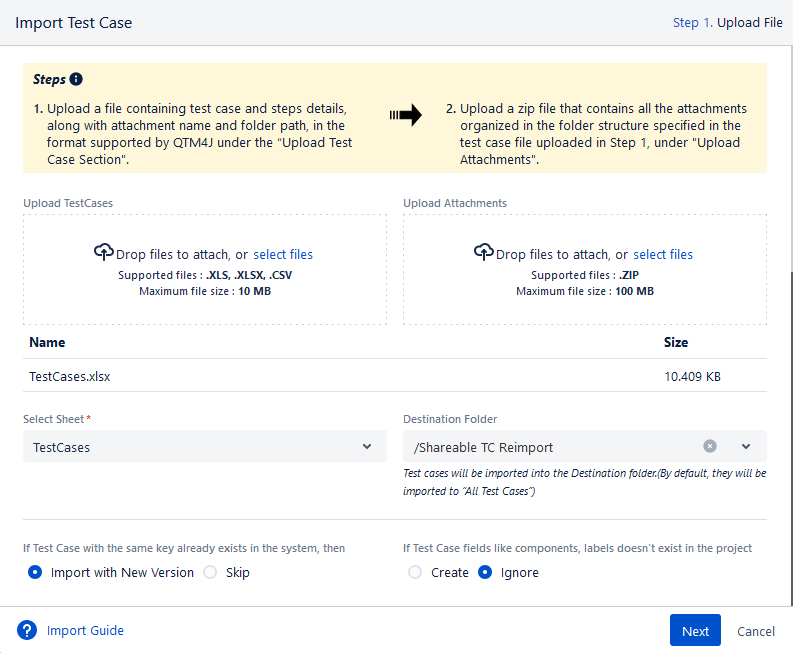
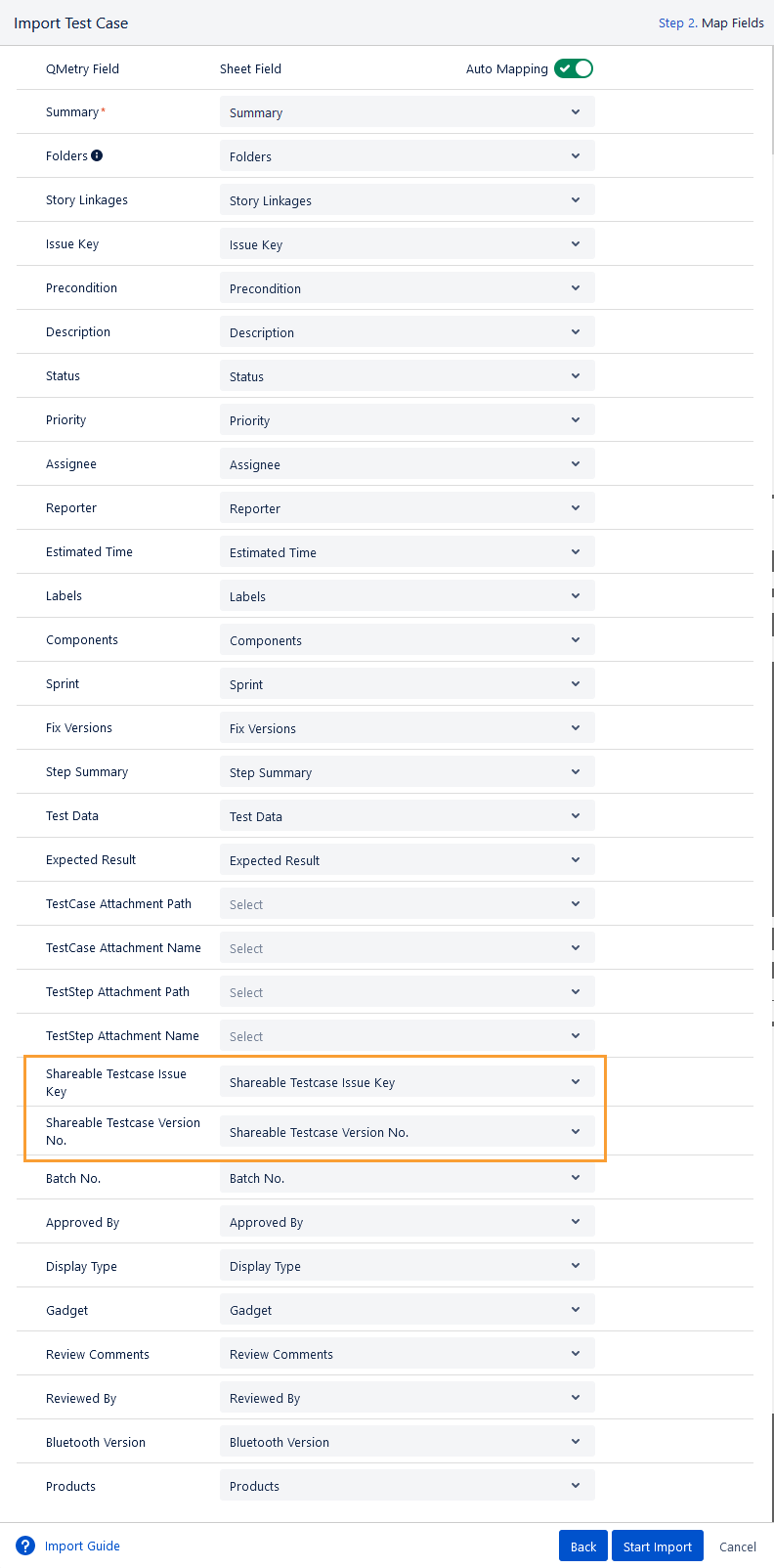
Enable the Auto Mapping option.
The following fields are related to shareable test case import:
Shareable Testcase Issue Key
Shareable Testcase Version No.
If the fields are mapped, the shareable test case will be reused as it is.
If either of the fields is not mapped, the shareable test case will be imported and shown as a normal test step.
Once the fields are mapped, click the Start Import button.
It starts the import process is Click Done once the process is completed.
Check the background process by clicking on the Notification icon at the top.
The test cases are imported with shareable steps. The version number of the test case is increased by 1.
Refer to Import Test Cases for more information on Import Test Cases.