Bulk Clone Test Cycles
Apart from cloning single test cycles, you can clone multiple test cycles in bulk at once. The feature is helpful to testing teams when the same set of test cycles is required for every release testing. The team can pick required test cycles and clone them all at once, either in the current project or in other project.
Note
A maximum of 100 test cycles can be cloned at a time.
Perform the following steps to clone the test cycles in bulk:
Select the source folder that contains the test cycles from the folder tree.
Select test cycles that you want to clone.
Selection of Multiple entities at a time: To select entities in a range on the current page, select the first entity’s checkbox, and then select the last entity’s checkbox, and simultaneously hold the SHIFT key of the keyboard. All entities between these two will be auto-selected.
Select All:
Select all records on the current page: Clicking the checkbox in the column header selects all the records on the current page only. An alternate way is to click the checkbox drop-down and select Current Page.
Select all records across all pages: Click the checkbox drop-down and select the Across All Pages option.
Once you select the test cycles that you want to clone, the options for bulk operation become visible on the screen.
Click the Clone option.
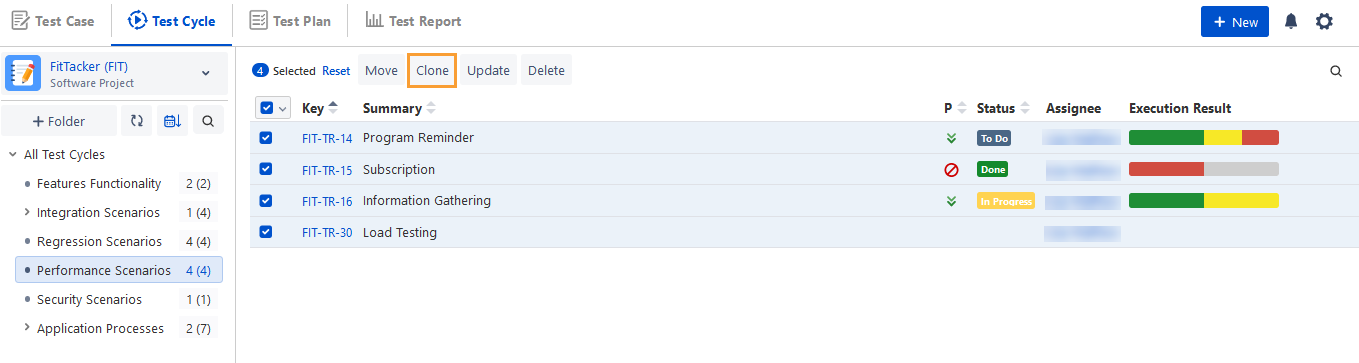
The Bulk Clone Test Cycles screen appears.
You can clone test cycles in either the Current Project or in the Other Project.
Clone Test Cycles in Current Project
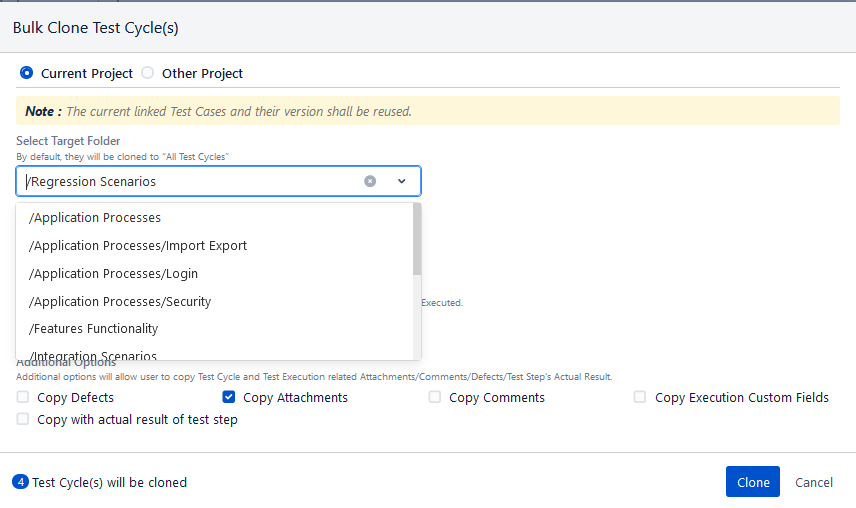
Select the Current Project section to clone test cycles in the current project.
Select Target Folder: Select the target folder in which you want to clone the test cycles. By default, test cycles will be cloned to “All Test Cycles”.
Clone Test Cycle either with All Test Case Executions or Latest Test Case Execution.
Mark Execution Result as either Not Executed or copy the same Actual Execution Result.
Additional Options: Select from the following options to copy test cycle and test execution with:
Copy Defects
Copy Attachments
Copy Comments
Copy Execution Custom Fields: If selected, copies the custom field values entered on the execution screen. If Actual Execution Result is selected in the option above to mark the execution result, then it will force the copy of the execution custom fields.
Copy with the actual result of test step
Click the Clone button to initiate the cloning process in the current project.
By default, test cycles are copied to the selected destination folder with the prefix ‘Cloned’ added to their names.
The test case version associated with the test cycle will be cloned.
Clone Test Cycles in Other Project
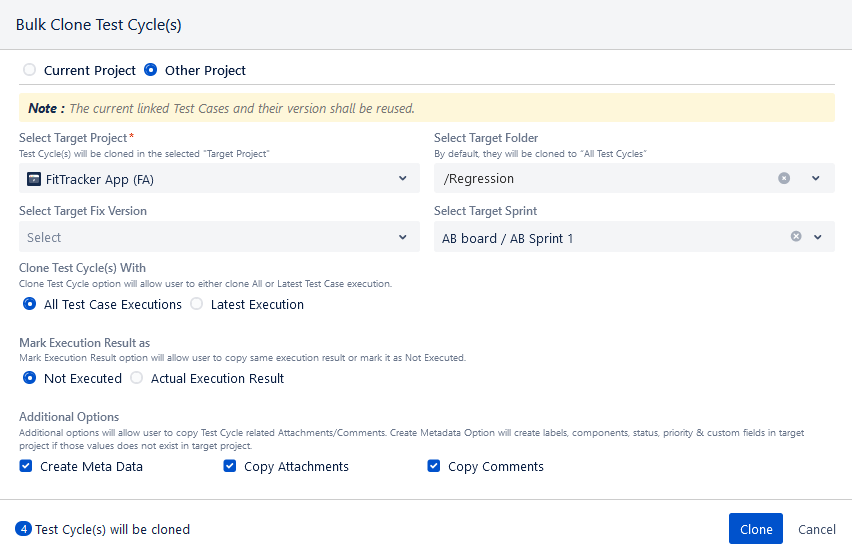
Select the section to clone test cycles in other projects. The association of test cases with test cycles will be carried forward from the source project. The test cases from the source project will be reused in the target project, with the Execution Result set to Not Executed.
Select Target Project: Select the target project to clone the selected test cycles in that project.
Select Target Folder: Select the target folder in which you want to clone the test cycles. By default, the test cycles will be cloned to “All Test Cycles”.
Select Target Fix Version: Select the fix verison from the target project.
Select Target Sprint: Select the Sprint from the target project.
Clone Test Cycle either with All Test Case Executions or Latest Test Case Execution.
Mark Execution Result as:
Not Executed: If this option is selected, the test cycles will be cloned in the target project with the Execution Result marked as “Not Executed”.
Actual Execution Result: If this option is selected, the test cycles will be cloned, and the execution results will be marked according to the execution results in the source test cycle. The “Create Meta Data” option under the Additional Options section will be selected once you select the Actual Execution Result option. All mandatory and optional custom field values are copied.
If mandatory custom fields exist in the source project and not in the destination project, the custom fields will not be created in the destination project.
If mandatory custom fields do not exist in the source project and exist in the destination project, the execution will not be created in the destination project.
Additional Options: Select from the following options to copy test cycle and test execution with:
Create Meta Data: It will create metadata like labels, components, status, priority, and custom fields in thetarget project if those values do not exist in the target project. Hence, if you want to copy these fields from the source project to the current project, make sure you select the Create Meta Data option on the screen. In case of custom fields, the fields will be copied in the Custom Fields section of Project Configuration and will also be copied in test cycle, test execution with filled values.
Copy Attachments: It will clone test cycles that include attachments.
Copy Comments: It will clone test cycles with comments attached.
Click the Clone button to start the cloning process in the target project.
You can see the test cycles are cloned in the selected destination folder under the selected target project.