Add Comments and Attachments in Test Plans
Navigate to the test plan you want to add Comments and Attachments to.
Comments
Adding comments to a Test Plan is a useful way to record additional details about a test plan and collaborate with your team members. A wiki markup editor is provided to enter comments with different text formats.
Add Comments
Go to the Test Plan details page and open the Comments tab.
You can see the text box at the bottom of the screen. Start typing your comment in it.
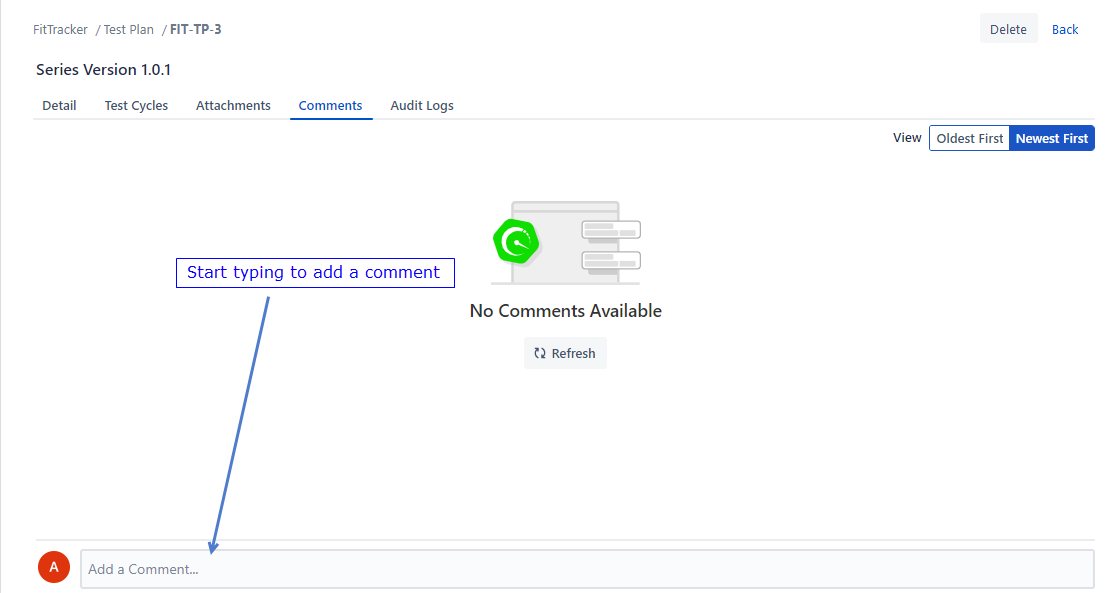
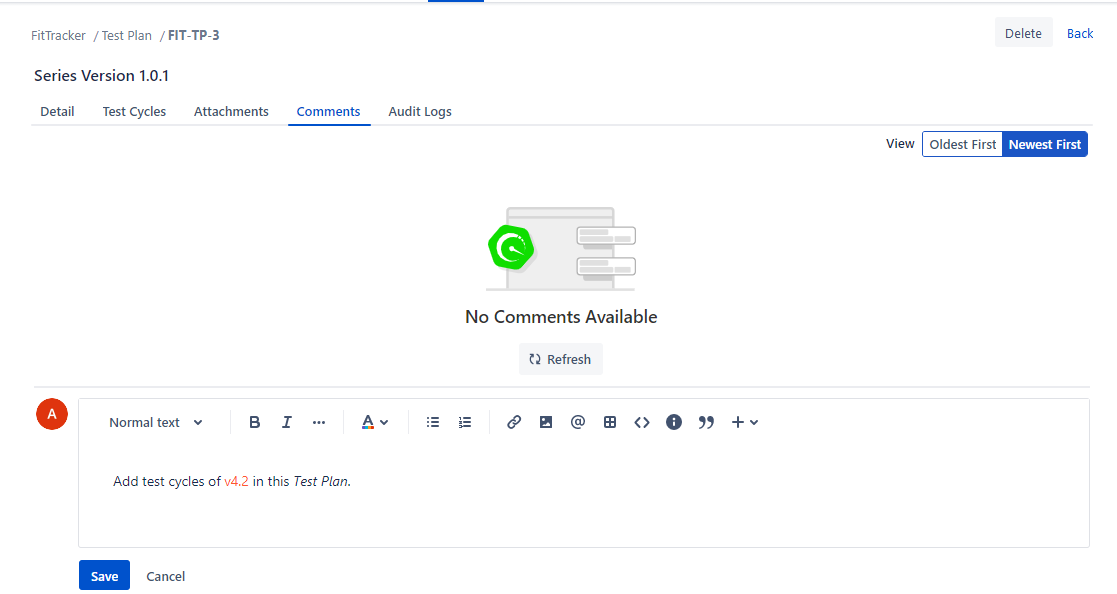
The text box has a wiki markup editor to enter the comment text.
After entering the comment, click Save.
Edit Comment
Click the Edit button for the comment you want to edit. The box appears in editable mode. Make the required changes and save.
Arrange Comments
You can arrange the entered comments based on the following sequence:
Oldest First
Newest First
Attachments
Open the Attachments tab. Upload the file you want to add as an attachment to the Test Plan. You can upload multiple files at a time as an attachment. Files with (.dwg) format are also supported as attachments.
Note
Administrators can configure the maximum file size for attachments and in-line images. By default, the system allows files up to 50 MB. Refer to Storage Configuration for more information.
You can attach the file through any of the following ways:
drag and drop the file to attach
browse the file to attach
copy and paste the file to attach
Download and Preview Attachments
To download the attachment, hover over the attachment and click the Download icon.
Click the attached file or image to preview it without downloading the attachment.
Note
Preview option is available for jpg, png, PDF, and JSON, file formats.
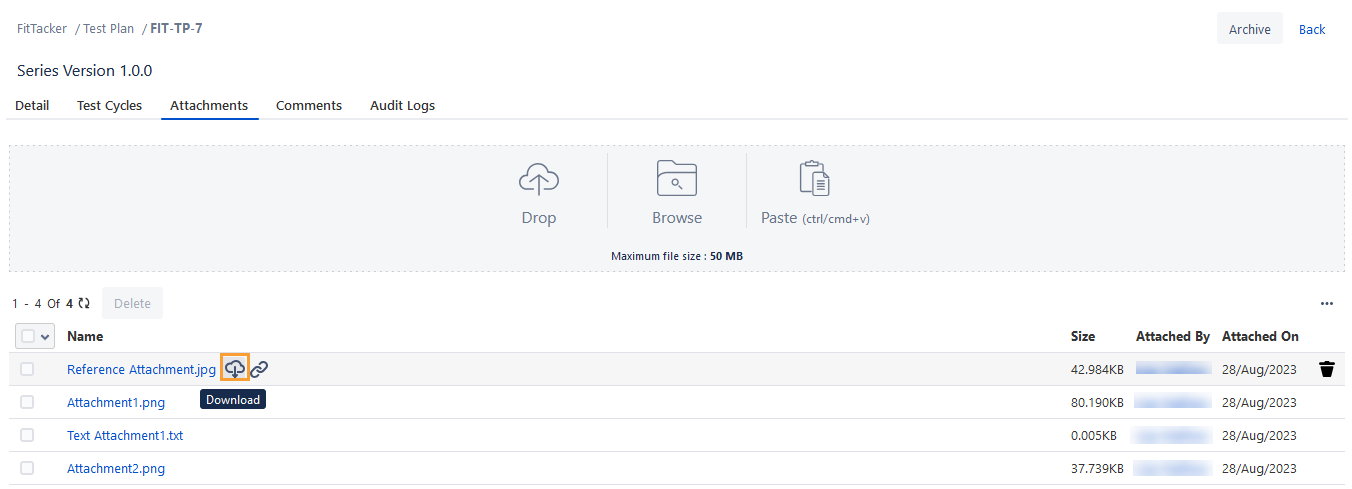
In the preview window, click the Download icon to download the file.
Copy Link Address of Attachment: To copy the link address of the attachment, hover over the attachment and click the Copy Link Address icon.
Delete Attachments: Once you have created a test cycle, you can remove attachments from the test cycle Attachments tab.
To delete a single attachment, hover over the attachment and click the Delete icon for individual attachments.
To delete multiple attachments at a time, select the attachments you want to delete and click the Delete button.
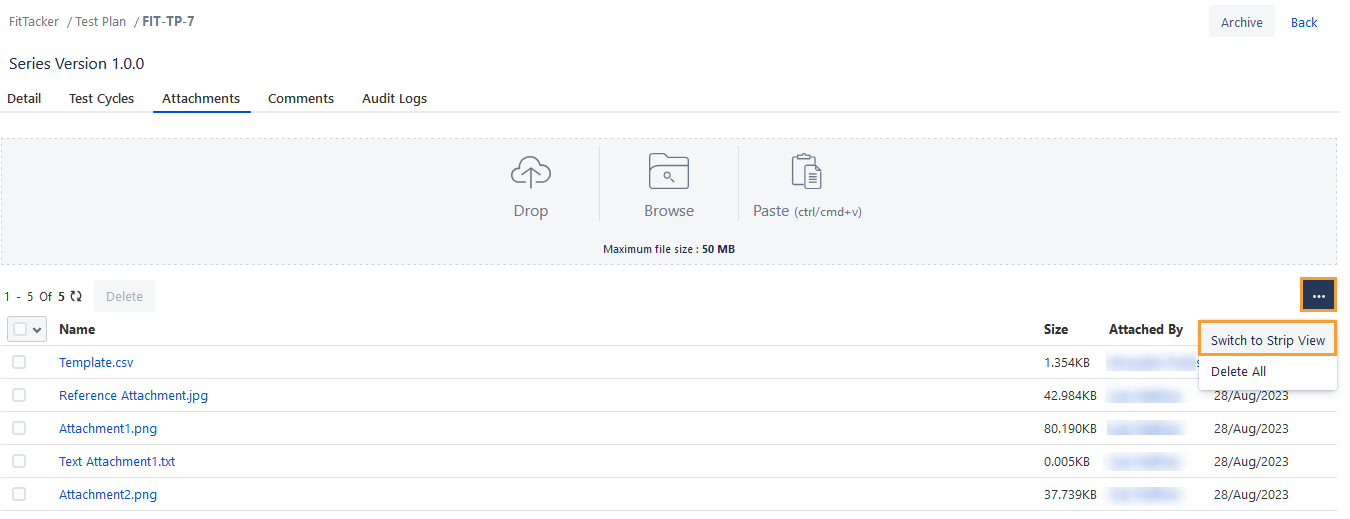
To delete all the attachments at a time, click the More icon and select the Delete Alloption.
Strip View of Attachments
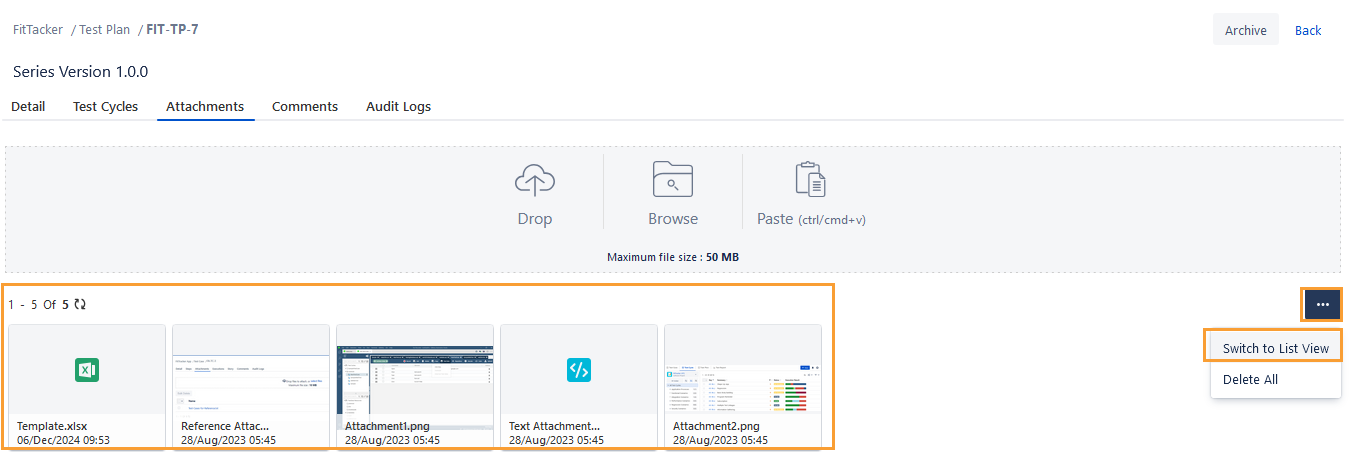
You can view image thumbnails in the Attachments tab. It helps users identify and differentiate multiple attachments when multiple images are added.
You can view the attachments either in Strip View or List View.
To view the attachment in Strip View, click the More icon and select the Switch to Strip View option.
The attachments are displayed in Strip View.
To go back to the List View, click the More icon and select the Switch to List View option.