Using Parameters And Parameter Values
Before using parameters and parameter values in your project, refer to the following pages to understand:
Example:
The following are the parameters with values:
Color Code
Display
Bluetooth Versions and
Tracker Version
The combination of parameter values creates a data set. Hence, we will create Parameters with their values, and then we will create Data Set using both.
Color Code | Display | Bluetooth Versions | Tracker Version |
|---|---|---|---|
1234 | OLED | Bluetooth v4.0 | Tracker Series 5 |
1237 | LED | Bluetooth v4.5 | Tracker Series 3 |
1236 | MOLED | Bluetooth v4.3 | Tracker Series 1 |
1234 | OLED | Bluetooth v4.1 | Tracker Series 2 |
Add Parameters
Navigate to Configuration and select Parameters under Project Configuration to add parameters.
Add Data Set
These added parameters are used in test steps.
Navigate to the test case detail page.
Select the Steps tab. You can see the Parameters expandable section along with Step Details. To create a table of parameters, you need to add Columns and Rows. Columns will contain parameter names, and rows will contain corresponding parameter values.
To add a column, click Add Column.
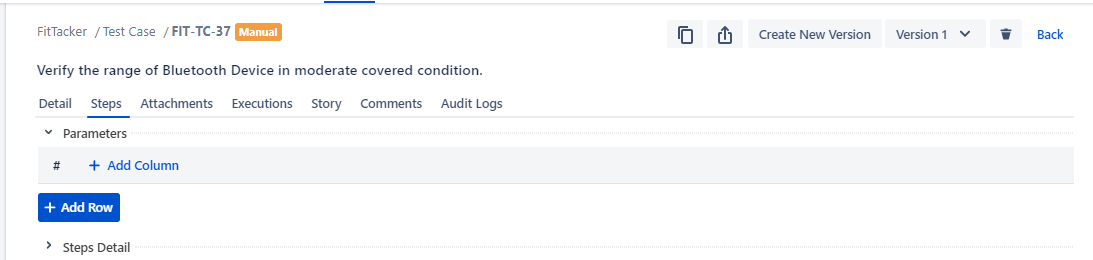
A drop-down list with the parameters you entered in the Configuration section (Configuration > Project Configuration > Parameters) is enabled.
Select one parameter for the column. One parameter can be used only once for columns.
Now add values to the parameter. Click Add Row to add a row under the column. The drop-down list displays values in accordance with the parameter.
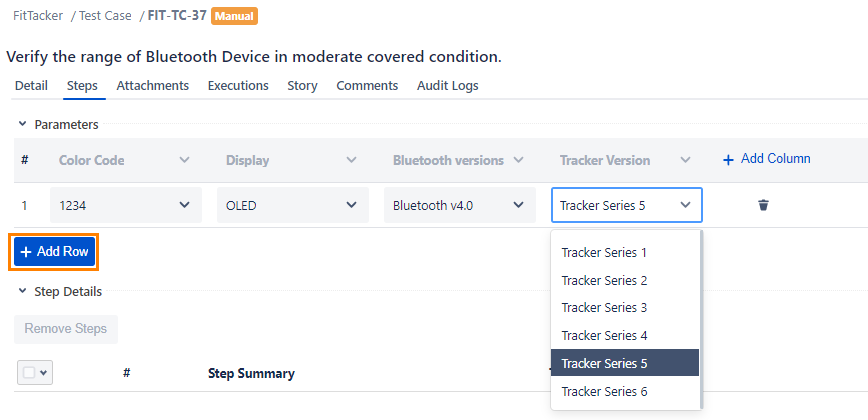
Select a value for the parameter column. One parameter value can be used multiple times.
This way, you can keep adding columns as per available parameters and their values.
Use of Parameters in Steps
Till now, you have created test data sets through Parameters. Now we will see how we can use the parameters in the test steps of a test case.
Select the Test Cases tab.
Navigate to the test case detail page and select the Steps tab. Mention parameters for Step Description, Input Data, and Expected Outcome.
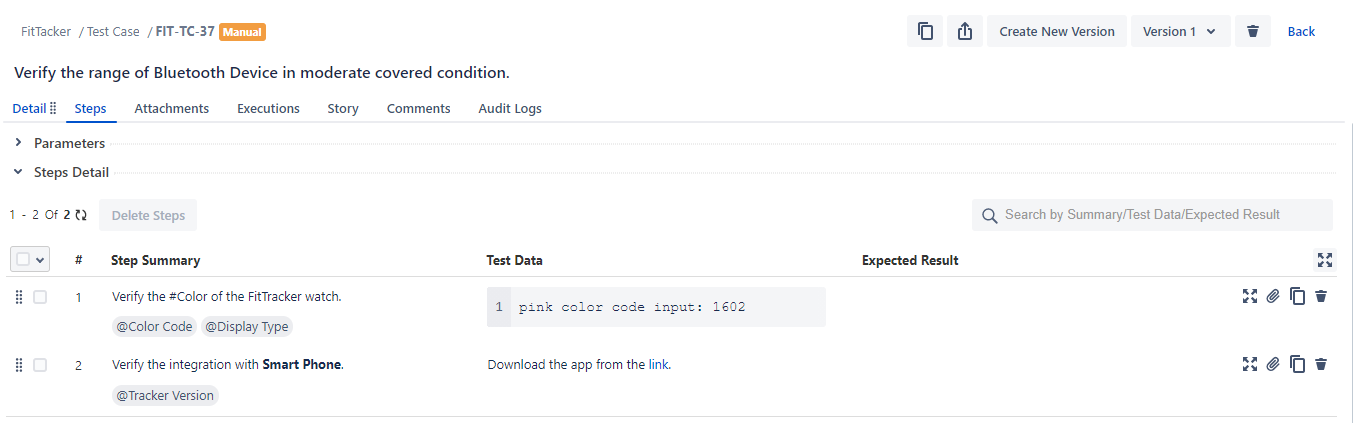
To use a parameter, write it in this syntax: @parameter. When you press @ on your keyboard, the available parameters will populate.
The Step Details look like this.
Sync Steps
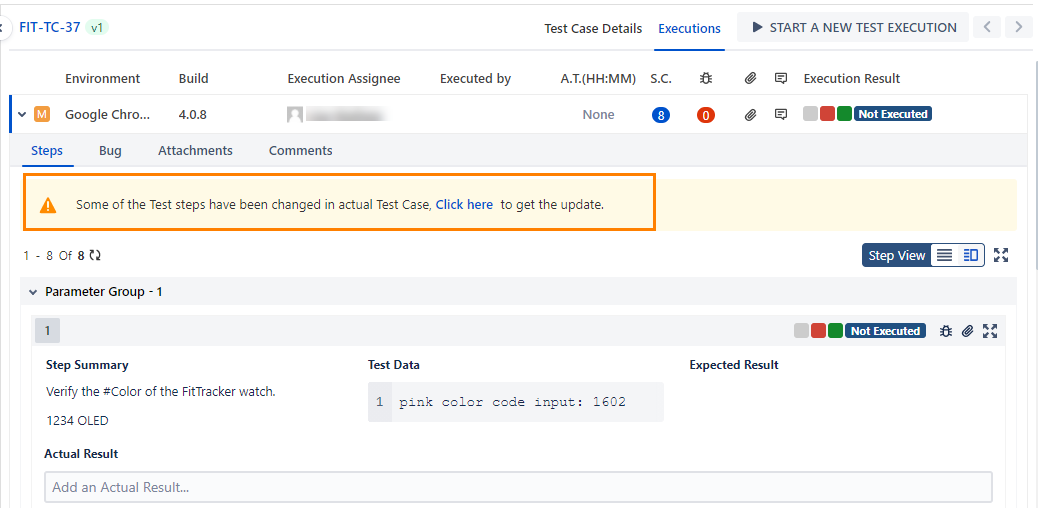
If steps are updated in the test case, the link to sync steps will be visible on the execution screen. Click the provided link to get the updated content of the steps.
Useful References
To understand how to execute these parameters and use parameter values for execution, refer to Execution of Parameters and Parameter Values.