Link Defects or Bugs on Grid View Execution Screen
While executing tests, you may encounter defects or bugs that need to be recorded for further analysis. You can log defects at both the test step and test case levels. You can either create a new defect or link an existing defect to the test case or test step. Defects added at the step level are also reflected at the test case level.
If the Auto link bug(s) that are found during execution to the story option is enabled in Project Settings, and the test case is associated with a Jira Story, any bug linked during execution is also linked to the story. Refer to Auto-link Execution Bugs to Stories for more details.
Link Defects or Bugs to a Test Case
You can link bugs to test cases and test steps while executing the test cases.
Perform the following steps to link defects to a test case:
Navigate to the test execution screen and select the test case to view its details. If a bug is already linked to the test case or test steps under it, the count will be displayed.
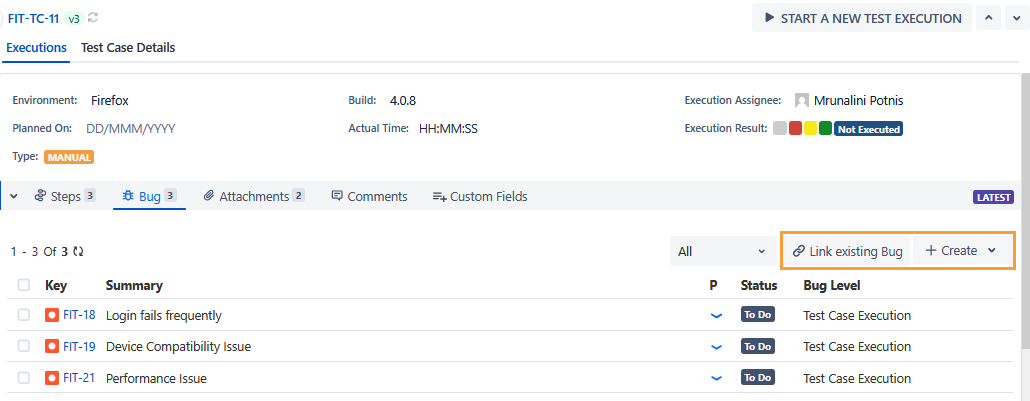
To link a bug to the test case, click the Bug tab for the test case. If the test case and test steps do not have a bug linked to it, the bug count is displayed as zero.
You can either add an existing bug or create a new bug to link to the test case.
Link Existing Bugs
Perform the following steps to link an existing bug:
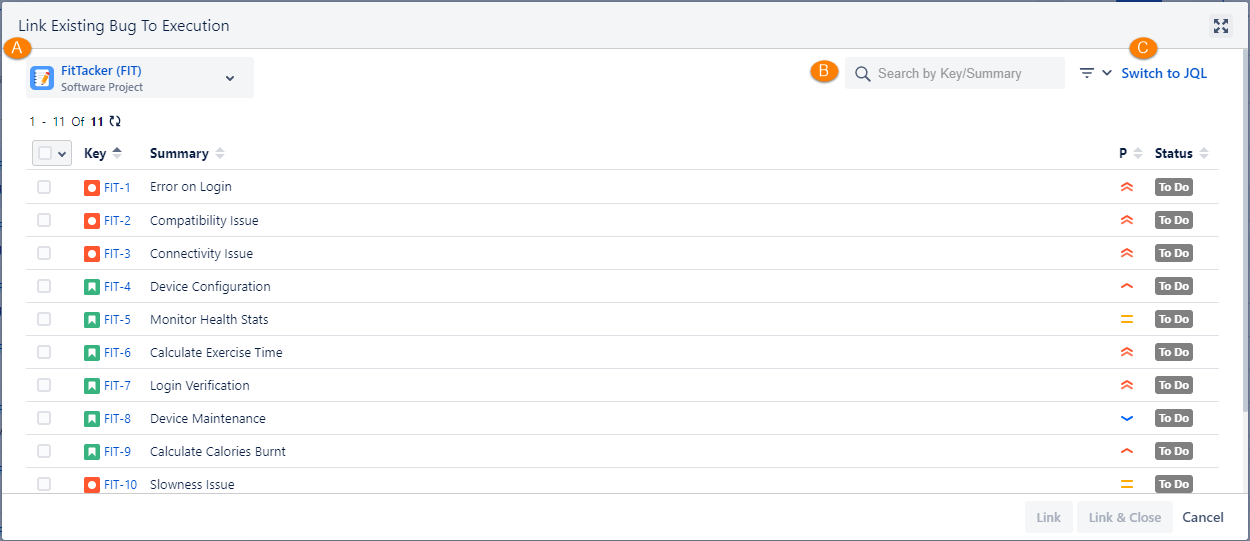
Click the Link existing Bug button. The Link Existing Bug to Execution pop-up opens. The screen displays the records as per the Issue Type enabled for Bug in QMetry Project Settings.
Select the bug you want to link with the test case and click Link.
Link: You can link existing bugs to the test execution. Select the bugs that you want to link with the test execution and click the Link button. Once the bugs are linked, the Link Existing Bug to Execution screen still remains open to let you link other bugs.
Link & Close: You can link bugs and close the pop-up. Select the bugs that you want to link with the test execution and click the Link & Close button.
You can also -
a. Select bugs logged in other projects. Open the project drop-down and select other projects from which you want to add the bug.
b. Apply the Basic filter to search bugs (The Issue Type filter displays Issue Type in accordance with the Issue Type enabled for Bugs in QMetry Project Settings.)
Note
A maximum of ten filters, including system and custom fields, can be selected at a time.
c. Apply JQL to search bugs.
Switch to JQL: Click the Switch to JQL. The JQL editor becomes visible. Write the query to filter the records.
Create a New Bug
Perform the following steps to create a bug:
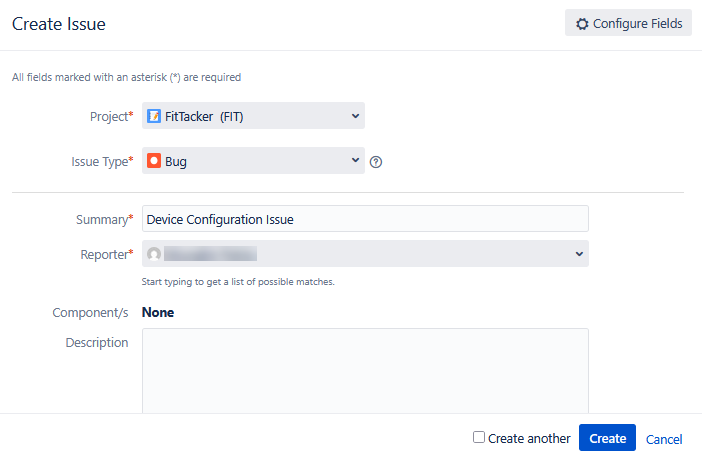
Click the Create Bug button. The Create Issue screen of Jira appears. The Issue Type drop-down shows the list of issue types as per the Issue Type enabled for Bug in QMetry Project Settings. By default, the "Bug" issue type is auto-selected on the drop-down list.
Create an issue with Issue Type "Bug".
Bugs created from the Execution screen are linked directly to the test case.
Link Bugs to Multiple Test Cases
Using the bulk operation functionality, users can link multiple bugs to multiple latest test case executions. You can also create and link a new bug or sub-task to multiple test case executions simultaneously.
Note
Bugs are only linked to the latest test executions.
If the bug is already linked to the test case execution level, the linkage is skipped.
If the bug is already linked to the test case step, it is linked to the test case execution.
Permission required: You must have the Test Cycle Manage Defect permission to link bugs in bulk with multiple test cases simultaneously.
Link Existing Bugs to Multiple Test Cases
Perform the following steps to link existing bugs to multiple test cases at a time:
Select the test cases to which you want to link bugs.
Click the Bulk Operations option.
Click the Link Bugs submenu and select Link existing Bug.
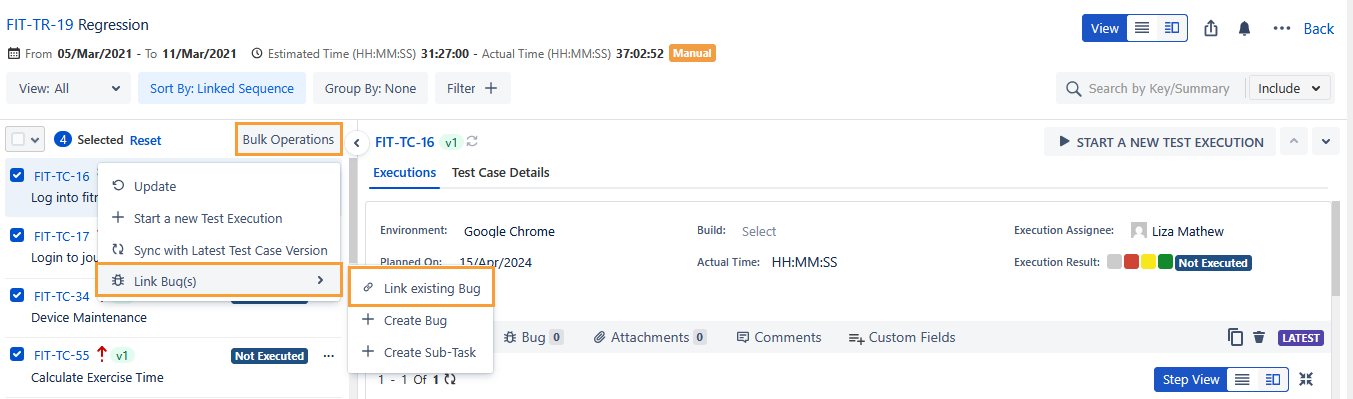
The Link Existing Bug to Execution dialog appears.
Select the bugs to link with the test cases and click Link.
Note
A maximum of five bugs can be linked at a time.
The bugs are linked to the selected test cases.
The Bug tab for the test case displays the linked bugs.
Create and Link a Bug to Multiple Test Cases
When you create or link bugs for the first time, the Steps to Reproduce section of the bugs includes details of the test case linked first in the sequence. The details remain unchanged when the bugs are linked again to other test cases.
Perform the following steps to create and link new bugs to multiple test cases at a time:
Select the test cases to which you want to link bugs.
Click the Bulk Operations option.
Click the Link Bugs submenu and select Create Bug.
The Create Issue dialog appears.
Enter the bug details in Jira and click Create.
The new bug is linked to the test case.
View Execution Logs
Click the Actions icon and select View Execution Logs.
The Execution Logs pane shows the logs for linking bugs to test cases.
Link Defects or Bugs to Test Step
Apart from linking defects to the test case, you can also link defects to test steps to trace the bug related to the step level.
Click the Steps tab by clicking the Step Count (S.C.) for the test case.
Click the bug icon at the right.
The Assign Bugs screen appears. Follow the same steps described above to create a new bug or add existing bugs.
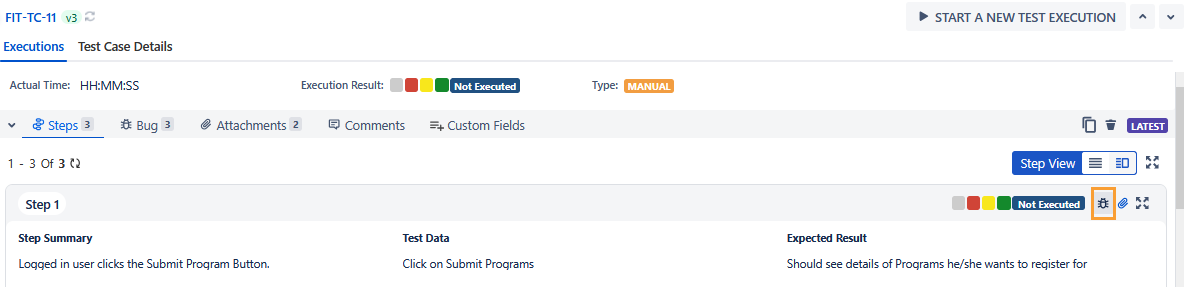
The color of the Bug icon changes(Red) when you associate a bug.
Unlink Defects or Bugs
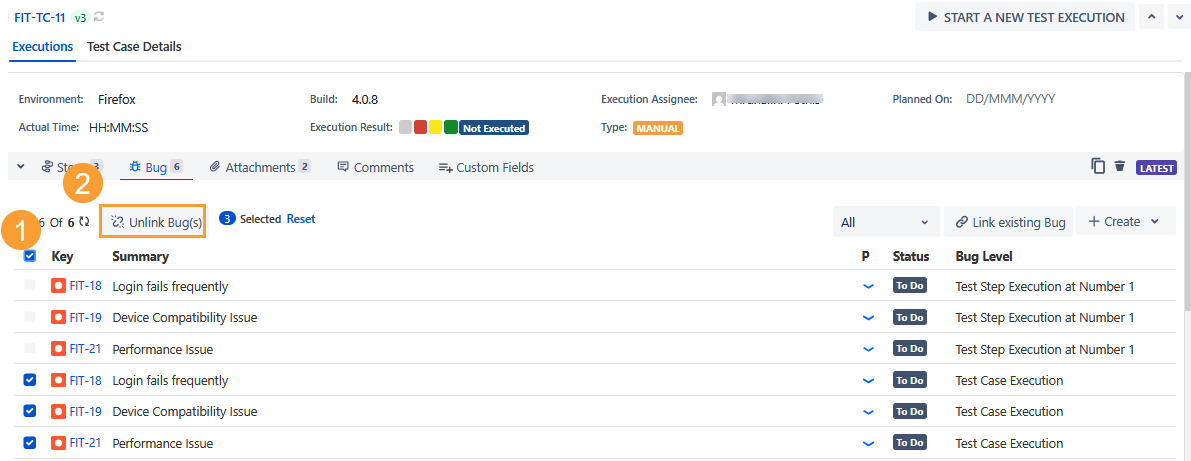
Defects or Bugs are linked with the test case and test step from the execution screen. You can delete attachments in accordance with their level - test case and test step.
Bug Level | Bugs can be unlinked from - |
|---|---|
Test Case Execution | Test Case |
Test Step Execution at sequence number 1 | Test Step |
Unlink a Single Bug
You can unlink only test case-level bugs from this screen.
Hover the mouse over the bug you want to unlink.
The Unlink icon becomes visible.
Click the Unlink icon to remove the association of the bug with the test case.
Unlink Multiple Bugs at a time
You can unlink only test case execution level bugs from this screen.
Select the bugs you want to unlink.
Click the Unlink Bugs button.