Configuring Logo
System Administrators can add their organization's logo to the PDF and Word exports of test executions, test cases, system reports, custom dashboard, and scheduled reports. The configured logo also appears on the email notification templates. Project administrators with the necessary permissions can replace the default logo with the project logo in both PDF and Word formats.
Note
Permissions required: You must have the Configuration Modify permissions to configure the customized logo on the screen.
You can upload a new logo or use the default QMetry logo. Previously uploaded logos are not retained.
Audit Logs record events related to logo uploads and updates.
Image Specifications
The image should have the following specifications:
Supported files: .JPG, .JPEG, .PNG
Maximum file size: 1 MB
File resolution: 144x50 px (Recommended)
Configuring Logo at Instance Level
You can configure the organization logo or your preferred logo.
Perform the following steps to configure the logo:
Select the QMetry menu and then select Configuration.
Select the Configure Logo option under the Others section. The QMetry logo appears as the default logo on the screen. You can configure the logo of your choice.
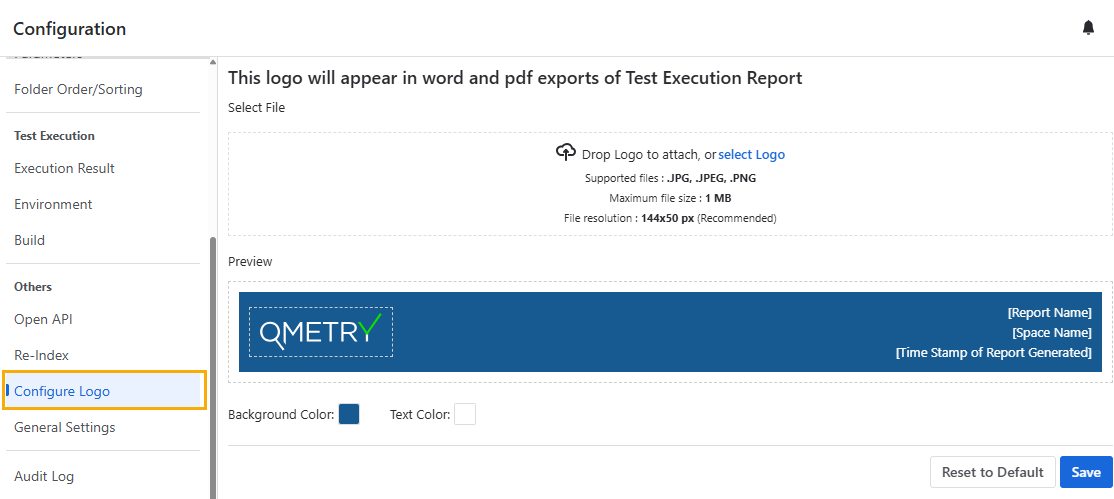
Browse and upload the logo of your choice. You can see the preview of the logo on the screen.
Set the background color of the logo using the color palette provided in the Background Color option.
You can set the text color of the banner using the Text Color palette provided on the Text Color option.
Click Save to save the settings.
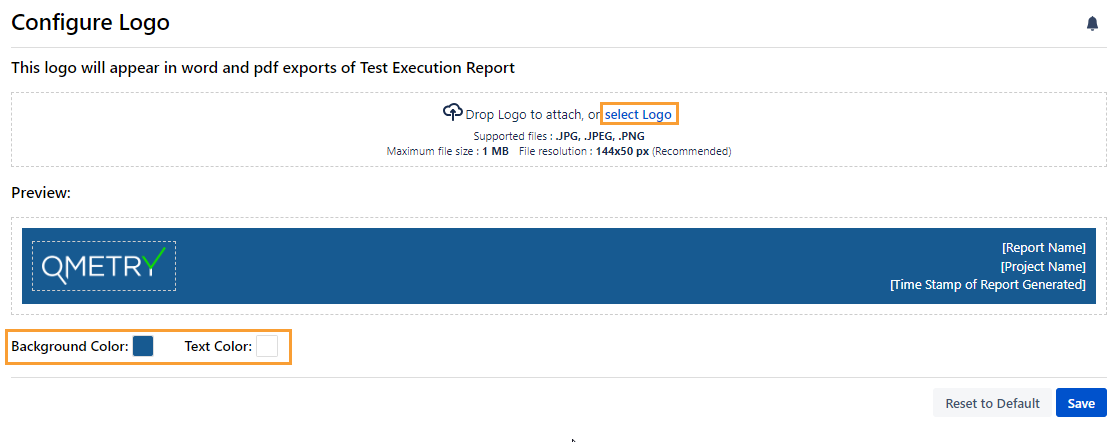
The logo and banner text are updated based on the configuration.
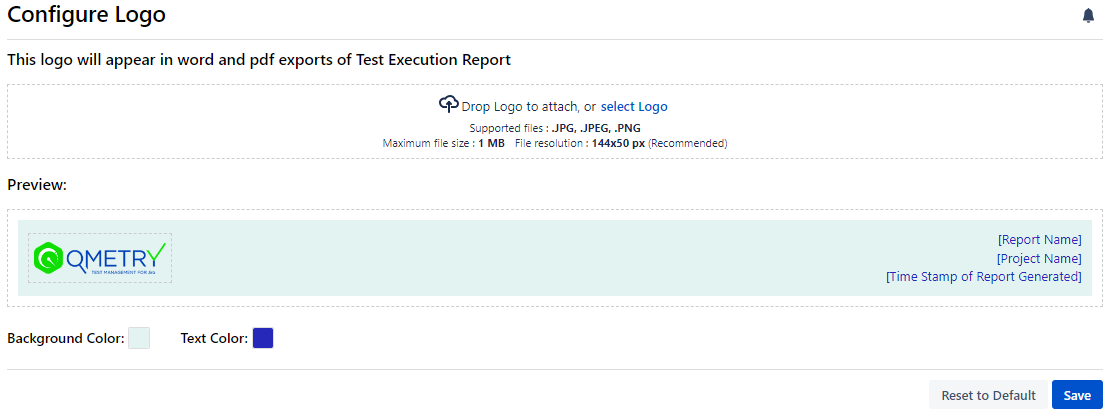
To replace the uploaded logo with the default one, click the Reset to Default button.