Labels
Labels are used for the classification of Test Assets. Using Labels, you can search Test assets, generate reports, collect statistics, etc. QMetry allows creating your Labels for Test Cases, Test Cycles, and Test Plans.
Labels are created at the Project Level. Labels provide an easier way of grouping your test assets. A user can assign it to a Test Case, Test Cycle, and Test Plan for tagging.
Searching for a Label
You can search for a label before creating it. It will avoid the creation of duplicate labels. Below are the steps to search label:
Navigate to QMetry, click the Configuration menu, and select the project.
Click Label.
Click the search icon to see the text box. Type the keyword in the text box and press ENTER on the keyboard.
Creating a Label
You must have the Configuration Modify access to the project can create a customized label.
Perform the following steps to create a label:
Go to QMetry menu, select Configuration, and select your project.
Under Project Configuration select Label.
Enter the Label Name and click Add.
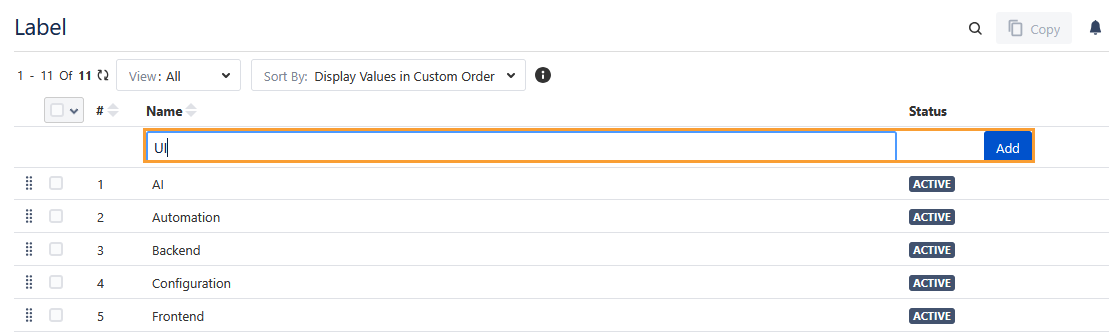
The labels are available for linking them with the Test Case, Test Cycle, and Test Plan.
Adding Label Values Inline
The Label field values can be added inline in the test asset detail page.
In the Labels field, type the field value.
An option to create the value is prompted. Click it or press the ENTER key.
Using a Label
Perform the following steps to link labels. These are generic steps for all three test assets. Here, the steps are mentioned for test cases.
Click the QMetry menu, select Test Management, and select the Test Case tab.
Create a new test case or go to the detail page of an existing test case.
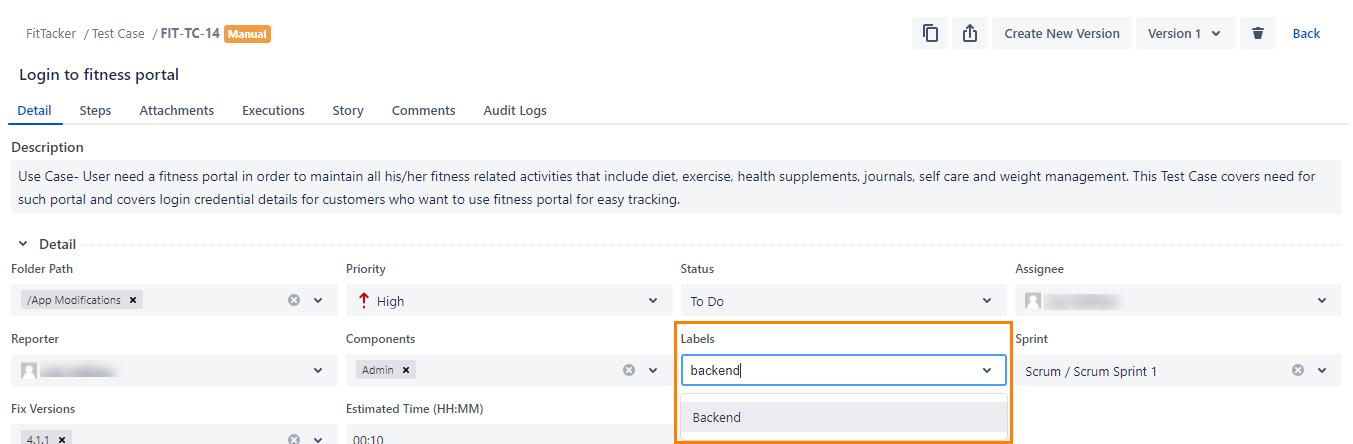
In the Labels field, type to search the label values.
Editing a Label
You must have the Configuration Modify permission to the project to edit a label. You can edit the Label values inline.
Perform the following steps to edit a label:
Click the label name that you want to edit. The text box appears in editable mode.
Type the new name and click on the tick mark symbol.
Note
When you edit a label name, the updated name is automatically reflected in all associated test assets.
Sorting the List Values
You must have the Configuration Modify permission to change the Sort By preference of list values.
Sort By: Select any one of the following options. The selected sorting option sorts the list values consistently across all screens.
Display Values Alphabatically: This option arranges the list values alphabetically.
Display Values in Custom Order: This option allows you to change the list value sequence using either of the following ways:
Changing the sequence number in the column - You can change the list value sequence by editing the number in the Sequence No. column.
Dragging and dropping the list value - You can changed the list value sequence by dragging and dropping the list value.
You can view the audit logs for changes in the Sequence Number and Sort By settings in the Configuration Logs.
Copying Labels to Other QMetry Projects
You can copy labels from one project to other projects. This feature allows you to reuse the same labels across multiple QMetry projects without creating them individually, saving time and preventing duplicate entries.
Required Permission: You must have the Configuration Modify permission to the project to perform this operation.
Perform the following steps to copy labels to other projects:
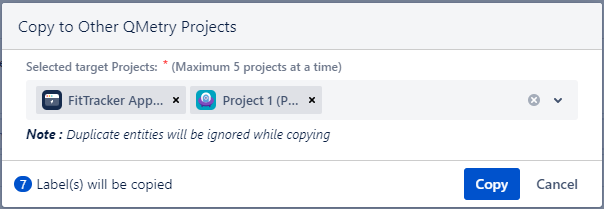
Select the labels that you want to copy to other QMetry Projects and click Copy.
Now select the project where you want to copy the selected items. You can select multiple QMetry Projects (maximum five projects) at a time to copy the item.
Note
The system ignores duplicate entities during copying.
Archiving a Label
You must archive system or custom field list values before deleting them. Archiving prevents outdated values from appearing in selection lists for new test assets while preserving them in existing test assets for historical accuracy.
Required Permission: You msut have the Configuration Modify permission to archive the list values.
Operation | Behavior of Archived Values |
|---|---|
Import Test Case | Archived values can not be imported during the test case import operation. It applies to manual import and import via Open API or Automation API. |
Export Test Case | Archived values get exported during the test case export operation. |
Copy List Values | The archived list values do not get copied while copying the list values using the Copy button in the project Configuration section. |
Filter records on list values | Filters can be applied to the archived values. The archived values are displayed under the Archived section on the filter list. |
Entity versioned/updated | The archived list values get copied or preserved as it is. |
Clone in the same project | The operation is applicable to the Test Case and Test Cycle modules. The archived list values get copied. |
Clone test cycle to other projects | The operation is applicable to the Test Cycle module. The archived values are copied with the “Active” status in other projects. |
Export to another project | The archived list value gets copied with the “Active” status in other projects. |
Cloning or Start New Execution with custom fields | The archived list values get copied. |
Perform the following steps to archive list values:
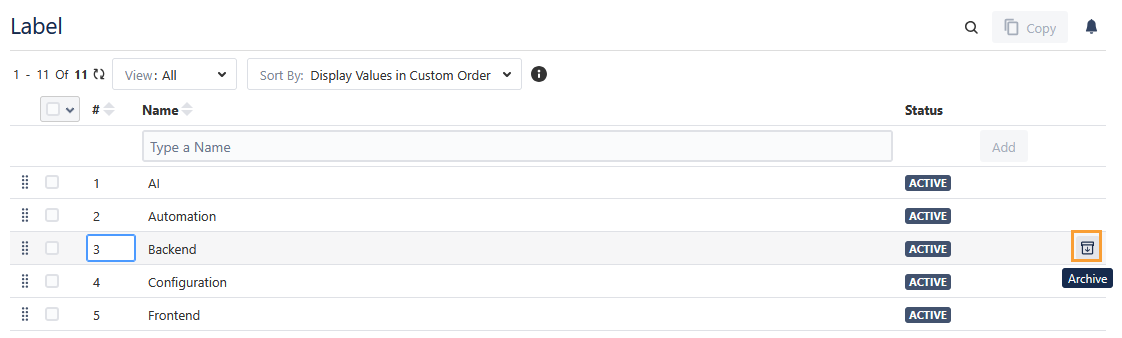
Hover over the value you want to archive and click the Archive icon.
The confirmation message appears.
Click Confirm to proceed.
The archived value is displayed with the Archived Status.
Unarchive a Label
To unarchive the list value, hover over the value and click the Unarchive icon.
To view the Audit Logs of archive and unarchive operations, go to QMetry, select Configuration, and select Configuration Logs.
Deleting a Label
You can delete only archived values. If a value is used in any test asset, you cannot delete it. To delete the value, first remove all its associations with existing test assets.
Required Permission: You must have the Configuration Modify permission to delete the archived list values.
Warning
Deleting a label permanently removes all its associations with linked test assets and may affect reports that use the label as a filter. After deletion, the label field in the affected test assets appears blank, and the associations cannot be restored.
Perform the following steps to delete the list value:
Hover over the archived value and click the Delete icon.
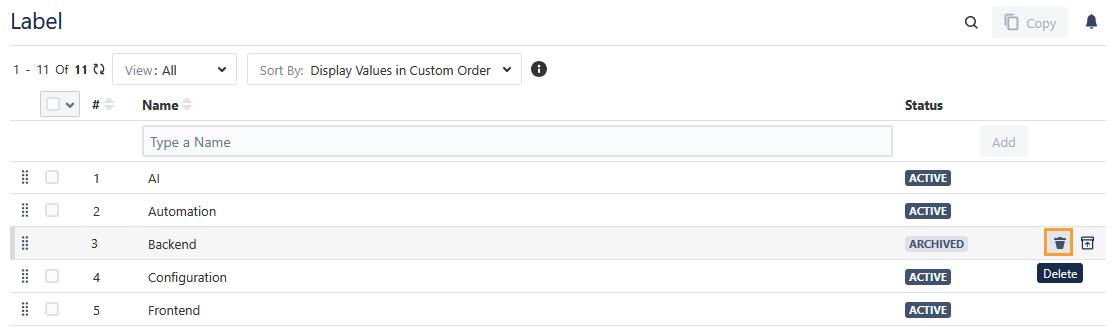
The confirmation message appears.
Click OK to proceed.
After deletion, the label value is removed from the Label field of the test assets.