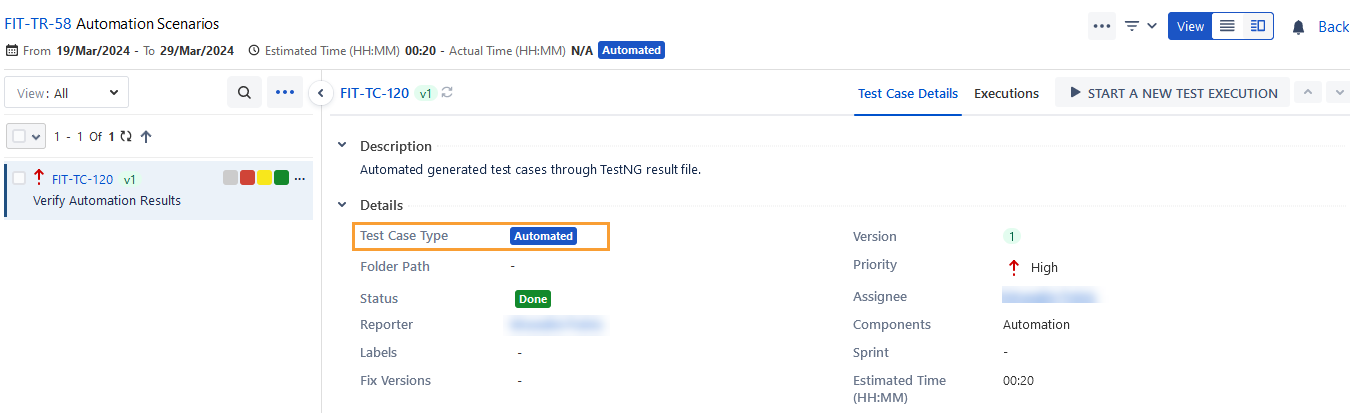
View Imported Test Results
Users will receive an email notification containing test run details after the import process is completed. By default, the email will be sent on the successful completion of every automation import. However, you can track the status in History or using the check progress API .
When you import the test result file through either REST API or any plugin, you can immediately see progress on History section.
Step 1: Go to the Automation History section
To view History section,
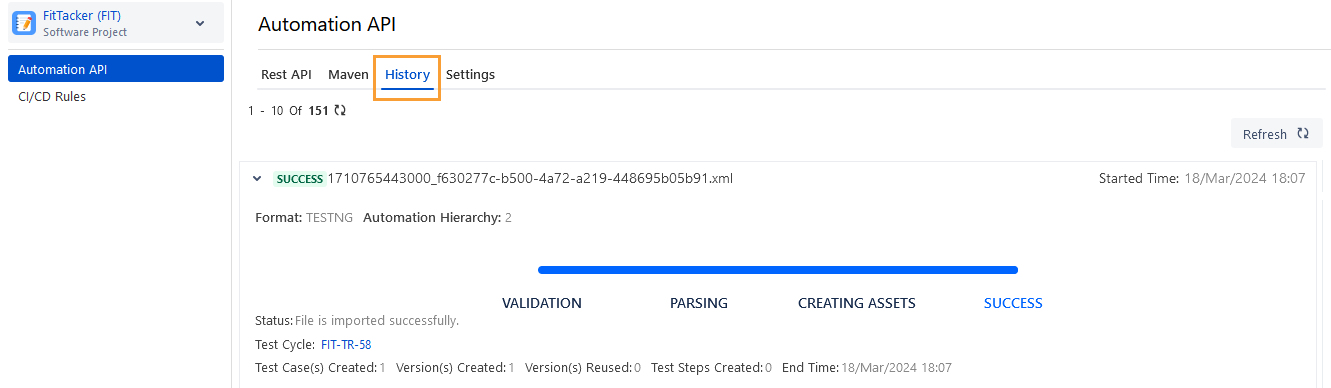
Go to QMetry Menu > Automation > Automation API > Select the Project for which automation API is run and open the History tab.
Click the Refresh button to refresh the screen and sync the details with the updated one.
Step 2: Open Test Cycle
A test run is created on successful automation import.
Click on the Test Cycle Key. It navigates you to the test cycle detail page.
Step 3: View Execution Results
Once you open the test cycle, navigate to the Execution screen. You can view the automation results of test cases as shown here.