Grid View Execution Screen
Introduction
To access the Grid View of the execution screen, click the Grid View icon at the top.
The Execution screen displays Test Case records linked to the Test Cycle under execution.
You can filter test case records using the criteria listed below. You can also perform bulk operations on the filtered records.
Test Case Search on Execution Screen
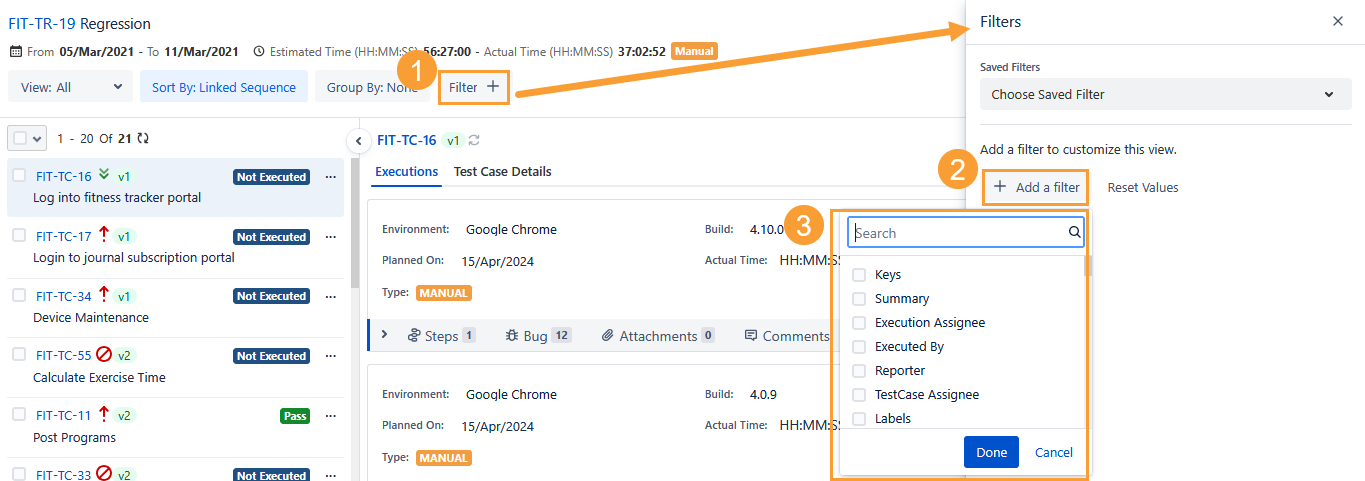
Perform the following steps to use the Filter option to search the test cases.
Click the Filter option.
Click the Add a Filter option on the Filters pane.
Select the search criteria to search the test cases.
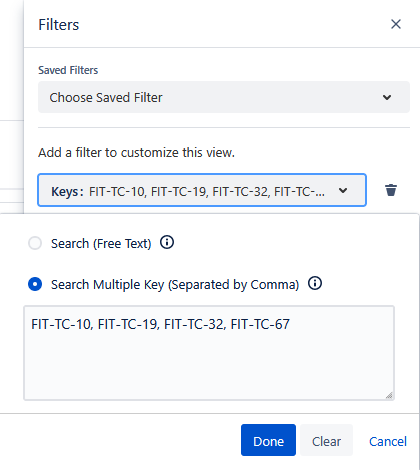
Key Search
Search (Free Text): This option searches mentioned Key with the “Contains” clause. It filters records using partial keyword matches.
Search Multiple Keys (Separated by Comma): This option searches Exact Keys, separated by commas.
Example: FIT-TC-10, FIT-TC-19, FIT-TC-32, FIT-TC-67
The search result displays records that exactly match asset keys.
Multi-line Search
You can search assets based on the content of the Multi-Line Text Box type fields.
Search (Free Text): This option searches the field content with the “Contains” clause. It filters records using partial keyword matches.
Search Multiple Keywords (Separated by Comma): This option searches for keywords or phrases in the field using the “Contains” clause. You can enter phrases/keywords separated by a comma. If a phrase contains a comma, enclose the phrase/keyword within double/single quotes.
Example: coaching, exercises, “workout history, performance stats”
Number Field Search
You can search assets based on the content of the Number Field type fields.
(A) Number Range: This option searches the field content with the “Contains” clause. It filters records using partial keyword matches.
(B) Search Multiple Numbers (Separated by Comma): This option searches for the exact numerical values in the fields. You can search for multiple numeric values separated by commas for a Custom field with the Number Field type.
Example: 141, 273, 902, 452
The search result displays assets that exactly match numbers.
Note
A maximum of 200 numerical values can be searched at a time.
A maximum of ten filters, including system and custom fields, can be selected at a time.
A. Key/Summary
B. Filters pane is visible by clicking the Filter options.
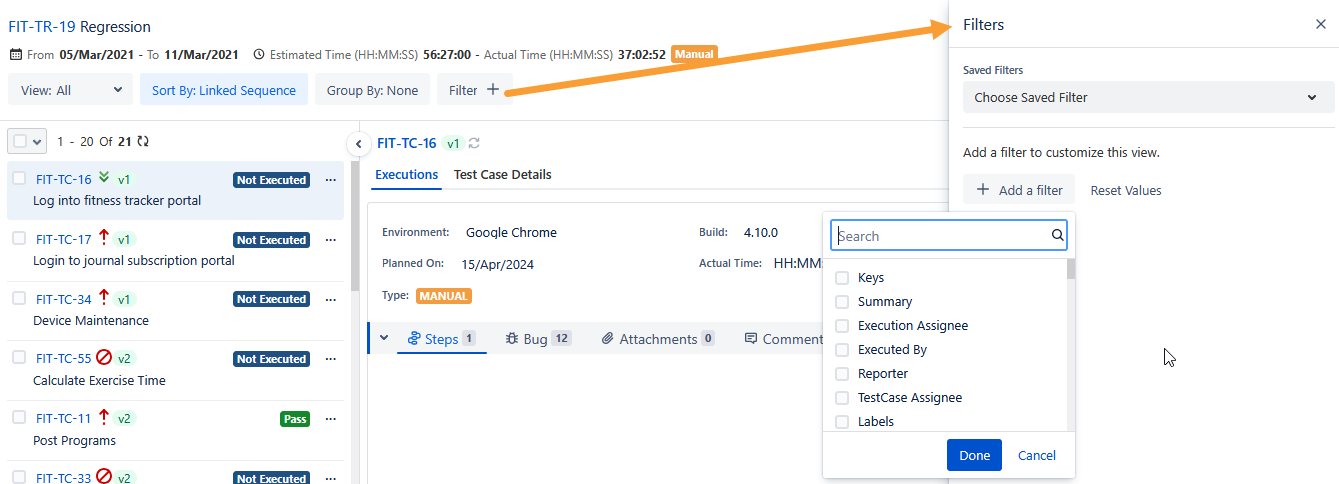
You can reset filter values, clear the criteria of the saved filter, and delete filters.
You can filter test cases on the following Filter options:
Execution Assignee: The execution Assignee is a user who is assigned to execute a Test Case from the execution screen.
Execution Result
Defects: You can filter test cases with defects or test cases without defects linked to them.
Test Case Assignee: The Test Case Assignee is a user who is assigned to a test case from the test case details screen. You can filter test cases based on Test Case Assignee and bulk update those test cases. For example, you can bulk assign those test cases to an Execution Assignee so that you do not have to check test cases individually.
Planned On: The date on which the execution of the test case is planned.
Folder Path: The filter allows you to filter test cases based on the respective folders. The list shows the entire test case module folder tree. You can select multiple folder paths to include test cases within those folders.
Executed By: The filter allows you to filter test executions on the basis of users who executed the test cases. You can select multiple users on the list.
You can perform bulk operations on the filtered test cases.
Select the test cases, click the Bulk Operations button, and select the option from the list.
You can select filters from Reporter, Labels, Components, Build, Status, Priority, Sprint, Fix Versions, Execution Result, Environment, Coverage/Stories, Defects, Estimated Time, Actual Time, Test Case Type, etc.
Custom fields: There are two sections for custom fields: Test Execution Custom Field and Test Case Custom Field. Custom fields of the current project are displayed on the filter menu. If cross project's test cases are linked with the test cycle, then custom fields of the current project will be displayed.
Filters created are user-specific, so they will be saved and displayed on a user profile basis. This means that when the user opens the execution screen, they see the same filters applied to the screen.
Apply Filters with Operators
In addition to the “OR” operator to filter the test assets, you can filter the test assets using the “AND” operator for the Multi-Lookup List. It enables you to filter the entities having multiple similar values in their fields. For example, you can filter test cases that have both Label1 & Label2 in the Label field. The filter will search for those test cases in which both values are present in the Label field. There are a total of 10 test cases, out of which 3 test cases have Label1, 2 test cases have Label2, and 5 test cases have both the labels Label1 and Label2. So, the search output will display 5 test cases that have both the Label values.
The operators are available for these fields: Label, Components, Fix Versions, Multi-dropdown custom field, Labels custom field, Multi-users custom field, and Checkbox custom field.
Note
If a filter with the AND operator is applied, you can not carry out Group By Folder and Component operations.
Empty operator: Using the “Empty” operator, you can filter records that do not have values for the specific field. The operator is available for single and multi-lookup fields.
The filter considers “OR” as the default operator and applies it to filter the records, which displays records with either of the selected values.
To change the operator, click the Edit icon beside the “OR” operator.
The drop-down displays two operators: “OR” and “AND”.
You can select “AND” as the operator to apply to the filter.
The filter applies with the operator “AND” and the output shows the records holding both values.
Save Filter
Users can save and apply multiple filter criteria on the Execution screen. You can create customized filters and save them for future use. You can quickly reuse the saved filter criteria for other test cycles in the same project without setting them up manually each time. You can save these filters with the visibility of either Public or Private, ensuring the required filters are visible to all users and other restricted filters remain hidden.
Perform the following steps to save a filter:
Click the Filter option.
Click Add a Filter on the Filters pane.
Select the options and set the criteria to apply a filter.
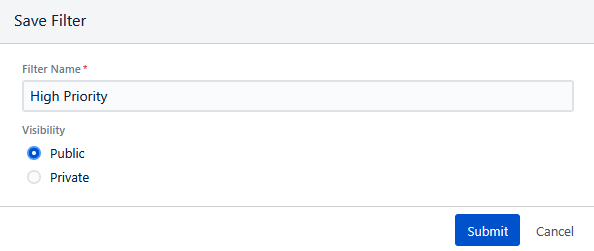
Click Save Filter to save the filter. The Save Filter dialog appears.
Enter the Filter Name to identify the filter.
Select the visibility of the filter:
Public: This option keeps the filter visible to all users of the project.
Private: This option restricts filter visibility to the currently logged-in user.
Click Submit to save the filter with the set visibility.
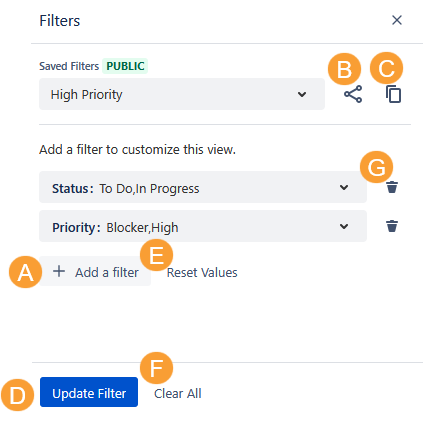
You can perform the following operations on the saved filter:
A. Add Filter: Add other filters to the existing filter criteria.
B. Share Filter: This option allows you to generate a URL and share it with other users of the project, letting them access the execution screen with the same filter applied to it.
Note
You can share only Public filters with other users of the project.
C. Copy Filter: This option allows you to copy the existing filter and save it with a new name. You can then modify the filter criteria to customize it.
D. Update Filter: This option allows you to rename the filter and change its visibility.
E. Reset Values: This option resets the set filter values.
F. Clear All: This option clears all the filter criteria set for the filter.
G. Delete: Click the Delete icon to delete the respective filter values.
Clear the filter
To clear the applied filter, click the Saved Filters drop-down list and then click Clear.
Delete a Filter
You can delete the filters that you created.
Perform the following steps to delete a saved filter:
Click the Saved Filters drop-down list
Hover over the filter name you want to delete and click the Delete icon.
Execute Test Cases on the Grid View Execution Screen
You can execute test cases from three places:
A. On the left pane, select the execution result for individual Test Cases as shown in the screenshot below.
B. Bulk Execution: On the left panel, select Test Cases and click Update. Select Test Case Execution Result. The latest Test Case execution will be updated.
C. On the Executions tab on the right pane, select the execution result for the test case and test steps.
Test Case Details
The Test Case Details tab displays details entered for the test cases in the Test Case module. The tab displays the system as well as the custom fields of the test case. The Test Case Version is displayed along with the Test Case Key.
Executions
The Executions tab displays execution details of the Test Cases in the test suite. You can view the following details for the Test Case:
Environment: The drop-down shows values entered in Configuration > Test Execution > Environment.
Build: The drop-down shows values entered in Configuration > Test Execution > Build. You can add values in-line. The added values will also be reflected in the Configuration. You can skip assigning value to this field on the execution screen.
Execution Assignee: Assignee assigned from the execution screen. You can skip assigning value to this field on the execution screen.
Planned On: The date on which the execution of the test case is planned. This helps in organizing and tracking test executions effectively. You can only select the Planned On date equal to or greater than the test cycle creation date.
Executed by: User who has executed the Test Case.
A.T.: The actual time taken for executing the Test Case.
S.C.: Steps Count
Bugs: It displays the Bug Count. Click on the count to link bugs/defects to the test case/step, either from the existing ones or by creating new defects and linking them directly. Read more about Link Defects/Bugs on Grid View Execution Screen.
Attachment
Comments
Execution Custom Fields: These are the Test Execution custom fields added from Configuration > Custom Fields. An asterisk (*) next to a field name indicates a mandatory field.
Execution Result
The counts can be clicked to expand the Test Case row to show its relevant tab in the expanded area.
Each test case row is expandable. The expanded area has five tabs on it: Steps, Bug, Attachments, Comments, and Execution Custom Fields. These tabs can be organized through drag and drop.
Steps tab
The user can select List View/Grid View for steps in either List View or Grid View.
If the Precondition is mentioned in the test case, then it will be displayed in the Steps tab.
Users also have the option to Expand individual steps or Expand all steps at a time.
Bug tab
For a linked bug, the Bug Level displays whether the bug is logged at the Test Case level or test step level. If a bug is linked to a test step, the step number is also mentioned. You can unlink a bug from its place of linkage.
The Executions tab on the test case detail page (Test Case >Execution tab) displays the bugs and attachments linked to the execution screen.
Attachments tab
The Attachments tab lists all the attachments added from the Test Case module as well as from the execution screen. You can filter attachments based on their Attachment Level.
The Attachment Level column displays at which level the attachment has been linked - to a Test Case or a test step in the Test Case module or on the execution screen. You can delete an attachment from its place of linkage.
Comments tab
Use the Comments tab to write your comments. You can also tag a Jira user with their comment. It induces smooth communication between two teams/groups. For example, the QA team wants to communicate the execution result of a test case to the Development team immediately and draw their attention.
Custom Fields tab
Custom fields from the Configurations section of the current project are displayed on the Execution Custom Fields tab. If cross project's test cases are linked with the test cycle, then custom fields of the test cycle project will be displayed. You can enter/edit/remove values in the custom fields. An asterisk (*) next to a field name indicates a mandatory field.
Start a New Test Execution
Refer to Start a New Test Execution.
Sync Latest Test Case Version
The Sync icon on the screen acts as an indicator that indicates whether the linked version of the test case is the newest version or an older version. You can easily come to know that you need to sync the latest version of the test case with the test cycle.
While reviewing the linked test case of a test cycle, the QA Manager/Tester easily finds out whether the test case that is getting executed/linked is the latest one. While executing the test case the testers shall know if they are executing a new test case version or still executing an older one. The Test Cycle > Test Cases tab and the execution screen now indicate the availability of a newer version of a test case besides the older linked version. If the older test case version is found, testers have the option to sync the latest version of associated test cases individually or in bulk.
The feature is useful as -
the syncing of test cases to a new version can be done individually or in bulk, which saves time.
it eliminates the need to manually unlink the older version and link the newer version of the test case for execution.
Note
Permissions required: You must have the Test Cycle Edit permission to sync the latest version of the test case with the test cycle.
An archived test case can’t be synced with the latest version. To sync the archived test case with the latest version, unarchive it first.
If multiple versions of a test case are linked to a test cycle and the latest version of the test case is available, you can sync only one version with the latest version of the test case. In bulk operation, if multiple versions of a test case are selected for sync, the first test case in the order of the linking will be synced.
Once the latest version of the test case is synced -
the action of syncing the latest test case version can’t be reverted.
this action shall reset the execution status of the test case and its test steps to “Not Run” on all its current and previous executions on this test cycle.
bugs linked with the previous executed version shall not be carried forward (linked) to the latest synced version of the test case and shall be unlinked from older executions.
the “Actual Time”, “Actual Outcome”, “Comments”, “Attachments”, and “Any other Custom Execution Fields” values shall be erased and shall be lost.
The following table shows the indication of different colored Sync icons.
Icon | Description |
|---|---|
| It indicates that the latest version of test case is available. |
| It indicates that the test cycle is synced with the latest version. |


Sync the Latest Version of a Single Test Case
You can sync the latest version of a single test case as well as multiple test cases on the execution screen. This section describes the steps to sync the latest version of a single test case.
Perform the following steps to sync the latest version of a test case:
Navigate to the Grid View of the test execution screen.
The Sync icon adjacent to Version indicates whether the test case version is the latest or not. The icon appears in Blue when the latest version of the test case is available for sync.
Click the Sync icon to sync the latest version of the test case with the test cycle.
The confirmation message appears.
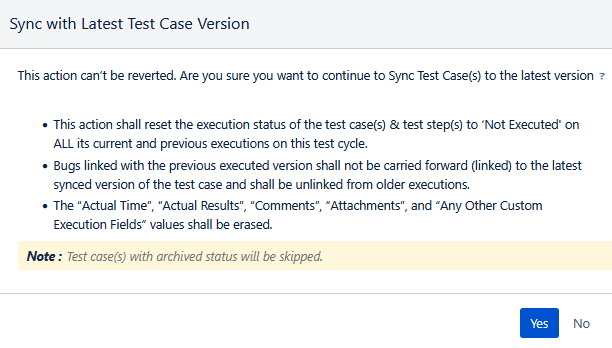
Click Sync to proceed.
The latest version of the test case is synced with the test cycle.
Sync the Latest Version of Multiple Test Cases
You can sync the latest version of a single test case as well as multiple test cases on the execution screen. This section describes steps to sync the latest version of multiple test cases at a time.
Perform the following steps to synce the latest version of multiple test cases:
Select test cases for the latest available version of which you want to sync with the test cycle.
Click the Bulk Operations button and select the Sync with Latest Version option.
The confirmation message appears.
Click Yes to proceed.
The latest version of the test case is synced with the test cycle.
Audit Logs
The syncing of the latest version of test cases is displayed in the Audit Logs tab of the test cycle detail page.
Clone a Test Execution
You can clone the execution of the Test Case. It will clone all steps, defects, and attachments linked with the test execution. The cloning of test execution is useful when you need the same details as the current execution. For example, a Test Case A failed in Build1, and the tester needs to test the same Test Case in the next Build2 with all the existing associations.
On the execution screen, click on the Clone icon for the test execution that you want to copy.
The Clone dialog appears.
Select the checkbox in the pop-up if you want to clone all the Test Execution Custom Field values from the latest execution. The checkbox is selected by default.
Click Clone to proceed.
A copy of the existing test execution is created. You can then change the Build or Environment as per your requirement and go ahead with the execution.
Delete a Test Execution
If a test execution is created by mistake or you have changed your mind and do not require the new test execution anymore, you can delete it by clicking on the Delete icon for the test execution.
The Delete icon is only visible when there is more than one test execution exists for the test case.
Sync Test Steps
When the steps are added/updated/deleted in the Test Case module, a warning message is shown for the Steps tab indicating the required sync. Click on the provided link to sync the steps with the Test Case and update them on the execution screen.
The dialog box appears. Click Sync Steps to proceed.
Sort Test Cases
On the execution screen, you can sort the Test Cases for execution on different attributes.
Open the Sort By drop-down and select the attribute you want to sort Test Cases on.
Group Test Cases
You can group test cases for execution on different attributes. Click the Group By option and select the attribute on which you want to group the test cases. The test cases are categorized accordingly on the screen.
Grouping by Test Case Folder Sequence
You can view and group test executions in the same hierarchy structure as the test case folders. The test executions are organized in the same folder and sequence as the test cases in the Test Case List View. This organization makes it easier for you to track and manage the test executions.
Perform the following steps to view test case executions in folder sequence:
On the test execution Grid View, click the Group By option.
Select Test Case Folder Sequence in the Group By list.
The latest version of the test case is synced with the test cycle.
If the test cycle has cross-project test cases linked to it, the pane displays test case folders under the respective projects.
Select a folder to view test cases of a specific folder.
Note
Sorting is only available when you group test cases on an attribute other than the Test Case Folder Sequence.
When you link multiple test case versions to the same test cycle, the folder count considers each version separately.
Configure Sorting and Grouping
The administrator can configure the default grouping and sorting of test cases displayed on the execution screen grid view for all users assigned to the project. The configuration of the Execution Test Case Grid View Sorting/Grouping Option can be done from the Configuration > Test Execution > Execution Preferences. Refer to Execution Result for more details.
However, users can override the default sorting or grouping of test cases in the execution screen grid view. The users' preferences will be auto-saved for them.
Also, a handy option on the screen lets you navigate to the Execution Preferences screen.
Note
This option is visible only to users with the Configuration Modify permission.
Assign Execution Status
The testers assign the Execution result to the respective Test Cases or Test Steps for tracking the testing process progress. Configuration related to how the execution results of test steps will impact the final execution result of their Test Case is done from Configuration > Project Configuration > Execution Result.
Assign Status to Test Case
If the status of the Test Case is updated, then the status of all the test steps will be updated with the same status as that of the Test Case.
Notes:
If the status of the test case is updated, then the status of all the test steps will be updated with the same status if the Auto Update Execution Result option is enabled.
If the Report Bug setting in Configuration is enabled for the execution result, you must either link an existing bug or create a new bug to associate with the test case. You must link bugs, even if you have already linked bugs to the test steps of the test case.
There are two methods you can assign execution results to a test case:
A. Under the Execution Result column, select the result you want to assign to the test case. If you want to view execution result options, then click on the existing test result of the test case.
B. Test Cases under the test cycle are displayed on the pane at left. Select the result you want to assign to the test case directly by clicking on the result icon on the left panel.
Note: The Execution Result appears disabled if you have not filled in all the mandatory system and custom execution fields. The blank mandatory fields do not allow you to assign execution results to test cases. This restriction does not apply to the Execution Results where the Skip Validation is enabled.
Assign Status to Test Step
Each Test Case is expandable on clicking on the step count (S.C.) for the Test Case.
If there is any change (add/update) in the steps in the Test Case module, a warning message is shown for the Steps tab indicating the required sync. Click on the provided link to sync the steps with the Test Case and update them in the execution screen as described in the steps Sync Steps section above.
Note: If the Report Bug setting in Configuration is enabled for the execution result, you must either link an existing bug or create a new bug to associate with the test step.
A. Expand to view more execution status. Select the one that you want to assign to the step.
Note: The Execution Result appears disabled if you have not filled in all the mandatory system and custom execution fields. The blank mandatory fields do not allow you to assign execution results to test steps. This restriction does not apply to the Execution Results where the Skip Validation is enabled.
B. Click to link a defect to a step.
C. Click the icon to link an attachment to a step.
Actual Time
The Stopwatch feature automatically calculates the actual time taken by testers to execute each test case. The total actual time for all test cases within a test cycle is displayed at the top.
The Stopwatch feature automatically calculates the actual time taken by testers to execute each test case. The total actual time for all test cases within a test cycle is displayed at the top. Refer to Track Execution Time on Grid View Execution Screen for more details.
Bulk Update Test Cases from Execution Screen
You can bulk update test case execution results, execution custom fields, execution assignee, environment, build, actual time, and comments.
Assign Build and Environment to the Test Cases linked to a Test Cycle
You can change/assign the environment and build for multiple Test Cases at a time on the execution screen. The change in Build will impact the latest execution of the Test Case.
Select the test cases to change the Build and Environment values.
Click on the Bulk Operations button and select the Update option.
The Update screen dialog box opens.
3. Assign/Change the value of Environment and Build in respective fields. If you want to keep the Build field blank, then select the “Set Field as Blank” option on the drop-down.
Bulk Update Test Execution Results
Users can bulk update the execution results of multiple test cases at a time from the execution screen.
Perform the following steps to bulk update test execution results:
Select the test cases you want to execute.
Click Bulk Operations, and then select the Update option.
The Update screen appears.
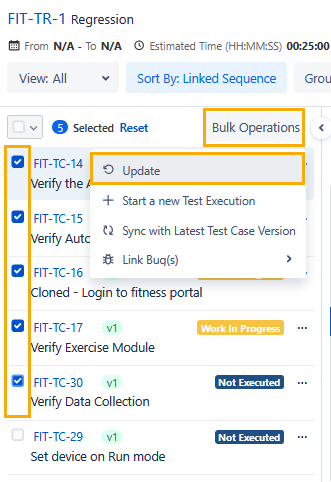
Select the Execution Result from the Test Execution Result list for all the selected test cases.
If you also want to update the execution result of test steps, select the Update Test Step Execution Result checkbox.
Note
If Auto Update Execution Result Preference is ON, the Test Steps Result will also get updated.
If the Report Bug setting in Configuration is enabled for the execution result, you must either link an existing bug or create a new bug to associate with the test case.
Click Update.
The test execution results for the selected test cases are updated.
Note: If you have not filled in all the mandatory system and custom execution fields, you can not update the execution result status of the selected test cases. The blank mandatory fields do not allow you to assign execution results to test cases. This restriction does not apply to the Execution Results where the Skip Validation is enabled.
Bulk Update Execution Assignee
You can update the assignee who will execute the test cases from the execution screen. Users can also bulk update the Execution Assignee of multiple test cases at a time from the execution screen.
The Execution Assignee field can be filtered for blank values. The Unassigned parameter is provided for the Execution Assignee filter, using which users can filter the test cases and assign the execution assignee to them.
Perform the following steps to bulk update the execution assignee:
Navigate to the Execution Assignee filter drop-down and select the Unassigned checkbox.
The filter is added.
Click the Execution Assignee filter and select the Unassigned checkbox on it.
The test cases, for which the Execution Assignee field is blank, will be listed on the screen.
Select the test cases for which you want to update the Execution Assignee field and click on the Update button.
The Update screen appears.
Select the Execution Assignee from the drop-down for all the selected test cases.
Click Update.
The Execution Assignee value will be applied to the test cases.