Create Test Steps
You can add test steps to the test cases. The Test Steps editor supports Wiki Markup, enabling you to format the Test Step text with different effects.
There are two methods to add test steps under the test case:
Add Test Steps from the Steps Tab
Add Test Steps from Test Case List View
Add Test Steps from Steps Tab
Perform the following steps to add test steps from the test case detail page:
Go to the test case detail page.
Click the Steps tab.
You can see the Step Details section, which is expandable.
Enter Step Summary, Test Data, and Expected Result in respective text boxes. These fields have a Wiki markup editor.
Click Add to add every step.
Note
QMetry Test Management for Jira uses Jira’s native editor, and some characters, like backslashes, used in the wiki markup body become unusable by default. This is a technical limitation from Jira's end. As a workaround, we suggest you use the Code from the rich text editor to mention any text containing backslashes.
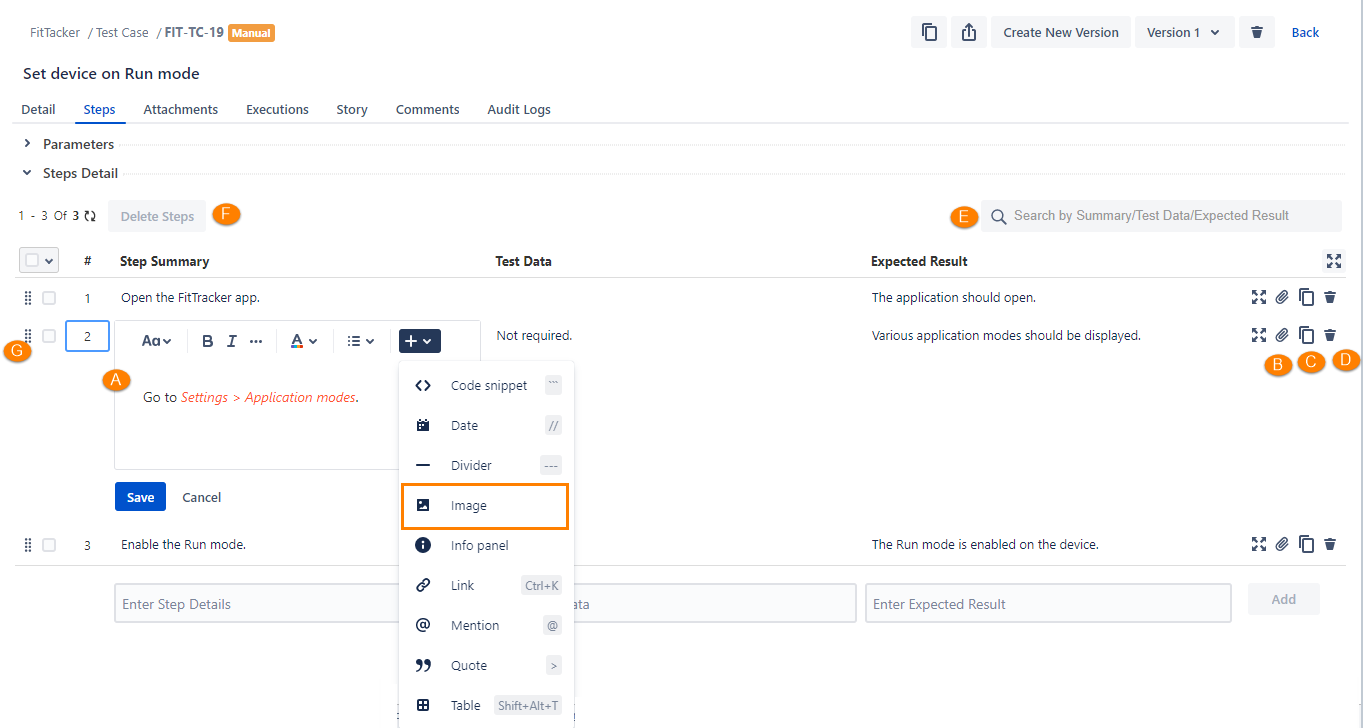
You can write test steps in the Wiki markup editor, which has different options for text formatting. Refer to Text Formatting.
File as an attachment: The attachment icon is available in the edit mode of the step. If more documents are required in reference to the step, then you can attach the file directly to a particular step using the Attachment icon.
File as URL: When users want to add an image or screenshot on steps as a thumbnail, this option can be used. This option accepts only the URL of the file. The file should be placed in a location from which all users can access it, and then its URL can be used to attach that file as an image.
Note
Administrators can configure the maximum file size for attachments and in-line images. By default, the system allows a file size of up to 50 MB. Refer to Storage Configuration for more information.
Perform the following steps to add an image as a URL:
Apart from the attachment icon for the step, the Image option is provided in all the editor boxes for the step. In the editor, click the menu option and select Image.
Enter the URL in the pop-up that opens and click OK.
When there is a minor change in the steps or in case of repetition of the step, you may need to create a copy of the existing Test Steps. You can create a copy of the existing Test Steps very quickly.
To create an instant copy of the existing test step, click on the Clone icon for that step. It will add another step with the same value as the original step.
In case you find that the test step is no longer relevant to the Test Case it has been added to, then you can easily delete that test step from the same screen.
Click the Delete icon for that particular test step.
If there is a long list of steps, you can search for the required steps by Summary, Test Data, and Expected Result.
In case multiple steps under a test case are no longer relevant, you can remove these steps in one go without removing them all at once.
Perform the following steps to remove steps in bulk:
Select the steps you want to remove.
Click the Remove Steps button.
There are two methods to rearrange the steps:
Drag and Drop to change sequence: To re-arrange steps on the same page, perform the drag and drop operation.
Change Sequence: To rearrange steps across pages, change the sequence of steps accordingly.
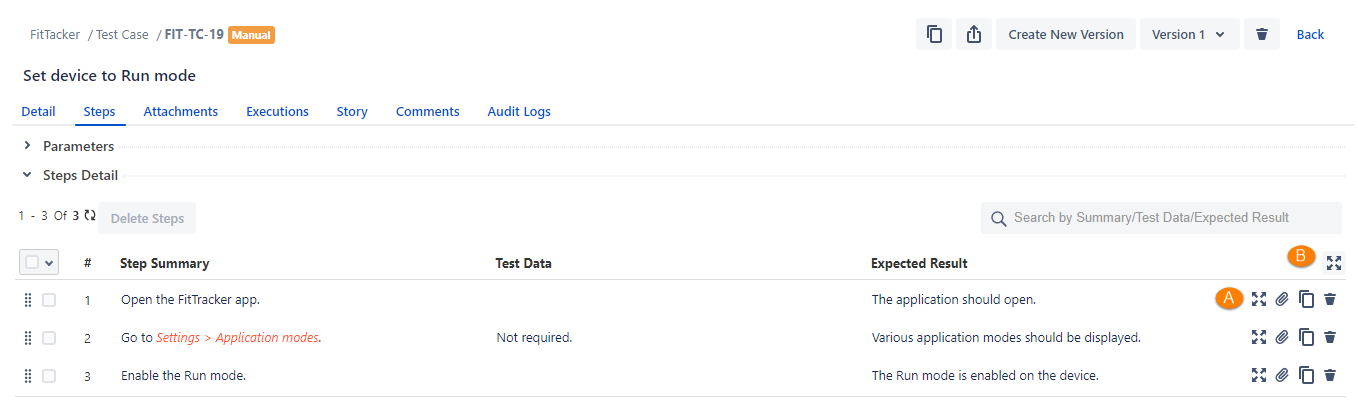
A. Expand the individual test step
B. Expand all the test steps at once
Add Test Steps from Test Case List View
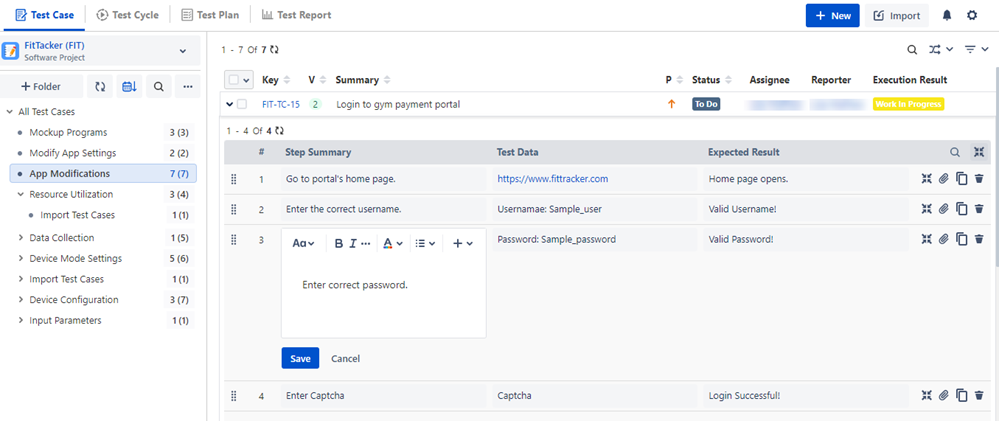
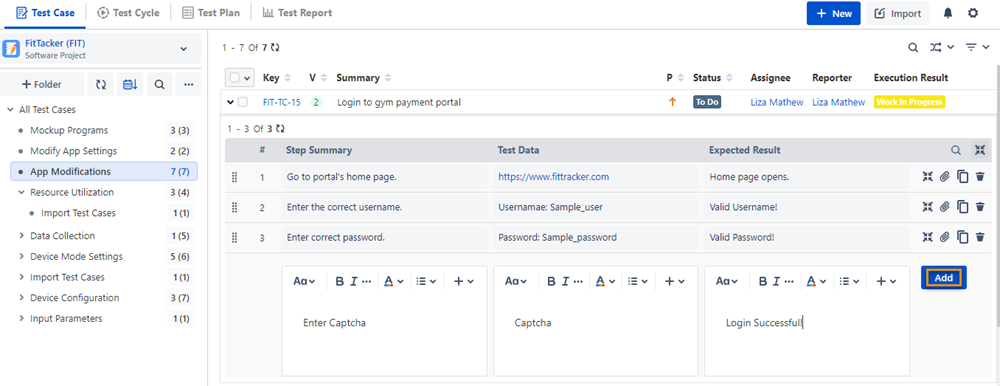
You can add a new test step directly from the test case list view without opening the Steps tab of a test case detail page.
Go to the test case list view.
Expand the test cases under which you want to add test steps. You can see the space to add steps.
Enter the test step details and click Add.
Edit Test Steps
You can edit test steps from two places -
Edit Test Steps from the Steps Tab on the Test Case Detail Page
You can edit existing step details, add attachments, clone the test step, and delete the test step.
Edit Test Steps from Test Case List View
You can edit existing test steps directly from the test case list view without opening the Steps tab of a test case detail page.
Expand the test cases under which you want to edit existing test steps. Edit the existing steps inline. The changes in steps are reflected in that particular version of the test case.
You can add an attachment, clone the test step, and delete the test step from the Test Case List View.