Comments and Attachments in Test Case
Comments
Adding comments to a test asset is a useful way to record additional details about a test asset and collaborate with your QA team members. The Wiki markup editor is provided to enter comments with different text formats. Comments are shown in the Comments tab on the details page when you view a test case.
A. Add Comments
Go to the Test Case details page and open the Comments tab.
You can see the text box at the bottom of the screen. Start typing your comment in it.
Note: Administrators can configure the maximum file size for attachments and in-line images. By default, the system allows a file size of up to 50 MB. Refer to Storage Configuration for more information.
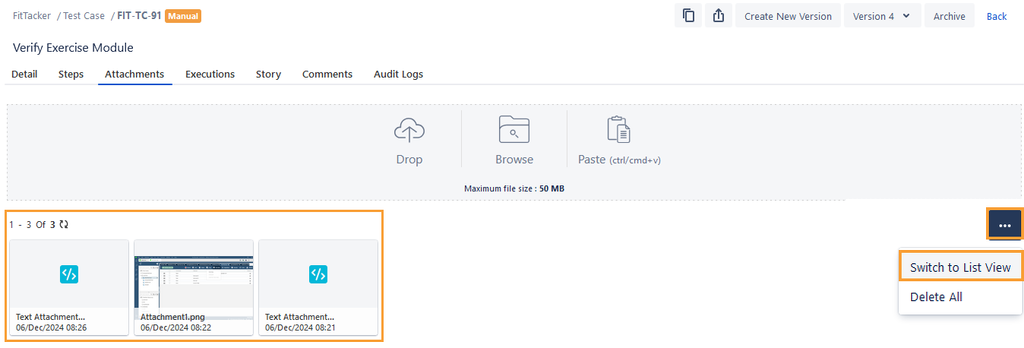
You can attach the file in any of the following ways:
Drag and drop the file to attach
Browse the file to attach
Copy and paste the file to attach
 |