Text Formatting
You can write test cases and test steps in the Wiki markup editor. The editor allows you to add the following attributes to the field.
The rich text editor is also available on custom fields with the type Multi-Line Textbox. The feature is available on the test case, test cycle, test plan Create and Detail page, Exploratory Testing Create Test Case page, and Execution custom fields.
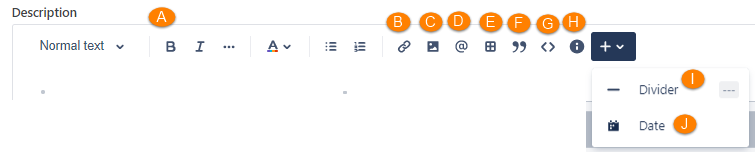
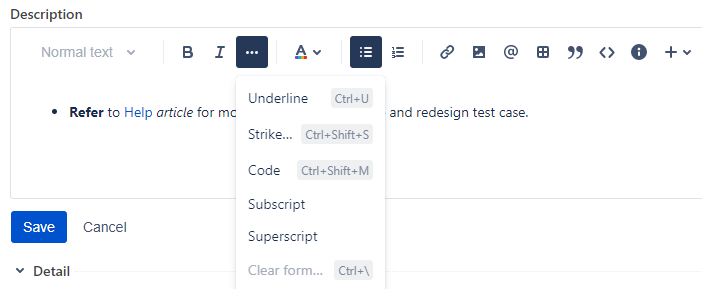
A. Text: Apply all the standard formatting options available in other editors. You can add emphasis to your text with formatting such as italics, bold, underline, apply color, and alignment to the text.
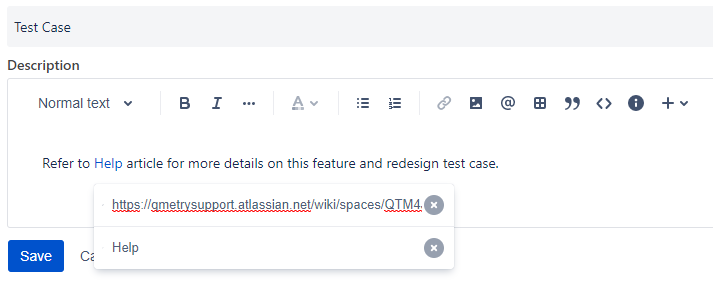
B. Links: Select some text, or position your cursor where you want to insert the link. You can also use keyboard shortcuts Ctrl+K.
C. Images: When you want to add an image or screenshot as a thumbnail to the large text fields of test assets, then use this option. For existing test steps, you can add an image through the attachment icon for the step and from the image option provided in all the editor boxes.
Note
You can upload files up to a maximum size of 50 MB.
Required Permission: You must have the Edit permission for the respective Test Management module to be able to add an image in the text editor.
Note
This feature is available for the rich text editor across all the QMetry modules like Test Case (Description, Step Summary, Test Data, Expected Result, and Comments), Test Cycle (Description and Comment), Test Plan (Description and Comment) and Test Execution (Test Case Comment, Test Step Actual Result, Test Step Comment).
The rich text editor supports the jpg, jpeg, png, and gif file formats. The images will appear as thumbnails. On clicking the thumbnail, the image will enlarge.
Click the Image icon to add an image or screenshot to the rich text editor.
There are different ways available to add images to the test assets.
Browsing and uploading the image
Perform the following steps:
On the Insert list, select Image.
On the next dialog, click select files to browse and select the image. You can select and upload multiple image files at once.
Once the image file is uploaded, click Confirm.
Dragging and dropping the image: You can add the image in the text editor through the drag-and-drop operation.
Perform the following steps:
On the Insert list, select Image.
Drag the image from the local drive and drop it into the Drop file area. You can drag and drop multiple image files at once.
Inserting the image through the URL: This option also accepts the URL of the file. The file should be placed in the location from where all users can access it and then its URL can be used to attach that file as an image.
Perform the following steps:
Apart from the attachment icon for the step, the Image option is provided in all the editor boxes for the step. In the editor, click the menu and select Image.
Enter the URL in the pop-up that opens and click Confirm.
Copying and pasting the image: You can copy the image and paste it directly into the editor. You can copy-paste multiple image files at once into the text editor.
Perform the following steps:
Select the image you want to copy and press Ctrl+C on your keyboard. You can also use the right-click context menu to copy the image.
Go to the editor and press Ctrl+V to insert the image directly. You can also use the right-click context menu to paste the image into the editor.
Images added in the test asset editor and test step editor, using the copy paste and upload options, are also be shown in the Attachment tab of the test asset.
To edit an image, select the image you want to edit in the text editor and make changes like adjust the alignment of the image, align the image on the right or left of the text, stretch the image to fill the width of the window, and delete the image.
D. Mention: Use @ and a person’s name. The user mentioned receives a notification, so you can use this to let them know to read the page, or to draw their attention to a specific comment.
E. Table: Insert a Table to represent the data in tabular format. To add a table, click the Table icon. A three-column, three-row table appears on the page. You can use table options and cell options for additional formatting.
F. Quote: Emphasize a quote by clicking the Quote icon and typing the text that is to be quoted.
G. Code snippet: Use the code snippet element that is inserted by typing /code to access the list of elements.
H. Info panel:Insert an Info panel by clicking on the Info icon. This creates a colored box surrounding your text with the ability to choose an icon with a specific background color.
You can add info, note, success, warning, or error using the respective icon.
I. Divider: Separate sections of text using the horizontal line divider.
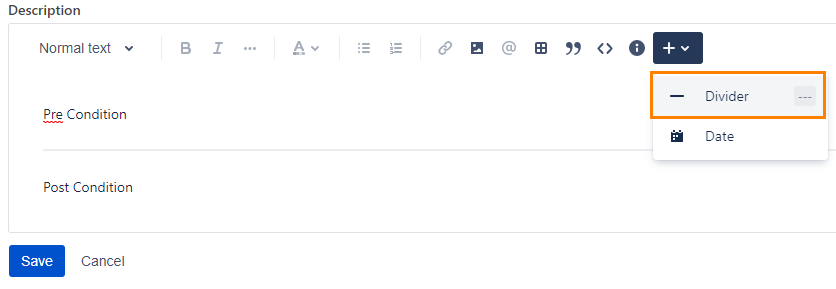
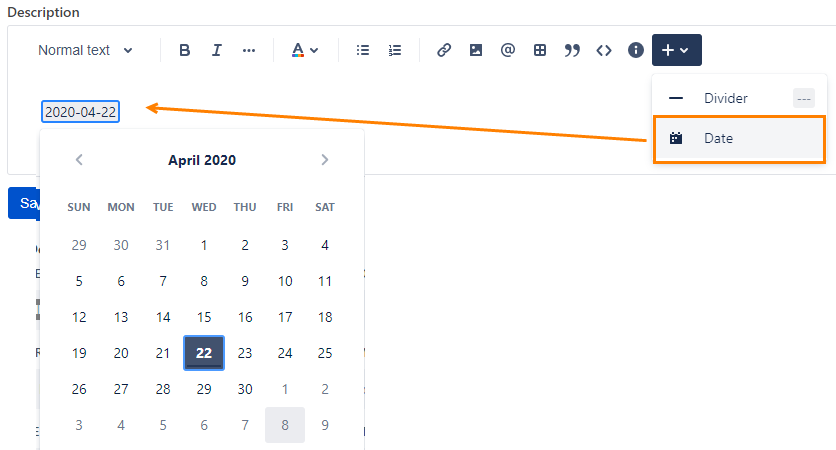
J. Date: Insert a date by clicking n the Date option and picking your date.
Known Limitations of Editor (related to Table):
The Delete Rows and Delete Columns options do not work when the table is selected.
The last column of the table is not resizable.
Cell Options are not visible.
The Clear Link & Clear Text functionality does not fully support scenarios where a hyperlink is embedded in text.