Create and Update Test Cases Using Feature File
QMetry Test Management for Jira allows users to use a Behavior-Driven Development feature file to create new test cases directly from the file and update the details of an existing test case according to the feature file.
You can access the feature from the following modules and pages:
Create a Test Case from a Jira Story
Testers can create test cases directly from the feature file or the BDD code (written in Gherkin syntax) entered in the BDD section of the Jira Story page. BDD's Given-When-Then structure makes translating user stories and acceptance criteria into testable scenarios easier. Creating test cases from the feature file and linking them with the Story can significantly improve test coverage and traceability between requirements, BDD scenarios, and test executions.
The test cases are linked to the story where they were created if valid Test Case Keys are found in the Feature file.
Pre-requisite: Enable the BDD Panel option to display the BDD section on the Story issue page in Jira. Refer to BDD in QMetry Test Management for Jira (QTM4J) for more details on configuring BDD and enabling the BDD panel.
Perform the following steps to create a test case from a Jira Story page:
Navigate to the Story details page.
Select the BDD section.
Click the Test Cases button to create a test case from the entered Gherkin code.
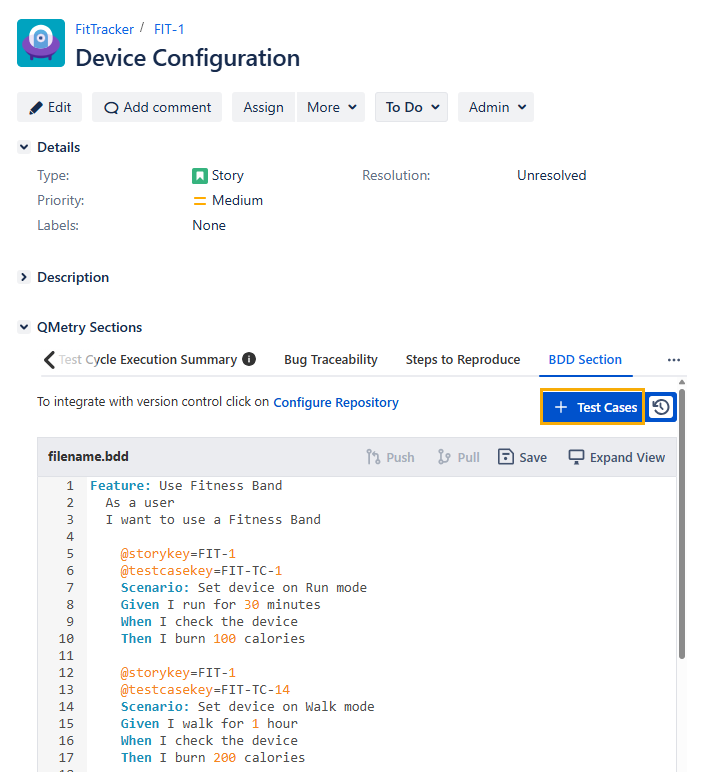
The Create Test Case screen appears and displays all the system and custom fields.
In the Import Settings, define the test case fields and select the import options for the Test Case Key and Labels.
Summary, Description, and Steps values are imported automatically from the .feature file.
Select values for any remaining system fields and custom fields displayed on the screen.
Note
The selected fields will apply to all test cases created from the feature file, and this selection will be saved for future imports.
Select the required option for the following Import Options:
If a Test Case Key is found for a scenario: If the Test Case Key mentioned in the result file matches the Test Case Key in QTM4J, you can select either of the following options:
Update the current version: The existing version of the test case is updated with the result file details.
Create a new version: A new version of the test case is created with the result file details.
Tags are imported as labels. If labels are not found, if the Tags mentioned in the result file do not exist in QTM4J, you can select either of the following options:
Create: If the Tags mentioned in the result file do not exist in QTM4J, they are imported as labels in the Configuration section and applied to the test case Labels field.
Ignore: If the Tags mentioned in the result file do not exist in QTM4J, they are not imported into QTM4J and just ignored.
Click Create.
View Status
Click the Test Case Import/Create Background Jobs icon.
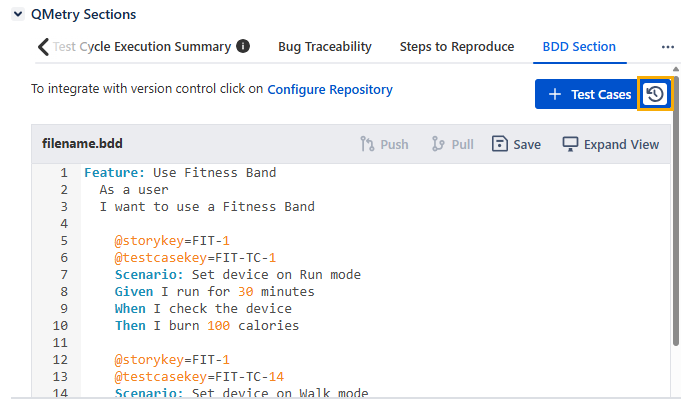
The screen displays operations for creating or importing test cases through the feature file.
A new record is added for the recent feature file import.
The details include Batch ID, Source, File Name, Status, Import Date, and Imported By.
Expand the record to view the details of scenarios imported during the operation, the Test Case Keys to which the scenarios were mapped, the test case version, and the Status.
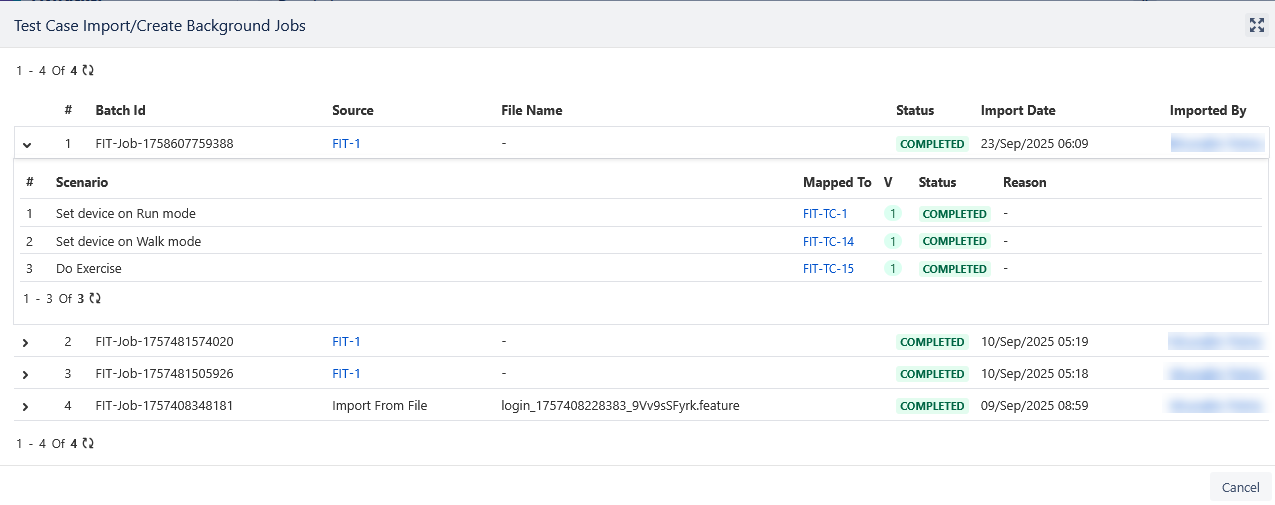
The test cases are created using the feature file in the story. You can view the test cases on the Test Case/Acceptance Criteria tab.
In the Test Case module, the Test Case Keys mentioned in the .feature file are reused, and the relevant test cases are updated either with the existing version or with the creation of a new version as per the set configuration.
Create or Update a Test Case from the Test Case Module
You can use a feature file to create a new test case directly from the feature file and update the details of the existing test case according to the feature file.
Notes:
The Summary and Steps in the feature file will override the existing content of the test case when creating or updating it from the Scenario option.
Steps are created as Steps, and a Data Table will be made as Test Data.
These elements are not supported: Rules, Tags, Story Key, and Test Case Key.
Only Scenario is supported as an independent test case.
If a Story Key or Test Case Key is mentioned in the file, it is created as a Label in the test case.
When the feature file is imported from the test case detail page, the Examples in the feature file are not created as parameters in the steps.
Create a New Test Case
Perform the following steps to use the feature file to create a new test case from the Test Case module:
Navigate to the Test Case module.
Click New, and then click Scenario.
Enter the BDD code from which you want to create a test case and then click Import.
Verify the import. The details of the summary and steps are entered in the test case according to the feature file.
On the Detail tab, enter values in other fields.
In the Steps tab, the Given-When-Then in the .feature file gets added as steps in the Steps tab.
Update an Existing Test Case
You can use the feature file to update an existing test case. It overrides the existing summary and steps with the new details.
Navigate to the test case detail page and click the Scenario button.
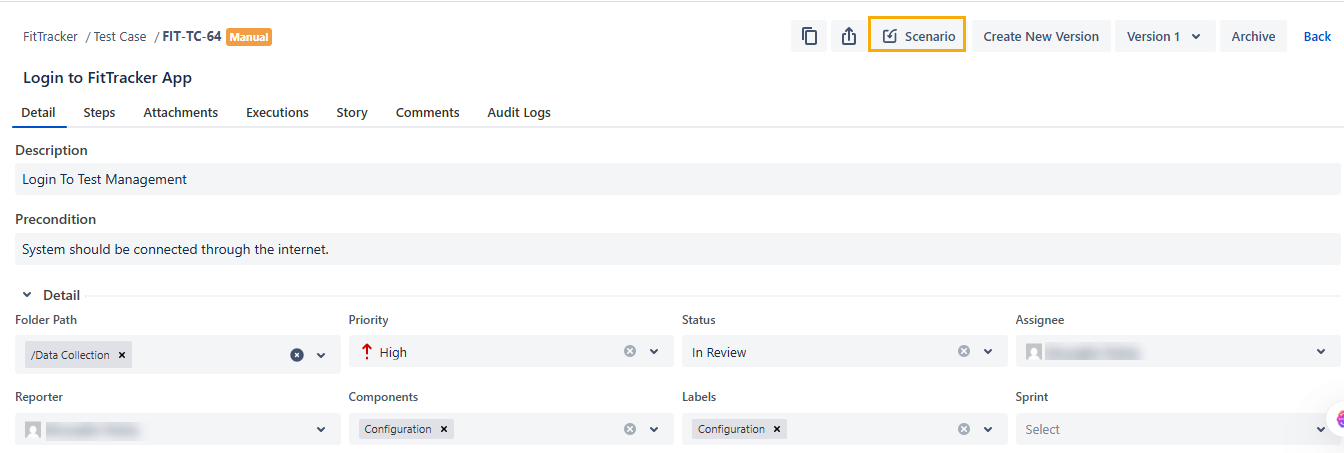
The Import from Scenario screen opens with the Gherkin editor.
Enter the BDD code or feature file text in the editor.
Click either of the following buttons:
Update Current Test Case Version: The existing test case version is updated for the selected scenario.
Create New Version: A new test case version for the entered scenario is created.
Import Feature File from Test Case Module
Refer to Import and Create Test Cases Using BDD Feature File for more details.