Move Test Cycles
You can move test cycles using the Move button or through the drag and drop operation.
Move Test Cycles Using Move Button
You can move multiple test cycles from one folder to another.
On the folder tree at left, select the source folder that contains the test cycles.
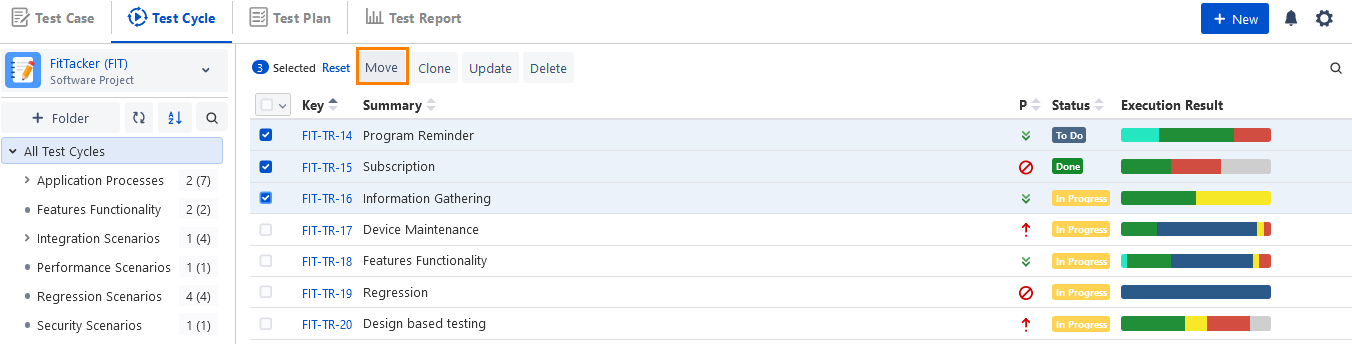
Select the test cycles that you want to move to another folder.
Selection of Multiple entities at a time: To select entities within a range on the current page, select the first entity’s check box, and then select the last entity’s check box, and simultaneously hold the SHIFT key of the keyboard. All the entities between these two entities will get auto-selected.
Select All:
Current page: Selecting the checkbox in the column header selects all the records on the current page only. An alternate way is to click the checkbox drop-down and select Current Page.
Across all pages: Click the checkbox drop-down and select the Across All Pages option. You can select a maximum of 1000 records.
The options for bulk operations appear at the top of the screen when you select the records.
Click Move.
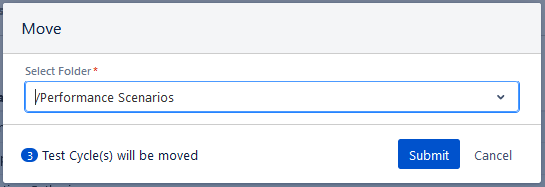
The Move dialog box appears. Select the destination folder in which you want to move the selected test cycles and click Submit.
The test cycles are moved to the selected destination folder.