Search Test Cycles
Users can search for test cycles in the Test Cycle tab using various filters. The selected filters are applied to the chosen test cycle folder in the tree.
Ways to Search Test Cycles
The multiple-value Search feature is available for Keys, Summary, Description, Attachment Name, Comments, and custom fields with Number Field and Text Field types in the Test Cycle module.
Search a Test Cycle Key
You can search for a single test cycle key by entering the key in the search box. This option searches mentioned Key with the “Contains” clause. It filters records using partial keyword matches.
Search on Other Test Cycle fields
You can apply other filters on the following fields to search for test cycles. The filter can also be applied to custom fields.
Note
A maximum of ten filters, including system and custom fields, can be selected at a time.
Label
Fix Versions
Components
Sprint
Status
Priority
Assignee
Reporter
Created By
Updated By
Key Search
Search (Free Text): This option searches mentioned Key with the “Contains” clause. It filters records using partial keyword matches.
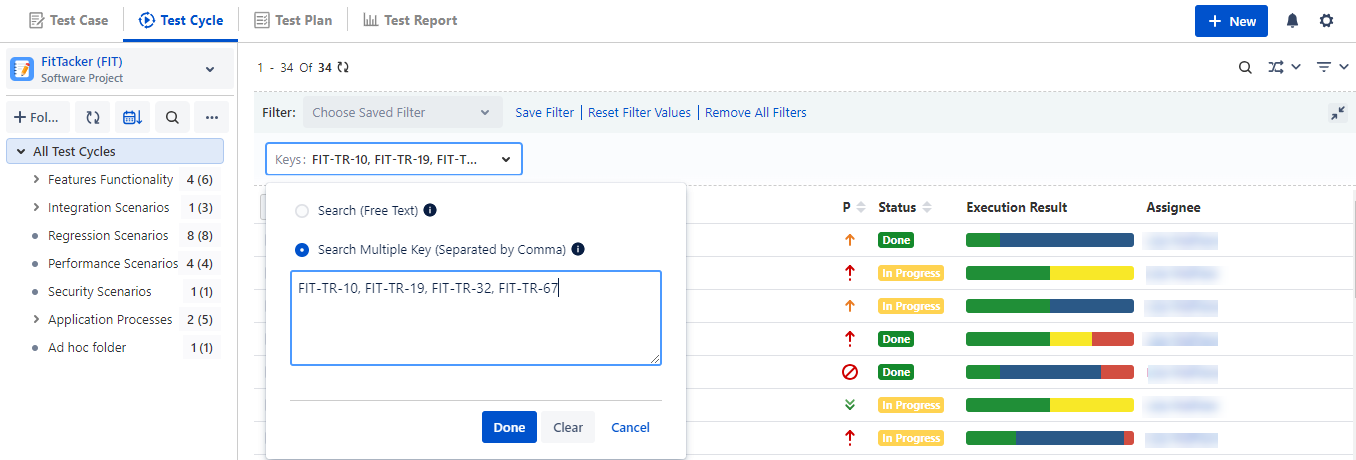
Search Multiple Keys (Separated by Comma): This option searches Exact Keys, separated by commas.
For example: FIT-TR-10, FIT-TR-19, FIT-TR-32, FIT-TR-67
The search result displays records that exactly match asset keys.
Note
A maximum of 200 Keys can be searched at a time.
Multi-line Search
You can search assets based on the content of the Multi-Line Text Box type fields.
Search (Free Text): This option searches the field content with the “Contains” clause. It filters records using partial keyword matches.
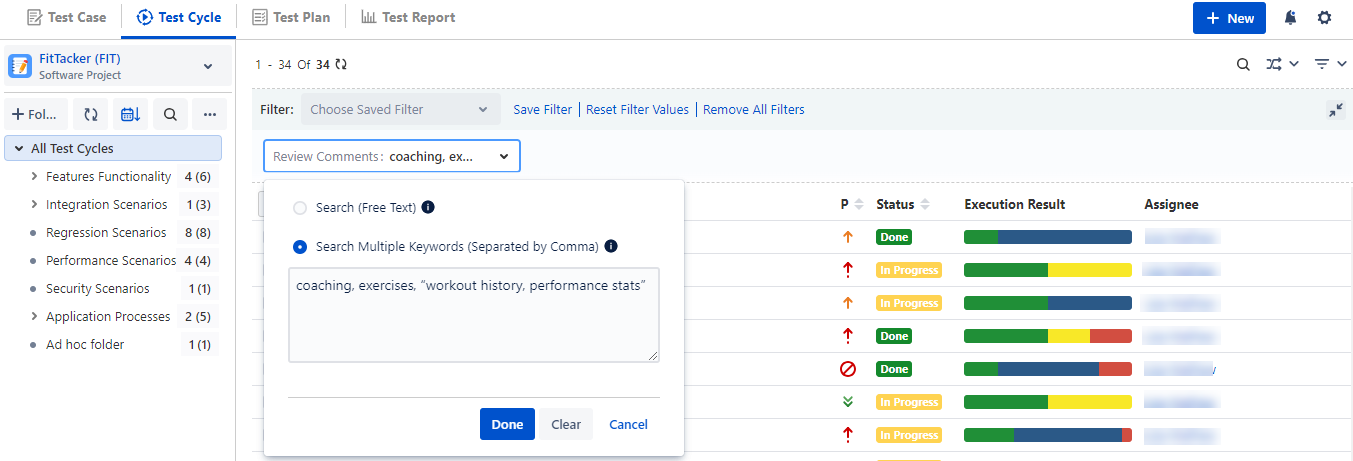
Search Multiple Keywords (Separated by Comma): This option searches for keywords or phrases in the field using the “Contains” clause. You can enter phrases/keywords separated by a comma. If a phrase contains a comma, enclose the phrase/keyword in double/single quotes.
For example: coaching, exercises, “workout history, performance stats”
Note
A maximum of 200 keywords can be searched at a time.
Number Field Search
You can search assets based on the content of the Number Field type fields.
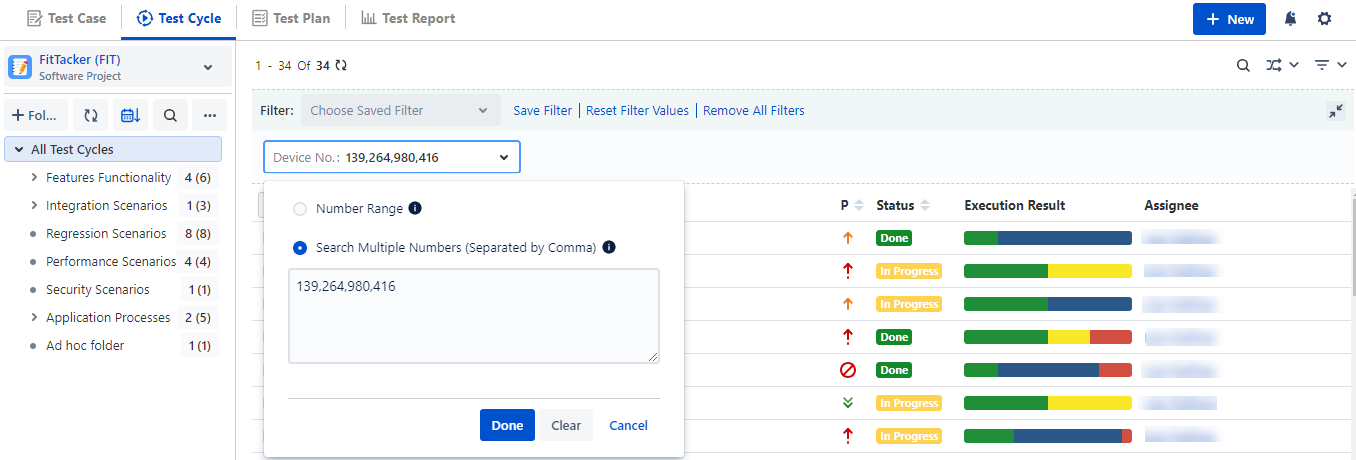
(A) Number Range: This option searches the field content with the “Contains” clause. It filters records using partial keyword matches.
(B) Search Multiple Numbers (Separated by Comma): This option searches for the exact numerical values in the fields. You can search for multiple numeric values separated by commas for a Custom field with the Number Field type.
For example: 139, 264, 980, 416
The search results display assets that exactly match the numbers.
Note
A maximum of 200 numerical values can be searched at a time.
Save Filter
You can create customized filters and also save them for future use with Public or Private visibility.
Perform the following steps to save a filter:
Click the filter drop-down menu and select the field to filter.
Once you apply the filter to records, you can also save it.
Click Save Filter to save the filter.
The Save Filter dialog appears.
Enter the Filter Namet in the dialog.
You can save the filters with its visibility either Public or Private.
Public: Filter saved with Public visibility will be visible to all users of the project. Moreover, the results of these saved Public filters can be shared through the URL with other users of the same Jira instance. Users who have access to that project and Test Cycle View permissions can view the filter results by opening the URL. The URL links can also be integrated into other documentation sites as required.
Private: Filter saved with Private visibility will be visible only to the currently logged-in user.
Click Submit.
The filter is now saved and applied.
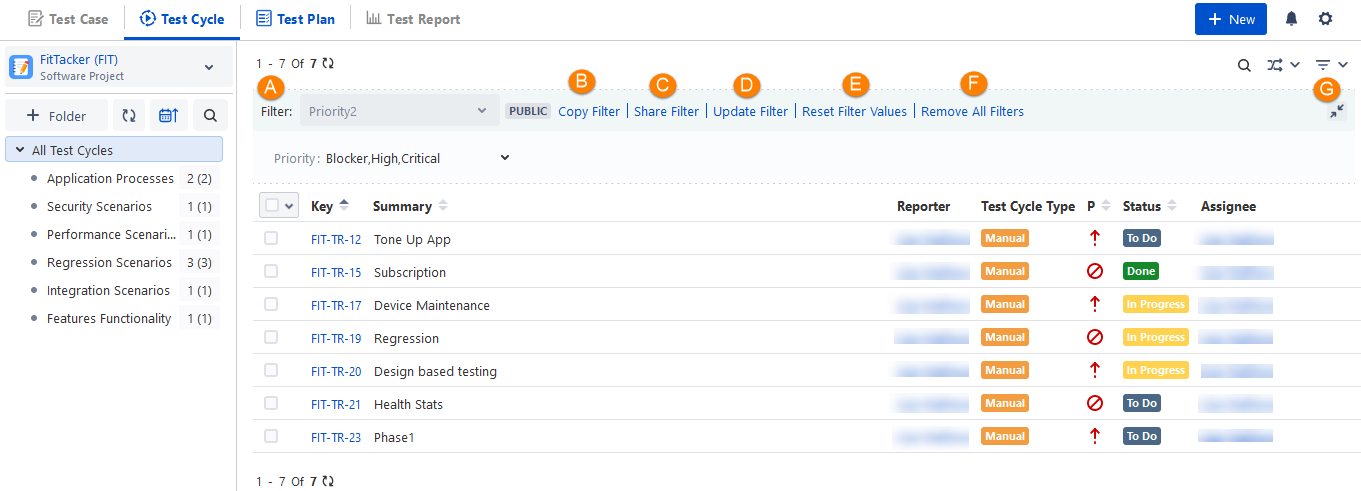
Once the filters are applied to the grid, the expandable Filter panel gets added to the screen.
A. The filter saved appears in the drop-down list.
B. Copy Filter: You can copy the existing filter and save it with another name.
C. Share Filter: You can share a Public filter with other users and integrate the URL on the documentation site as well. Read more about Share Public Filter URL in the following section.
D. Update Filter: You can edit the current filter.
E. Reset Filter Values: You can reset/clear the criteria of the saved filter.
F. Remove All Filters: You can clear all the applied filters.
G. Collapsible Filter pane.
Clear selected Item
To clear the applied filter, open the Filter drop-down and click on the Clear Selected Item link.
Delete a Filter
To delete a saved filter, open the Filter drop-down and hover over the filter name. The Delete icon will become visible. Click on the Delete icon.
Apply Filters with Operators
The Operators option is available in the drop-down list. The filter treats “OR” as the default operator and applies it to the records, displaying records with either of the selected values.
The operators are available for these fields: Label, Components, Fix Versions, Multi-dropdown custom field, Labels custom field, Multi-users custom field, and Checkbox custom field.
Empty operator: Using the “Empty” operator, you can filter out records that do not have values for the specific field. The operator is available for single and multi-lookup fields.
To change the operator,click the Edit icon beside the “OR” operator.
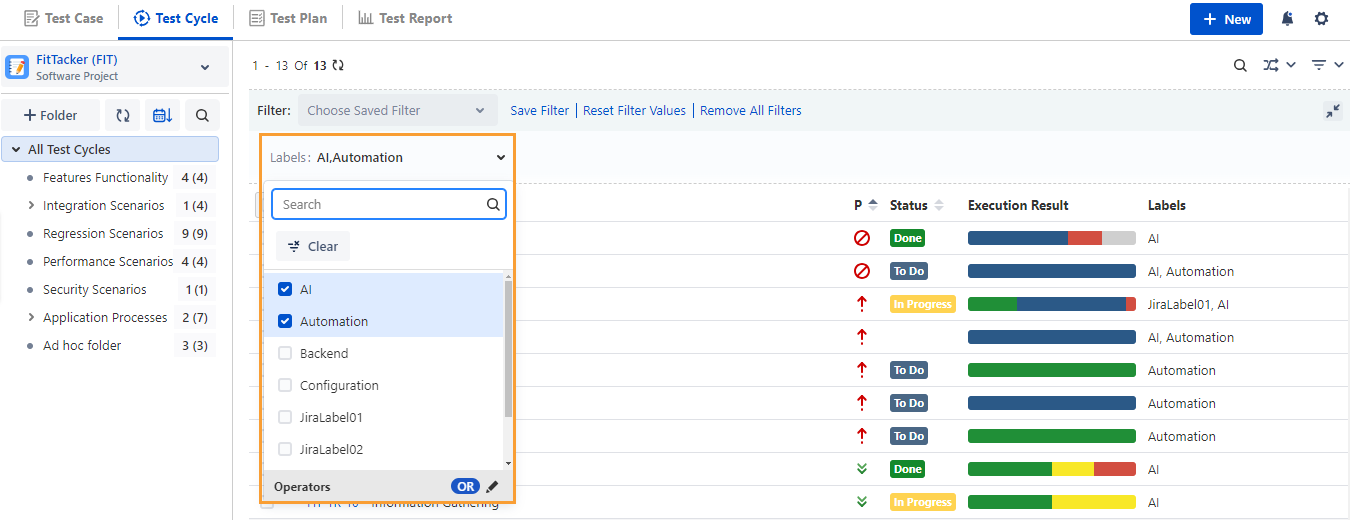
The drop-down displays two operators: “OR” and “AND”.
You can select “AND” as the operator to apply for the filter.
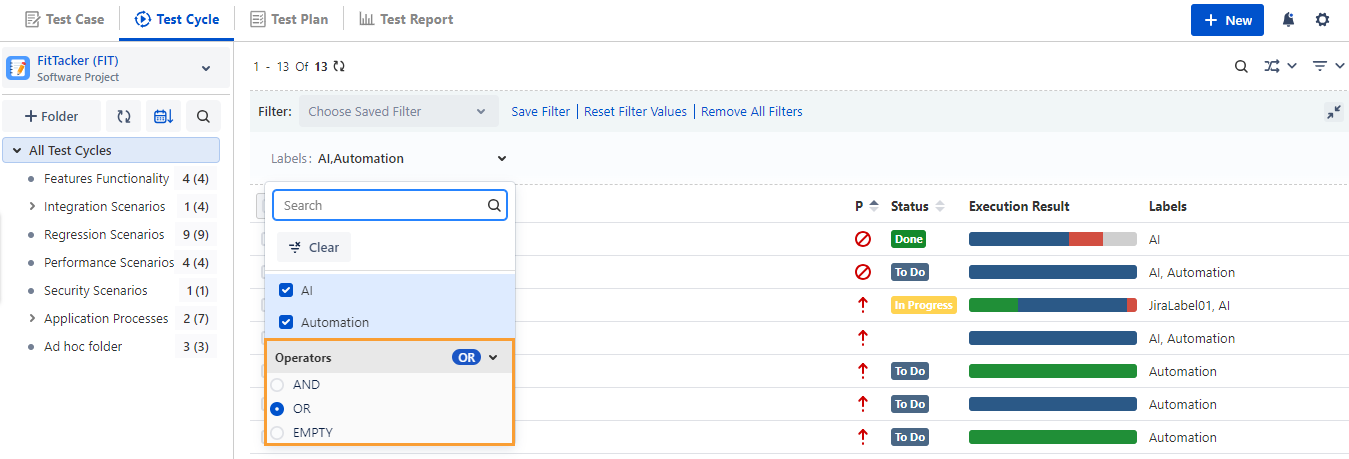
The filter uses the operator “AND,” and the output shows records that hold both values.