Delete Test Plans
Note
To delete a test plan, users are required to follow a two-step process: Archive the test plan, and then delete it. Ensure that the test plan is archived before proceeding with deletion. Refer to Archive Test Plans for details on archiving test plans.
You can delete individual test plans one by one or in bulk at once.
Required Permission: Users with the Test Plan Delete permission can delete the archived test plans.
Note
Deleting a test plan permanently removes it from the project. This action cannot be reverted.
Delete a Single Test Plan
Follow the steps mentioned below to delete a single archived test plan.
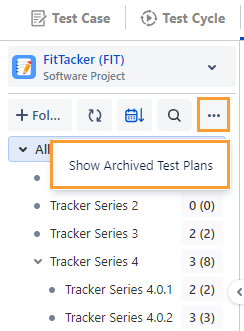
On the folder tree, click on the More icon and select Show Archived Test Plans option to view the archived test plans.
The archived test plans are displayed on the screen. You can delete archived test plans either from List View or from test plan detail page.
Delete a Test Plan from List View
Hover over the archived test plan that you want to delete and click on the Delete icon for the test plan.
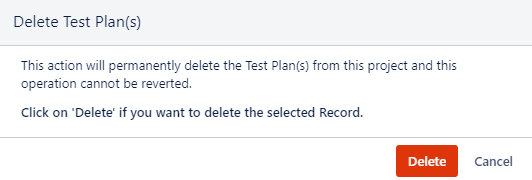
The confirmation message pops-up. Click Delete to proceed.
Delete a Test Plan from Test Plan Detail Page
Open the archived test plan page and click on the Delete button to delete the test plan.
Delete Test Plans in Bulk
You can remove multiple test plans at a time through the Bulk Delete functionality.
Note
A maximum of 50 test plans can be deleted in bulk at a time.
Perform the following steps to delete test plans in bulk:
On the folder tree, click the More icon and select the Show Archived Test Plans option.
Select the test plans that you want to delete.
Selection of Multiple entities at a time: To select entities within a range on the current page, select the first entity’s checkbox, and then select the last entity’s checkbox, and simultaneously hold the SHIFT key of the keyboard. All entities between these two will be auto-selected.
Select All:
Select all records on the current page: Clicking on the check box in the column header selects all the records on the current page only. An alternate way is to open the check box drop-down and select the Current Page option.
Select all records across all pages: Open the check box drop-down and select the Across All Pages option.
A maximum of 50 test plans can be deleted in bulk at a time.
Click Delete to proceed with the deletion of selected test plans.
Audit Logs
To view the audit logs of deleted test plans, perform the following steps:
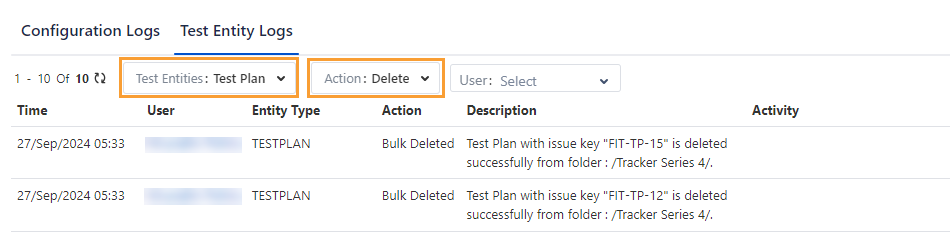
Go to QMetry, select Configuration, select Audit Log, and click the Test Entity Logs tab.
Select Test Plan as Test Entities and Delete on the Action list.