Test Plan
Introduction
A test plan can resemble to a cycle or a release or a sprint in your product development/project cycle. Test Plan in QMetry is a logical grouping of test cycles that are executed in a particular phase. It helps you schedule testing activities for your test project.
Test Plan provides real-time execution progress of test cycles and lets you gauge whether the testing process is in progress in accordance with the drawn roadmap and helps you control risk.
The Test Plan list view screen includes Execution Summary and Execution Summary (Tabular) columns displaying the consolidated execution status of all the associated test cycles. It allows users to monitor the progress of testing without the need to navigate into the Test Cycles tab of individual test plans. The Count of Test Cycles column displays the total number of test cycles from the current project or cross-projects, associated with the test plan.
Note
The Execution Summary only displays the summary of the latest test executions.
If the Allow users to show/hide the default columns option is selected under Project Settings > Column Settings, you can show/hide the default columns from the Rearrange Columns option on the list view.
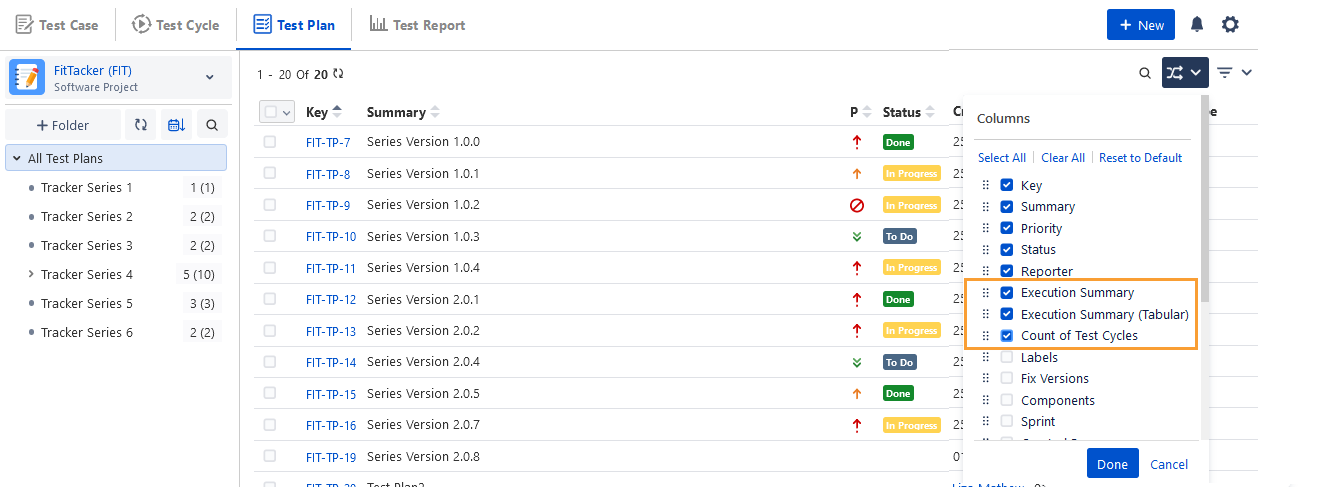
The Execution Summary and Execution Summary (Tabular) columns are displayed on the Test Plan list view.
The Execution Summary (Tabular) columns show the execution status with the count of test cases linked to the test plan. The execution statuses are displayed in grey in the table header for all execution results.
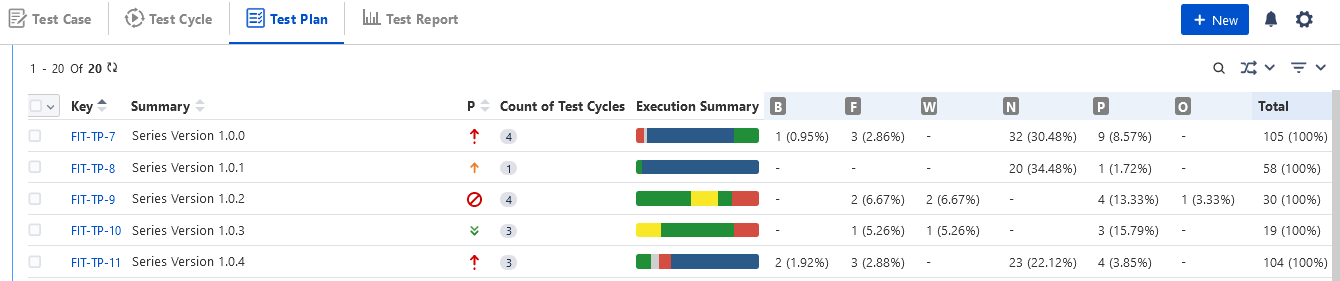
Hovering over the Execution Summary shows the count of test cases and test cycles associated with the test plan.
Note
If test cycles from different projects are linked to the test plan and there are two execution results with the same name, then only one record will be displayed with the combined count of both execution results.
View Consolidated Metrics
The Test Plan List View displays the following consolidated metrics for all test cycles associated with the test plan:
Test Cases Count
Defects Count
Estimated Time Required
Actual Time Spent
You can enable these columns in the Test Plan List View. The column selection is saved as per user preferences.

The list view updates metrics in real time as test cycles run, defects are logged, and actual time is recorded.
You can view these columns in the QMetry Assets macro on Confluence and in the Primary and Secondary Group By drop-down lists in the Two-Dimensional Report for the test plan.
Configure Default Columns for Test Plan List View
A Jira Project Administrator can configure column settings. They can configure the System Columns and Custom Columns as Default Columns.
Perform the following steps to configure default columns:
Go to Project Settings, select QTM4J Settings, and click the Column Settings tab.
Select the Test Plan List View screen.
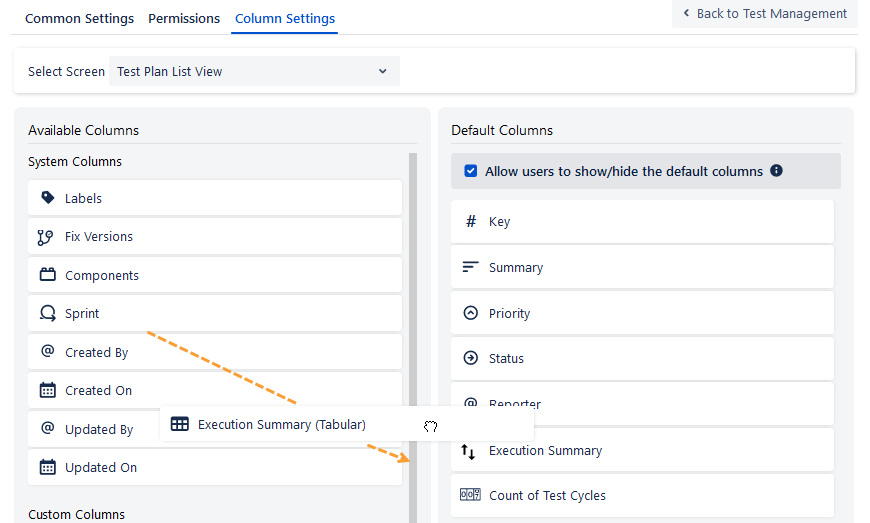
Execution Summary and Count of Test Cycles: Execution Summary and Count of Test Cycles are Default Columns for the Test Plan List View. If you do not see these columns on the Default Columns list, click the Reset to Default button at the bottom.
Execution Summary (Tabular): You can drag the Execution Summary (Tabular) column from the Available Columns list and drop it to the Default Columns list to include it in the Default Columns. Then click Save.
Native Editor
QMetry Test Management for Jira uses Jira’s native editor, and some characters, like backslashes, used in the wiki markup body, become unusable by default. This is a technical limitation of Jira. You can use the Code from the rich text editor to mention any text containing a backslash as a workaround.