Test Cycle Execution Summary in Jira Story
The Test Cycle Execution Summary section on the Story page displays the test cycles that are directly linked to the story. The section displays test cycle details and its execution summary, which enables users to view better coverage and traceability.
For example, the Business Analyst wants to view the bifurcated execution results/progress of test cycles linked to stories without referring to the Test Cycle List View.
The Test Cycle Execution Summary (Directly Linked to Stories) section gets added to the story page. The section displays test cycle records if the test cycles are already linked to the story directly.
If test cycles are not yet directly linked to the story, you can link the story either to a new test cycle or to an existing test cycle.
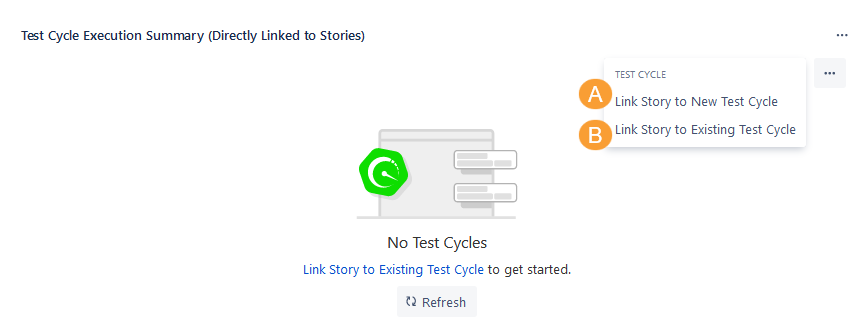
Click the More icon and you can see two options:
(A) Link Story to New Test Cycle
(B) Link Story to Existing Test Cycle
Link Story to New Test Cycle
In addition to linking a Jira story to an existing test cycle, users can create a new test cycle from a Jira story detail page. It will associate the story along with its test cases with the newly created test cycle. In the test cycle, you can view the associated story in the Story tab and associated test cases in the Test Cases tab.
The feature allows users to create test cycles very fast and without bothering about linking the test cases separately as the test cases are automatically linked to the test cycle.
Perform the following steps to link stories to a new test cycle:
Go to the Jira story detail page.
Under the Test Cycle Execution Summary panel, click the ellipsis (...) icon, and select Link Story to New Test Cycle.
The Create New Test Cycle screen opens. Enter test cycle details and click Create.
The newly created test cycle is added to the Test Cycle Execution Summary section.
In the Test Cycle module, a new test cycle is created on the selected folder path.
The Story tab on the test cycle detail page shows the Jira story from which the test cycle was created.
Link Story to Existing Test Cycle
Users can link the Jira story to an existing test cycle. Once the test cycle is associated, it automatically gets linked to the test cases underneath the story.
Perform the following steps to link stories to exsiting test cycles:
Go to the Jira story detail page.
Under the Test Cycle Execution Summary panel, click the ellipsis (...) icon, and select Link Story to Existing Test Cycle.
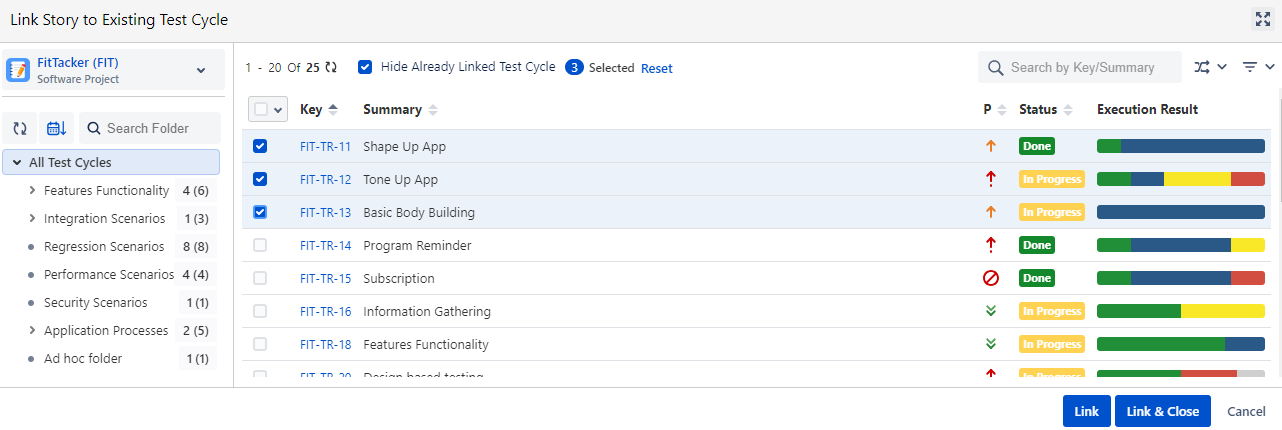
The Link Story to Existing Test Cycle screen opens. It displays the test cycles you created in the QMetry for Jira.
Filter Test Cycles
A. You can browse test cycles as per the test cycle folder on the tree. It will help you narrow down the test cycle search.
B. If the test cycle list is long, apply filters to the list. You can filter records through search. You can search a particular test cycle by "Issue Key" or “Summary” through the search box.
C. There are more options like Labels, Fix Versions, Sprint, Components, Status, Priority, etc. to narrow down the search.
Hide Already Linked Test Cycle: Select the checkbox to hide the already linked test cycles.
Select the test cycle you want to add to the Jira issue and click either of the buttons:
Link: Select the test cycle you want to add to the Jira issue and click the Link button. Once test cycles are linked, the Link Story to Existing Test Cycle screen still remains open to let you link further test cycles.
Link & Close: You can link the selected test cycle with the story and close the pop-up. Select the test cycle to be linked with the story and click the Link & Close button.
The linked test cycles are displayed in the Test Cycle Execution Summary section.
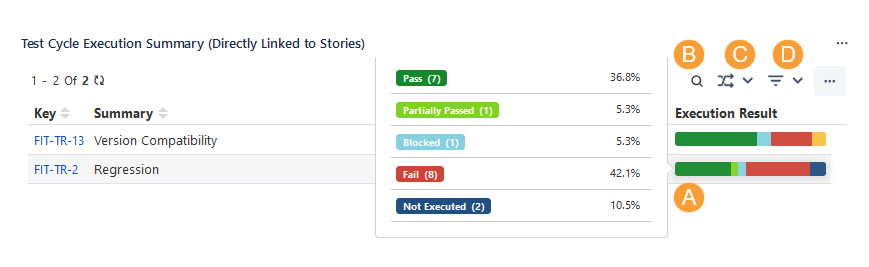
Once you link the Jira story to either a new test cycle or an existing test cycle, the test cycles are displayed under the Test Cycle Execution Summary section.
A. On hovering over Execution Result, you can view the detailed bifurcation of the result.
B. If the test cycle list is long, apply filters to the list. You can filter records through search. You can search a particular test cycle by "Issue Key" or “Summary” through the search box.
C. Hide/Show or re-arrange columns in the section.
D. There are more options like Labels, Fix Versions, Sprint, Components, Status, Priority, etc. to narrow down the search.
In the Test Cycle Execution Summary section, you can apply the “Archived” filter to view only archived test cycles. You can not perform any operation on the archived test cycles.
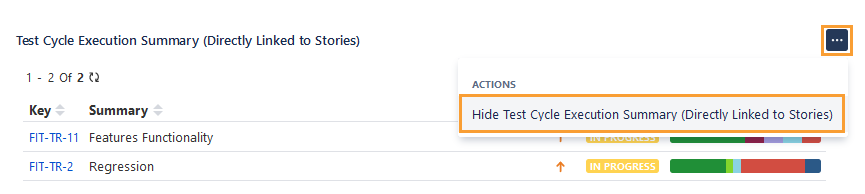
Hide the Test Cycle Execution Summary Section
If you want to hide the Test Cycle Execution Summary section, click the ellipsis (...) icon and select the Hide Test Cycle Execution Summary (Directly Linked to Stories) option.