Link Jira Story/Issue to Existing Test Cycles
You can associate a Jira story with one or more existing test cycles. When a story is linked to test cycles, the associated test cases in the story are automatically linked to those test cycles as well.
Note
You can link a maximum of 20 test cycles at a time to a story.
Note
Permissions required: You should have the following permissions to link Jira Story or Issue to QMetry test cycles.
Test Cycle View
Test Cycle Edit and Archive
Requirement View
Requirement Edit
Perform the following steps to link the story to the existing test cycle:
Go to the Jira issue detail page.
There are two ways you can link the story to existing test cycles.
(A) Under the Test Case/Acceptance Criteria pane or tab, click the ellipsis (...) icon and select Link Story to Existing Test Cycle.
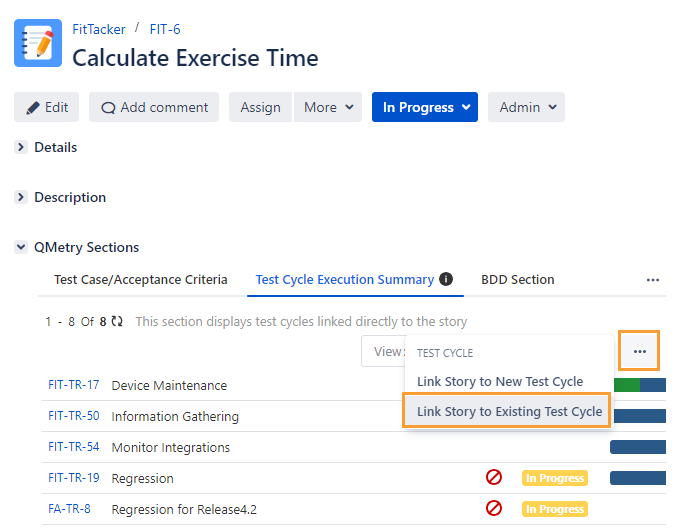
(B) Under the Test Cycle Execution Summary pane or tab, click the ellipsis (...) icon and select Link Story to Existing Test Cycle.
Follow either of (A) and (B) mentioned above, and the Link Story to Existing Test Cycle screen appears. It displays the test cycles you created in QMetry Test Management for Jira.
Select the test cycle(s) that you want to link with the story. You can select multiple test cycles by selecting the checkboxes.
You can also select cross-project test cycles to link to the story.
Filter Test Cycles
A. You can browse test cycles as per the test cycle folder in the tree. It will help you narrow down the test cycle search.
B. If the test cycle list is long, apply filters to the list. You can filter records through search. You can search a particular test cycle by "Issue Key" or “Summary” through the search box.
C. There are more options like Labels, Fix Versions, Sprint, Components, Status, Priority, etc. to narrow down the search.
Note
A maximum of ten filters, including system and custom fields, can be selected at a time.
Hide Already Linked Test Cycle: Select the checkbox to hide the test cycles that are already linked to the story.
Link: Select the test cycle you want to add to the Jira issue and click on the Link button. Once test cycles are linked, the Link Story to Existing Test Cycle screen remains open to let you link further test cycles.
Link & Close: You can link the selected test cycle with the story and close the pop-up. Select the test cycle to be linked with the story and click on the Link & Close button.
The message appears with the navigation link to the Notification section. You can check the Story linking progress and status in this section.

If the test cycles of the current project are selected to link to the story, the link will navigate you to the current project notifications section.
If the test cycles of cross projects are selected to link to the story, the link will navigate you to the cross-project notifications section.
As an alternate way, perform the following steps:
Go to the Test Management section and click the Bell icon.
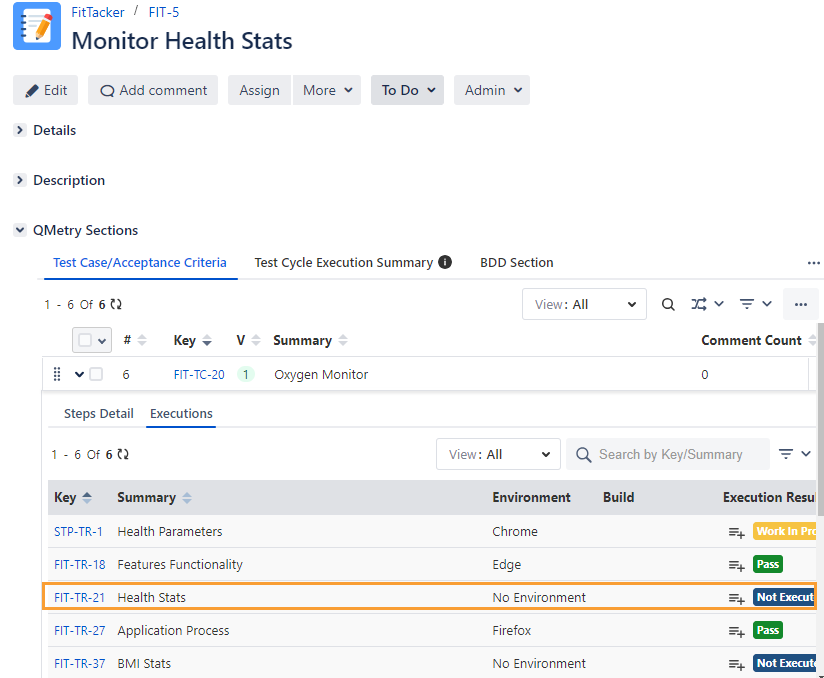
The test cycle is added to all the test cases on the Jira issue page.
Click the Executions tab under the test case to see the associated test cycles.
Go to the test cycle detail page and click the Test Cases tab.
Click Sync Stories in the Test Cases tab of the test cycle.
When you add a Jira issue to a test cycle, all the test cases associated with that Jira issue will be linked to the test cycle.
You can view the test cases linked to the test cycle.
Go to the test cycle detail page and click the Story tab to view the stories to which the test cycle is linked in Jira.
Update Test Cycle Status Inline
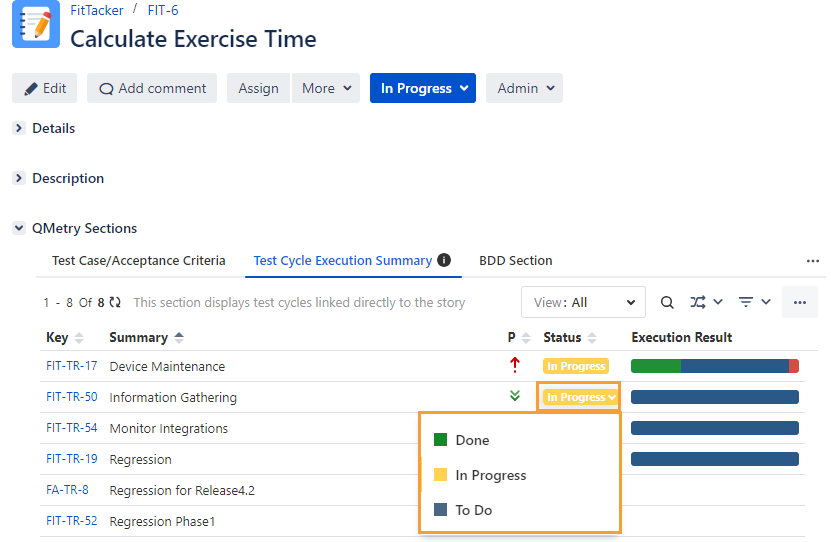
The Status column shows the current state of the test cycle in the workflow with Statuses like To Do, In Progress, Done, etc. You can configure the status list values from Configuration > Statuses. You can update the test cycle status inline by clicking in the cell under the Status column.
Note
Permission required: You must have Test Cycle Edit and Archive permission to inline update the status of test cycles.