View Summary
You can view the cycle-level summary from the execution screen itself. The report displays the Test Cycle execution summary at a high level - execution results of test cases and the count of defects linked to the test cases.
Steps
Perform the following steps to view the cycle-level summary:
Open the Test Execution screen.
Click the ellipses at the top right and click View Summary.

There are three sections on the screen: Test Case, Bug, and Attachments.
Test Case
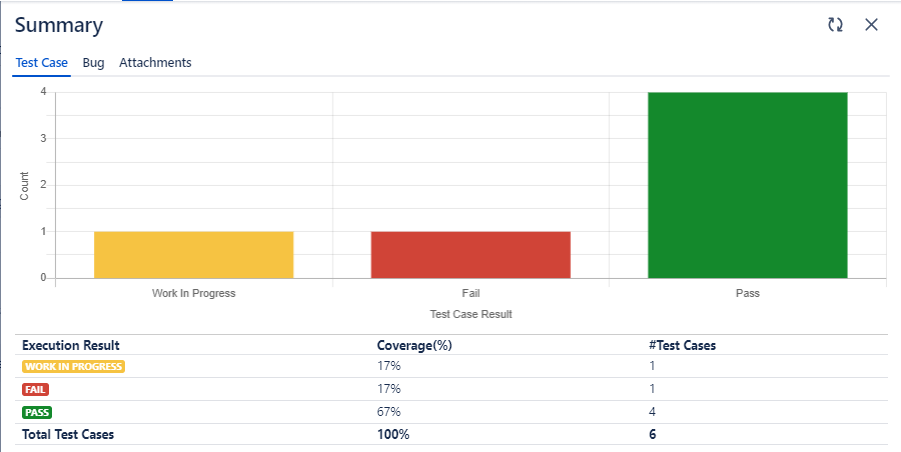
In the Test Case section, the bar chart displays execution details of the test cases in the test cycle.
Bug
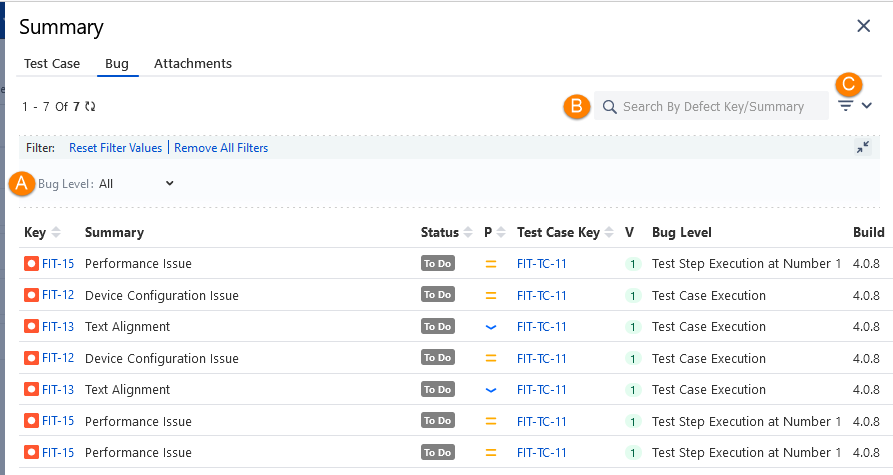
The Bug section displays bugs linked to the test cases and test steps from the execution screen. It helps users easily identify the bugs due to which the test case failed.
You can -
A. Filter the bugs in accordance with the Bug Level - test case execution/test step execution
B. Search for a specific bug by its Key or Summary
C. Apply more filters to the bug list
View Unique Bug Count
Click the Filter drop-down list and select the Show Unique filter to apply to the bug records.
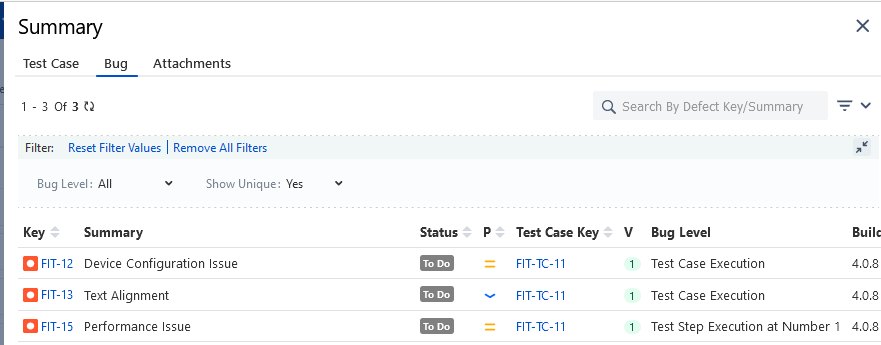
The Show Unique drop-down is added to the Filter pane. Select “Yes” for the unique filter.
The repetitive records are filtered out. The screen displays the unique count of logged bugs.
Attachments
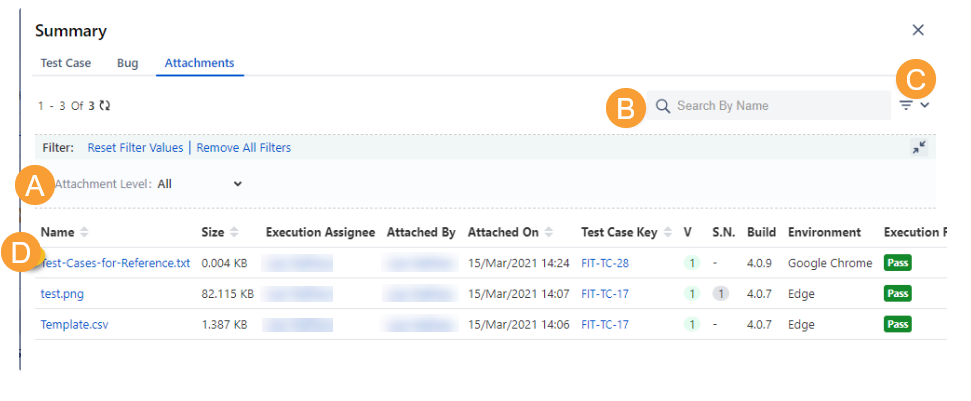
The Attachments section displays attachments linked to the test cases and test steps from the execution screen. Testers can easily see the attachments added while execution, which saves time navigating back to the test execution screen and finding the attachments in test cases or in test step details. The Attachments tab is also useful for finding the attachments when there are a large number of test case executions.
You can -
A. Filter the attachments in accordance with the Attachment Level - test case execution/test step execution
B. Search for a specific attachment by its name
C. Apply more filters to the attachment list
D. Click and preview the attached image or file without downloading it. In the preview window, click the download icon to download the file.
Note
Preview option is available for JPG, PNG, PDF, and JSON file formats.