Create a Sub-Task from List View Execution Screen
Introduction
In addition to linking sub-tasks and sub-defects, users can also create sub-tasks or sub-defects directly from the test execution screen at the test case or step level with the purpose of enhancing efficiency and streamlining the workflow.
Prerequisites:
The Sub-task issue type should have been added to the Issue Type Scheme of the project.
The Sub-task issue type should be enabled in QMetry Project Settings > Issue Type > Bug.
Creating and Linking a Sub-task to a Single Test Case
Perform the following steps to create and link a sub-task to a single test case:
Click the Bug count for the test case.
The Assign Bug screen appears.
Click the Create button and select the Create Sub-Task option.
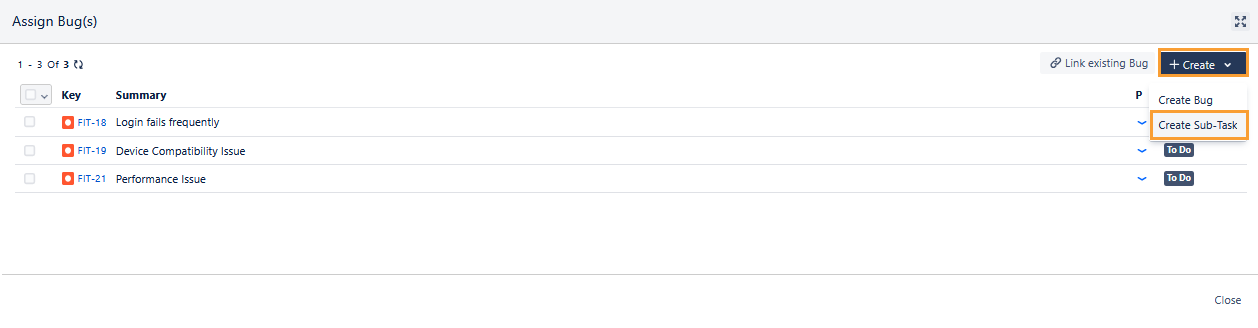
The Create Sub-Task screen appears.
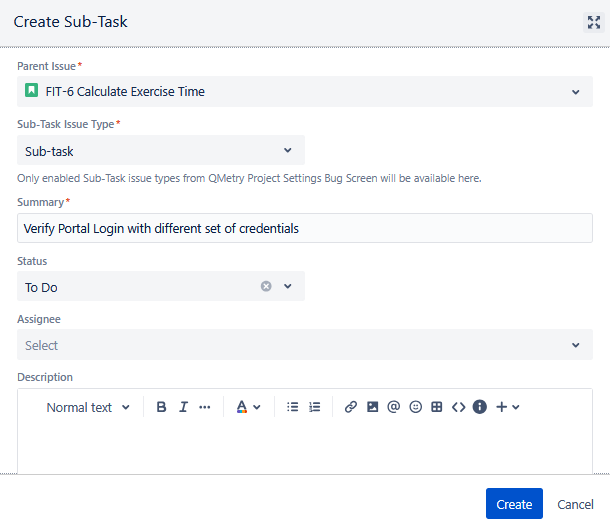
Enter the following fields.
Parent Issue: Select the parent issue from the drop-down list, as the sub-tasks and sub-defects are always associated with a parent issue type/key and can not be created independently, like other issue types. The sub-tasks are linked to the selected story and displayed in the Subtasks section on that story details page in Jira.
Sub-Task Issue Type: Select the sub-task issue type from the drop-down list.
Note
The Sub-task issue type is listed only if it is enabled in the Bug Issue type under QMetry Project Settings.
Once you select the Sub-Task, the fields appear on the screen.
Enter the details in the fields and click Create.
The sub-task is created in the Bug tab on the execution screen.
The sub-tasks are linked to the selected story and displayed in the Subtasks section on that story details page in Jira.
Creating and Linking a Sub-Task to Multiple Test Cases
Perform the following steps to create and link a sub-task to multiple test cases:
Select the test cases to which you want to link bugs.
Click the Bulk Operations option.
Click the Link Bugs submenu and select Create Sub-Task.
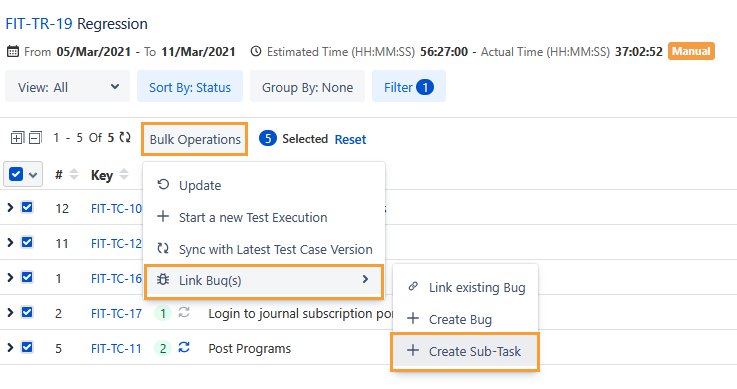
The Create Sub-Task dialog appears.
Enter the following fields.
Parent Issue: Click and select the parent issue from the drop-down list. The sub-tasks will be linked to the selected story and displayed in the Subtasks section on that story detail page in Jira.
Sub-Task Issue Type: Click the drop-down list and select the sub-task issue type.
Note
The Sub-task issue type is listed only if it is mapped to the Bug issue type in the Issue Type configuration under Project Settings.
The relevant fields appear on the screen after you select the Sub-task issue type.
Enter other details and click Create.
The sub-task is created and linked to the test cases.
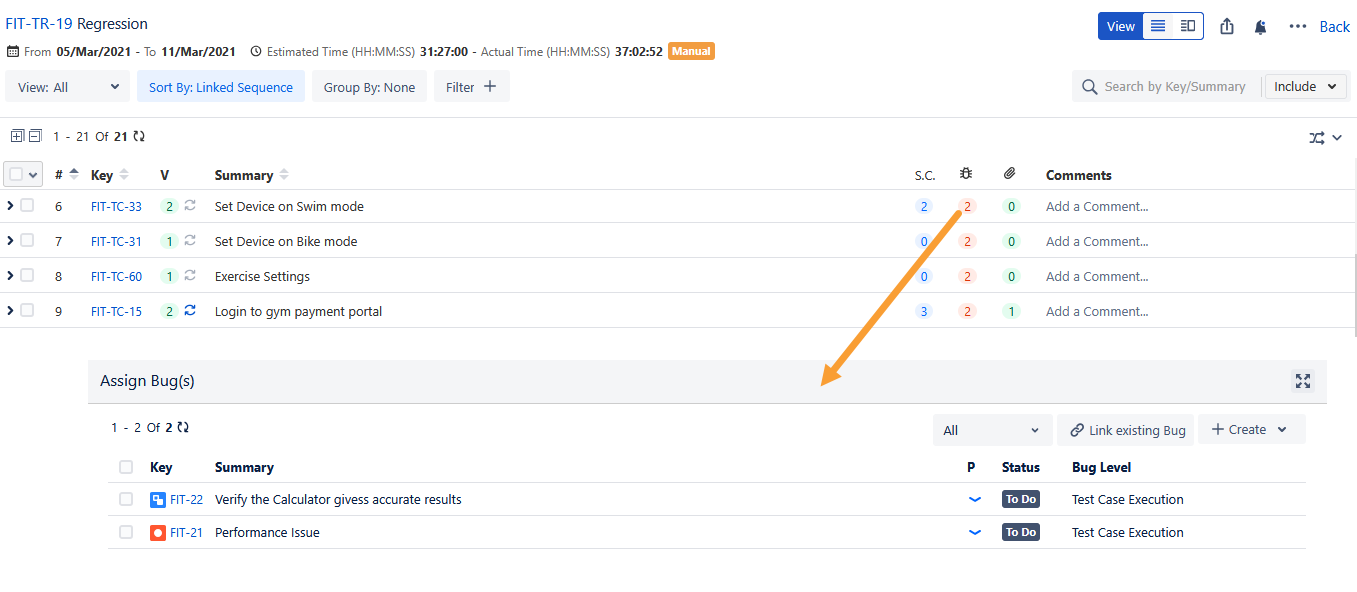
In Jira, the sub-tasks are linked to the selected story and appear in the Subtasks section on the story details page.