Bulk Update Test Cases
Bulk update test cases from the Execution screen allows you to modify multiple test cases at a time.
Bulk Update Test Cases from Execution Screen
You can bulk update test case execution results, execution custom fields, execution assignee, environment, build, actual time, and comments.
Assign Build and Environment to the Test Cases linked to a Test Cycle
You can change/assign the environment and build for multiple Test Cases at a time on the execution screen. The change in Build will impact the latest execution of the Test Case.
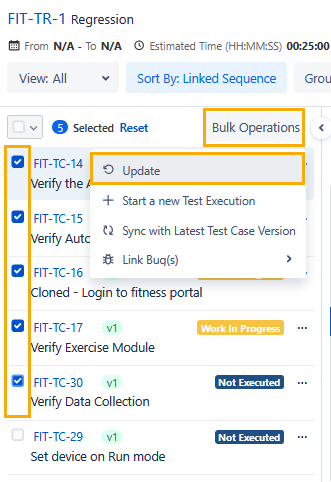
Select the test cases to change the Build and Environment values.
Click on the Bulk Operations button and select the Update option.
The Update screen dialog appears.
Assign or change the value of Environment and Build in respective fields. If you want to keep the Build field blank, then select the “Set Field as Blank” option on the drop-down.
Bulk Update Test Execution Results
Users can bulk update the execution results of multiple test cases at a time from the execution screen.
Perform the following steps to bulk update test execution results:
Select the test cases you want to execute.
Click Bulk Operations, and then select the Update option.
The Update screen appears.
Select the Execution Result from the Test Execution Result list for all the selected test cases.
If you also want to update the execution result of test steps, select the Update Test Step Execution Result checkbox.
Note
If Auto Update Execution Result Preference is ON, the Test Steps Result will also get updated.
If the Report Bug setting in Configuration is enabled for the execution result, you must either link an existing bug or create a new bug to associate with the test case.
Click Update.
The test execution results for the selected test cases are updated.
Note
If you have not filled in all the mandatory system and custom execution fields, you can not update the execution result status of the selected test cases. The blank mandatory fields do not allow you to assign execution results to test cases. This restriction does not apply to the Execution Results where the Skip Validation is enabled.
Bulk Update Execution Assignee
You can update the assignee who will execute the test cases from the execution screen. Users can also bulk update the Execution Assignee of multiple test cases at a time from the execution screen.
The Execution Assignee field can be filtered for blank values. The Unassigned parameter is provided for the Execution Assignee filter, using which users can filter the test cases and assign the execution assignee to them.
Perform the following steps to bulk update execution assignee:
Navigate to the Execution Assignee filter drop-down and select the Unassigned checkbox.
The filter is added.
Click the Execution Assignee filter and select the Unassigned checkbox on it.
The test cases, for which the Execution Assignee field is blank, will be listed on the screen.
Select the test cases for which you want to update the Execution Assignee field and click on the Update button.
The Update screen appears.
Select the Execution Assignee from the drop-down for all the selected test cases.
Click Update.
The Execution Assignee value will be applied to the test cases.