Export Test Execution Details
You can export test cycle and execution details in Excel, Word, and PDF formats. Test execution details are necessary for audit purposes and to review failure logs.
It is helpful to organizations that follow strict compliance and review processes in the following ways:
The test cases and test cycles are reviewed by internal and external teams to verify the scope before executions are performed.
The test cases, test cycles, and test executions are submitted for review to functional users across different teams at the customer's end for sign-off.
The exported documents serve as evidence during the review process internally and externally.
Users who do not have access to Jira can access the documents for review for audits and compliance purposes.
You can export test execution details from:
Test Cycle List View
Test Execution Screen
Exporting Test Execution Details from Test Cycle List View
You can export the test execution details directly from the test cycle list view without navigating to the test execution screen.
Perform the following steps to export the test execution details:
Navigate to the Test Cycle list view.
Hover over the test cycle for which you want to export the execution details.
Click the Export icon.
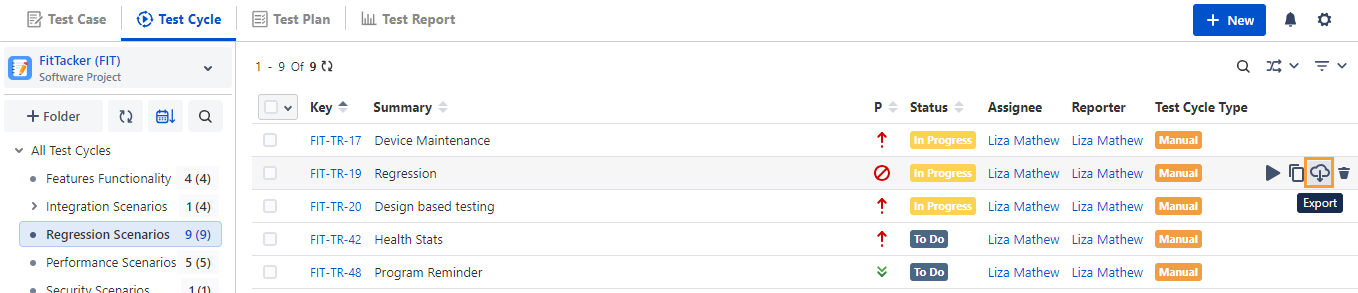
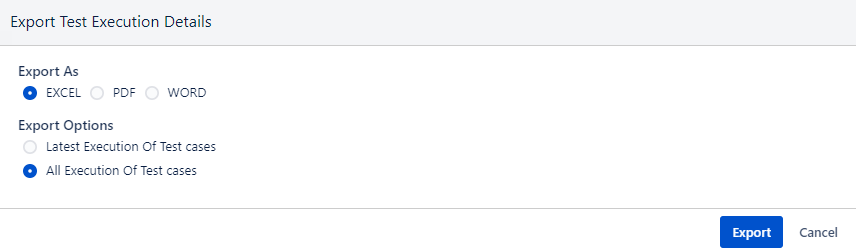
The Export Test Execution Details dialog appears.
Select any of the options from Excel, PDF, and Word.
Exporting to Excel
You can export test cycle execution details to an Excel file from the test cycle list view. The exported file contains the test case and test step execution results, including any applied filters. It also includes custom fields that exist in the test execution.
Select the following options on the Export Test Execution Details dialog box:
a. Select the Excel option to export the details.
b. Export Options: Select any one of the following options:
Latest Execution of Test Cases: This option exports only the most recent execution of the test cases.
All Execution of Test Cases: This option exports all the executions of test cases.
Click Export.
Note
A maximum of 10,000 test case executions can be exported at a time.
Click the Bell icon to navigate to the Notification pane and view the export progress.
The Notifications panel displays ongoing and past processes.
To download the exported test execution details, click the Download File link.
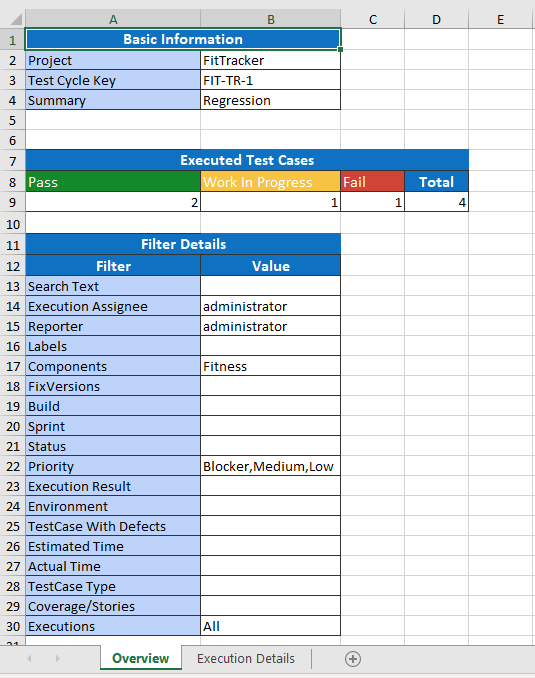
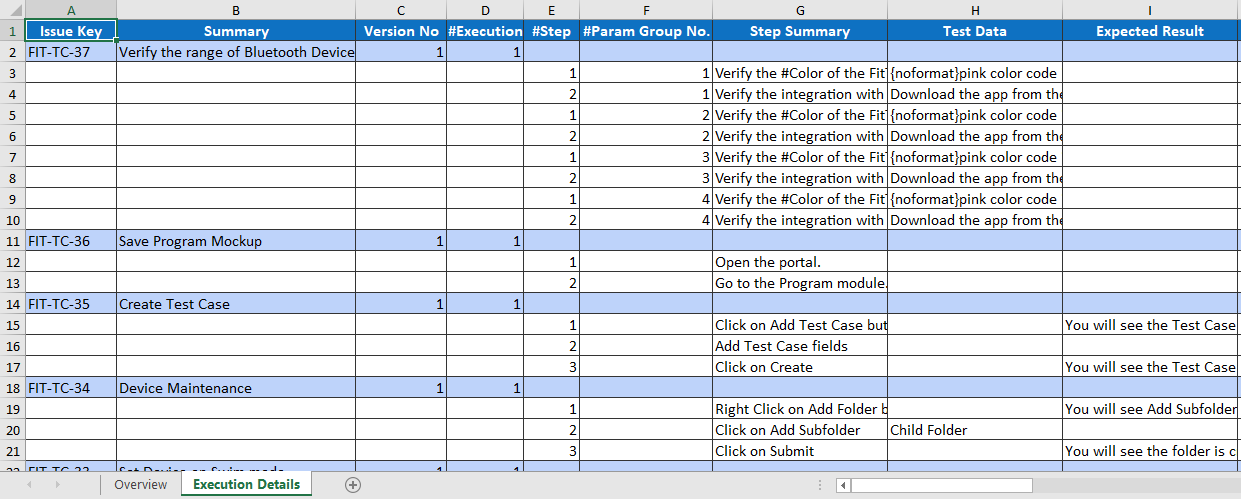
The exported Excel file contains the Overview and Execution Details tabs.
The Overview tab displays the basic information of the test cycle.
The Execution Details tab displays test execution details for the test cycle.
Exporting to PDF
You can export test cycle execution details to PDF from the test cycle list view. The default export includes all test case.
Select the following options on the Export Test Execution Details dialog box:
a. Select the PDF option to export the details.
b. Export Options: Select any one of the following options:
Latest Execution of Test Cases: This option exports only the most recent execution of the test cases.
All Execution of Test Cases: This option exports details of all executions of test cases.
Export Test Cases without Execution details: This option only exports the test case details. It does not export the execution details.
Note
Test Cycles with a maximum of 3000 test case executions can be exported at a time.
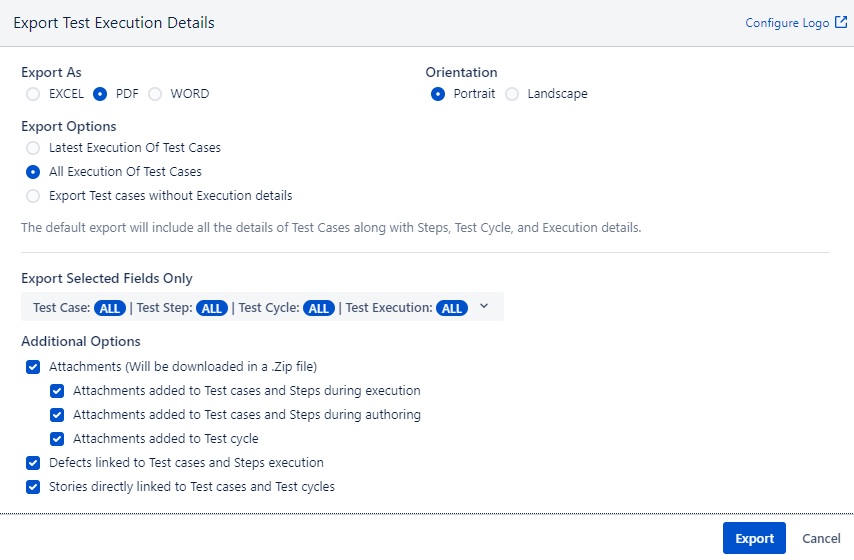
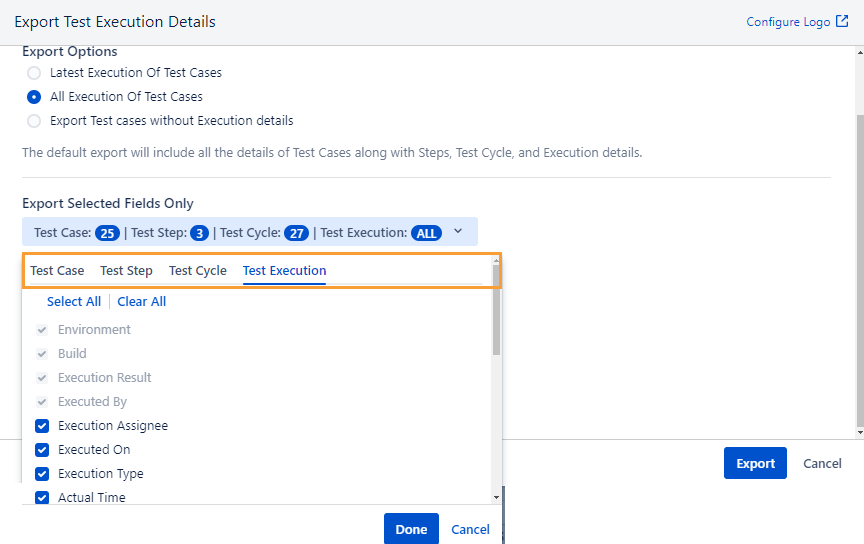
c. Export Selected Fields Only: This option exports all details of the test case, test steps, test cycle, and execution details by default. To export only the required field details, expand the list and select fields on the respective Test Case, Test Step, Test Cycle, and Test Execution tabs.
Note
The Test Execution list will only be visible if you have selected All Executions of Test Cases as an Export Option.
d. Attachments: Select this option to download attachments in a Zip file.
Note
he maximum attachment size for export is 500 MB.
Select from the following options to indicate which attachments you want to download:
Attachments added to test cases and steps during execution
Attachments added to test cases and steps during authoring
Attachments added to the test cycle
e. Defects linked to test cases and steps execution: The export includes the defects logged during the execution of the test cases.
f. Stories directly linked to test cases and test cycles: The export includes stories directly linked to test cases and test cycles.
Configuring Logo
You can configure your organization or any other logo from the Export Test Execution Details dialog.
Select the Configure Logo link.
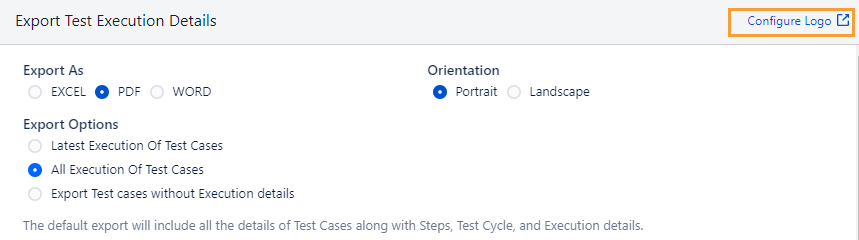
The Configure Logo dialog appears.
It navigates you to Configure Logo in the Configuration section. Read more about Configuring Logo.
Exporting to Word
You can export the test execution details in Word format. The default export includes all test case details, including steps, test cycle, and execution details.
Tip
The export options for the Word format are the same as those for PDF. Refer to the Export to PDF section.
Exporting Test Execution Details from the Test Execution Screen
You can export the test execution details from the List View and Grid View of the execution screen.
Perform the following steps to export test execution details from the List View:
Navigate to the execution screen of the test cycle.
Select the List View for display.
Click the Export icon to export the execution details in Excel, PDF, or Word format.
Perform the following steps to export test execution details from Grid View:
Navigate to the execution screen of the test cycle.
Select the Grid View for display.
Click the Export icon to export the execution details in Excel, PDF, or Word format.
The Export Test Execution Details dialog appears.
Select the format to export from Excel, PDF, and Word.
Follow the steps described in the Export from the Test Cycle List View section.