Link Test Cases to a Test Cycle
The Test Executions are performed on the Test Cycle with Test Cases linked to them. Test Cases and Test Steps contain the vital information needed to perform testing. Users can link multiple existing Test Cases to Test Cycles. They can also reorder linked test cases as required.
Steps to Link Test Cases to a Test Cycle
Perform the following steps to link test cases to a test cycle:
Go to the test cycle detail page.
Select the Test Cases tab.
Click Link Test Cases.
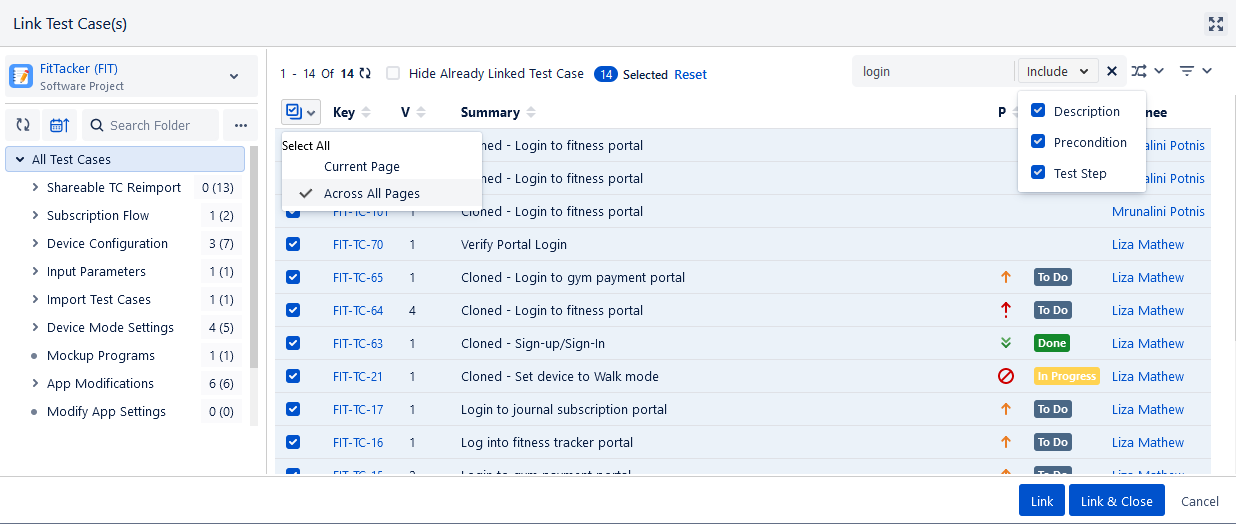
The Link Test Cases screen appears.
Filter Test Cases
A. You can browse test cases as per the test case folder in the tree. It will help you narrow down the test case search.
B. If the test case list is long, apply filters to the list. You can filter records through search. The search will check for the mentioned text in the Key and Summary fields of the test case by default. You can also cover the fields/sections like Description, Precondition, Test Step, Attachment Name, and Comments to extend the search for the text to those fields/sections of the test case.Description, Precondition, and Test Step to look for the mentioned text.
Note
The search for Attachment Name applies only to test case attachments and does not include step-level attachments.
The search considers details from the latest version of the test case only.
C. To narrow down the search, you can use more options like Labels, Priority, Status, Components, Fix Versions, and so on. Fix Versions and Sprint also display cross-project values to filter out test case records of multiple projects.
Note
A maximum of ten filters, including system and custom fields, can be selected at once.
Hide Already Linked Test Case: Check the checkbox to avoid the display of those test cases on the screen that are already linked to the test cycle. While creating or editing a test cycle and choosing test cases, you can simplify the process by hiding test cases that are already linked. This feature makes it easier to filter and select test cases from multiple folders.
Select the test cases you want to link with the test cycle.
Note
A maximum of 1000 test cases can be linked to a test cycle at a time.
You can select all the test cases of the current page and across all the pages using the selection box on the column header.
Click either of the following buttons:
Link: Select the test cases that you want to link with the test cycle and click on the Link button to keep the pop-up open. Once the test cases are linked, the Link Test Cases screen still remains open to let you link other test cases.
Link & Close: You can link the test cases and close the pop-up. Select the test cases that you want to link with the test cycle and click on the Link & Close button.
You can see that the test case(s) are linked to the test cycle.
You can also link the Test Cases directly from the Story Issue detail page. Refer to this Link Jira Story/Issue to Existing Test Cycles.
Update Test Case Status Inline
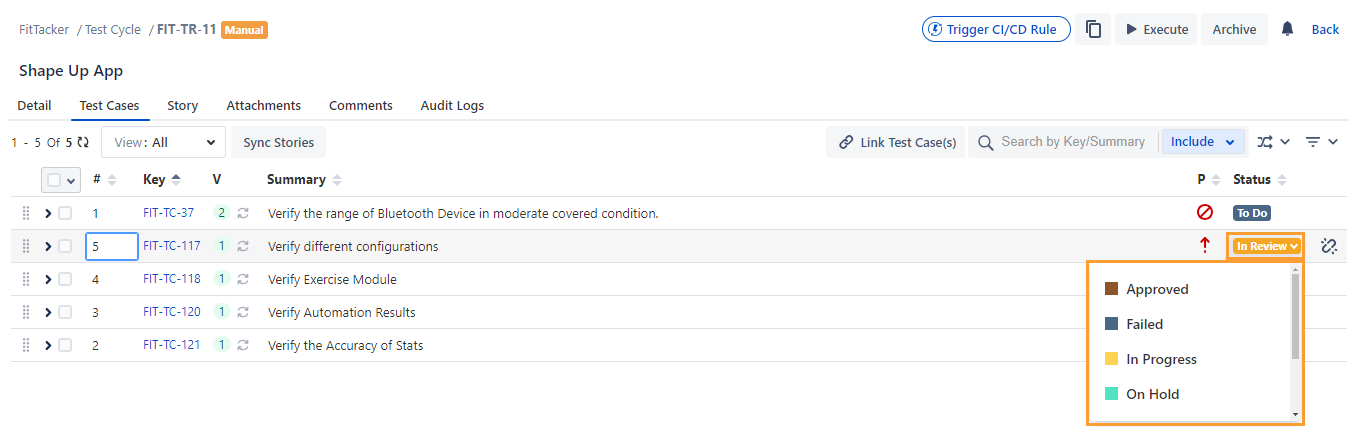
The Status column shows the current state of the test case in the workflow with Statuses like To Do, In Progress, Done, and so on. You can configure the status list values from Configuration > Statuses. You can update the test case status inline by clicking in the cell under the Status column.
Note
Permission required: You should have Test Case Edit and Archive permissions.
Sync Latest Test Case Version
The Sync icon on the screen acts as an indicator that indicates whether the linked version of the test case is the newest version or an older version. You can easily come to know that you need to sync the latest version of the test case with the test cycle.
While reviewing the linked test case of a test cycle, the QA Manager/Tester easily finds out whether the test case that is getting executed/linked is the latest one. While executing the test case the testers shall know if they are executing a new test case version or still executing an older one. The Test Cycle > Test Cases tab and the execution screen now indicate the availability of a newer version of a test case besides the older linked version. If the older test case version is found, testers have the option to sync the latest version of associated test cases individually or in bulk.
The feature is useful as -
the syncing of test cases to a new version can be done individually or in bulk, which saves time.
it eliminates the need to manually unlink the older version and link the newer version of the test case for execution.
Note
Required Permissions: You should have the “Test Cycle Edit” permission can sync the latest version of the test case with the test cycle.
An archived test case can’t be synced with the latest version. To sync the archived test case with the latest version, unarchive it first.
If multiple versions of a test case are linked to a test cycle and the latest version of the test case is available, you can sync only one version with the latest version of the test case. In bulk operation, if multiple versions of a test case are selected for sync, the first test case in the order of the linking will be synced.
Once the latest version of the test case is synced -
The action of syncing the latest test case version can’t be reverted.
This action shall reset the execution status of the test case and its test steps to “Not Run” on all its current and previous executions on this test cycle.
Thebugs linked with the previous executed version shall not be carried forward (linked) to the latest synced version of the test case and shall be unlinked from older executions.
The “Actual Time”, “Actual Outcome”, “Comments”, “Attachments”, and “Any other Custom Execution Fields” values shall be erased and shall be lost.
The following table shows the indication for different colored Sync icons.
Icon | Description |
|---|---|
| It indicates that the latest version of the test case is available. |
| It indicates that the test cycle is synced with the latest version. |


You can sync the latest version of the test case with the test cycle from:
(A) Test Cases tab in Test Cycle detail page
(B) Execution Screen
Test Cases tab in Test Cycle detail page
You can sync the latest version of a single test case and multiple test cases.
Sync the Latest Version of a Single Test Case
Perform the following steps to sync the latest version of a single test case:
Go to the test cycle detail page and select the Test Cases tab.
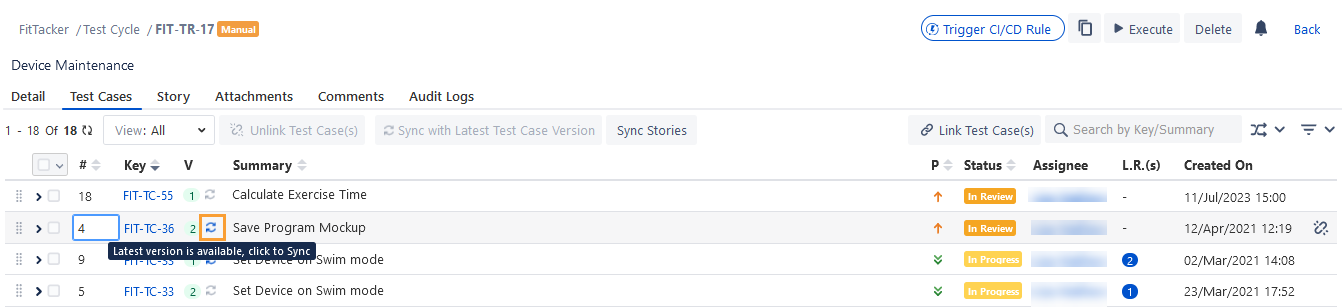
The Sync icon next to the Version column indicates whether the test case version is the latest. The icon appears in Blue when the latest version of the test case is available for sync.
Click the Sync icon to sync the latest version of the test case with the test cycle.
The confirmation message appears. Read it carefully.
The action of syncing the latest test case version can not be reverted.
Click Yes to proceed.
The test case version is synced to the latest available version.
Sync Latest Version of Multiple Test Cases
Perform the following steps to sync the latest version of multiple test cases at a time:
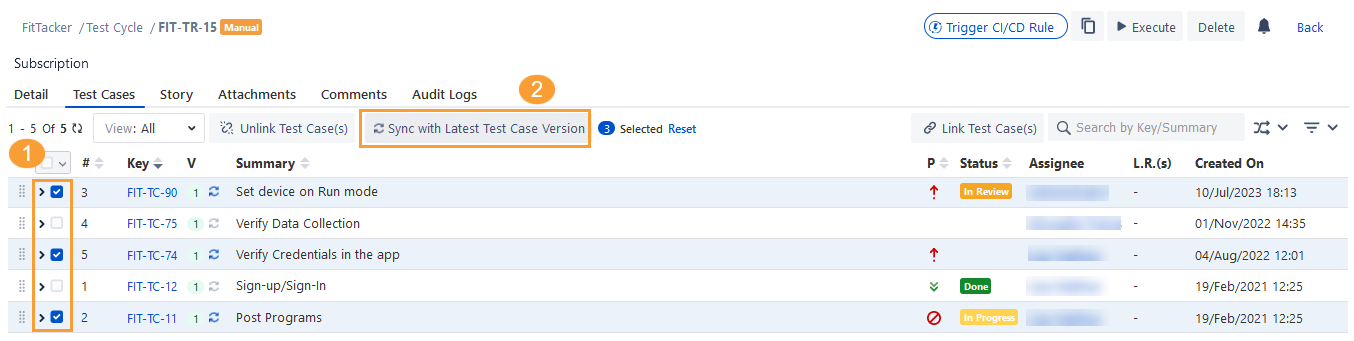
Select the test cases you want to sync with the test cycle, using the latest available version.
Click the Sync with Latest Version button.
The confirmation message appears. Read it carefully.
Click Yes to proceed.
The latest test case version is synced with the test cycle.
Test Case View
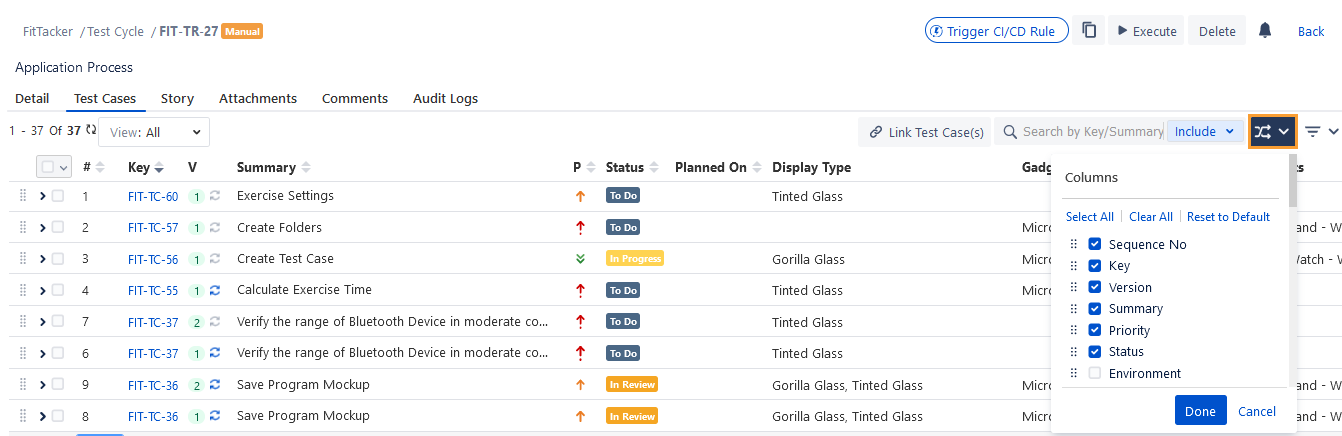
You can show/hide all field columns except Sequence No, Key, and Summary. You can keep the columns Priority, Status, Version, and Assignee hidden on the Test Case list view.
You can also view the count of associated stories, attachments, and comments to the latest version of the test case. The columns Comment Count, Attachment Count, and Story Count are available on the Hide/Show/Re-arrange Columns option. You can also sort and filter on the columns showing the count. For example, you can search for test cases that have 3 to 4 attachments added to them.
Note
The Attachment Count displays only test case attachments and does not include step-level attachments.
Columns selected on the list will appear on the test case screen. Columns not selected/deselected will remain hidden on the screen.
To return to the default view of the Test Case list view, open the Columns drop-down and select Reset to Default.
You can show or hide columns in the list view as you prefer.
View System and Custom Fields of Test Cases
You can review the test cases linked to a test cycle with the ability to view any of the system fields and custom fields of the test cases. It helps users effectively map the test case allocation for a test cycle. It is also useful in filtering test cases on the preferred custom field values.
You can view the system and custom fields of the test cases on the Test Cases tab in the Test Cycle detail page by using the Hide/Show Columns option. The value of custom fields will be displayed only if the linked test case is from the same project as the test cycle. The system and custom field values will be displayed blank if the test case is from a cross-project.
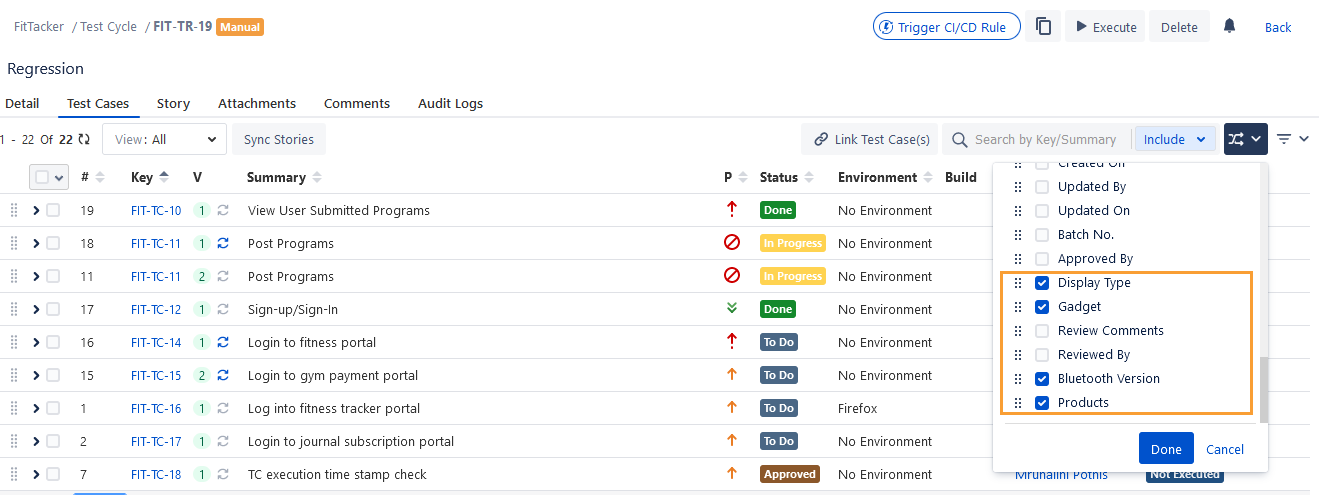
The screen displays the selected columns.
You can apply filters on the system and custom fields of the test cases on the Test Cases tab in the Test Cycle detail page by using the Filter option.
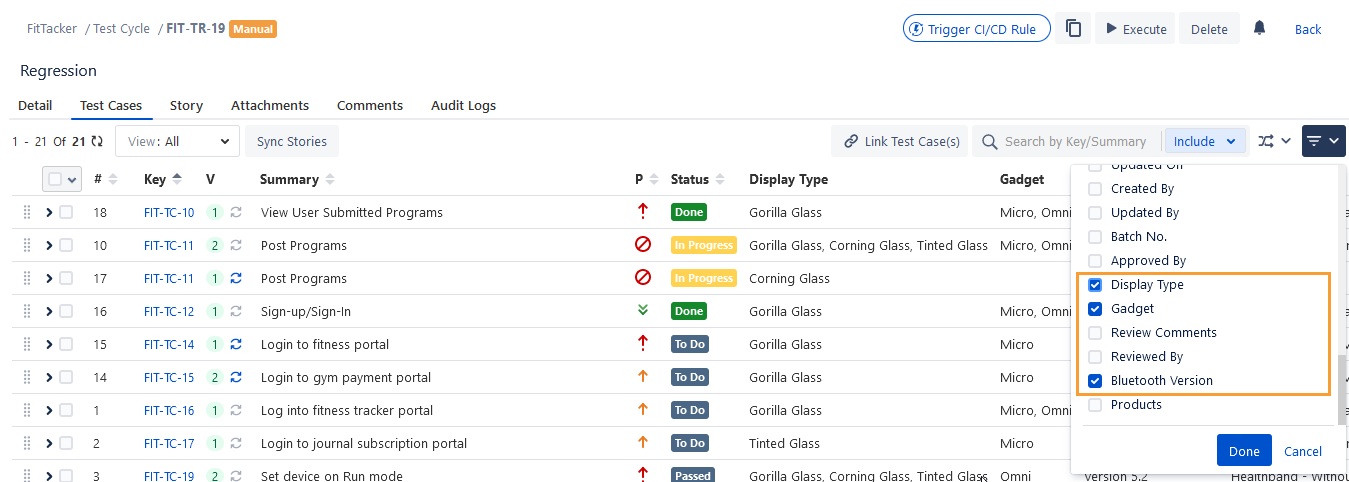
The selected filters are displayed on the screen.
Configure Default Columns for Test Cycle Detail > Test Cases Tab
Project Admins can manage Test Case Custom Field columns in the Test Cycle module.
Perform the following steps to configure default columns:
Go to Project Settings, select QTM4J Settings, and select the Column Settings tab.
Select the Test Cycle Detail > Test Cases Tab option on the Select Screen drop-down.
Drag the column from the Available Columns list to the Default Columns list and drop it to the location where you want to place it on the screen.
On the Default Columns panel, you can also arrange the column orders you want to display on the selected Screen.
Click Save to save the changes.
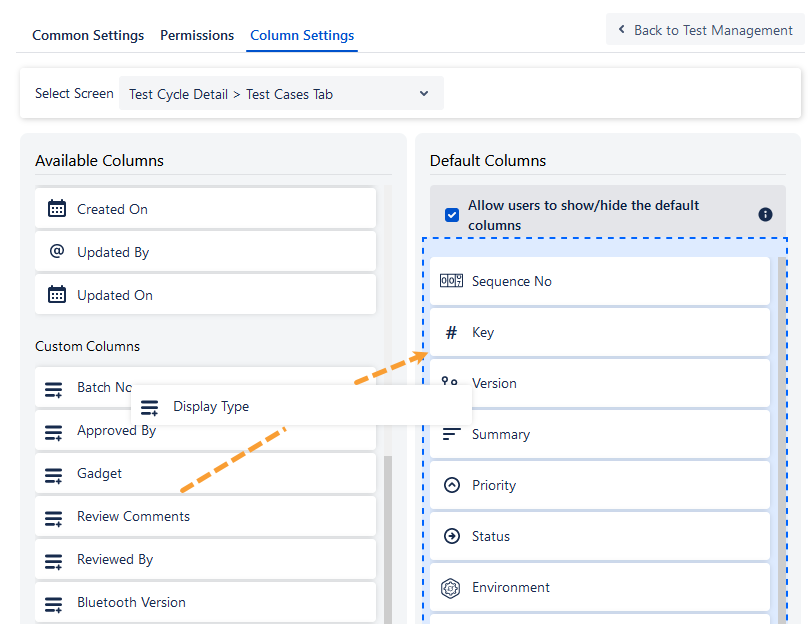
To remove the Custom column from the Default Columns list, drag that Custom column from the Default Columns panel and drop it into the Available Column panel.
Search Test Cases on Test Cycle > Test Cases Tab
You can use the Search feature to get the list of required test cases. The search will check for the mentioned text in the Key and Summary fields of the test case by default. You can also opt to cover the fields/sections like Description, Precondition, Test Step, Attachment Name, and Comments to extend the search for the text to those fields/sections of the test case.
Note
The search for Attachment Name applies only to test case attachments and does not include step-level attachments.
The search considers details from the latest version of the test case only.
View/Add/Edit/Clone/Delete Test Steps
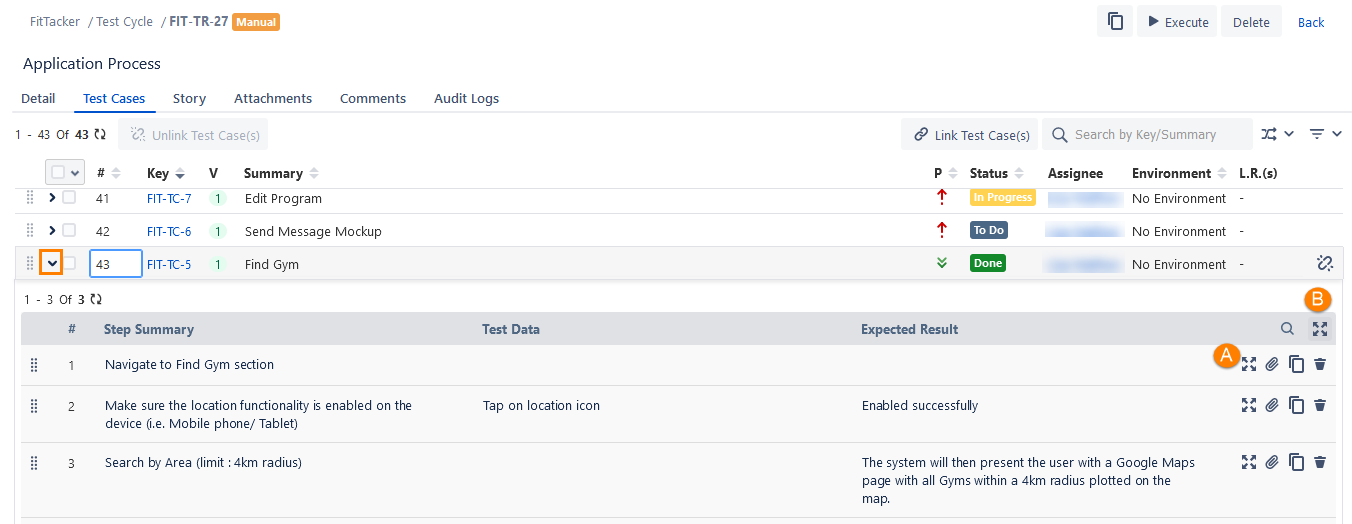
You can expand the test case and add new test steps or edit existing test steps.
You can -
A. Expand individual steps to view the full content
B. Expand all the steps under the test case
View Archived Test Cases
On the Test Cases tab of test case detail page, you can apply All, Active, and Archived filters to view the test cases accordingly. The archived test cases are displayed in disabled mode with a grey background. You can still unlink test cases from the test cycle. You can not perform any other actions on these archived test cases.
Re-order Test Cases
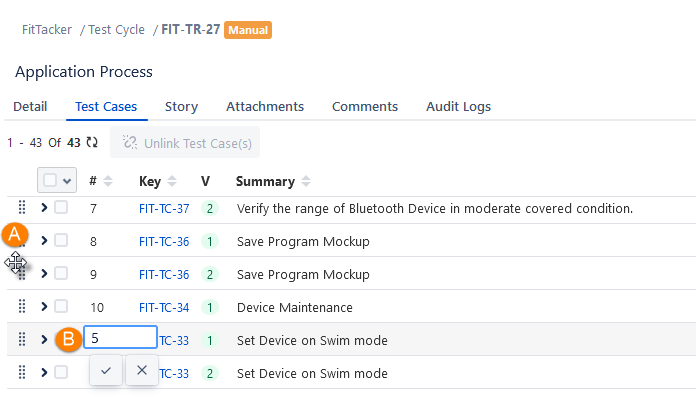
You can arrange test cases on a test cycle detail page in accordance with its planned execution order. It saves users time as they can quickly arrange the test cases instead of removing test cases and adding them back to set the sequence. You can change the test case order either by dragging and dropping or by changing the test case sequence number.
A. Drag & Drop Test Cases: Just drag the test case and drop it to change its sequence on the list.
B. Change Sequence Number of Test Case: In case the test case list is long and drag and drop is not feasible for you, then you can just change the sequence of the test case to rearrange it on the list. Hover over the number sequence. You will see the edit icon. Click the Edit icon and change the sequence of the test case to place it in the desired position.
Unlink Test Cases
You can unlink a single test case or multiple test cases at a time.
Warning
Unlinking a test case from the test cycle will permanently delete the Execution History of that test case with the associated test cycle.
A. To unlink a single test case, hover the mouse over the linked test case record. The unlink icon becomes visible. Click on the unlink icon.
B. To unlink multiple test cases at a time, select the test cases that you want to unlink and click on the Unlink Test Case button.
The warning message appears on the screen. Click Unlink to proceed.