Copy Steps from an Existing Test Case
Introduction
You can copy test steps from one test case to another test case or the same test case.
For example, while authoring a test case, testers often need to reuse steps from an existing test case and make minor modifications. To conveniently copy test case steps from an existing test case, testers can utilize the Copy steps from existing test case option. This allows them to quickly and easily incorporate the necessary steps while making any necessary adjustments.
Note
Required Permissions: Users with Test Case View, Test Case Create, and Test Case Edit permissions can copy steps from test cases.
You can copy test steps while creating a new test case and while editing an existing test case. You can add test steps from the test case detail page and the test case list view.
Note
You can copy a maximum of 100 test steps at a time.
For a normal test case, you can copy steps from both shareable test cases and normal test cases.
For a shareable test case, you can copy steps only from other shareable test cases.
For copying test steps with parameters
Cross-project copying: Parameters will not be copied when test steps are copied across projects, as parameters are defined only within the source project.
Within the same project: Test steps are copied along with parameters, but parameter values are not retained.
Copy Test Steps while Creating a New Test Case
While creating a new test case, select the Steps tab and click the Copy steps from an existing Test Case link.
The Copy steps from an existing Test Case screen appears.
You can also select test steps from other projects and link them to the test case of the current project.
You can search test cases by Key/Summary.
You can also apply different filters to shortlist the required test cases.
Note
You can filter a maximum of 10 filters, including system and custom fields.
Perform the following steps to copy test steps:
Expand the test case and select the test steps that you want to copy.
Click Copy.
The selected steps are copied to the new test case that is being created.
Once you create the test case, the Steps tab displays the step details.
Copy Test Steps in an Existing Test Case
Copy Test Steps from Test Case Detail Page
Go to the test case detail page, and click the Steps tab.
(A) If the test case does not have its test step under it. You can directly copy steps from other test cases using the provided link of Copy steps from an existing Test Case.
(B) If the test case has its test steps, then click the more icon for the step where you want to insert the test steps from other test cases and select Copy steps from an existing Test Case.
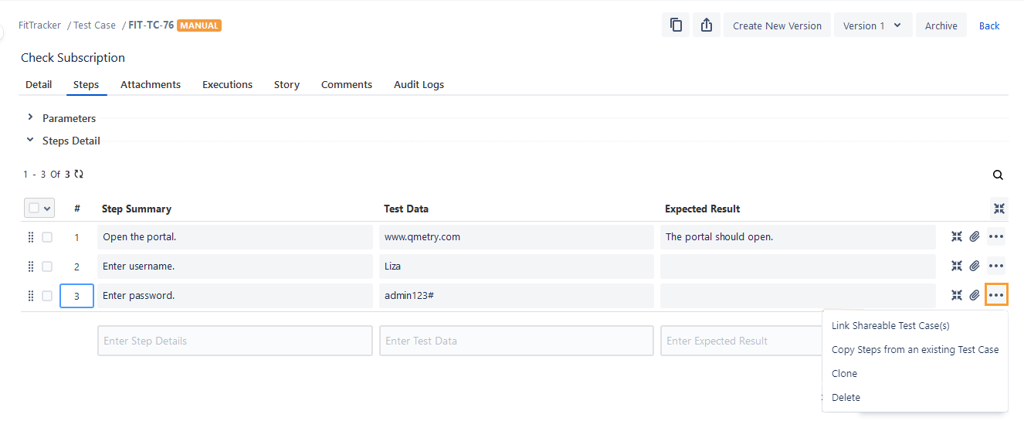
The Copy steps from an existing Test Case screen appears.
A. You can also select test steps from other projects and link them to the test case of the current project.
B. You can search test cases by Key or Summary.
C. You can also apply different filters to shortlist the required test cases.
Note
A maximum of 10 filters, including system and custom fields, can be selected at a time.
Perform the following steps from an existing test case:
Expand the test case and select the test steps that you want to copy.
Click Copy.
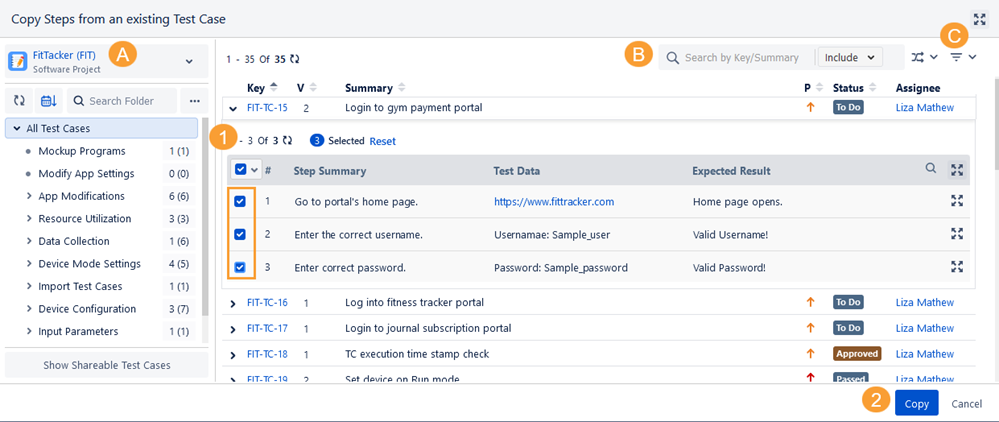
The selected steps are copied to the test case.
Copy Test Steps from Test Case List View
Go to the test case list view, and expand the test case for which you want to copy the test steps.
(A) If the test case does not have its test step under it, you can directly copy steps from other test cases using the provided link of Copy steps from an existing Test Case.
(B) If the test case has its test steps, then click the more icon for the step where you want to insert the test steps from other test case and select Copy steps from an existing Test Case.
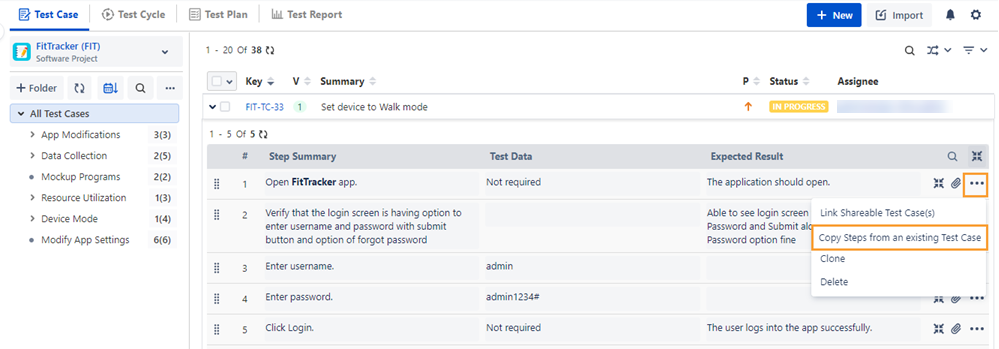
The Copy steps from an existing Test Case screen appears.
You can also select test steps from other projects and link them to the test case of the current project.
You can search test cases by Key/Summary and choose to include Description, Precondition, and Test Step fields in the search.
You can also apply different filters to shortlist the required test cases.
Perform the following steps:
Expand the test case and select the test steps that you want to copy.
Click Copy.
The selected steps are copied to the test case.
Copy Steps from Existing Shareable Test Case
Copy Test Steps from Shareable Test Case Detail Page
Creating a New Test Case: While creating a new shareable test case, you can copy steps from an existing shareable test case by clicking on the provided link.
Select the steps you want to copy and click Copy.
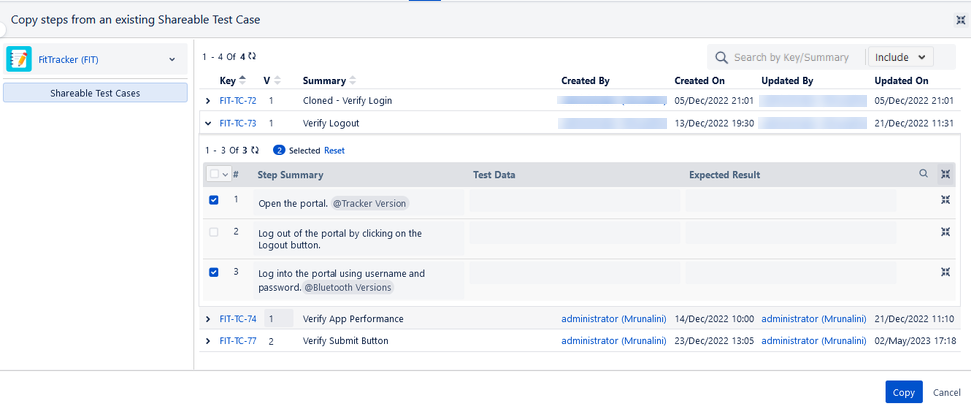
The steps are added to the shareable test case detail view.
Editing a Shareable Test Case: You can add steps from an existing shareable test case while editing a shareable test case.
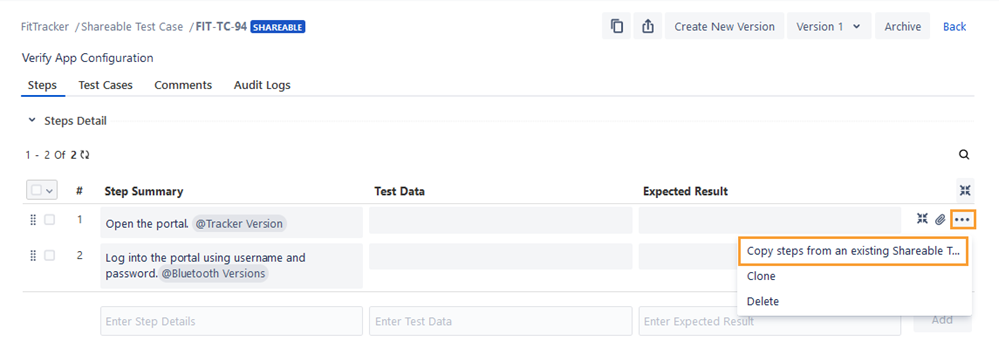
Copy Test Steps from Shareable Test Case List View
Go to the shareable test case list view and expand the test case for which you want to copy the test steps. If the test case has its test steps, then click the more icon for the step where you want to insert the test steps from other shareable test cases and select Copy steps from an existing Shareable Test Case.
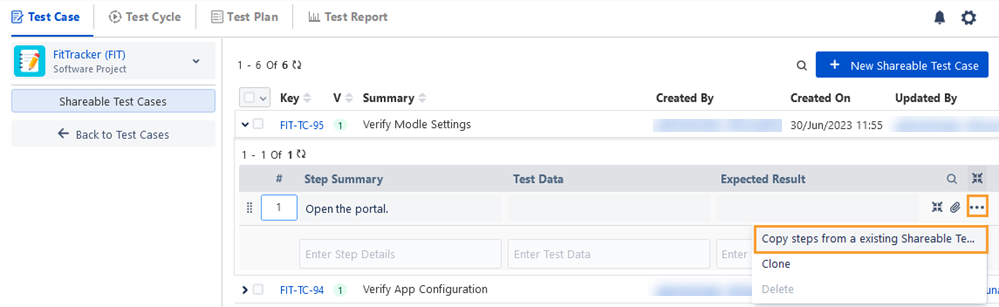
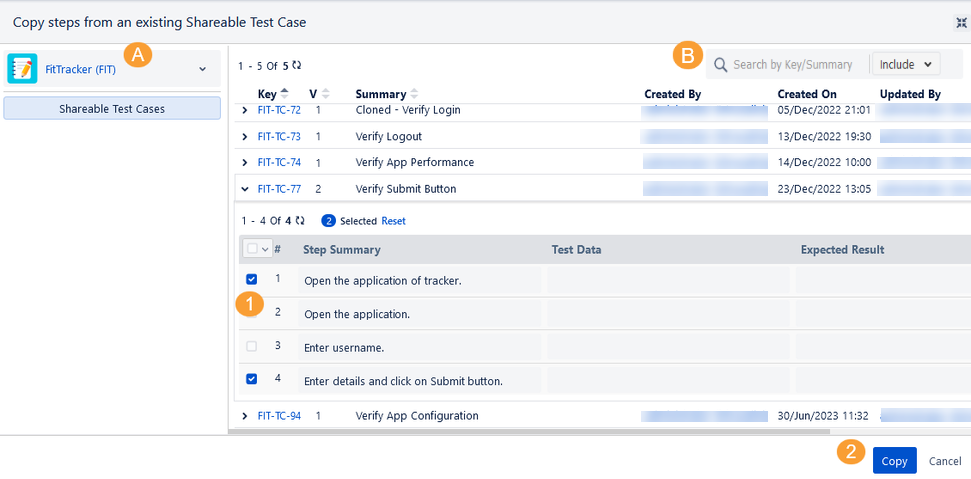
The Copy steps from an existing Test Case screen appears.
You can also select test steps from other projects and link them to the test case of the current project.
You can search test cases by Key or Summary, and choose to include Description, Precondition, and Test Step fields in the search.
You can also apply different filters to shortlist the required test cases.
Perform the following steps:
Expand the test case and select the test steps that you want to copy.
Click Copy.
The selected steps are copied to the test case.