Link Jira Story or Issue to Existing Test Cases
Link Story to Existing Test Cases
You can link existing test cases directly with the stories in Jira. Test Cases from cross-projects can also be linked to the stories.
Perform the following steps to link a Jira story or issue to existing test cases:
Open a Jira issue detail page. If QMetry for Jira Add-on is configured with Jira, you should see the Test Case/Acceptance Criteria panel.
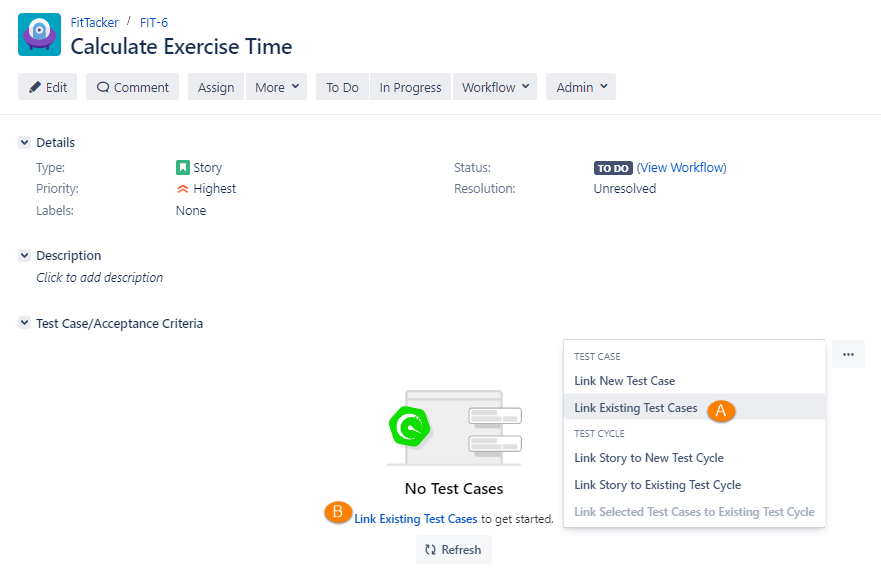
To link existing test cases to the story in Jira, click on the ellipsis (...) icon on the Test Case/Acceptance Criteria section and select (A) Link Existing Test Cases.
If there is not a single test case linked to the story, you can also view the (B) Link Existing Test Cases link below the No Test Cases text.
The Link Existing Test Cases screen appears. Users can sort test cases on the Version column which helps them pick the test cases on the basis of their versions. For example, testers has to link Version 2 of test cases to the story.
Filter Test Cases
A. You can browse test cases as per the test case folder on the tree. It will help you narrow down the test case search.
B. If the test case list is long, apply filters to the list. You can filter records through search. You can search for a particular test case by "Issue Key" or “Summary” through the search box.
Note
The attachment name is searchable only within test case attachments. The search does not include attachments at the step level.
The search operation, including attachment search, considers only the details from the latest version of the test case.
C. To narrow down the search, there are more options, like Labels, Fix Versions, Sprint, Components, Status, Priority, and so on.
Note
A maximum of 10 filters, including system and custom fields, can be selected at a time.
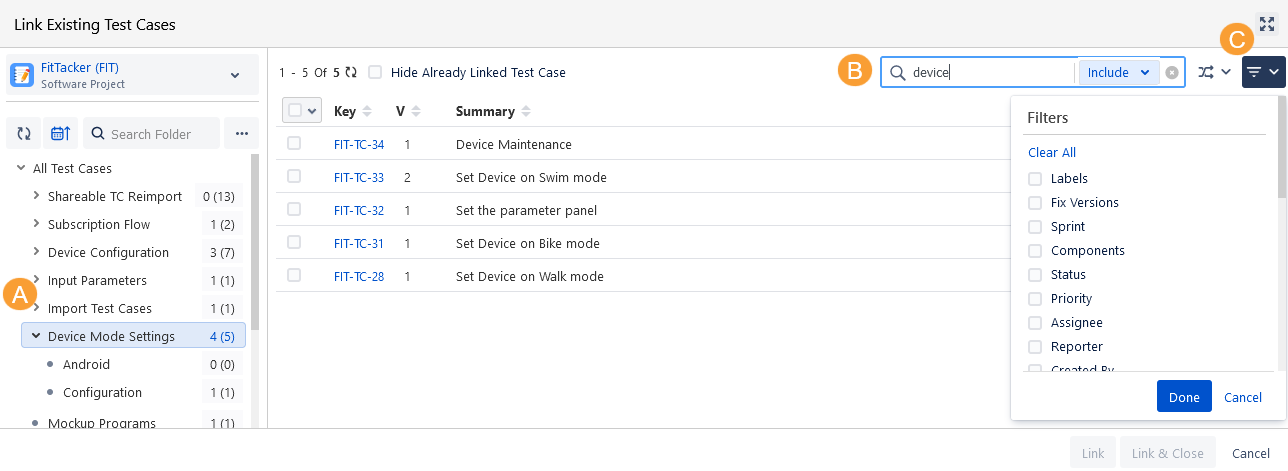
Hide Already Linked Test Case: Check the Hide Already Linked Test Case checkbox to avoid the display of those test cases on the screen which are already linked to the Jira issue. It prevents the linking of the same test cases with the same Jira issue again.
Select the test cases you want to link with the Jira issue and click either of the buttons:
Link: Select the test cases you want to link with the Jira issue/story and click on the Link button. Once test cases are linked, the Link Existing Test Cases screen still remains open to let you link further test cases.
Link & Close: You can link test cases with the Jira issue/story and close the pop-up. Select the test cases to be linked with the Jira issue/story and click on the Link & Close button.
The test case sequence is preserved as per the order of selection while linking to the story.
You can see the test cases are linked to the Jira issue.
You can link multiple versions of a test case to the Story and trace the test case linkages with the story.
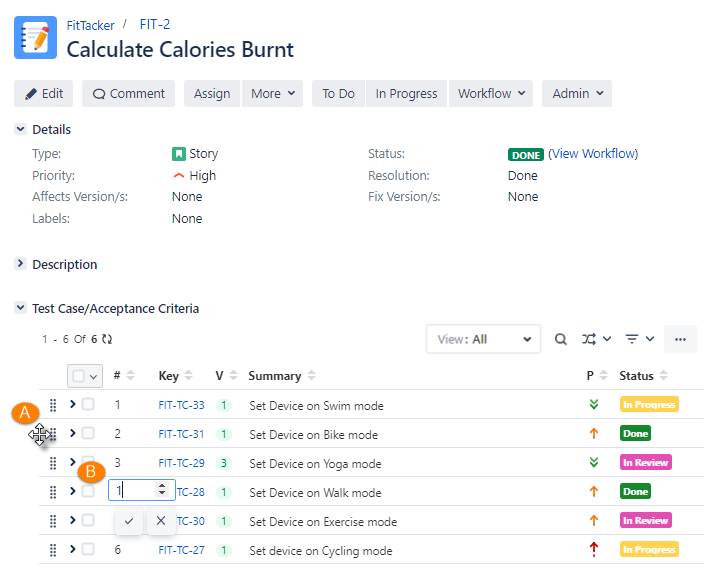
You can change the sequence of the test cases either by moving the test case using the drag and drop operation or by editing the sequence number.
Stack All Panels in a Single Section
Global Settings for Display View for QMetry Sections feature enables the Jira Admin to apply the global settings to automatically organize all QMetry panels into a single section that enhances the loading performance of Jira Issues. Refer to Display View for QMetry Sections.
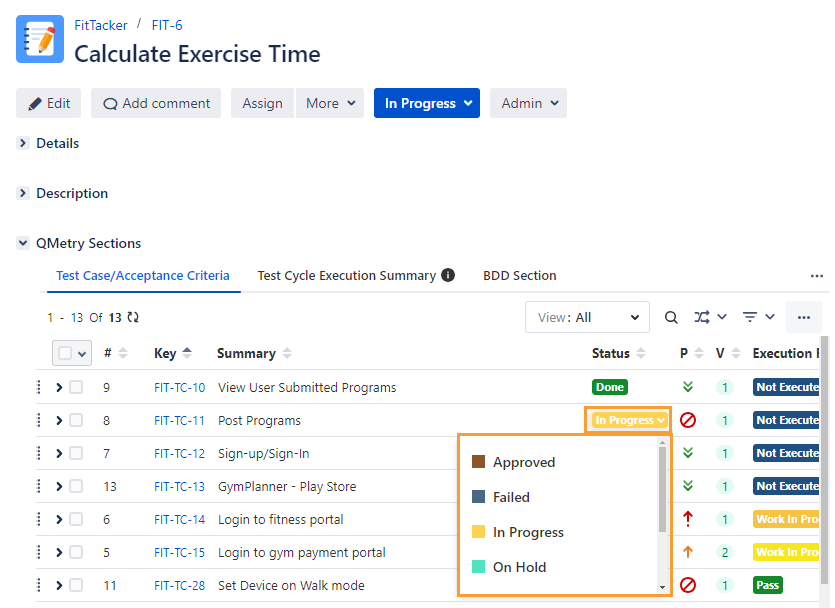
Update Test Case Status Inline
The Status column shows the test case's current state in the workflow, with Statuses like To Do, In Progress, Done, and so on. You can configure the status list values from Statuses under Configuration and update the test case status inline by clicking in the cell under the Status column.
Required Permission: You must have Test Case Edit and Archive permissions to inline update the status of test cases.