Execute Test Cases from Jira Issue Page
Users can run test cases linked to test cycles from the Jira story detail page. It allows users to run test cases right from the story page instead of going to the test cycle module/test execution screen to execute the test cases.
Expand the test case that you want to execute.
Click the Executions tab.
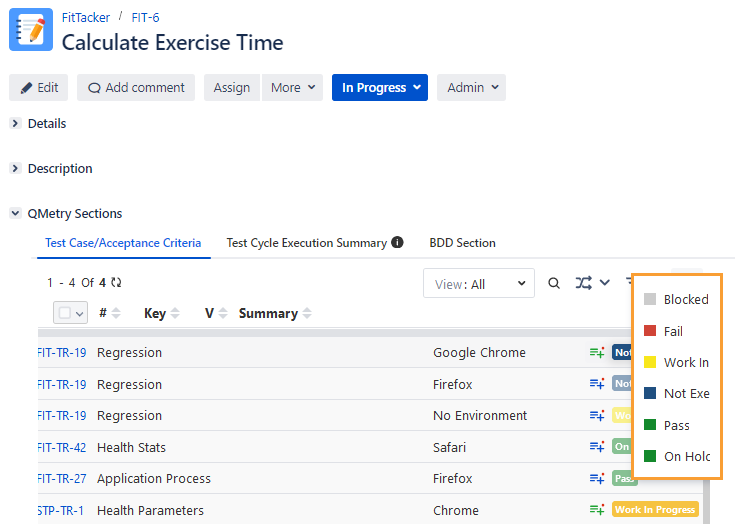
The Execution Result cell is clickable. Click the drop-down list and select the Execution Result you want to assign to the test case.
Note
If the Report Bug setting in Configuration is enabled for the execution result, you must either link an existing bug or create a new bug to associate with the test case.
Once you select the execution result, the Assign Bugs screen appears. You can link existing bugs, create a new bug, and sub-task to link with the Jira story.
Note
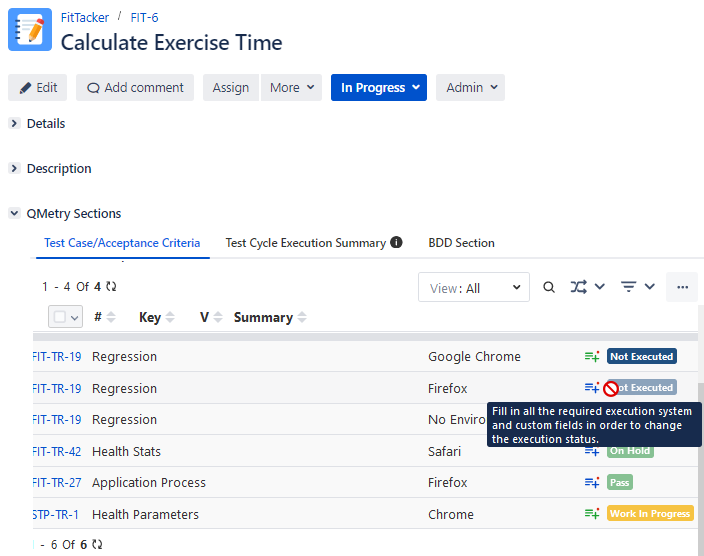
The Execution Result is disabled if all the mandatory execution system and custom fields are not filled. The blank mandatory fields do not allow you to assign execution results to test cases. It does not apply to the Execution Results for which the Skip Validation is enabled.
You can also edit the Test Execution custom fields from this screen.
Click the custom fields icon.
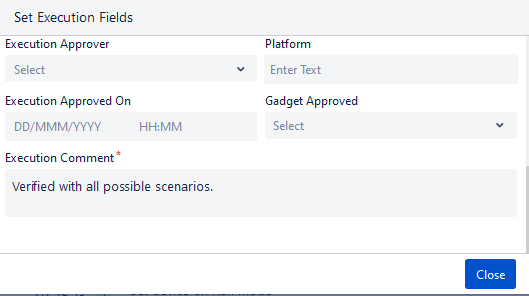
The Set Execution Fields dialog appears.
The Test Execution Custom Fields are displayed as per the current project of the test cycle in which the test case is linked.
Enter the values in the custom fields and click Close to save the changes.
In the Executions tab, the custom fields icon changes to Green color once you fill in the mandatory custom fields.
Stack All Panels in a Single Section
Global Settings for Display View for QMetry Sections feature enables the Jira Admin to apply the global settings to automatically organize all QMetry panels into a single section that enhances the loading performance of Jira Issues. Refer to Display View for QMetry Sections.
See also,