Organize Test Cases in Folders
QMetry Test Management for Jira allows testers to organize and manage test cases in a Folder structure-based hierarchy. Testers can organize related test cases systematically during authoring or post-authoring. For example, testers can create folders like Regression Test, Smoke Test, Sanity Test, and so on to group related test cases. Each new test case folder creates the next level of test case organization in your test case tree. It helps run bulk operations like associating test cases with a story, copying or moving test cases from the source folder to the destination folder.
Access Test Case Organization Feature
Go to the QMetry menu and select Test Management.
There are four sections in Test Management: Test Case, Test Cycle, Test Plan, and Test Report.
To organize test cases in folders, click Test Case.
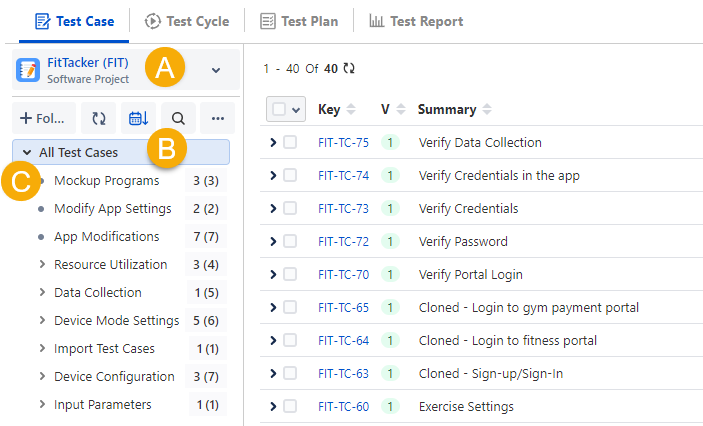
The left pane displays the folder structure of test cases. The right pane displays all test cases until you select a particular folder to view particular test cases.
A. Project selection: By default, the project that you selected in Jira is displayed here. You can select another project. The system renders the folder tree according to the project you select.
B. Root test case folder: The root folder shows all the test cases created within the project, irrespective of the folder.
C. Subfolders within the root folder.
Create Test Folders or Subfolders
Follow either of the following methods to add a new folder under the root or a subfolder.
A. Right-click the folder under which you want to create a new folder and select Add Folder.
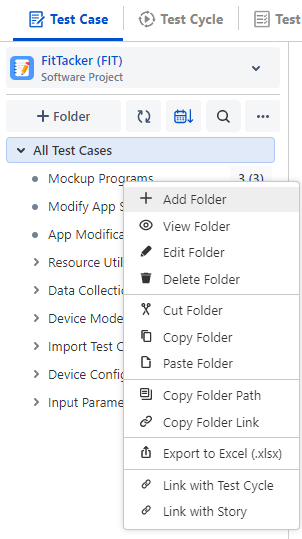
B. Select the folder under which you want to create a new folder and click the + Folder button above the tree.
The Add new folder screen appears.
Enter Folder Name and Description, select/change the Parent Folder Path, and click Submit. It creates a subfolder under the selected folder.
Note
Two folders with the same name in the same level of a hierarchy are not allowed. However, you can use the same folder name at different levels or in different hierarchies.
Select/change the Parent Folder Path.
Create another: Select the checkbox to keep the Add New Folder pop-up open to continue adding folders.
Click Submit. It creates a sub-folder under the selected folder.
A new folder is added to the tree on the sub-level hierarchy.
Folder Hierarchy View
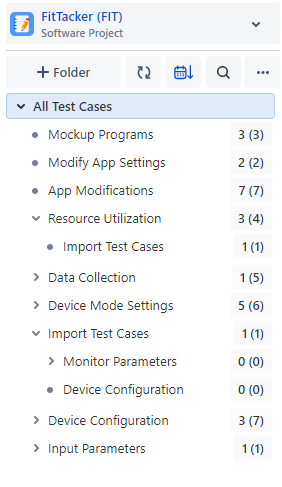
Users can view the details about the number of test cases within the current folder and the total test cases, including test cases of sub-folders.
The syntax of the folder hierarchy represents -
<folder name> No. of test cases within the current folder (Total no. of test cases, including test cases of sub-folders)
Edit Folder
Right-click on the folder name and select Edit Folder.
You can rename the folder and change the description.
You can expand the size of the folder structure pane. Keep the pane size as per your requirement by clicking on the arrow button or by dragging it with the mouse.
Show or Hide Child Test Cases from Subfolders
You can show or hide test cases from subfolders in the parent folder. By default, the Display Test Cases of Sub Folder(s) option remains disabled for new projects and new users. The test cases from sub-folders remain hidden at the parent folder level on the test case list view. To display the child test cases, open the More options menu on the test case tree at left, and select Display Test Cases of Sub Folder(s).
The set preference is applied to all the screens from which the test case module list appears.
If the same test case is part of multiple sub-folders, then it is displayed only once in the parent folder.
Export and other Bulk Operations from the parent folder level are carried out as per the set preference for child test cases.
Reorder Test Cases
The Sequence No. column is visible in a folder on the test case list view, allowing you to rearrange the test cases to ensure the correct order. The column shows the current position of each test case in the folder hierarchy. The Sequence No. column supports sorting. The drag and drop and manual reordering functionalities will not work if you enable sorting in any other columns.
Required Permission: Users should have either Test Case Create or Test Case Edit and Archive permission to modify the Sequence No. of any test case.
The Sequence No. column is visible only when:
The Display Test Cases of Sub Folder(s) option is disabled on the folder tree.
You have selected a folder other than the All Test Cases folder at the root level.
You can change the test case sequence using either of the following methods:
Changing the sequence number in the column
Dragging and dropping the test cases
Changing the Sequence Number
You can change the test case sequence on the list by editing the number in the Sequence No. column.
Dragging and Dropping the Test Cases
Hover over the icon, then drag and drop the test case to the required location. The sequence of the other test cases is adjusted accordingly.
Note
The sequence number is folder-specific. The same test case can have different sequence numbers in different folders.
The following screens display test cases in the same sequence as set on the test case list view:
Copy Steps from Existing Test Case
Link Test Case to Test Cycle Screen (From a Test Cycle)
Link Existing Test Case to Story (Test Case Acceptance Criteria section in Story)
Audit Logs
Audit logs for individual test cases and the Configuration section store records and information related to the test case sequence changes.
Perform the following steps to view the audit logs of individual test cases:
Navigate to the test case detail page.
Click the Audit Logs tab.
The reordering or test case sequencing details appear.
Perform the following steps to view Audit Logs in the Configuration section:
Navigate to the Configuration section.
Select Audit Log.
Click the Test Entity Logs tab.
Select the following options from the list:
a. Select Test Case from the Test Entities list.
b. Select Reorder from the Action list.
c. Select the user from the User list. You can skip this option to view actions performed by all users.
Rearrange or Sort Folders
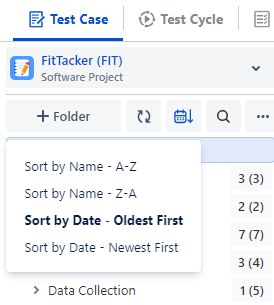
You can arrange test case folders by Name and Date.
Click the Sort by drop-down menu and select the option to arrange the folders in the tree.
The folders can be sorted alphabetically and by creation date in an ascending or descending manner. By default, folders are sorted in Oldest First.
Copy or Cut and Paste Folder
Copy and Paste: You can copy a folder and paste it into another folder. This will create a copy of the existing folder with test cases under it.
Cut and Paste: You can also cut a folder and paste it to another location/folder in the tree to change the hierarchy. All the test cases under the folder will also move along with the folder.
Right-click the folder in which you want to paste the cut/copied test case folder.
Delete Folders
Right-click on the folder that you want to delete and select Delete Folder. It will permanently delete the selected folder. If there are subfolders under the folder, then all these subfolders will be deleted. All the test cases under such folders will be disassociated with the folders and moved to the root folder. You will still have an option to move these test cases to the folder of your choice.
On clicking Delete, the user is asked to select a folder in which they want to move the underlying test cases so that they can keep the test cases in the preferred folder.
If a folder is not selected, then the test cases will be moved to the root folder. Here, the "All Test Cases" folder is the root folder.
Copy Folder Path
Right-click on the folder for which you want to copy the folder path and select the Copy Folder Path option. The folder path will be copied to the clipboard.
Copy Folder Link
You can share a specific Test Case folder by sharing the folder link with other users. The link is accessible to other users within the project. Users with whom the link is shared can open the folder link and directly go to the folder to access the folder data. If it is a parent folder or root folder, the data is displayed accordingly.
For example, In a project, Project Managers, Developers, and other teams are working in collaboration with each other. They also create test assets, like test cases required for the project. They prefer to have a direct folder link and share it across teams for the ease of adding test cases to it.
Perform the following steps to copy the folder link:
Right-click the folder and select the Copy Folder Link option. The link is copied to the clipboard.
Share this link with other users through the channel accessible to them. For example, you can paste the copied folder link in the email. The recipient of the email can then directly go to the folder and start working on it.
Export Test Cases to Excel
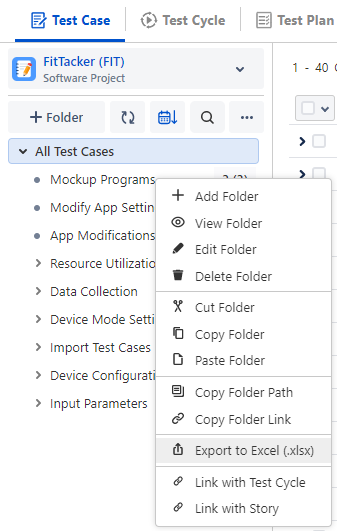
You can export the Test Case folders using the Export Excel option. This enables you to share test cases as per the folder structure in QMetry projects and create a reference.
Right-click on the folder containing the test cases under which you want to export and select Export to Excel.
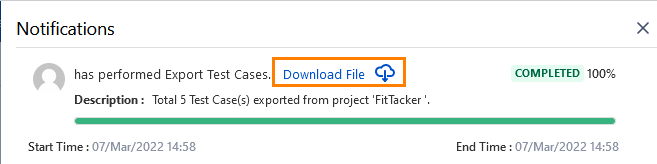
Click the Bell icon on the screen to view the background processes.
Once the process is complete, click the Download File. You can download the data for all test cases in an Excel format.
Search Folders
You can search for folders in the folder structure through the search box. It is useful where the folder structure is very complex, with multiple hierarchies, or the folder list is too long to locate a specific folder.
All Test Cases (Root Folder)
You can perform the following operations on the root folder:
Add Subfolder
Paste the copied/cut folder
Copy Folder Link
Export to Excel
Link with Test Cycle: Link all the test cases under the folder with the test cycle.
Link with Story: Link all the test cases under the folder with the story.
You can not perform other operations on the root folder that are available on sub-folders, like edit, delete, cut, copy, and so on.
From the root folder, you can perform only the Reuse action (and not the Move action) for test cases, as the test cases remain in the root folder and are not moved.
Bulk Operations
The options for carrying out Bulk Operation remain invisible by default. The options available for Bulk Operations become visible on the screen when you select at least one record.
You can also perform the following Bulk Operations on test cases. Follow the links for more details.
Link with Test Cycle (Plan Test Case for Execution)
Link with Story (Plan Test Cases in Story)
Import Test Case
The Import Test Case feature helps you import test cases from an Excel file (CSV/XLSX format) into QMetry for the Jira add-on. Refer to Import Test Cases for more details on this page.
Move and Reorder Folders
You can re-order or move folders within the folder hierarchy using the drag-and-drop functionality across all modules. Refer to Moving and Reordering Folders for more information.