Target vs Actual Test Execution
Introduction
The Target vs Actual Execution report enables users to see the execution progress or target completion date for the target execution.
Target vs Actual Execution report under the Test Execution Reports helps QA Managers understand the current test execution progress against the targeted execution to achieve the timeline. You can generate reports for the following calculation approaches:
Target Completion Date: For the specified duration, the report displays the Planned Test Execution Rate, Current Test Execution Rate, and Required Test Execution Rate to meet the release timelines. The report displays a Line Chart that indicates the execution progress during a particular sprint/period. It helps leads/managers review the current progress of test execution against the target test execution and make decisions regarding resource allocation/task distribution to achieve the target.
Execution Velocity: The Execution Velocity helps QA Managers measure how fast the test executions are performed compared to the set target. For the specified start date and per-day test execution velocity, the report displays the Planned Completion Date and current Test Execution Velocity. It calculates the Test Execution completion date based on the Current Test Execution Velocity.
Execution Planned Date: The Planned Date Graph displays the count of executions based on the planned execution for that specific day. The graph is cumulative, showing the total executions planned to date. When hovering over the counts, users can see the planned executions for that day and the overall total. This option exclusively considers test executions with planned dates falling between the Planned Execution Start Date and the Planned Execution End Date.
The generated cumulative line chart displays the count of Planned Test Executions and Actual Test Executions.
Generate Report
Follow the steps mentioned below to configure the report and generate it.
Step 1. Define Scope
The test execution scope is defined through the selection of the Project.
Note
The Target Vs Actual Execution report can be generated only for a single project.
You can apply filters to select the required test cycles to generate the report. You can apply filters like Test Cycle Keys, Folder Path, Fix Version, Sprint, Component, Labels, Priority, Assignee/Reporter, Planned Start Date/End Date, Test Cycle Custom fields, and Story Filter JQL to consider test cycle directly linked to Stories.
To select the required test executions to generate the report, you can apply filters like Execution Assignee, Environments, Builds, Execution Assignee, Executed By, Executed On, and Latest/All Test Executions.
Step 2. Do Additional Settings
View By: You can view the report for the frequency you select from (a)Daily (default) (b) Weekly (c) Monthly
Days to be skipped: If you select View By “Daily”, you get an option to skip the days for which you want to omit data from the calculation.
If the execution is carried out on the skipped days, such executions will be calculated on the next working day.
Frequency | The report can be generated for maximum up to |
|---|---|
Daily | 90 days |
Weekly | 90 days |
Monthly | 180 days |
Calculation Approach: There are three Calculation Methods.
(A) Target Completion Date:
Execution Start Date and End Date
Select Execution Statuses that are considered as executed. You can select multiple Execution Statuses from the drop-down list.
(B) Execution Velocity:
Execution Start Date
Mention the Test Execution Velocity per day. This is your planned execution velocity.
Select Execution Statuses that are considered as executed. You can select multiple Execution Statuses from the dropdown.
(C) Execution Planned Date:
Execution Planned Date (Start and End Date)
Select Execution Statuses that are considered as executed. You can select multiple Execution Statuses from the dropdown.
After selecting the options, click the Generate button to generate the report.
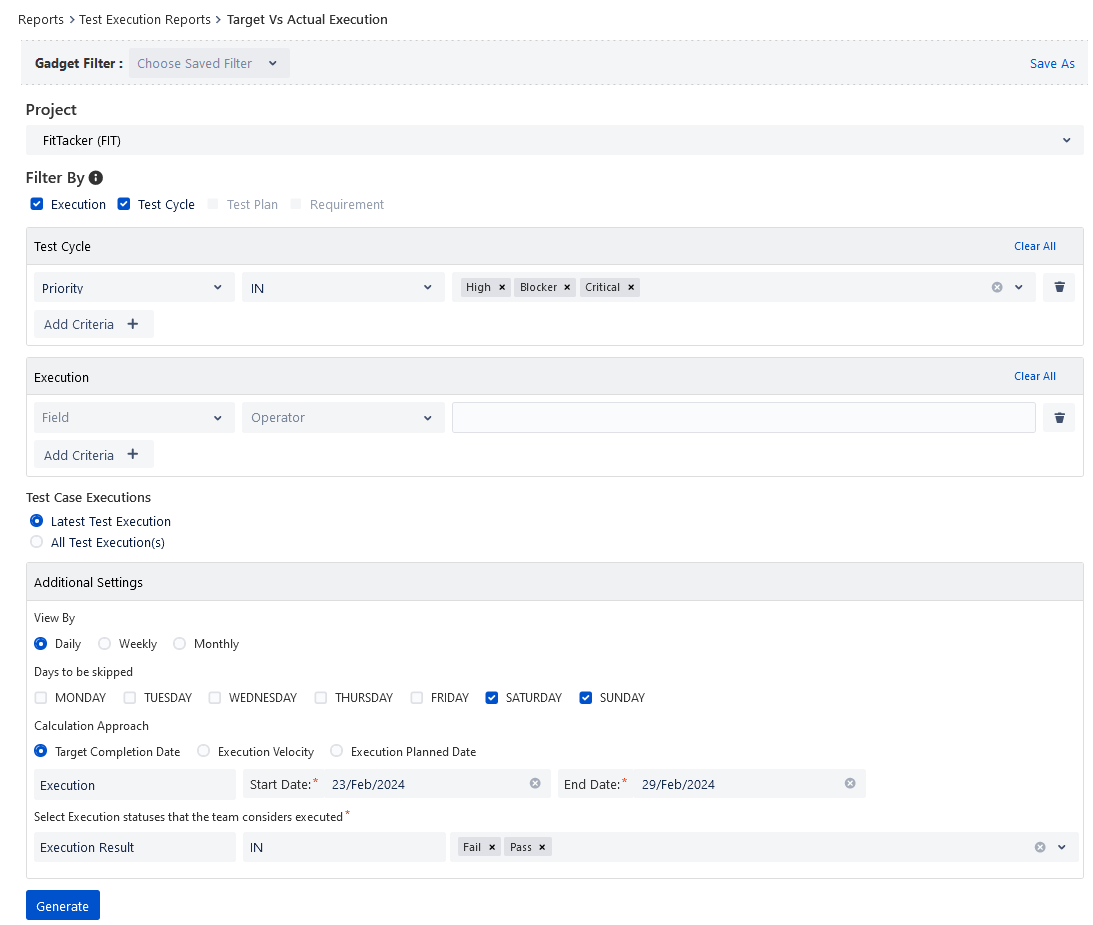
You can view the line chart either in Burnup or Burndown pattern. The chart is generated in the Burndown pattern by default.
View Reports
You can generate and view the following reports:
(A) Target Completion Date
(B) Execution Velocity
(C) Execution Planned Date
Note
The Export and drill-down capabilities are currently unavailable for the Target vs Actual Execution report.
Target Completion Date Report
The report calculates the average number of executions to be completed daily based on the total number of days used and the total number of executions.
Total Executions Count: Total test executions to be run.
Remaining Executions Count: Total test executions to be run - Test Executions already run
Planned Test Execution Rate: It is calculated based on the Start and End date (total number of days) and planned test executions.
Total Count of Planned Test Executions / Total Number of Days (excluding Skipped days)
Current Test Execution Rate: This is calculated based on the count of completed test executions and the total number of days required for the completion.
Total Executions / Total Number of Days (excluding Skipped days)
Required Test Execution Rate: Test Execution Rate required to complete the test execution as per the Execution End Date. It is calculated based on the remaining executions and total number of remaining days.
Remaining Executions / Remaining number of days
Execution Start Date: It is mentioned during the configuration of the report.
Execution End Date: It is mentioned during the configuration of the report.
View By: Selected during the configuration of the report.
Calculation Approach: It is selected during the configuration of the report.
A cumulative line chart is generated that displays the count of Planned Test Executions and Actual Test Executions. The cumulative Daily Count (i.e. The average count of test execution runs to be completed on each date as per the calculation) is displayed on the Y-axis and Dates are displayed on the X-axis.
Planned: It is calculated based on the Start and End date (total count of days).
Total Count of Planned Test Execution/Total Number of Days
Actual: It is calculated based on the daily total execution count (as per the executed date) that matches the selected execution statuses.
Burndown Chart (default)
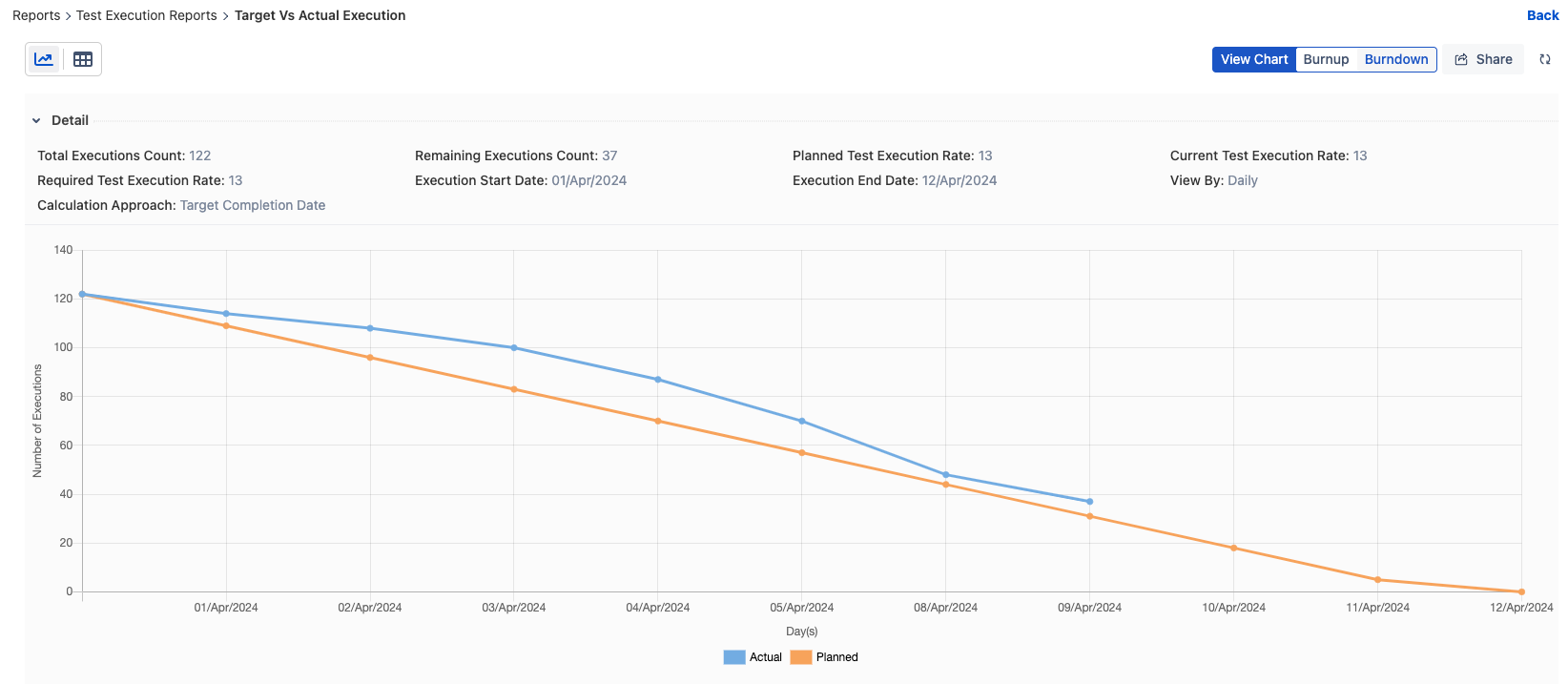
On hover, you can see the data markers.
Planned Line
Planned Remaining - Total count of planned test case executions remaining to be executed till that day.
Actual Line
Remaining - Total count of test case executions which are not executed till that day.
Executed - Total count of test case executions which are executed till that day.
Burnup Chart
On hover, you can see the data markers.
Planned Line
Planned: Total count of test case executions planned to be executed till that day.
Actual Line
Executed: Total count of test case executions which are executed till that day.
Execution Velocity Report
Velocity is a measure of the progress of test execution by the QA team. It refers to the rate at which the QA team consistently runs the test executions. This predictive metric helps the QA Manager to determine the Test Execution Completion Date by which the defined scope could be achieved.
The report calculates the Test Execution Completion Date based on the Remaining Executions Count and Current Test Execution Velocity.
A cumulative line chart is generated that displays the count of Planned Test Executions and Actual Test Executions.
Total Executions Count: Total test executions to be run.
Remaining Executions Count: Total test executions to be run - Test Executions already run
Planned Test Execution Velocity: The Test Execution Velocity was mentioned during the configuration of the report.
Current Test Execution Velocity: It is calculated based on the actual test executions/Number of Days.
Total Actual Executions / Number of Days Required for the Execution
Test Execution will be completed on: The date is calculated based on the count of remaining test executions and Current Test Execution Velocity.
Current Date + (Remaining Test Executions / Current Test Execution Velocity) days
Execution Start Date: The date is mentioned during the configuration of the report.
Planned Completion Date: The date is calculated based on the Test Execution Velocity mentioned during the configuration of the report.
Start Date + Velocity applied by the user
View By: It is selected during the configuration of the report.
Calculation Approach: It is selected during the configuration of the report.
A cumulative line chart is generated that displays the count of Planned Test Execution Velocity and Actual Test Execution Velocity.
The cumulative Daily Count is displayed on the Y-axis and Dates are displayed on the X-axis.
Planned: It is calculated based on the user-provided daily execution velocity. The following formula is applied for calculation.
Total Planned Test Executions / Execution Velocity
Actual: It is calculated based on the daily total execution count (as per the executed date) that matches selected execution statuses.
The cumulative line chart is generated accordingly and the end date is calculated based on speed.
Burndown Chart (default)
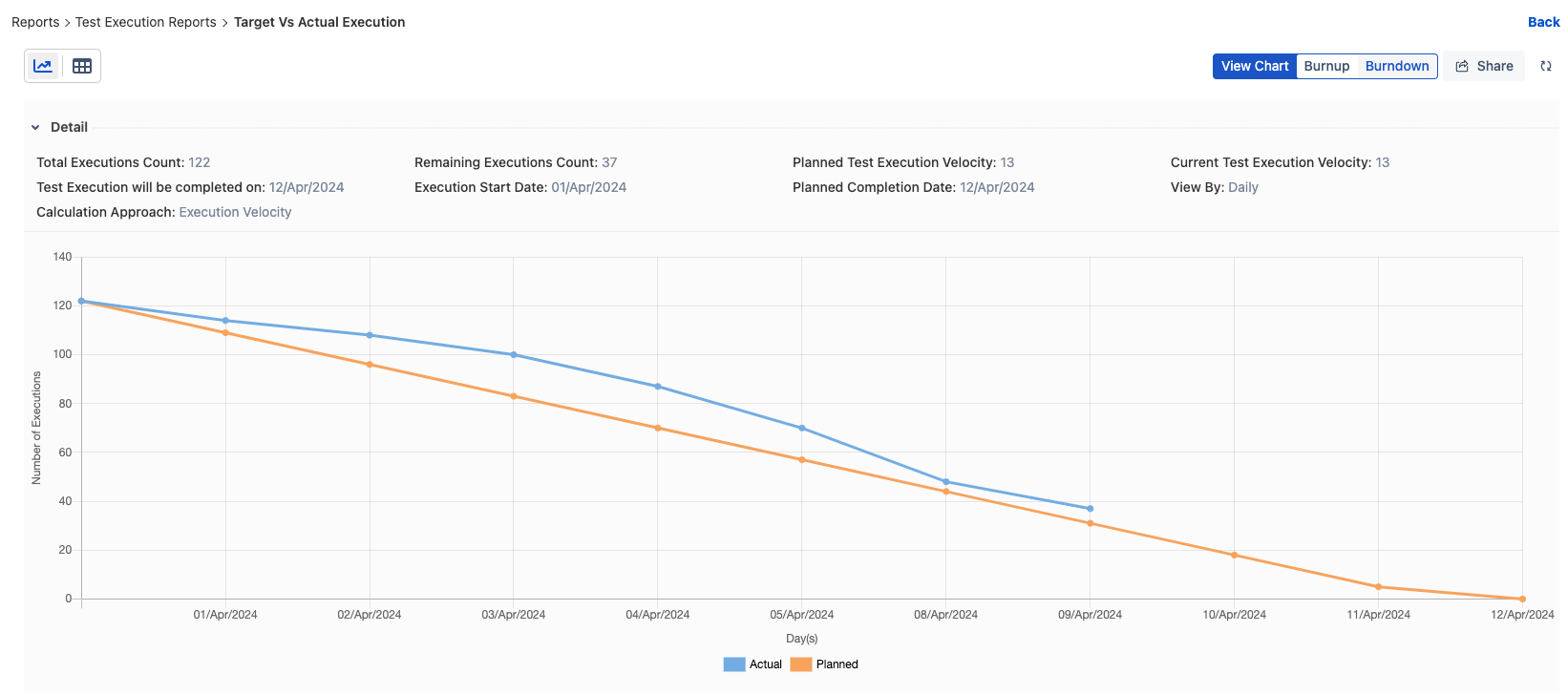
You can see the following data markers on hover.
Planned Line
Planned Remaining: Total count of planned test case executions remaining to be executed till that day.
Actual Line
Remaining: Total count of test case executions that have not been executed till that day.
Executed: Total count of test case executions which are executed till that day.
Burnup Chart
You can see the following data markers on hover.
Planned Line
Planned: Total count of test case executions planned to be executed till that day.
Actual Line
Executed: Total count of test case executions which are executed till that day.
Execution Planned Date
The Planned Date Graph displays the count of executions based on the planned execution for that specific day. The graph is cumulative, showing the total executions planned to date. When hovering over the counts, users can see the planned executions for that day and the overall total. This option exclusively considers test executions with planned dates falling between the Planned Execution Start Date and the Planned Execution End Date.
The generated cumulative line chart displays the count of Planned Test Executions and Actual Test Executions.
Note
Only test case execution runs with a Planned Date are considered for plotting the Actual Date graph. If a test execution does not have a Planned Date, it is excluded from the calculation, even if it occurred within the selected period.
If executions are planned on skipped days, they will not appear on the chart. This may lead to incorrect interpretation of the report.
The following statistics are displayed in the report:
Total Executions Count: Total Planned Executions between the Start Date and the End Date.
Remaining Executions Count: Total Planned Executions - Test Executions already run.
Planned Test Execution Rate: It is calculated based on the Start and End date (total number of days) and planned test executions.
Total Count of Planned Test Executions / Total Number of Days
Current Test Execution Rate: This is calculated based on the count of completed test executions and the total number of days required for the completion.
Total Executions / Total Number of Days (excluding Skipped days)
Required Test Execution Rate: Test Execution Rate required to complete the test execution as per the Execution End Date. It is calculated based on the remaining executions and the total remaining number of days.
Remaining Executions / Remaining Number of Days
Execution Start Date: It is mentioned during the configuration of the report.
Execution End Date: It is mentioned during the configuration of the report.
View By: Selected during the configuration of the report.
Calculation Approach: It is selected during the configuration of the report.
The cumulative count is displayed on the Y-axis and the Date on the X-axis.
Planned: It is calculated based on the user-provided Execution Planned Start Date and End Date (excluding skipped days).
Actual: It is calculated based on the daily total execution count (as per the executed date) that matches selected execution statuses. If a test execution does not have a planned date, it will be excluded from the calculation or consideration, even if it occurred during the selected period.
Burndown Chart (default)
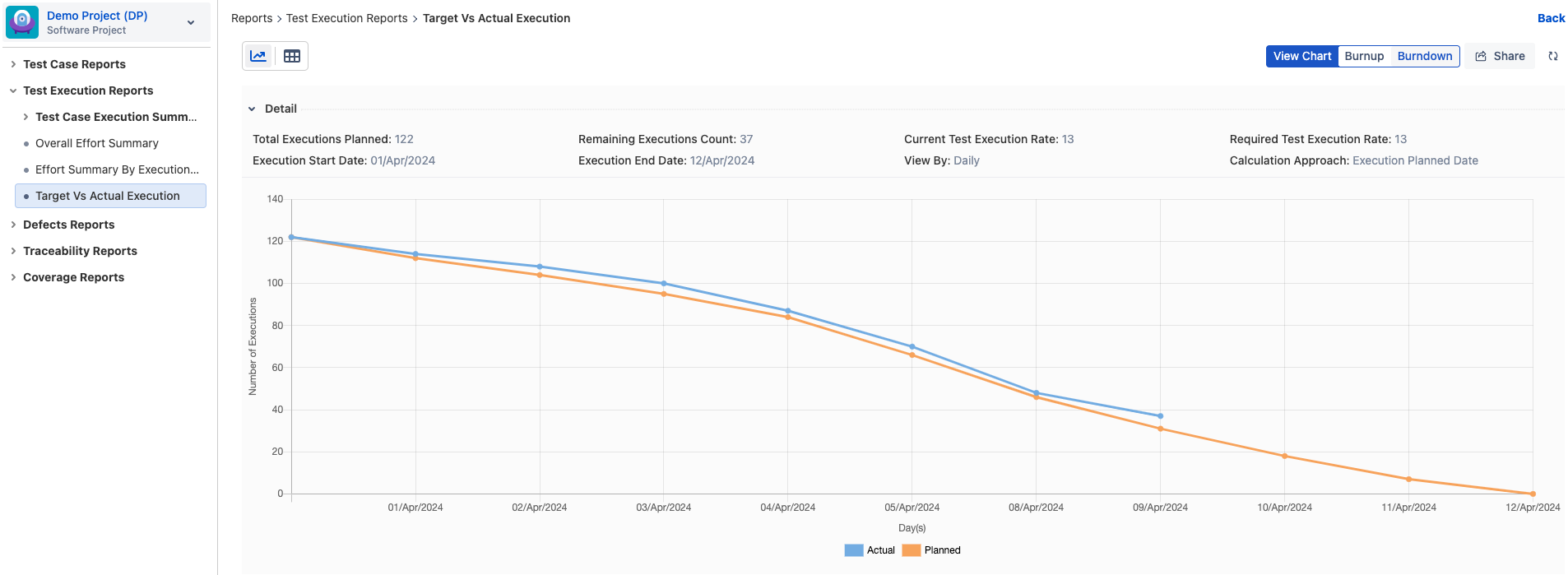
You can see the following data markers on hover.
Planned Line
Planned Remaining: Total count of planned test case executions remaining to be executed till that day.
Planned: Total count of test case executions that are planned to be executed on that day.
Actual Line
Remaining: Total count of test case executions which are not executed till that day.
Executed: Total count of test case executions which are executed till that day.
Burnup Chart
You can see the following data markers on hover.
Planned Line
Planned Cumulative - Total count of test case executions planned to be executed till that day.
Planned - Total count of test case executions which are planned to be executed on that day.
Actual Line
Executed - Total count of test case executions which are executed till that day.
You can view the Tabular View of the report by clicking on the Tabular View option.
Share Target vs Actual Report
To share the generated graph with other users outside the organization or with the users who do not have access to QTM4J, click the Share button.
Copy the generated URL and share it with other users.
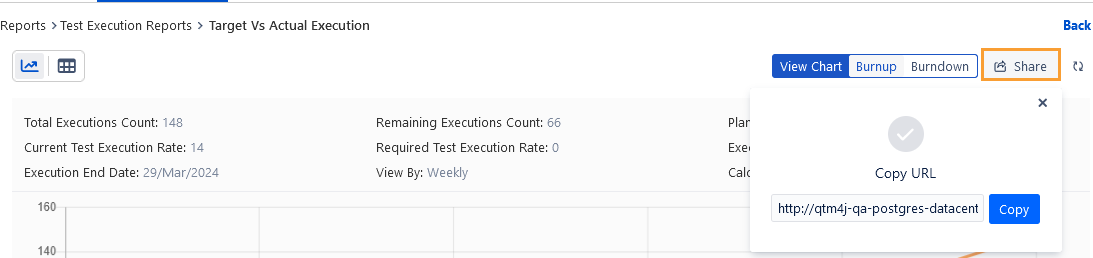
Users accessing the report through the shared URL can only view the chart. They can not modify the chart or share it further.