Dashboard Gadgets
Overview
QMetry Chart offers real-time visibility for test quality across projects and teams for various reports. With QMetry Charts you can build customized dashboard widgets inside Jira. It helps Agile teams to release more confidently on schedule by using relevant analytics, data and test run reports.
Users can save Filter criteria with which they have generated a report. Using this saved Filter, the user can view the gadget on the QTM4J dashboard. Hence, the report that was generated in the Test Report tab would be seen as a Gadget on the dashboard page.
Add the QMetry Gadget to the Dashboard
Perform the following steps to add QMetry gadget to add the QMetry Gadget to the Dashboard:
Log into QMetry Test Management for Jira.
Click the Dashboard menu and click My Dashboard.
Click the Add Gadget button.
The Add a gadget screen appears with the list of available gadgets.
Select QMetry Reports to add to the dashboard by clicking on the corresponding Add gadget button.
Close the Add a gadget screen.
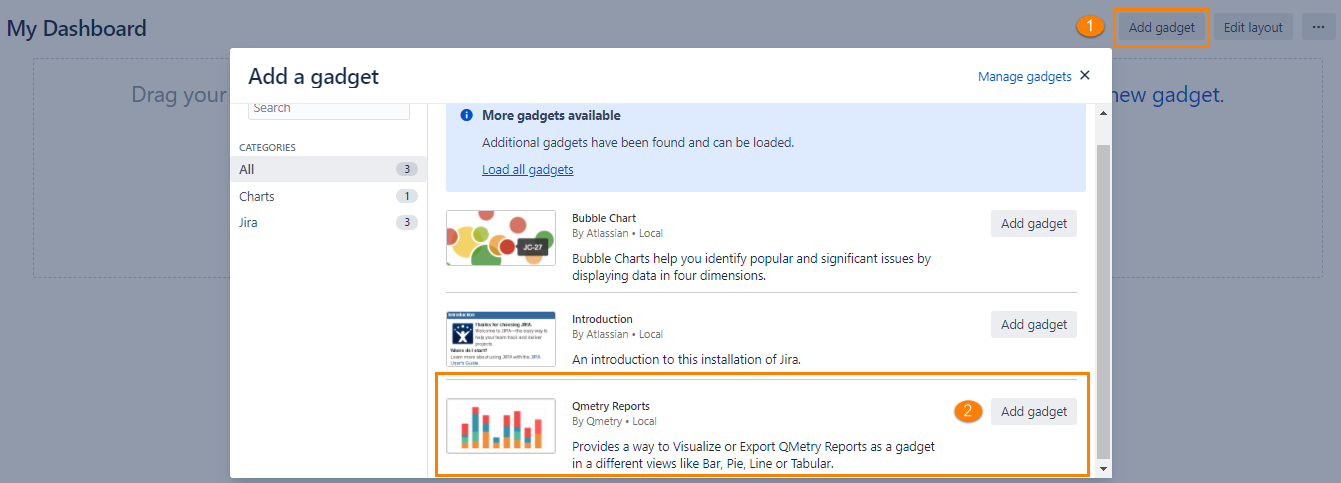
QMetry Reports block is added to the Dashboard.
Generate Graphs Using Gadget
You can use the filters you saved while configuring the Reports (Configure and Generate Report ). To generate and view charts, select and apply one of the saved filters.
After the gadget is added, it displays the Saved Filter drop-down list. This list shows the filters that were previously saved while generating reports. Refer to Configure and Generate Report for more details.
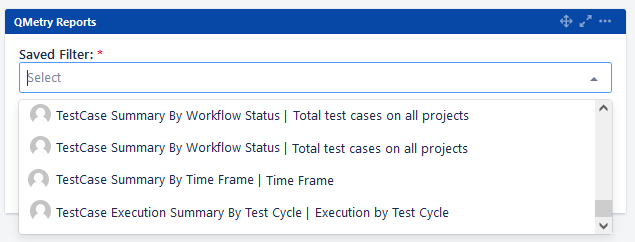
Select the Filter you want to generate the report thereof and click Save.
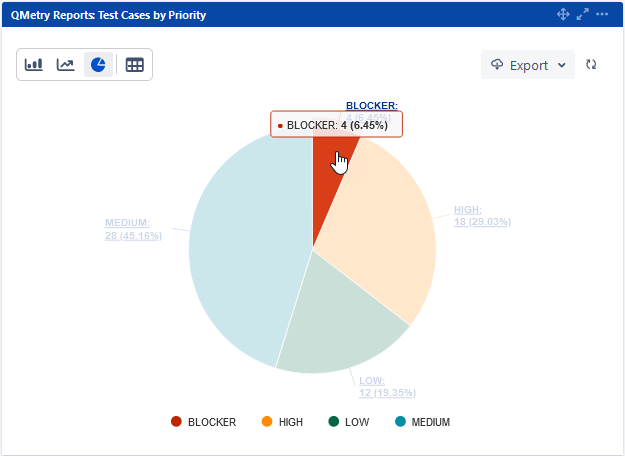
The Chart is generated and displayed. Hover over the chart sections to see the corresponding count.
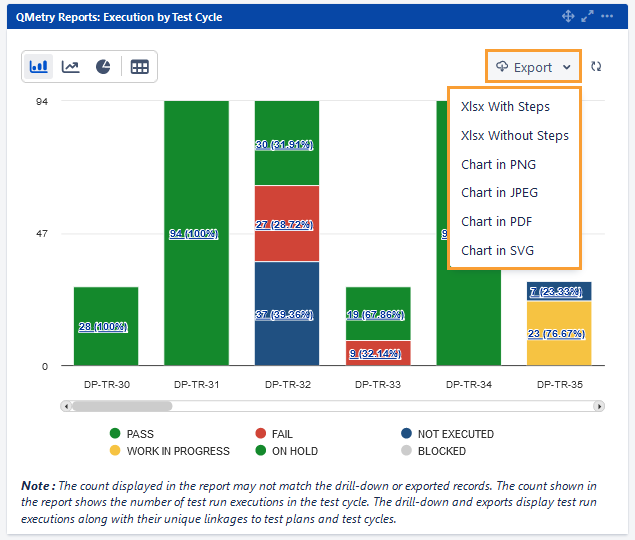
Charts: You can select from Bar, Line, Pie chart to have a visual view of the report.
Tabular View: Click the icon to view the details in tabular format.
The following options are available on the chart:
A. Export: Click the icon to export the Chart details in an excel file.
B. Refresh: Click the Sync icon to update the chart with the latest data. If the filter criteria have changed, the chart also updates accordingly.
The following options are available for individual charts:
Maximize
Minimize
Refresh
Configure: Users can update the filter being used for the gadget.
Delete Chart
Drill Down Charts
For graphical view, you can drill down the chart by clicking on the required portion/bar of the chart. You can view the report details in tabular format.
The asset keys in the drilled-down report are clickable, which opens the asset detail page.
Perform the following steps to drill down charts:
Click the Export menu on the report.
Select one of the following options to export the report in Excel:
With Steps
Without Steps
To export the Tabular Summary, select the CSV export option.
For tabular view, drill down the chart by clicking the link provided on respective counts.
Download Graphical Summarized View
You can download the graphical summarized charts from QTM4J gadgets in JPEG, PDF, PNG, and SVG formats along with legends, counts, and percentages. This will allow me to share or copy the graphical summary for reporting purposes with various stakeholders.
This feature is available for Pie, Line, and Bar charts (including Vertical Grouped Bar charts and Stacked Bar charts for two-dimensional reports).
Export: You can export the chart details in the following formats.
Xlsx with Steps
Xlsx without Steps
Chart in PNG
Chart in JPEG
Chart in PDF
Chart in SVG
Tabular format: The tabular summary can be exported in Excel and CSV.