Statuses
A Status defines the stage of the test asset in the workflow. The Testing Manager can define their own workflow by adding custom statuses.
By default, QMetry Test Management for Jira has the statuses for the project, which are: 'To Do', 'In Progress', and 'Done'. You can also create custom statuses for the following test assets. The Status list populates for the respective Test Assets accordingly.
Test Case
Test Cycle
Test Plan
Adding a Status
Perform the following steps to add a status:
Click the QMetry menu and select Configuration.
Under Project Configuration, select Status. The screen has three tabs: Test Case Status, Test Cycle Status, and Test Plan Status. Select your desired test asset that is Test Case, Test Cycle, or Test Plan to add a custom Status.
Enter the Status Name, its Description, select the Color from the color picker, and click Add.
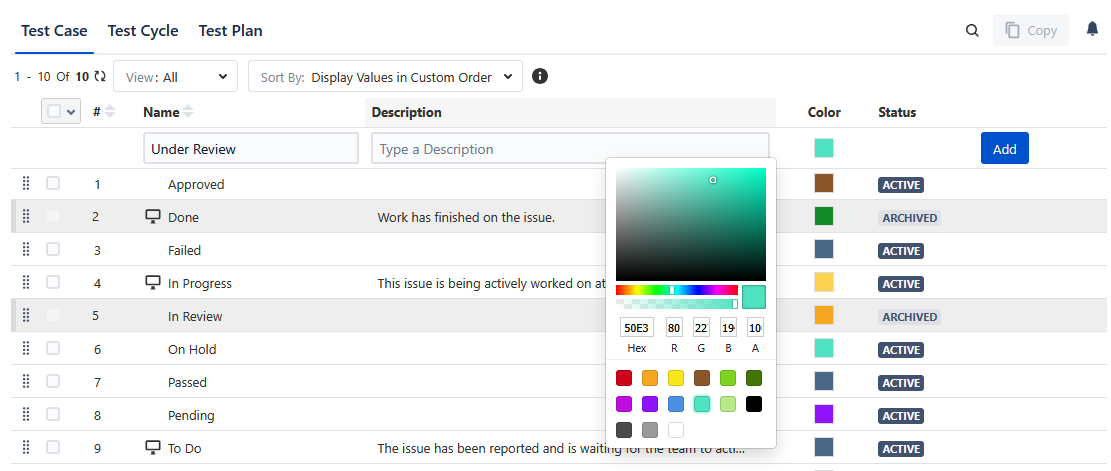
The Status list appears on the corresponding test asset screens.
If a custom status is added to the Test Case asset, perform the following steps to use it:
Click the QMetry menu, select Test Management, and select the Test Case tab.
Create a new test case or navigate to an existing test case detail page.
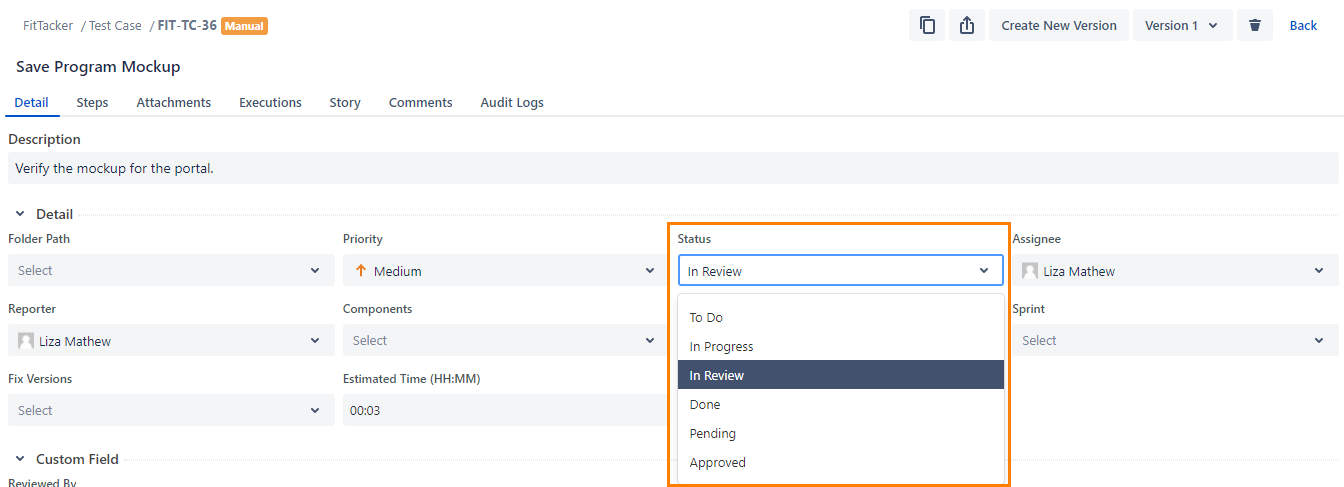
Check that the Status drop-down list has the values you entered above. Select the status applicable for the test case.
Editing a Status
You can edit values (that is, Name, Description, and Color) of System and Custom Statuses. Statuses already used in assets will also get updated accordingly. You must have the Configuration Modify rights for the project to edit the statuses.
Note
Modifying Status names will reset the existing filters applied to those values.
Perform the following steps to edit a status:
Click the status name, and a text box appears to enter the new status name.
Type the new name, and click the check mark.
You can edit the Description and Status Color in the same.
The confirmation message appears. Click Confirm to proceed.
Sorting the List Values
Sort By: Select any one of the following options. The selected sorting option will sort the list values consistently across all screens.
Required Permission: You must have the Configuration Modify permission to change the Sort By preference of list values.
Display Values Alphabatically: This option arranges the list values alphabetically.
Display Values in Custom Order: This option allows you to change the list value sequence using either of the following methods:
Changing the sequence number in the column - You can change the list value sequence by editing the number in the Sequence No. column.
Dragging and dropping the list value - Hover over the icon, then drag and drop the list value to the required location.
The Configuration Logs display audit logs for changes in the Sequence Number and Sort By settings.
Copying Status to Other QMetry Projects
You can copy the Status from one project to another project. You must have the Configuration Modify permission for the target project. This feature enables users to reuse similar items across multiple QMetry projects without having to create them individually, saving time and reducing duplication.
Perform the following steps to copy the status to other projects:
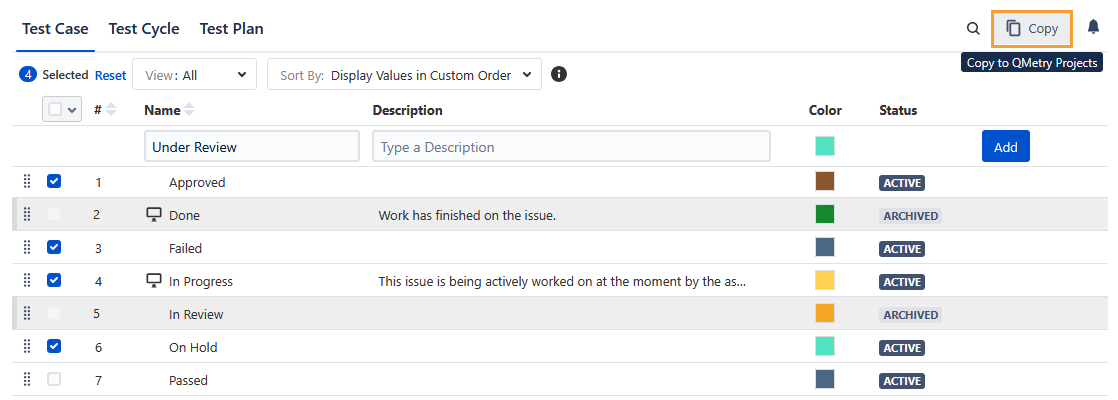
Select the Statuses that you want to copy to other QMetry Projects. The Copy button is visible on the screen when you select Statuses.
Click the Copy button.
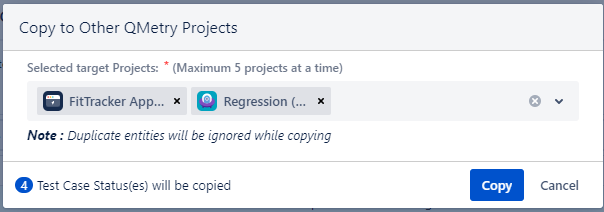
Select the project where you want to copy the selected items. You can select multiple QMetry Projects (a maximum of five projects) at a time to copy the item.
Duplicate entities are ignored while copying.
Archiving a Status
You can archive System and Custom Status. The Archive feature is useful when you want to stop using Status values but still do not want to delete them. You can bring the archived values back into use by unarchiving those values.
An archived status value does not appear in the drop-down list for test assets. However, previously used values remain visible in existing entities.
Required Permission: You must have the Configuration Modify permission to the project to archive statuses.
Operation | Impact or Behavior of Archived Values |
|---|---|
Import Test Case | Archived values can not be imported during the test case import operation. It applies to manual import and import via Open API or Automation API. |
Export Test Case | Archived values get exported during the test case export operation. |
Copy List Values | The archived list values do not get copied while copying the list values using the Copy button in the project Configuration section. |
Filter records on list values | Filters can be applied to the archived values. The archived values are displayed under the Archived section on the filter list. |
Entity versioned/updated | The archived list values get copied or preserved as it is. |
Clone in the same project | The operation is applicable to the Test Case and Test Cycle modules. The archived list values get copied. |
Clone test cycle to other projects | The operation is applicable to the Test Cycle module. The archived values are copied with the “Active” status in other projects. |
Export to another project | The archived list value gets copied with the “Active” status in other projects. |
Cloning or Start New Execution with custom fields | The archived list values get copied. |
Perform the following steps to archive a status:
Hover the record you want to archive. The Archive icon becomes visible as soon as you hover over the record.
Click the Archive icon.
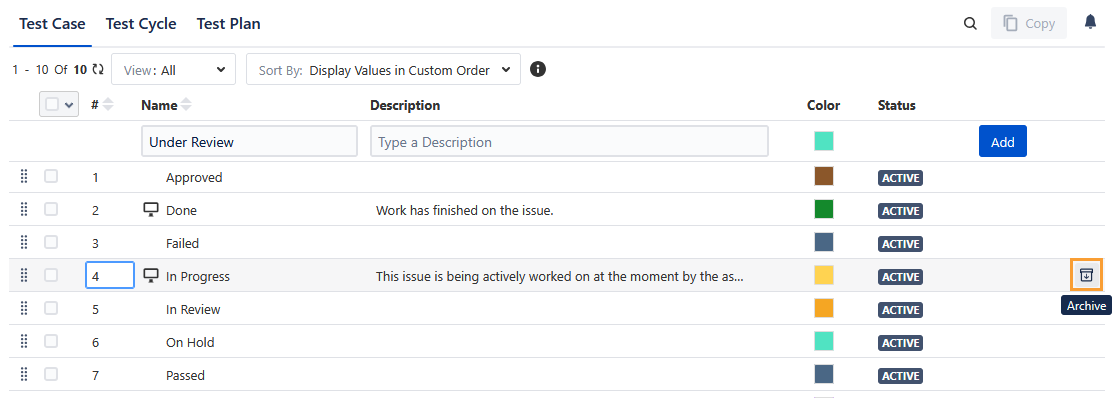
In Test Management -
Archived statuses cannot be used in new test assets. However, statuses that are already in use remain visible in existing test assets.
When you apply the Status filter to test assets, archived statuses appear under the Archived section.
Unarchive an Archived Status
Once a Status is archived, the Unarchive icon starts appearing for that Status. Click the Unarchive icon to unarchive a Status.
You can also apply a filter to view the Active or Archived status.
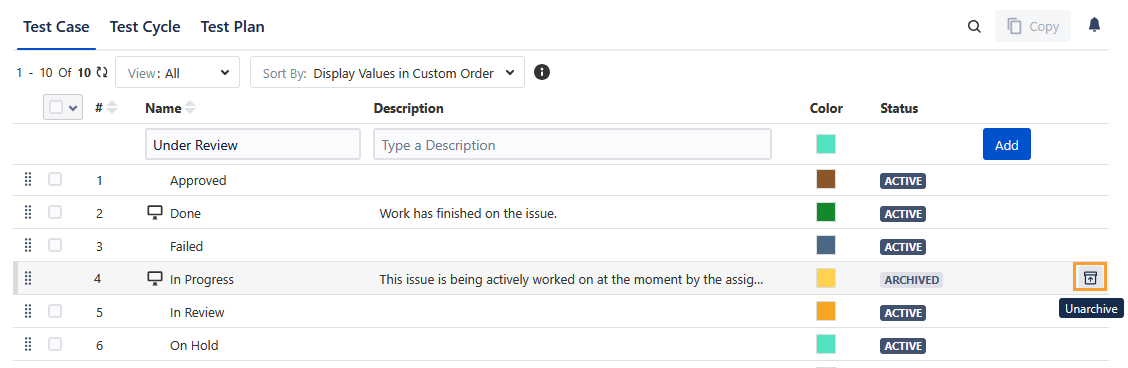
Deleting a Status
A project administrator with the Configuration Modify permissions can delete the custom Status. Use the Delete feature to permanently remove a value when it is no longer needed. Before deleting a status, archive it.
Note
You cannot delete system-defined statuses or statuses that are associated with test assets.
Perform the following steps to delete a Status:
Hover over the archived Status. You can see two icons on hover: (1) Unarchive and (2) Delete.
Click the Delete icon to delete the Status.
The confirmation message appears.
If a value is used in any test asset, you cannot delete it. To delete the value, first remove all its existing associations with test assets.
Searching for a Status
You can easily search for a required Status from the long list of items.
Steps for searching a Status in the list:
Click the QMetry menu and select Configuration.
Click Status.
Click the search icon to see the text box. Type the keyword in the text box and press ENTER on the keyboard.