Folder Order or Sorting Configuration
Only the project administrator can set the Folder Order/Sorting configuration from the Project Configuration screen.
Perform the following steps to set the Folder Order or Sorting configuration:
Navigate to the Configuration menu.
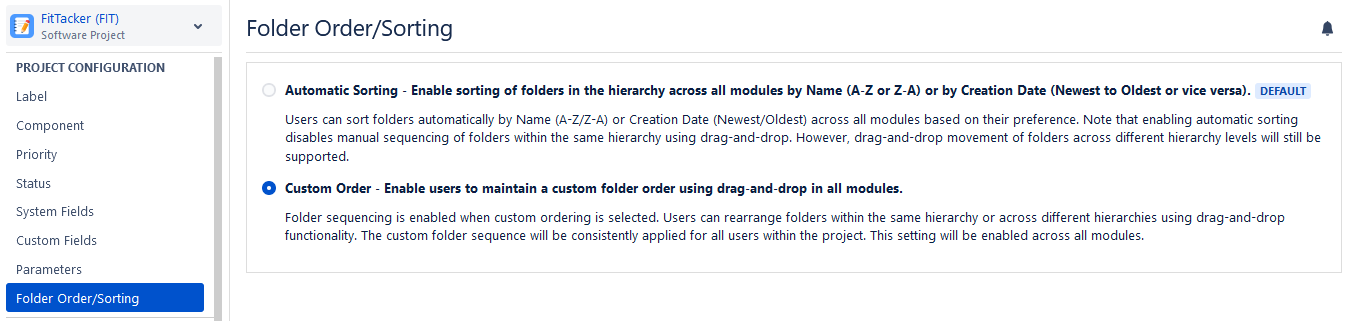
Select the Folder Order/Sorting option.
Select one of the following options:
Automatic Sorting: This is the default configuration. It allows you to sort folders by Name (A-Z or Z-A) or by Creation Date (Newest or Oldest) across all modules. Note that enabling automatic sorting will disable the ability to manually rearrange folders in the same hierarchy using the drag-and-drop functionality. However, you can still move folders across different hierarchy levels using drag and drop.
Custom Order: The Folder sequencing is enabled when you select the Custom Order option. You can use the drag and drop functionality to rearrange folders within the same hierarchy or across different hierarchies. This feature will be implemented across all modules and for all users in the project.
Viewing Configuration Logs
You can view all the audit logs for configuration changes in the Configuration Logs.
To view audit logs, perform the following steps:
Navigate to the Configuration menu.
Select Audit Log.
Click the Configuration Logs tab.

For more information on Move and Reorder Folders, refer to Moving and Reordering Folders.