Execution Result
Overview
QMetry Configuration allows you to create the Execution Result of your choice. In addition to the system-defined Execution Results – Fail, Blocked, Not Executed, Work In Progress, and Pass, you can add customized Execution Result that suits your project's needs. You can set the Priority of the customized Execution Result. The customized Execution Result can also be Edited.
The system-defined Execution Results are available for all projects. On the other hand, the QA manager can define custom Execution Results at the project level and set the priority of the result.
Note
System default results cannot be edited or deleted.
Example: Your testing process needs an execution result Omit to exclude some Test cases from execution. The QA manager can add Omit status and set the priority below Fail.
Permissions Required:
Jira Permissions: Browse Project permissions are required.
QMetry Permissions: If enabled, the following permissions are required.
Configuration View
Configuration Modify
Auto Update Execution Result
Users with Configuration Modify rights can enable or disable the Auto Update Execution Result feature. If enabled, the test case execution result will be auto-updated in accordance with the change in the test step execution result. Any change in the execution result of a test step will also impact the execution result of its test case.
This is a project-based configuration. The settings will be applicable only to the current project.
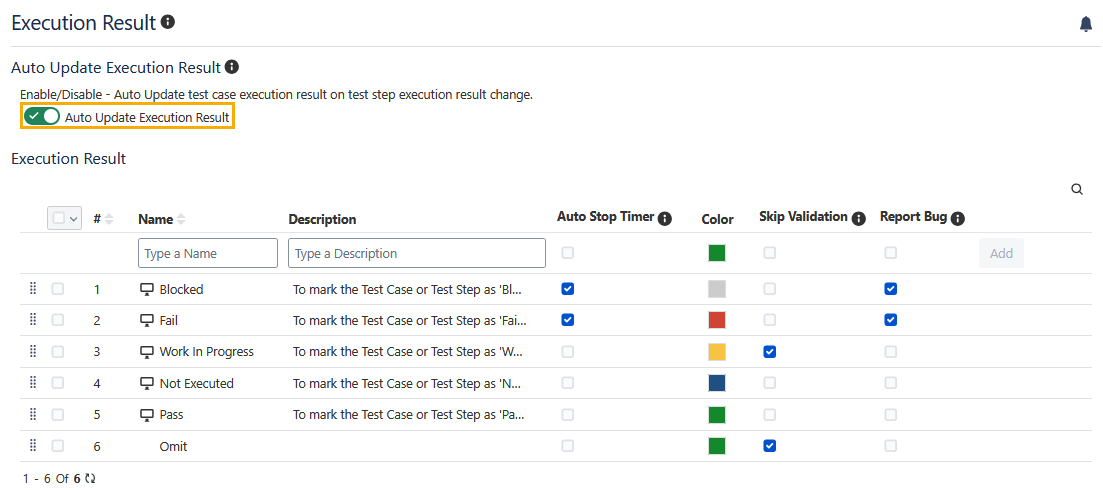
Manage Execution Results
You can create, edit, delete, and copy the execution results.
Creating an Execution Result
Users should have the 'Configuration Modify' access to the project to create execution results.
Perform the following steps to create a custom execution result:
Go to the QMetry menu, select Configuration, and select your project.
Under Test Execution, select Execution Result.
Enter a new execution result, for example, enter 'Omit' as the execution result name and fill the relevant description.
Select the color for the Execution Result and click Add.
Edit an Execution Result
You must have the Configuration Modify permission to the project to edit the Custom and System values of Execution Result.
Note
The feature to edit system-defined execution results is available in QMetry v4.1.8 and later.
Perform the following steps to edit an execution result:
Click the execution result name to edit, and a text box to enter the new execution result name appears as shown in the screenshot below.
Type the new name and click the tick mark symbol. You can also edit the description field and change the color for the execution result.
Change Execution Result Color
Users can change the color of the System as well as Custom Execution Results. The color of execution results that are already used in assets will get updated accordingly. Users with Configuration Modify rights for the project can change the color of Execution Results.
Steps to change the color of an execution result:
Click the existing color of the execution result. The color picker opens as shown in the screenshot below.
Select the color you want to set for the execution result.
Copy Execution Result to Other QMetry Projects
Users can copy Execution Results from one project to another project. The functionality allows users to use similar execution results in different QMetry projects without having to add these items individually.
Users can save time as they do not have to create redundant/duplicate items for different QMetry projects.
1. Select the items you want to copy to other QMetry Projects and click Copy at the top right corner.
2. Now select the project where you want to copy the selected items. You can select multiple QMetry Projects (maximum 5 projects) at a time to copy the items.
Duplicate entities will be ignored while copying.
Delete a Custom Execution Result
Users having the Configuration Modify access to the project can delete custom execution results that are created by users. System Default execution results can not be deleted.
Below are the steps to delete the execution result:
Go to QMetry menu, select Configuration, and select your project.
Under Test Execution, select Execution Result. The Execution Result list is displayed on the screen.
Click the Delete icon of the Execution Result that you want to delete.
Note
If an execution result is linked to test assets, it cannot be deleted. Attempting to delete these execution results will produce an error message.
Set Priority of Execution Result
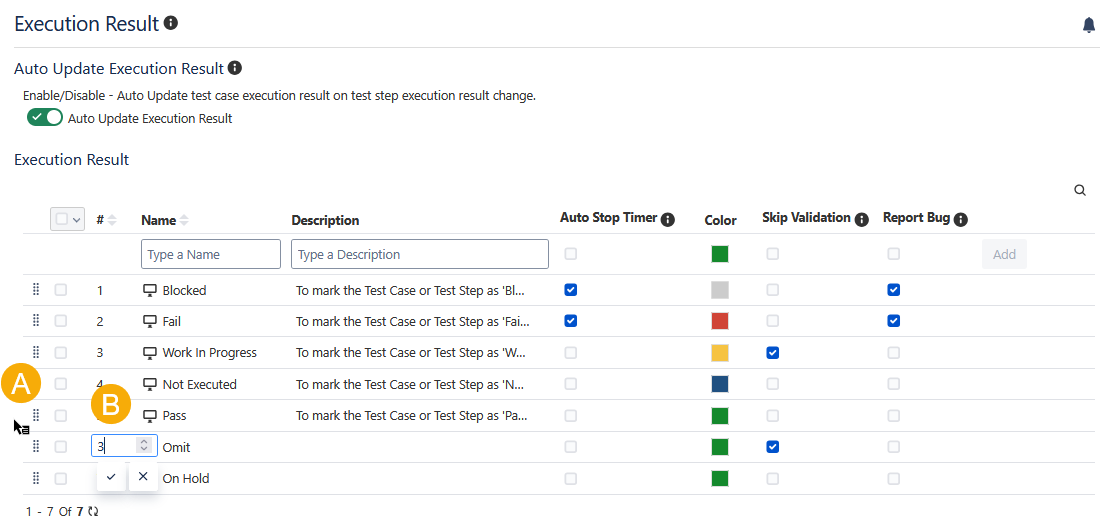
You can set the priority of the Execution Result when the Auto Update Execution Result is enabled. The sequence of the system default results represents their priority. You can add new execution results anywhere between the system results.
For example, in the following image, a new status “Omit” is added between the “Fail" and “Work In Progress” statuses. You can still arrange the statuses in sequence.
You can change the Execution Result precedence by a Drag and Drop operation or by directly changing the sequence number.
Example: Your testing process needs an execution result. Omit to exclude some test cases from execution. The QA manager can add Omit status and set the priority below Fail.
Search for an Execution Result
Perform the following steps to search for an execution result:
Navigate to QMetry, select the Configuration menu, and select the project.
Click the execution result.
Click the search icon to see the text box. Type the keyword in the text box.
The matching results are displayed on the screen.
Set Execution Result Quick Button
This preference for execution results is set at the project level.
You must have the Configuration Modify permission to customize the display of shortcut buttons for execution results on the execution screen. This feature allows users to quickly access execution results while executing test cases.
Configuration Scope: Preferences for displaying the Execution Result quick buttons are set at the project level.
Status Options: You can configure a minimum of three and a maximum of five execution statuses to be displayed on the Execution Screen.
Permissions required
Jira Permissions: Browse Project permissions are required.
QMetry Permissions : If enabled, the following permissions are required.
Configuration View
Configuration Modify
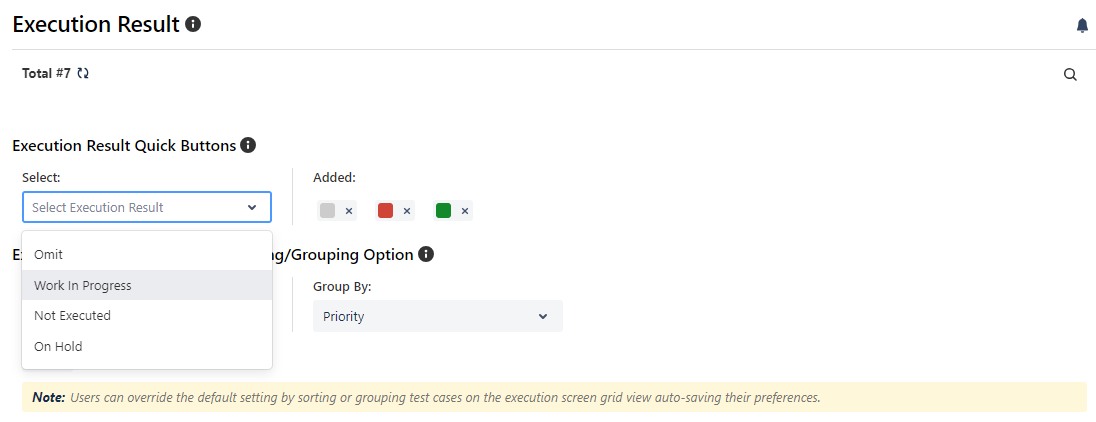
On the Execution screen, buttons for preferred execution statuses are displayed for quick access, allowing you to assign a status to test cases efficiently.
Default Sorting and Grouping of Test Cases in the Execution Screen (List and Grid Views)
The administrator can configure the default grouping and sorting options for test cases in the execution screen grid and list views. However, users can override default settings by sorting or grouping test cases on the execution screen, with their preferences being auto-saved.
Perform the following steps to configure the default sorting and grouping of test cases:
Navigate to Configuration.
Select Execution Result under Test Execution.
Click and select the options for Sort By and Group By in the Default Sorting and Grouping section.
Click Save.
The confirmation message appears informing that the configuration change will override the existing settings of all users on the execution screen.
Click Save to proceed.
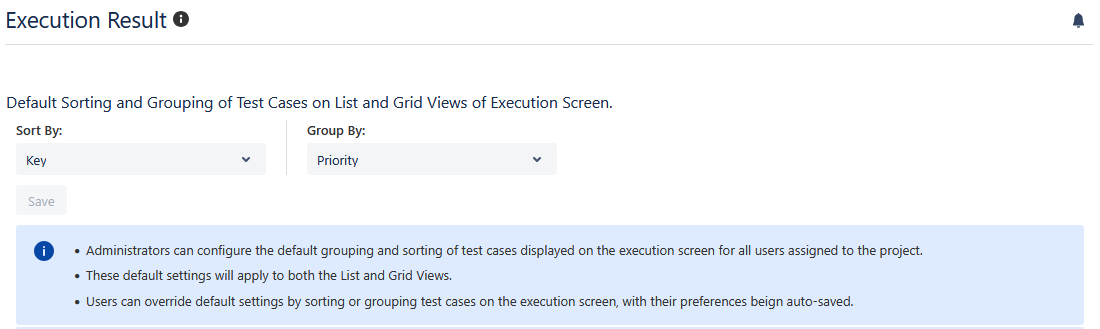
On the List View and Grid View of the execution screen, the test cases appear sorted and grouped as per the default settings configured in the Execution Result section.
Users can still override the default setting by sorting or grouping test cases on the execution screen. These preferences remain saved and available when the user visits the screen next time.
Users can override the default settings by sorting or grouping test cases on the Execution screen. These preferences are saved and applied the next time the user visits the screen.
Timer Settings
The Timer Settings allow you to set the configuration for the calculation of Actual Time on the execution screen.
Permissions required: You must have the Configuration Modify permissions to modify the Timer settings to On and Off.
Automatically start the timer when users commence the execution of the first or any step of any test case: If the setting is enabled, the timer will start automatically once the tester starts executing a step of the test case. These test cases could be any, regardless of the sequence in the test cycle. Except for the execution of the last step of the test case, which will stop the timer automatically.
Allow users to manually override the recorded time captured using the timer in the actual time field: If the setting is enabled, testers can edit the automatically recorded time and save the manually entered time in the Actual Time field.
Note
The settings are valid for manual test case executions and not for automated test case uploads.
If the timer is initiated to record the time of an ongoing execution and the browser tab gets closed during the execution, the time will not be saved automatically.
Auto Stop Timer
Note
The Auto Stop Timer settings are available only when the Auto Update Execution Result option is enabled.
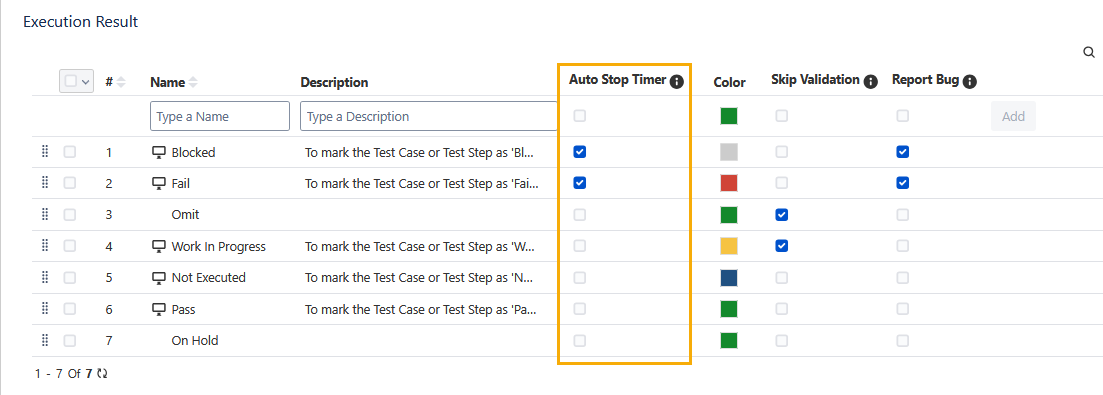
The Auto Stop Timer settings allow you to stop the timer automatically as and when the test case step execution status is changed to one of the configured or selected execution statuses. For example, if the “Blocked” and “Fail” statuses are selected in the configuration. Now, whenever the test steps execution status achieves either “Blocked” or “Fail” status, the status of the test case is auto updated with the assigned status. It assumes that the test case execution is completed, and hence, the timer gets stopped automatically.
The Auto Stop the Timer settings are applicable to both system and custom execution statuses. The “Failed” and “Blocked” statuses are selected by default; you can also select other statuses.
Permissions required: You must have the Configuration Modify permissions to modify the settings to On and Off.
When Auto Update Execution Result is enabled:
The “Failed” and “Blocked” Execution Results are selected by default for the Auto Stop Timer. When a step's status is marked as “Failed” or “Blocked” during execution, the overall test case status is automatically updated to “Failed” or “Blocked” accordingly. In this case, the timer will automatically stop. You can resume it manually, but you must stop the timer manually as well; otherwise, it will be auto-stopped and saved.
You can remove the default selection of Execution Result and select other results.
When Auto Update Execution Result is disabled:
The timer will not be affected when a step's status is marked as “Failed” or “Blocked”.
Skip Validation
The Skip Validation feature provides the option to mark test cases as skipped with a distinct execution result, for example, "Not Applicable". It ensures skipped test cases are categorized and identifiable, separate from "Not Executed" ones. Selecting the Skip Validation checkbox bypasses mandatory field checks when you update test execution results. Once you select the execution status as Skip Validation, it ignores mandatory system and custom fields for that execution status. Other execution statuses, for which the Skip Validation is not selected, appear greyed out while assigning the execution status to test cases or test steps. You can also apply the Skip Validation to custom execution results.
This feature is useful when you do not want to enter redundant values in the mandatory fields. It improves test execution efficiency by reducing the manual effort required to enter mandatory fields during test execution and enhances accuracy in test progress tracking.
Permissions required: You must have the Configuration Modify permission to modify the Skip Validation settings.
Configure Skip Validation
Perform the following steps to enable Skip Validation:
Click the QMetry menu.
Select Configuration, and then select your Project from the drop-down list.
Select Execution Result under Test Execution.
Select the Skip Validation checkbox for the execution result that you want to bypass during the execution.
The confirmation dialog appears.
Click Enable to enable the Skip Validation setting for the selected execution result.
You can enable the Skip Validation setting for multiple execution results.
If you clear the Skip Validation checkbox, the mandatory field checks will be enforced again when updating the test execution result.
Report Bug
The Report Bug setting allows the administrator to enforce mandatory bug linkage when a test case or test step is marked with specific execution results, such as "Failed" or "Blocked" - this includes both system-defined and custom statuses. If the setting is enabled, users must link existing bugs or create a new bug when updating the execution result. This feature ensures consistent defect tracking and management, enhancing visibility into test case issues throughout the testing lifecycle. It also facilitates timely and accurate defect documentation.
Required Permissions: You must have the Configuration Modify permission to modify the Report Bug settings.
Perform the following steps to enable Report Bug:
Click the QMetry menu.
Select Configuration, and then select your project from the drop-down list.
Select Execution Result under Test Execution.
Select the Report Bug checkbox for the execution result for which you want to make the bug linkage mandatory while updating the execution result.
The confirmation message appears.
Click Enable to make the bug linking mandatory for the selected execution result.
You can enable the Report Bug setting for multiple execution results.
If you disable Report Bug for the execution result, it allows you to update that execution result without linking any bugs to the test case or test step.