Storage Configuration
This document is intended only for QTM4J Server/Data Center users.
Introduction
The Storage Configuration feature allows administrators to define storage settings for the QTM4J instance. Supported options include FTP, Data Directory, and Amazon S3.
Once configured, users can attach files in the attachments section of test assets and during exploratory testing sessions. This setup provides a scalable solution that efficiently supports bulk file and image attachments.
Required Permissions:
Jira Permissions: Jira Administrator rights and Browse Project permissions are required.
QMetry Permissions: If enabled, then the Configuration View permissions are required.
Accessing the Storage Configuration
Perform the following steps to access the Storage Configuration:
Click Administration and select Manage Apps.
On the navigation bar, select Global Settings in the QTM4J section.
Select the Storage Configuration section in Global Settings.
Storage Types
There are three types of storage options:
A. Data Directory
B. FTP/SFTP Configuration
C. Amazon S3 Storage
Important
Changing the storage configuration may result in the loss of test execution attachments and exploratory testing sessions. To preserve this data, manually copy the QTM4J folder from the current storage location to the newly configured storage directory.
Data Directory
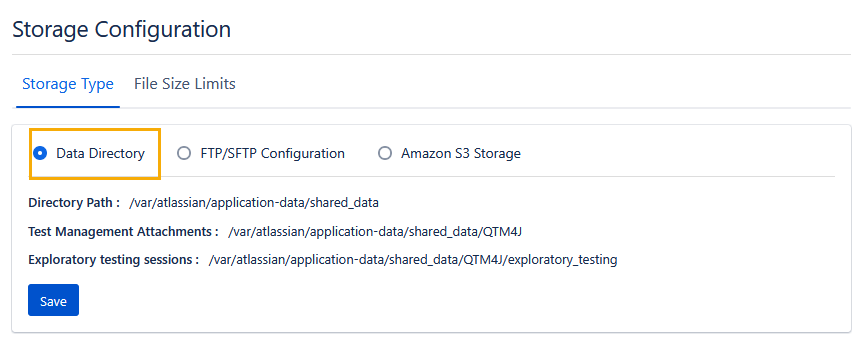
In QMetry, the Data Directory is used to store attachments from exploratory testing sessions and the Test Execution screen. The Data Directory relies on the file system of the machine where Jira is installed.
Note
Configuration for Data Directory is not allowed QTM4J version 4.4.0.1 onwards.
All attachments will be saved to the default directory path, which uses the Jira home directory as the base path. Going forward, all QMetry attachments and exploratory testing session recordings will be stored under the QTM4J directory within this path.
For existing QTM4J installations, the configured Data Directory path remains unaffected during reinstallation or upgrade.
To change the existing Data Directory path, contact QTM4J Support by submitting a ticket on the Support portal.
FTP/SFTP Configuration
FTP can be configured on the Storage Tier screen under Configuration > Attachments > Storage Tier. Once configured, uploaded files will be stored on the FTP server based on the provided settings. Users can upload and download attachments using the FTP account set up by their organization. To connect to the FTP storage, provide FTP URL, Username, and Password.
Note
Ensure that the username provided during configuration has permission to create directories on the FTP server.
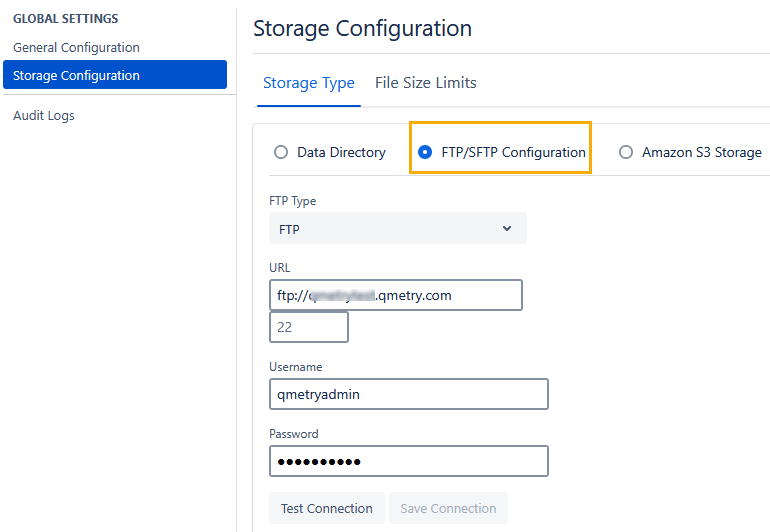
When FTP is configured for the first time, the system checks for the presence of the QTM4J folder on the FTP server. If the folder does not exist, the system automatically creates a new folder named QTM4J.
Amazon S3 Storage
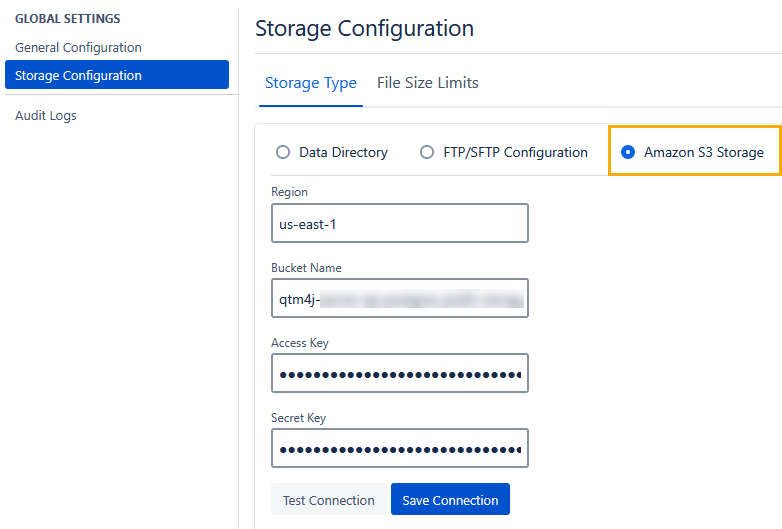
Administrators can configure Amazon S3 Storage from the storage configuration settings by entering or updating the required S3 details.
Once configured, all new attachments are stored in the specified S3 bucket. Attachments can be downloaded securely using a secure URL. When an attachment is deleted in QTM4J, it is also removed from the corresponding S3 storage.
Required Permission: Only Administrators can configure Amazon S3 settings, ensuring security and restricted access.
Pre-requisite: The AWS credentials must have permissions to read, write, and delete objects in the S3 bucket.
Note
If you are switching the storage configuration from Data Directory or FTP to Amazon S3 Storage, ensure that you manually copy the existing QTM4J folder from your current storage location to the root of the S3 bucket to prevent any loss of attachments.
Configuring Amazon S3 for Attachment Storage
Perform the following steps to configure Amazon S3 Storage:
Select the Amazon S3 Storage option.
Enter the details like Region, Bucket Name, Access Key, and Secret Key.
Click Test Connection to verify the connection.
Click Save Connection once the connection is successful.
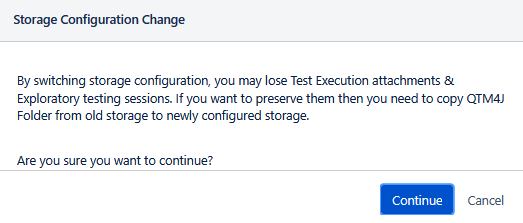
The confirmation dialog appears. Read carefully the instructions about copying the QTM4J Folder from the old storage to the newly configured storage.
Click Continue to proceed.
The storage configuration setting is saved.
File Size Limits
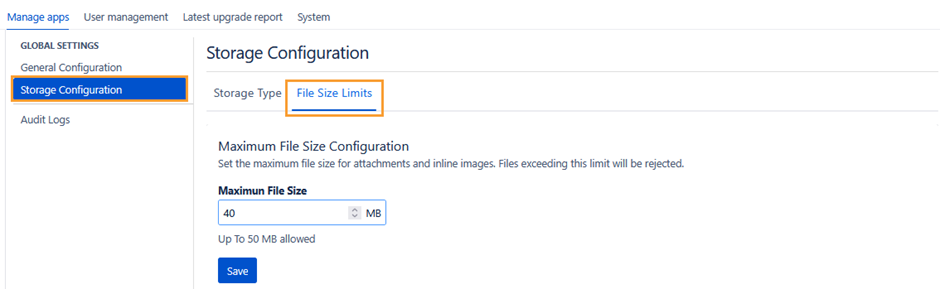
By default, the maximum allowed file size for attachments is 50 MB. A Jira administrator can configure this limit for both attachments and in-line images. Files that exceed the configured limit are rejected.
This is an instance-level setting and applies to all projects across the Jira instance. The Attachments section in Test Case, Test Cycle, Test Plan, and Test Execution displays the applicable file size limit based on this configuration.
Audit Logs
Go to Global Settings, and select Audit Logs to view the audit logs.
Switching between Storage Options
Note
Before switching the storage option, copy the QTM4J folder from the old storage to the newly configured storage. Failure to do so may result in the loss of previously stored attachments for test assets and exploratory testing sessions.
If you are switching your storage option, the confirmation dialog box appears asking you to copy the QTM4J Folder to the newly configured storage.
Click Continue to proceed.
Probable Errors
Errors | Causes |
|---|---|
Either the directory specified does not exist or you don't have read/write permission. | The user does not have the required permission of the Data Directory. |
Unable to establish an FTP connection. | Either URL/Username/Password/Port is not proper or FTP server is not reachable. |
You don't have read/write access to the root directory in FTP. Please provide read/write access to the root directory for using the Exploratory Testing functionality. | The user does not have write permissions on FTP/SFTP root folder. |