Email Notification
The project administrator can enable or disable email notifications at the project level and configure them to trigger upon specific events. They can also turn off the notifications whenever needed.
Note
Required Permission:
If a Group(s) is not configured for QTM4J Project Settings under QTM4J > Global Settings, all groups/users having the "Project Administer" and "Browse Project" permissions will be able to access the QTM4J Project Settings by default. They can configure Email Notification.
If a Group(s) is configured for QTM4J Project Settings under QTM4J > Global Settings, users under the selected Groups AND with "Project Administer" and "Browse Project" Permissions will be able to access the QTM4J Project Settings and configure Email Notification.
An email notification will be triggered when -
The user assigns an Assignee while creating or editing a test case or test cycle.
The user assigns an Execution Assignee to execute the test case.
When the user updates the status of a test case or test cycle, the system sends an email notification to the Assignee and Reporter.
When the user updates the status of a test plan, the system sends an email notification to the Reporter.
When the user changes the execution result, the system sends an email notification to the Execution Assignee.
When the user assigns test assets in bulk or changes their statuses in bulk, the system sends a consolidated email notification.
The system sends email notifications only when the Assignee, Execution Assignee, or Reporter is someone other than the logged-in user.
The system does not send email notifications when the logged-in user assigns tasks to themselves or updates the status of their own assignments.
Note
The email notification feature does not apply to the following functionalities:
Automation API
Import test cases
Export to other projects
Configuring Email Notification Action
Perform the following steps to configure the Email Notification:
Click the Projects drop-down list on the main menu, and then select the project to which you want to apply the Email Notification settings.
Select Project Settings on the navigation bar.
Select QTM4J Settings on the Project Settings screen.
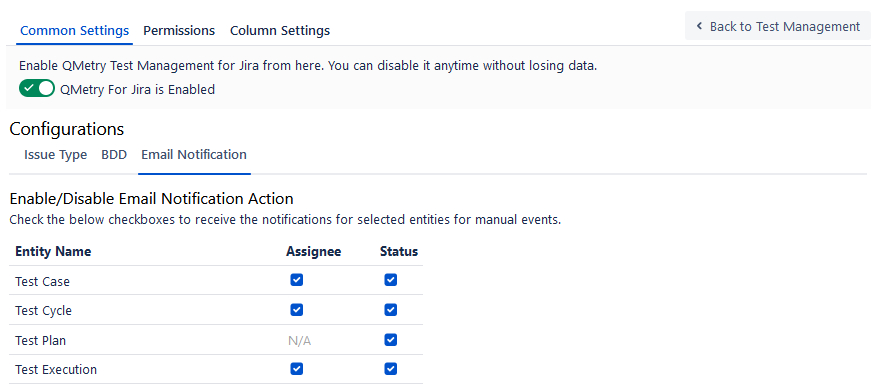
On the Common Settings tab, select the Email Notification tab.
Select the check boxes to enable the email notification for that event, like on assignment and on status change.
Re-index Users
QMetry does not receive any updates on user activation or deactivation in Jira. To sync the users in QMetry with that in Jira you can use the Re-index Configuration. Once the re-index is completed, the deactivated users will not receive an email for Assignee or Status change.
Perform the following steps to re-index users:
Go to QMetry and select Configuration.
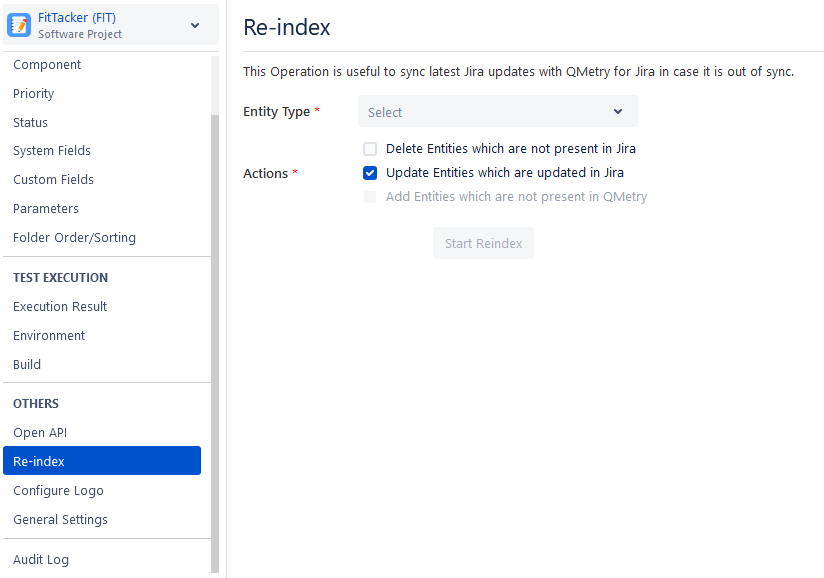
Select the Re-index section on the navigation bar.
Select User as the Entity Type.
Click the Start Reindex button to start the process.