Column Settings
Jira users possessing 'Administer Project' and 'Browse Projects' permissions for the project can configure the Column Settings.
QTM4J provides the ability to make the columns default for the views at the project level so that all the users working on that particular project get the default customized view. For example, the project administrator wants the Priority, Created On, and Reporter columns to remain visible by default for all users in the project.
The Configuration helps set preferences to allow or disallow users to hide/show the default columns from respective screens. Users will be able to hide/show the default columns on respective screens accordingly.
Perform the following steps for configuring column settings:
Go to Project Settings, select QTM4J Settings, and select the Column Settings tab.
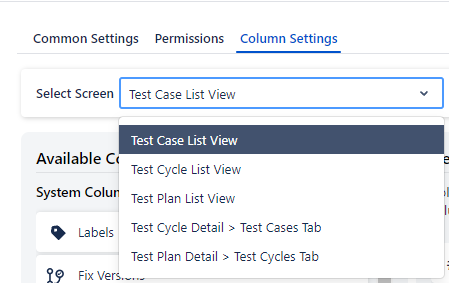
Click the Select Screen list and select one from the following screens:
Test Case List View
Test Cycle List View
Test Plan List View
Test Cycle Detail > Test Cases Tab
Test Plan Detail > Test Cycles Tab
Select the screen on which you want to configure the Column Settings.
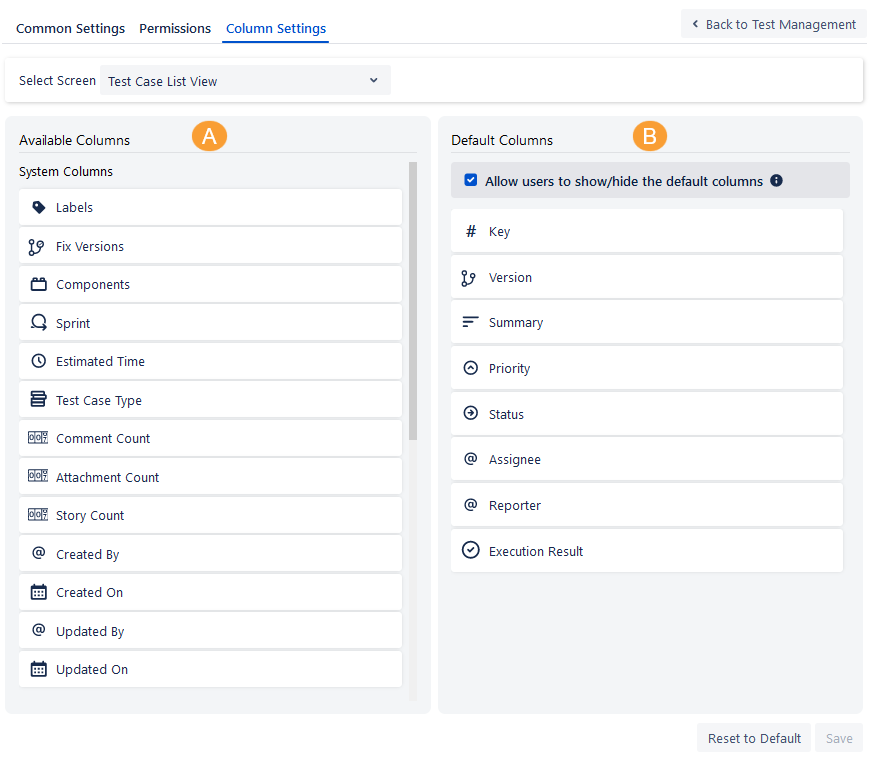
The columns list populates below in accordance with the screen selection.
A. Available Columns: This section displays all the columns that are available to use for the selected Screen. It includes two sub-sections of System Columns and Custom Columns.
B. Default Columns: These columns are the Default columns for the selected Screen. On the Default Columns panel, you can also arrange column orders that you want to display on the selected Screen. Click Save if you are changing the settings.
Set preference to allow or disallow users to hide/show the default columns from respective screens.
If the Allow users to show/hide default columns is selected, users will be able to hide/show the default columns set by the Admin from the Rearrange column option on individual screens.
If the Allow users to show/hide default columns is unselected, users will not be able to hide/show the default columns set by the Admin from the Rearrange column option on individual screens.
Add a column to Default Columns
Perform the following steps to add a default column:
Drag the column from the Available Columns list to the Default Columns list and drop it at the location where you want to place it on the screen.
On the Default Columns panel, you can also arrange column orders that you want to display on the selected Screen.
Click Save to save the changes.
Remove a Default Column
You can remove a column from the Default Column list in a similar manner.
Perform the following steps to remove a default column:
Drag the column from the Default Columns panel and drop it into the Available Column panel.
Click Save to save the changes.
The confirmation message appears.
Click Save again to proceed.
Reset to Default
Reset the Column Settings to default, which will remove the shuffling of columns between the Available and Default Column panels and the ordering of the columns on the Default Column panel.
Click the Reset to Default button. The confirmation message appears.
Click Reset to proceed.
The list view on the screen displays columns according to the Column Settings set under Column Settings.
In the Column Settings, set the preference to allow or disallow users to hide/show the default columns from respective screens.
If the Allow users to show/hide default columns checkbox is not selected, users will not be able to hide/show the default columns set by the Admin from the Rearrange column option on individual screens.
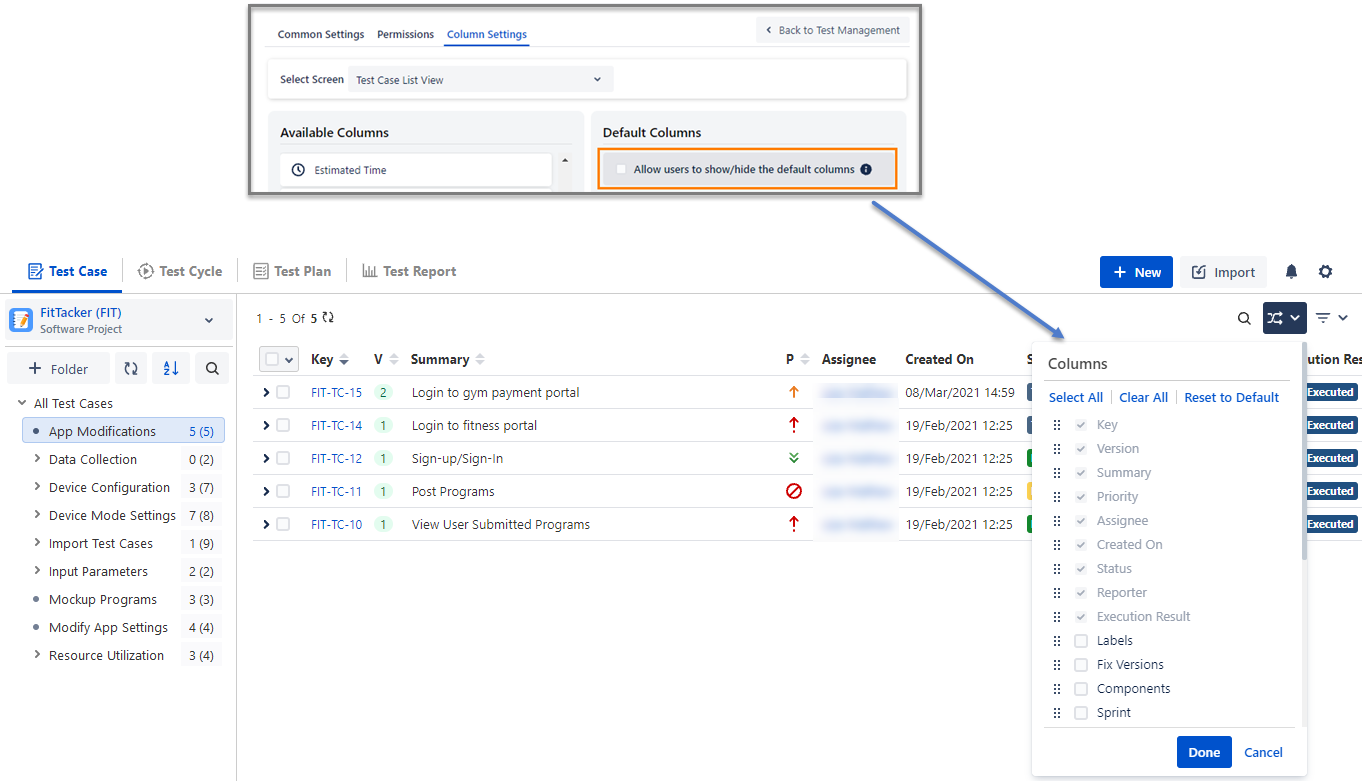
If the Allow users to show/hide default columns checkbox is selected, users will be able to hide/show the default columns set by Admin from the Rearrange column option on individual screens.