Archive Test Plans
Archive the test plans before they delete them. This feature prevents accidental deletion of test plans and, hence, test plans can be deleted only after archiving them. If a test plan is accidentally deleted or corrupted, having an archived copy ensures that you can recover the information without significant impact.
The test plans that are not in use currently can be archived to stop them from appearing on the active test plan list. The archiving process moves the unwanted test plans without deleting them permanently. Archived test plans can be unarchived at any time to move them back to the active test plan list. If not required anymore, the archived test plans can also be deleted.
Impact of archiving test plans:
Once a test plan is archived, you cannot modify its details, link or unlink test cycles, or add or remove comments and attachments to it.
The linked test cycles will not be deleted.
The folder associations will be preserved unless the folder is deleted.
Test Report Configuration: On the Test Report configuration screen, the Archived Test Plans filter is provided. If you want to include the archived test plans in the report, then select the filter.
Note
Required Permissions: You should have the Test Plan Edit and Archive permissions to archive test plans.
You can archive individual test plans and multiple test plans.
Archive a Single Test Plan
You can archive a single test plan from the list view of the Test Plan module and from the Test Plan detail page.
Archive a Test Plan from List View
Perform the following steps to archive a test plan from list view:
Click the Archive icon for the test plan that you want to archive.
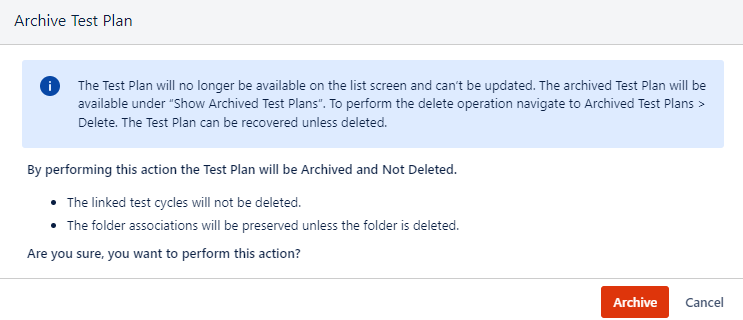
The confirmation pop-up opens.
Click the Archive button to proceed.
Archive a Test Plan from Test Plan Detail Page
Perform the following steps to archive a test plan from the test plan detail page:
Go to the test plan detail page and click the Archive button.
The confirmation dialog appears.
Click the Archive button to proceed.
Archive Bulk Test Plans
You can archive multiple test plans in bulk at a time.
Note
You can archive up to 50 test plans at once.
Perform the following steps to archive multiple test plans at a time:
On the folder tree at the left, select the source folder wherein the test plans lie.
Select the test plans that you want to archive.
Selection of Multiple entities at a time: To select entities within a range on the current page, select the first entity’s check box and then select the last entity’s check box and simultaneously hold the SHIFT key of the keyboard. All the entities between these two entities will get auto-selected.
Select All:
Select all records on the current page: Clicking on the check box in the column header selects all the records on the current page only. An alternate way is to open the check box drop-down and select the Current Page option.
Select all records across all pages: Open the check box drop-down and select the Across All Pages option.
Once you select the test plans that you want to archive, the options for bulk operation become visible on the screen.
Click the Archive button.
The Archive Test Plans screen opens.
Click the Archive button to archive the selected test plans.
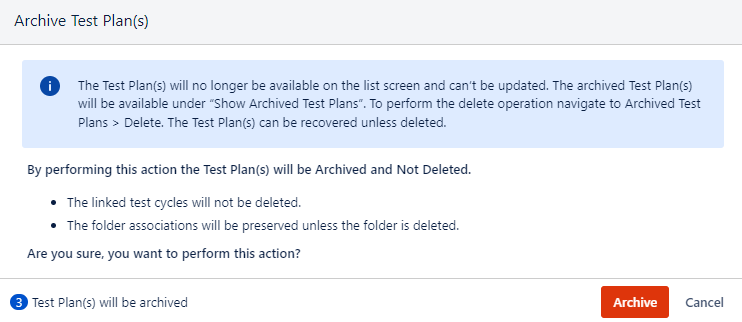
You can verify the Notification section to view the background process of archiving.
The Notifications section shows the status of the archive.
View Archived Test Plans
To view only archived test plans on the list, open the More icon above the folder tree and click the Show Archived Test Plans option.
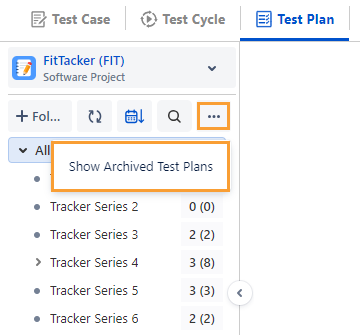
The screen displays all the archived test plans.
You can hide/show/re-arrange columns and apply filters on the columns.
Note:
Note
A maximum of ten filters, including system as well and custom fields, can be selected at a time.
You can either unarchive or delete the archived test plans.
Unarchive Test Plans
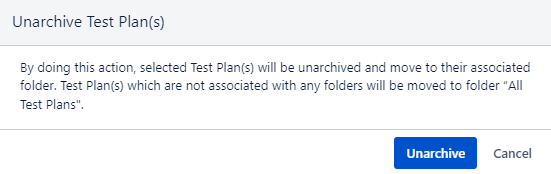
When you unarchive a test plan, it will turn active. The folder association of the test plan is preserved when it is archived. Hence, when you unarchive a test plan, it will move to its respective folder.
You can archive a single test plan or multiple test plans in bulk.
Unarchive a Single Test Plan
To unarchive a test plan from List View, hover over the archived test plan and click the Unarchive icon for the test plan.
To unarchive a test plan from the Detail page, navigate to the archived test plan detail page and click the Unarchive button.
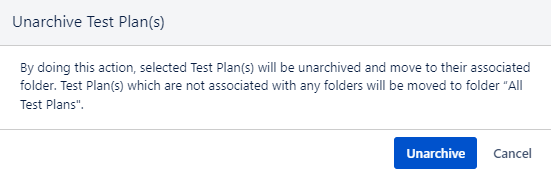
The confirmation message appears to unarchive the test plan.
Click Unarchive to proceed.
Unarchive Bulk Test Plans
Select archived test plans that you want to unarchive and click the Unarchive button.

The confirmation message appears.
Click Unarchive to proceed.
Delete Test Plans
Refer to Delete Test Plans for more details.